Table of Contents >> Show >> Hide
- First, a 30-Second Reality Check: Archive vs. Delete vs. Delete for Everyone
- Before You Delete: Do This So You Don’t Regret It Later
- Easy Way #1: Delete Archived Messages in the Messenger App (iPhone & Android)
- Easy Way #2: Delete Archived Messages on Desktop (Messenger.com or Facebook Messages)
- What Deleting Archived Messages Actually Does (and Doesn’t) Do
- Troubleshooting: When the Archive Folder Plays Hard to Get
- FAQ: Quick Answers About Deleting Archived Messages on Messenger
- Real-Life Experiences: of “Yep, I’ve Been There” Messenger Cleanup Lessons
- Conclusion
You archived a chat in Facebook Messenger months ago, felt proud of your tidy inbox… and now you want it gone.
Not “out of sight,” not “I’ll deal with it later,” but deleted. The only problem? Messenger loves to hide
archived chats like they’re playing professional-level hide-and-seek.
The good news: deleting archived messages is not complicated. The slightly annoying news: you usually have to
find the archived chat first, because you can’t delete what you can’t see.
In this guide, you’ll get two easy ways to delete archived messages on Messengerone on your phone (iPhone/Android),
and one on your computer (Messenger.com/Facebook Messages). Along the way, we’ll clear up the big confusion that trips people up:
archive vs. delete vs. “delete for everyone.”
First, a 30-Second Reality Check: Archive vs. Delete vs. Delete for Everyone
Archive (a.k.a. “Hide this chat from my main list”)
Archiving a conversation removes it from your main Chats list, but it isn’t erased. It’s still there, still searchable,
and it can pop right back into your inbox if someone messages you again. Think of Archive as shoving clutter into a closet:
it looks clean… until you open the closet door.
Delete a chat (a.k.a. “Remove it from my account”)
Deleting a conversation removes it from your Messenger. That does not automatically delete it from the other person’s inbox.
If you’re hoping for a movie-style “the entire conversation disappears from the internet forever” moment, Messenger is not that kind of dramatic.
Delete for everyone (formerly “Unsend” / “Remove for Everyone”)
This applies to individual messages, not entire chats. When available, it removes a message from both sides,
and Messenger typically leaves a placeholder note indicating a message was removed. Depending on the situation, you may only see this option
within a time window or in certain chat typesso if you don’t see it, it’s not you, it’s Messenger being Messenger.
Before You Delete: Do This So You Don’t Regret It Later
Deleting is usually permanent from your side. So before you hit “Delete,” run this quick checklist:
- Search the chat first to confirm it’s really the one you mean (similar names are a menace).
- Save anything important (addresses, receipts, confirmations, sentimental photos, the one meme that still makes you laugh).
- Screenshot key details if you may need them later (especially business chats).
- Consider downloading your Facebook data if you’re doing a major cleanout and want a backup of messages.
Now, let’s delete those archived messages the easy waytwice.
Easy Way #1: Delete Archived Messages in the Messenger App (iPhone & Android)
If you’re holding your phone right now, congratulationsyou’re on the fastest path. The main trick is locating the
Archived Chats folder first, then deleting the conversation from there.
Step-by-step: Find your archived chats
- Open the Messenger app.
- Tap your Menu (often your profile picture or the three-line menu icon).
- Tap Archive or Archived Chats (wording varies by version).
- Scroll to find the conversation you want to delete.
Step-by-step: Delete an archived conversation
Once you’re looking at the archived chat list, use whichever gesture your phone supports:
- Option A (common on Android): Tap and hold the conversation → tap Delete → confirm.
- Option B (common on iPhone): Swipe left on the conversation → tap More or Trash/Delete → confirm.
What if you only want to delete a few messages (not the whole chat)?
Sometimes you don’t need to burn the whole library downyou just want to remove one awkward paragraph where you accidentally typed
“Love you” to your dentist. (We’ve all been there. Well… some of us.)
- Open the conversation.
- Press and hold the message you want to remove.
- Tap More (if needed), then Remove or Delete.
- Choose Delete for you (removes it only on your side) or Delete for everyone (if available).
Tip: If “Delete for everyone” isn’t showing up, the message may be too old, the chat may be in a mode that restricts it,
or your Messenger version may label the option differently (some screens still say “Remove” or “Unsend”).
Common gotchas on mobile (so you don’t think your phone is haunted)
-
The chat disappears… then comes back. If the other person messages you again (or you message them),
the conversation can reappear in your main Chats listbecause it’s new activity, not a resurrection ritual. -
You deleted it, but they still have it. That’s normal. Deleting a chat typically removes it from your account,
not from the other participant’s inbox. -
You can’t find “Archived Chats.” Some versions hide it under Menu, Settings, or a search/filter view.
If all else fails, use the search bar and type the person’s namearchived conversations often appear in search results.
Easy Way #2: Delete Archived Messages on Desktop (Messenger.com or Facebook Messages)
Prefer a bigger screen (and the power of a mouse)? Desktop is great for cleaning up old chatsespecially now that many people
rely on Messenger.com or the Facebook web interface for messaging on computers.
Step-by-step: Find Archived Chats on Messenger.com
- Go to Messenger.com in a browser and sign in.
- Look for the menu/three-dots options in the left chat column.
- Select Archived Chats (or a similar “Archive” view).
- Click the archived conversation you want to delete (or hover over it in the list if your interface supports hover actions).
Step-by-step: Delete an archived conversation on desktop
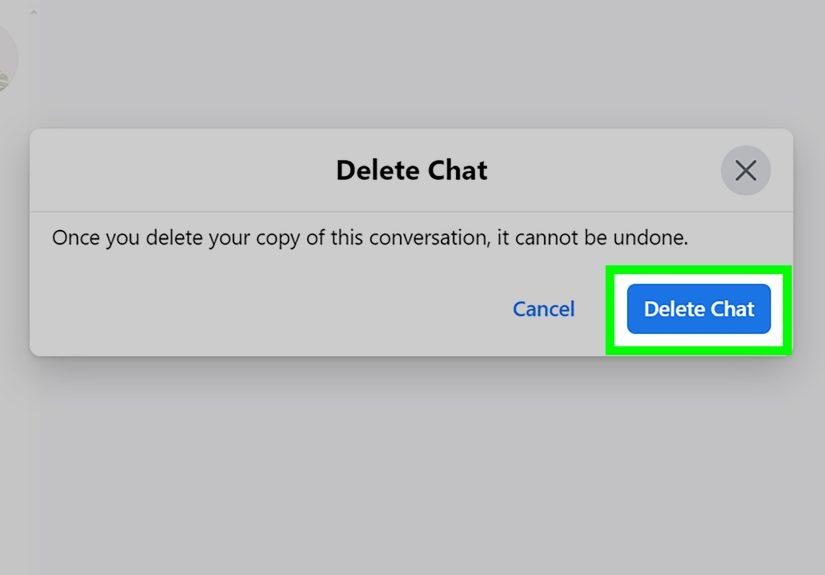
- Hover method: Hover over the conversation → click the three dots → choose Delete → confirm.
- Open-chat method: Open the conversation → click conversation settings/details → choose Delete chat (label varies) → confirm.
Deleting individual messages on desktop
On the web version, removing a single message usually works like this:
- Open the conversation.
- Hover over the message you want to remove.
- Click More (often three dots or a small menu icon).
- Select Remove/Delete, then choose Delete for you or Delete for everyone (if available).
Why desktop steps matter more in late 2025
If you used to rely on the standalone Messenger desktop app, you’re not imagining things: Meta has been moving people toward using
Messenger via the web experience. That makes knowing the browser steps extra useful when you’re doing inbox housekeeping.
What Deleting Archived Messages Actually Does (and Doesn’t) Do
Here’s the plain-English breakdown people wish apps would just say upfront:
- Deleting a chat removes it from your chat list (including your archived folder).
- It usually does not delete it for the other person. They can still see their copy.
- Deleting individual messages “for you” is basically “hide this on my side.”
-
Deleting “for everyone” is closer to a true undobut it’s message-by-message, may be limited by time or context,
and often leaves a “message removed” placeholder.
If your goal is “remove every trace from everyone,” Messenger doesn’t offer a single magic button for entire conversations.
The closest approach is deleting your conversation and (when possible) removing specific messages for everyoneone at a time.
Troubleshooting: When the Archive Folder Plays Hard to Get
“I can’t find Archived Chats anywhere.”
Try these quick fixes:
- Use search: In Messenger, search the person’s name. Archived chats often appear in search results.
- Update Messenger: Menu labels and locations change. An update can make options reappear.
- Check filters: Some versions have filters like “Unread,” “Communities,” or “Requests.” Archived may be tucked behind a menu.
“There’s no Delete for Everyone option.”
That can happen if the message is too old, the chat type doesn’t allow it, the platform you’re on labels it differently,
or your Messenger version hasn’t rolled out the same wording. If you only see “Delete for you,” that’s your available option for that message.
“I deleted the chat, but I still see it somewhere.”
Check these places:
- Message Requests (especially if the chat wasn’t from a friend).
- Linked accounts (some users have cross-app messaging settings that make conversations appear in multiple places).
- Search results cache (sometimes search shows a result briefly until the app refreshes).
FAQ: Quick Answers About Deleting Archived Messages on Messenger
Can I delete all archived messages at once?
Messenger doesn’t reliably offer a universal “delete everything in Archive” button across all devices. Some versions let you delete multiple chats,
but most people end up deleting conversations one-by-one. If you’re doing a big cleanup, set a timer, make it a game, and reward yourself afterward.
Does deleting an archived chat delete it for the other person?
Typically, no. Deleting a chat removes it from your view. The other person usually keeps their copy unless a specific message is deleted “for everyone”
(and even then, it’s message-by-message).
If I delete the chat, can I get it back?
Usually not from within Messenger. If you think you might need it later, consider saving important info first or downloading your Facebook data before deleting.
Why do archived chats reappear?
Because archives aren’t a vaultthey’re more like a “not right now” drawer. New messages can push the conversation back into your main Chats list.
Real-Life Experiences: of “Yep, I’ve Been There” Messenger Cleanup Lessons
The first time I tried to delete archived messages on Messenger, I assumed it would be like cleaning out a junk drawer:
open it, toss stuff, close it, feel accomplished. Instead, it was more like cleaning out a junk drawer that keeps
teleporting items back in when you’re not looking.
My “aha” moment was realizing that Archive is not Delete. Archive is basically Messenger’s version of
saying, “Let’s pretend this conversation is gone so you can enjoy a peaceful scroll through your inbox.” It’s great
for decluttering, but it’s also the reason people panic later. You go looking for a chat, it’s missing, and your brain
jumps straight to: “Did it delete itself? Did I delete it? Did Messenger develop free will?”
Here’s what helped me most: I stopped hunting in the main chat list and started using search.
Seriouslysearch is the flashlight in the messy closet. I typed the person’s name, and the archived conversation popped up
like, “Oh hey, I’ve been here the whole time.” Once I found it, deleting was easy: long press, delete, confirm, done.
The stress was mostly from not knowing where Messenger hides the archive option on that particular version of the app.
The second lesson was emotional (and slightly comedic): there are two kinds of “delete” moments. The first is practical:
clearing old business chats, removing expired marketplace conversations, getting rid of spam threads that somehow feel like
they’re multiplying. The second is the “why did I say that?” momentlike a message you wish you could scoop back into your phone
and launch into space.
For those awkward-message moments, I learned to check whether “delete for everyone” was availablebecause that’s the closest
Messenger gets to a rewind button. But I also learned the hard truth: even if you delete a message, the other person might have
seen it already, and screenshots exist. That sounds dramatic, but it’s actually freeing. It pushes you toward a healthier mindset:
delete what you can, but don’t spiral.
The biggest practical win? Making a tiny routine out of it. Once a month, I take five minutes to delete old archived chats I no longer need.
Not everything deserves to live forever in the digital basement. If a conversation is done, it’s done. And if I’m unsure, I archive first,
then delete later after I’m confident there’s nothing important inside.
So if Messenger feels confusing, you’re not alone. The tools workyou just have to know where they’re hiding. And once you do,
deleting archived messages becomes one of those oddly satisfying mini-life upgrades… like finally throwing out a box of random cables
you’ve carried through three moves for absolutely no reason.
Conclusion
Deleting archived messages on Messenger comes down to two simple moves: (1) delete from the Archived Chats folder on mobile,
or (2) delete from Archived Chats on Messenger.com/Facebook Messages on desktop. The rest is just navigating Messenger’s
ever-changing menus and remembering the key rule: archived doesn’t mean deleted.
If you’re cleaning up for peace of mind, start with archiving and deleting old threads. If you’re cleaning up to fix a single message mistake,
look for the message removal optionsjust keep expectations realistic about what gets removed on the other person’s side.
Your inbox should serve younot haunt you. Go forth and declutter.