Table of Contents >> Show >> Hide
- Why Knowing Your Exact Apple Watch Model Actually Matters
- Method 1: Check “About” in Settings (Fastest, Cleanest, Least Squinty)
- Method 2: Read the Engraving on the Back (The “Flip It Over” Classic)
- Method 3: Use the A-Number to Match the Exact Series (The “No Doubt” Verification)
- Quick “Don’t Get Tricked” Checklist (Especially for Used Purchases)
- Common Gotchas (Because the Internet Is a Magical Place)
- Putting It All Together: The 10-Second Identification Flow
- Real-World Experiences: 7 Situations Where Identifying Your Apple Watch Saves the Day
- 1) The Used-Market “Trust Me, Bro” Listing
- 2) The Band That “Should Fit” (But Doesn’t)
- 3) The “Do I Have Cellular?” Mystery
- 4) The Repair Shop Question That Makes You Freeze
- 5) The Upgrade Decision That’s Basically a Spreadsheet
- 6) The “Which Charger Stand Should I Buy?” Moment
- 7) The “Is This Watch Supported?” Anxiety
- Conclusion: Identify It Once, Benefit Forever
Your Apple Watch isn’t just “an Apple Watch.” It’s a very specific Apple Watchlike a very specific kind of coffee order.
(Is it a cold brew? A latte? A “please don’t ask” triple-shot situation?) Knowing the exact series and
model matters for everything from buying the right band to selling it, trading it in, getting service, or
troubleshooting features like cellular, sensors, and watchOS compatibility.
The good news: you don’t need a magnifying glass, a detective hat, or a dramatic soundtrack. You can identify your Apple Watch
in minutes using one (or all) of these three simple methods.
Why Knowing Your Exact Apple Watch Model Actually Matters
If you’ve ever typed “Apple Watch charger” into a search bar and immediately regretted it, you already understand the problem.
Apple Watch generations differ in case sizes, materials, features (ECG,
blood oxygen availability in the U.S. on some generations, temperature sensing, Ultra ruggedness, etc.), and what watchOS
versions they can run.
- Buying bands: Case size groups can be compatible, but not always intuitive.
- Buying accessories: Some cases sit differently in chargers/stands, especially Ultra vs. standard watches.
- Repairing or replacing parts: Screen/battery kits are model-specific.
- Resale or trade-in: “Series 6-ish?” doesn’t inspire buyer confidence.
- Carrier setup: GPS vs. GPS + Cellular can change your entire plan (and your patience).
Let’s get you from “I think it’s… the one with the screen” to “This is an Apple Watch Series X, 45mm, GPS + Cellular, model A####.”
(And yes, that level of specificity is strangely satisfying.)
Method 1: Check “About” in Settings (Fastest, Cleanest, Least Squinty)
If your watch turns on, this method is the fastest route to the truth. You’ll find the key identifiersmodel number, serial,
and sometimes additional model detailsright inside the device.
Option A: On the Apple Watch (No iPhone Required)
- Open the Settings app on your Apple Watch.
- Tap General.
- Tap About.
- Scroll until you see Model, Serial Number, and (if applicable) IMEI.
Pro tip: Depending on your watchOS version, the Model field may show a part number first (often
starting with a letter like “M”), and you may be able to tap it to reveal the
model number that begins with “A” + four digits. That “A-number” is the golden ticket for
matching your watch to the exact series and configuration.
Option B: In the iPhone Watch App (Best When You Want the Full Details)
- On your iPhone, open the Watch app.
- Tap the My Watch tab.
- Go to General > About.
- Find Model Number.
-
If you see a value that looks like a part number (often starting with M), tap it once
to switch to the five-character model number that begins with A.
Once you have the A-number, you can confirm the exact series/model by comparing it to Apple’s official identification list
(more on that in Method 3). If your watch is paired, this is usually the most convenient “tell me everything” screen.
What You’ll Learn From Method 1
- Model number (A####): Best for identifying the exact generation and configuration family.
- Serial number: Helpful for support, warranty checks, and service.
- IMEI: Only on GPS + Cellular models; a dead giveaway for cellular capability.
Method 2: Read the Engraving on the Back (The “Flip It Over” Classic)
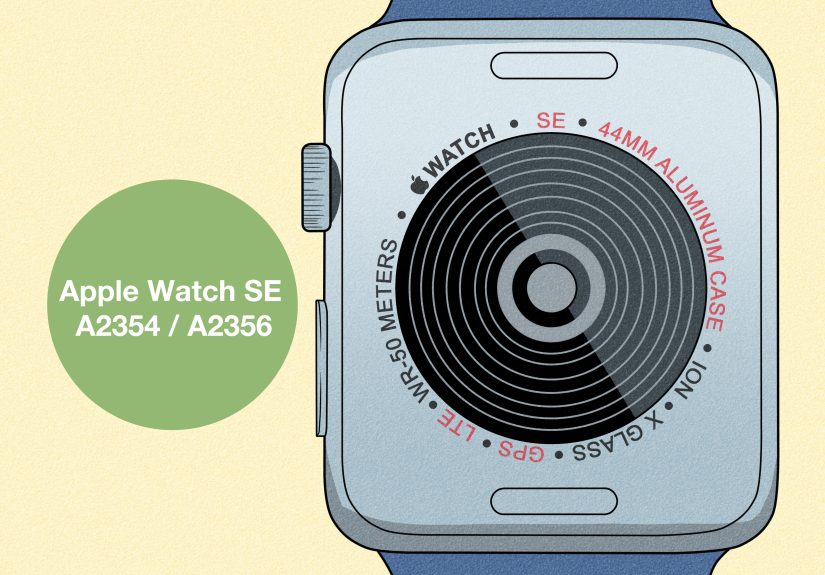
No passcode. No pairing. No iPhone. Just you and the tiny ring of text on the back of the watch case doing its best to be helpful.
Most Apple Watches include key details on the back, typically around the sensor area.
How to Do It
- Take the watch off your wrist (optional, but strongly recommended for dignity).
- Flip it over and look at the back crystal/sensor ring.
-
Read the engraving for clues like:
Series name, case size, material, and whether it’s
GPS or GPS + Cellular.
What the Back Engraving Commonly Tells You
- Series (often): Many models literally say “Series X.”
- Case size: Examples include 38mm/40mm/41mm/42mm/44mm/45mm/46mm and Ultra’s 49mm.
- Material hints: Aluminum, stainless steel, titanium, ceramic back, etc. (varies by generation).
- Connectivity: Some engravings indicate GPS vs. GPS + Cellular.
Heads-up for older watches: Some early generations don’t clearly spell out “Series 1” or “Series 2” on the back.
You might see wording like “7000 Series” (a material/finish reference) or a more generic label. If the engraving feels vague,
that’s your cue to rely on the A-number from Method 1 or Method 3.
Bonus Visual Clue: The Digital Crown Ring
If you see a colored ring (often red or orange) around the Digital Crown, that’s commonly associated with
cellular-capable Apple Watch models (though Apple has varied the look over the years). It’s not the only proof,
but it’s a quick clue when you’re scanning a watch in a hurrylike at a meetup where someone says, “It’s basically new,”
which historically means “It has been on three adventures and a dog has licked it.”
Method 3: Use the A-Number to Match the Exact Series (The “No Doubt” Verification)
This is the method that settles debates. The model number that starts with A
(example format: A####) is designed for identification. Apple publishes a continuously updated reference list
that maps those A-numbers to Apple Watch families, including standard Series models, SE, Ultra, and special editions.
Step-by-Step
- Get your A-number using Method 1 (Watch app/About) or Method 2 (back engraving).
-
Compare it to Apple’s official identification list (or a reputable reference that mirrors it).
Apple’s list is particularly useful because it accounts for regional model variations. -
Confirm the full identity: Series (or SE/Ultra), case size, and
GPS vs. GPS + Cellular.
Part Number vs. Model Number (The Most Common Confusion)
When you first open the About screen in the Watch app, you may see what looks like a model identifier starting with
M (for example format: MxxxxLL/A). That’s typically a part number, which is
more about the configuration (region, finish, bundle, etc.). When you tap the field and it flips to an
A-number, that A-number is what you want for identifying the watch generation/model family.
Example scenario: You’re buying a used watch online and the seller posts a screenshot that starts with “M.”
Ask them to tap the model field until it shows the A#### number. That single tap can be the difference between
“Great deal!” and “Why does my ‘Series 9’ have a display that looks like it’s from 2017?”
Use Apple’s Compare/Specs Pages to Cross-Check Features
Once you know the series (like Series 8 vs. Series 9 vs. Series 10/11), you can confirm feature differences by checking
Apple’s comparison/spec pages (display size, durability ratings, battery claims, sensors, and watchOS support notes).
This is especially useful when two watches look nearly identical on the outside.
Quick “Don’t Get Tricked” Checklist (Especially for Used Purchases)
If you’re identifying your watch because you’re about to buy, sell, or trade it, here’s a quick sanity check:
- Always request the A-number. It’s the most reliable match key.
- Confirm case size. Size impacts band fit and comfortand can reveal mismatched listings.
- Confirm GPS vs. GPS + Cellular. IMEI presence is a strong indicator of cellular capability.
- Check for Activation Lock. If the watch is still tied to someone else’s Apple ID, walk away.
- Look for model-family tells. Ultra models are 49mm and visually rugged; SE models omit some flagship sensors.
Common Gotchas (Because the Internet Is a Magical Place)
“It’s 44mm, so it must be Series 6.”
Not necessarily. Multiple generations share the same case sizes. Size helps narrow it down, but it doesn’t identify the series
on its own.
“The back says ‘Apple Watch’that’s all.”
That can happen on older models or certain configurations. In that case, the A-number is your best friend.
If the watch powers on, use the About screen. If it doesn’t, look carefully at the engraving for any A-number.
“My model number starts with M, not A.”
You’re likely looking at the part number. Tap the Model field in the Watch app’s About screen until it displays the A-number.
Putting It All Together: The 10-Second Identification Flow
- If it turns on: Settings > General > About (or iPhone Watch app > General > About).
- Get the A-number: Tap the Model field if needed.
- Confirm with Apple’s identification list: Match A-number to series/model, then verify case size and cellular.
- Optional: Flip it over to cross-check the engraving and size.
Real-World Experiences: 7 Situations Where Identifying Your Apple Watch Saves the Day
Below are common, very real scenarios people run intobecause “I own an Apple Watch” is easy, but “I own the exact Apple Watch”
becomes important the moment money, upgrades, repairs, or accessories enter the chat.
1) The Used-Market “Trust Me, Bro” Listing
Someone lists an Apple Watch as “Series 9” with one blurry photo taken from approximately three time zones away. The watch looks
legitimate, the price looks tempting, and your brain starts doing that thing where it rationalizes risk because you want a deal.
This is where Method 3 shines. Asking for the A-number is polite, quick, and oddly effective at separating
honest sellers from… creative writers. If a seller refuses to provide the A-number, that’s not a “quirk,” it’s a plot twist.
2) The Band That “Should Fit” (But Doesn’t)
Bands are the #1 reason people suddenly care about case size. You order a band you “know” fitsuntil it arrives and the lugs
don’t click right or the proportions look off. Case sizes have evolved (38/40/41/42 on one side of the family, 42/44/45/46 on
the other, and Ultra’s 49mm ecosystem). Knowing your exact case size from the back engraving prevents the classic “return spiral,”
where you become intimately familiar with shipping labels and regret.
3) The “Do I Have Cellular?” Mystery
Many people inherit a watch, buy one secondhand, or get a hand-me-down and assume cellular is either “obvious” or “not important.”
Then they try to set up Family features or go for a run without their iPhone and realize they don’t actually know what they own.
Checking for an IMEI (Method 1) or verifying the model family via A-number (Method 3) clears this up fast.
Bonus: it also helps you avoid paying for a carrier plan you can’t use.
4) The Repair Shop Question That Makes You Freeze
Repair quotes often start with: “What series and size is it?” If your answer is “Uh… medium?” the quote becomes guessy, slow,
or wrong. When you know the exact model, you can get accurate pricing for screens, batteries, seals, and turnaround time.
(Also, you feel like a person who has their life together. Even if you don’t. No judgment.)
5) The Upgrade Decision That’s Basically a Spreadsheet
Upgrading isn’t just “newer is better.” People compare sensor sets, durability ratings, display size, battery claims, and which
watchOS features apply to their model. If you don’t know what you currently have, your upgrade math becomes chaos. Once you
identify your series and model, you can make a clean comparisonlike whether jumping from an older model to a newer one brings
meaningful improvements (display size, faster charging, always-on display, ruggedness, etc.) for your specific needs.
6) The “Which Charger Stand Should I Buy?” Moment
Most chargers are broadly compatible, but stands and docks can be picky about watch thickness, case geometry, and Ultra-size
proportions. Identifying your model helps you choose accessories that fit properly, especially if you’re mixing cases and bands
across multiple Apple Watch models in a household.
7) The “Is This Watch Supported?” Anxiety
People often identify their watch right before installing a major watchOS update, pairing with a new iPhone, or troubleshooting
performance issues. Knowing your model helps you set realistic expectations and follow the correct support steps. It also makes
it easier to find the right instructions when a guide says, “This applies to Series X and later,” and you need to know whether
you’re in that club.
The theme of all these stories is simple: your Apple Watch is more than a rectangle with ambition. Once you know its exact
series/model, everything elsebuying, selling, repairing, updating, accessorizingbecomes dramatically easier.
Conclusion: Identify It Once, Benefit Forever
If you remember nothing else, remember this: the A-number model identifier is the most reliable way to pin down
your Apple Watch series and model. Method 1 gets it fast if your watch powers on, Method 2 helps when you’re working with
hardware-only clues, and Method 3 turns your A-number into an exact match using Apple’s official identification references.
Take two minutes today to identify your Apple Watch and save the result somewhere safe (Notes app, password manager, a sticky
note on your fridgeno shame). Future-you will thank present-you, and present-you will feel very technologically powerful.