Table of Contents >> Show >> Hide
- Way 1: Replace Your Home Screen With an iOS-Style Launcher
- Way 2: Nail the iPhone Look With Icons, the Dock, and a Clean Grid
- Way 3: Add iOS-Style Widgets (Home Screen and Lock Screen)
- Way 4: Turn Quick Settings Into an iPhone-Style Control Center
- Way 5: Copy the iPhone Lock Screen Vibe (Fonts, Notifications, and “Dynamic” Effects)
- Way 6: Mimic iPhone “Ecosystem” Features (Messaging and Sharing)
- Troubleshooting: When Your Phone Starts Acting Like a Costume Party
- Real-World Experiences: What It’s Like Living With “Android, But Make It iPhone”
- Conclusion: Your Android Can Pull Off the iPhone LookWithout Losing Its Superpowers
Sometimes you buy an Android because you love freedom… and then you spend three hours trying to make it look like the one phone that politely
tells you “no” for a living. Respect.
The good news: you can get major iPhone vibes on Androidrounded icons, a clean home screen, iOS-style widgets, Control Center energy,
and even some ecosystem-style sharing. The realistic news: it won’t be a perfect iOS clone (Android still has a back button, which is basically
a superpower). But you can get surprisingly closewithout doing anything sketchy.
Way 1: Replace Your Home Screen With an iOS-Style Launcher
If you only do one thing, do this. A launcher controls your home screen layout, app drawer behavior, icon grid, animations, and sometimes even
the lock screen look. Installing an iOS-style launcher is the fastest “whoa, is that an iPhone?” move.
What this changes (the iPhone-ish stuff)
- iOS-like icon layout and spacing
- A dock-style bottom row
- Simplified home screen pages and swipe behavior
- Often includes iOS-inspired widgets and wallpaper packs
How to do it (quick steps)
- Open the Google Play Store and search for an iOS-style launcher (example: “Launcher iOS 17”).
- Install, then set it as your default launcher when prompted.
- Give only the permissions you understand (more on that in the “Safety” tips below).
- Pick an iOS-style wallpaper and set your icon grid to match (usually 4 across feels most “iPhone”).
Pro tip: Keep your escape hatch
Before you go full iPhone cosplay, note your current default launcher (Pixel Launcher, One UI Home, etc.). If you hate the new setup, you can
switch back in Settings > Apps > Default apps > Home app (names vary by phone).
Safety tip (because “free” apps love “permissions”)
Many launchers ask for accessibility or notification access to mimic iOS effects. That can be normal, but don’t blindly accept everything.
If a launcher wants permissions that feel unrelated (like contacts or SMS access for a wallpaper app), pick a different one.
Way 2: Nail the iPhone Look With Icons, the Dock, and a Clean Grid
iPhones are visually consistent: same icon shape, predictable spacing, tidy folders, and a dock that looks like it belongs in a museum.
Android can do all of thatespecially with an icon pack and a launcher that supports theming.
What to tweak for instant “iOS energy”
- Icon pack: Choose an iOS-style icon pack (rounded-square icons, consistent shadows, simple color palette).
- Grid: Aim for 4 columns on the home screen and a roomy feel (avoid cramped 5–6 column grids).
- Dock: Keep 4–5 apps max (Phone, Messages, Browser, Camera, Music). Minimalism is doing the heavy lifting here.
- Folders: Use a few, named clearly (“Social,” “Photos,” “Utilities”) instead of 19 folders that say “Stuff.”
Example setup that looks surprisingly iPhone-like
- Home screen page 1: 8–12 core apps + 1 widget (Weather or Calendar)
- Dock: Phone, Messages, Safari-like browser, Camera
- Page 2: Everything else (or keep an app drawer and hide the chaos there)
How to apply an icon pack (general approach)
- Install a launcher that supports icon packs (many popular ones do).
- Install an iOS-style icon pack from the Play Store.
- Open your launcher settings and apply the icon theme.
- For stubborn apps that don’t theme correctly, long-press the icon and choose “Edit” to set a custom icon.
One underrated trick: choose an icon pack that doesn’t scream “I AM AN ICON PACK.” Subtle consistency is what makes iOS feel… iOS.
Way 3: Add iOS-Style Widgets (Home Screen and Lock Screen)
Widgets are where the iPhone vibe really shows up: stacked weather, calendar blocks, battery tiles, and tidy typography.
Android widgets can look just as cleansometimes cleanerif you pick the right tools.
Option A: Use built-in widgets (fastest, safest)
- Google’s Weather/Calendar widgets can be resized and often look minimalist enough for an iOS-style layout.
- On some phones, you can adjust icon size and layout in the system “Wallpaper & style” area.
Option B: Use KWGT for “iOS widget pack” style (most customizable)
KWGT (Kustom Widget Maker) lets you place highly customized widgets. Pair it with an iOS-inspired widget pack and you can mimic those
clean iOS tilesweather, clock, calendar, battery, and more.
- Install KWGT (and the Pro key if required by your widget pack).
- Install an iOS-style KWGT widget pack.
- Long-press your home screen > Widgets > add a KWGT widget.
- Tap the widget, select a preset, and resize it to match iOS proportions.
Lock screen widgets: the “coming back” story
Android is actively bringing lock screen widgets back more broadly, which helps you match the glanceable iPhone feelespecially for weather,
calendar, and smart-home controls. If your phone supports lock screen widgets already, keep them minimal: one or two tiles, not a whole dashboard.
Way 4: Turn Quick Settings Into an iPhone-Style Control Center
iPhone Control Center is basically “everything I need, exactly where my thumb lives.” Android’s Quick Settings can be just as handyespecially
if you clean it up.
Start with the built-in method (recommended)
- Swipe down to open Quick Settings.
- Tap the edit/pencil icon (varies by device).
- Move your most-used toggles to the top: Wi-Fi, Bluetooth, Flashlight, Do Not Disturb, Hotspot, Screen record.
- Remove the stuff you never use (if you haven’t tapped it since 2022, it can go).
Want the full “Control Center” look?
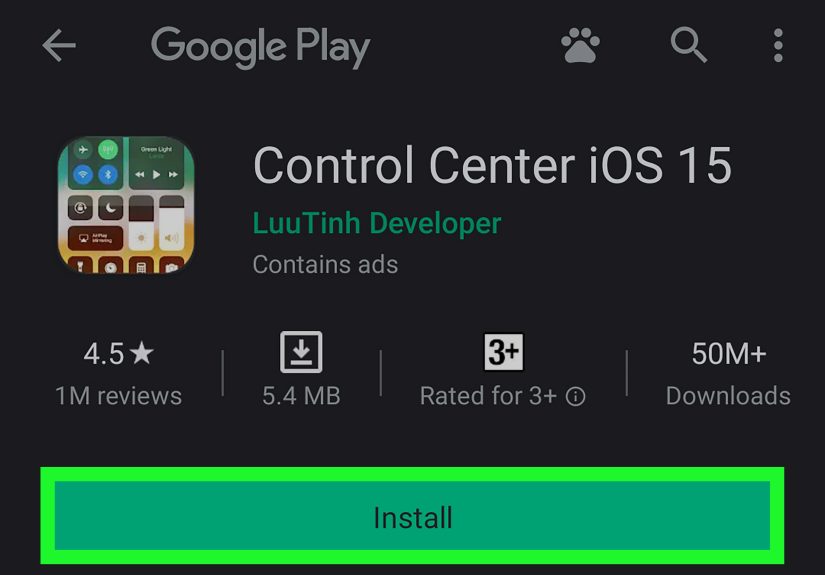
There are third-party apps that mimic iOS-style panels. They can look convincing, but they often require overlay permissions. If you use one:
- Choose an app with strong reviews and recent updates.
- Grant only the permissions needed for the panel to function.
- Disable it if you notice battery drain, lag, or weird popups.
The secret sauce: keep it clean. iOS feels premium because it’s curated. Your Quick Settings should feel like a well-edited playlistnot a
junk drawer.
Way 5: Copy the iPhone Lock Screen Vibe (Fonts, Notifications, and “Dynamic” Effects)
The lock screen is where people decide if your phone looks “iPhone-ish” at a glance. You’re aiming for:
crisp wallpaper, big readable clock, minimal notifications, and smooth animations.
Do this first: wallpaper + clock + notification cleanup
- Wallpaper: Pick a simple gradient or a high-quality photo with negative space (so icons pop).
- Clock: Use a large, clean font style if your phone offers options.
- Notifications: Turn off noisy notifications for non-essential apps. iOS looks calmer because it is calmer.
Add “Dynamic Island”-style notifications (optional, for the fun factor)
Some Android apps can mimic the “dynamic” pill-style notification behavior. It’s not identical to iPhone hardware, but it can create the illusion
of live activity bubbles at the top of your screen.
- Try it if you enjoy visual flair and can tolerate a little setup.
- Skip it if you value battery life and absolute simplicity.
A quick reality check
Third-party lock screen replacements exist, but they can be hit-or-miss because Android security needs the system lock screen to handle things like
biometrics and sensitive notifications. If an app tries to “replace everything,” be cautious and keep your phone’s built-in security features enabled.
Way 6: Mimic iPhone “Ecosystem” Features (Messaging and Sharing)
The iPhone look is one thing. The iPhone feel is another. A lot of that feel comes from ecosystem habitsmessaging that just works, file sharing
that feels instant, and fewer “how do I send this?” moments.
Messaging: get closer without chasing blue bubbles
- Use RCS-capable messaging when possible for better group chats, typing indicators, and higher-quality media (depends on carrier/device).
- Pick a cross-platform app your friends actually use (WhatsApp, Signal, Telegram). The best app is the one your group chat won’t boycott.
- FaceTime alternatives: Google Meet, Zoom, and WhatsApp video calls can replicate the “tap and call” ease.
Sharing: the AirDrop-style goal
Android’s Quick Share has long been the AirDrop-like option between Android phones. And now, some Pixel devices have started gaining the ability
to share directly with Apple devices in a more AirDrop-like waybeginning with specific hardware generations and expanding over time.
Practical sharing setup that feels “Apple smooth”
- Turn on Quick Share and set it to “Contacts” or “Nearby” depending on your comfort level.
- Keep Google Drive or another cloud option ready for cross-platform sharing when direct sharing isn’t available.
- For photos: create shared albums (Google Photos works great across iPhone and Android).
The point isn’t to recreate Apple’s walled garden. It’s to build your own little garden path that doesn’t trip you every time you try to send a file.
Troubleshooting: When Your Phone Starts Acting Like a Costume Party
If your phone feels slower
- Reduce animations in the launcher settings (or in Android accessibility settings if available).
- Use fewer live widgets (weather + calendar beats weather + calendar + stocks + moon phases + “quote of the day”).
- Remove duplicate “overlay” apps running at the same time (Control Center clones + dynamic notifications + lock screen replacer = chaos).
If your battery drops faster
- Disable “always on” visual effects in third-party apps.
- Check battery usage by app and uninstall the worst offender.
- Keep one main customization tool (launcher) and avoid stacking multiple “skin” apps.
If things feel too complicated
Strip it back to the essentials: launcher + icon pack + one widget. That alone can deliver 80% of the iPhone look with 20% of the effort.
(And yes, that’s the good version of the 80/20 rule.)
Real-World Experiences: What It’s Like Living With “Android, But Make It iPhone”
Here’s the part nobody tells you: turning an Android into an iPhone look-alike is less like “install one app” and more like “styling a haircut.”
The first pass gets you close. The last 10% is where you lose time, patience, andbrieflyyour sense of self.
In real use, the launcher switch feels like the biggest transformation. The moment your home screen stops looking like a customizable
control panel and starts looking like a clean grid of icons, your brain goes, “Oh, we’re doing the iPhone thing.” It’s honestly impressive.
Friends will notice. Your thumbs will adapt. And you’ll probably spend a full evening rearranging icons because suddenly you care about spacing
like you’re decorating a tiny apartment.
The second most “wow” moment usually comes from widgets. A neat weather tile plus a minimal calendar block can make an Android phone
feel calm and curated. And that’s the real iOS secret: not magic featuresjust fewer visual decisions happening at once. The funny part is that
Android widgets can be more powerful than iOS widgets, so you end up with a setup that looks like iPhone but behaves like Android on a productivity
smoothie.
Then comes the “wait… why is this weird?” phase. Some iOS-style launchers are a little aggressive about permissions, popups, or asking you to set
them as default in three different ways (politely, then less politely, then with a full-screen reminder). If you pick a well-maintained launcher,
you can avoid most of that. But if you install the first free “iOS 99 PRO MAX ULTRA” launcher you see, you may get the aesthetic plus a side of
“Allow this app to draw over everything you love.” That’s your cue to uninstall and choose a different option.
The Control Center imitation is the most hit-or-miss in day-to-day life. When it works well, it’s delightfulone swipe and you’re
adjusting brightness like a movie character. When it works poorly, it conflicts with Android gestures, pops up at the wrong time, or adds just
enough lag to make you feel like you’re texting through a toaster. Most people end up sticking with Android’s built-in Quick Settings and simply
cleaning it up, because “iPhone-like” is great until it slows down the one thing you do 200 times a day.
Lock screen customization is similar: wallpaper and clock styling are easy wins, while full lock screen replacement apps can create awkward moments.
For example, you might unlock your phone and notice your notification behavior is slightly off, or your biometrics feel less seamless.
In real life, the best experience comes from using what your phone already offersthen adding a light layer of iOS-inspired polish rather than
replacing the whole security front door with a decorative curtain.
Finally, there’s the social experience: making Android look like iPhone is mostly about taste. When you keep it minimalclean icons,
two widgets, tidy dockpeople say, “That looks nice.” When you stack too many effectsdynamic bubbles, floating control panels, animated wallpapers,
and three different widget enginespeople say nothing, but their eyes do. And their eyes are not being supportive.
The overall verdict from real-world use: an “iPhone-style Android” is totally doable, and it can feel genuinely premium. Just treat it like interior
design: pick a theme, use fewer pieces, and stop before you turn your home screen into a theme park.
Conclusion: Your Android Can Pull Off the iPhone LookWithout Losing Its Superpowers
If you want your Android to look like an iPhone, focus on the big visual levers: an iOS-style launcher, consistent icons, minimal widgets,
a cleaned-up Quick Settings panel, and a calm lock screen. Then, for the “feel,” improve cross-platform habits with modern messaging and sharing
options. You’ll get the sleek iPhone aesthetic while keeping Android’s best trick: customization that doesn’t require a permission slip.