Table of Contents >> Show >> Hide
- 1) Pixel Camera: The app that makes your phone look like it “brought equipment”
- 2) Google Photos: Your gallery, your editor, your “how did I take 400 screenshots?” therapist
- 3) Recorder: The “I’ll remember this later” app that actually remembers it for you
- 4) Phone by Google: Pixel’s Call Assist suite (aka “stop letting robocalls control your mood”)
- 5) Pixel Screenshots: The app that turns screenshot hoarding into a searchable memory
- 6) Pixel Weather: Forecasts with an AI summary that gets to the point
- 7) Personal Safety (Safety): The app you hope you never needso set it up anyway
- How to get the most out of these Pixel apps in 2025
- Conclusion
- Extra: 7 real-world “Pixel moments” that make these apps click (experience section)
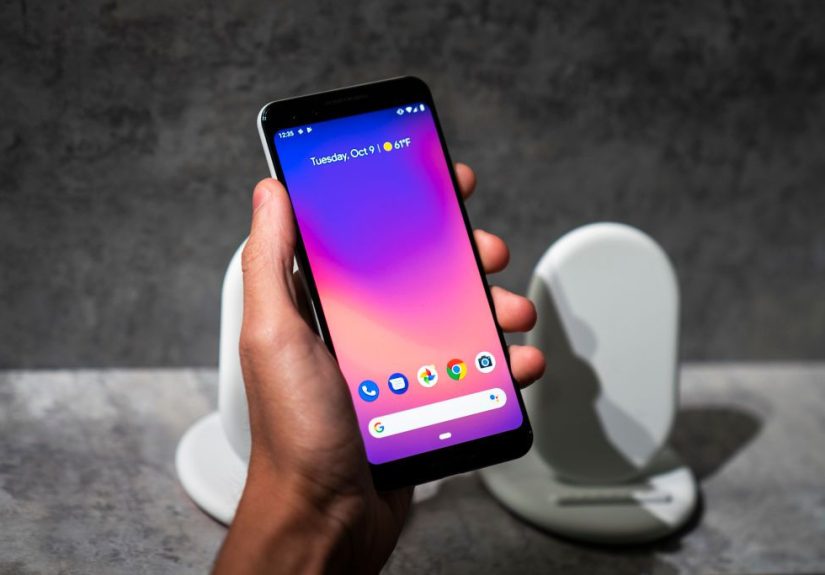
A Google Pixel is basically an overachiever in pocket form: it takes surprisingly good photos, catches spam calls like a bouncer, and quietly turns your chaotic screenshots into something resembling a filing system. The best part? A lot of that “Pixel magic” lives inside apps you already haveor can grab in minutes.
This 2025 list focuses on Google-built apps that feel especially at home on Pixelbecause they’re Pixel-exclusive, Pixel-first, or they unlock features that other phones only get in rumors and envy. Availability can vary by model, region, and carrier, but every pick here is worth at least a test drive.
1) Pixel Camera: The app that makes your phone look like it “brought equipment”
If you try only one thing on this list, try the Pixel Camera app. It’s the control room for the features people usually mean when they say, “Wait… your phone did that?”
What to try in 2025
- Night Sight for low-light shots that don’t look like a haunted-house reenactment.
- Astrophotography mode for sky photos that make you feel like you should start naming constellations.
- Portrait (plus blur controls) for that “I totally own a real camera” vibe.
- Cinematic Blur and video tools for reels that look more expensive than they were.
Quick example: your first “wow” shot
The easiest flex is a clean night photo. Open Camera, switch to Night Sight, and hold steady. If you want to go full space-nerd, set Night Sight to Astro, prop the phone on something stable, and let it cook for a few seconds. You’ll be shocked how much detail a phone can pull out of darkness.
Pro tip: Pixel Camera updates matter. If your camera feels “fine” but not “wow,” check for updatesGoogle tweaks processing and features more often than most people realize.
2) Google Photos: Your gallery, your editor, your “how did I take 400 screenshots?” therapist
Google Photos is more than storageit’s where Pixel’s photo tricks become practical. In 2025, this app is the difference between “nice photo” and “how is everyone’s face perfect in the group shot?”
What to try in 2025
- Best Take: fix group photos by choosing better expressions from similar shots.
- Magic Editor: generative edits for repositioning subjects, improving framing, and cleaning up scenes.
- Audio Magic Eraser (when supported): reduce distracting sounds in videos.
- Magic Eraser and other quick tools for removing photobombers and visual clutter.
Specific scenario: saving a group photo without a reshoot
If one person blinked and another did the “mid-sentence face,” open the photo in Photos, jump into editing, and try Best Take. The goal is simple: you keep the moment, but swap in better expressions from the burst of similar photos. It’s like herding cats, except the cats are your friends and they’re all somehow blinking at the same time.
In 2025, Photos is also where you should experiment with “light touch” improvements: subtle reframes, quick cleanups, and edits that don’t scream “I edited this,” but quietly make everything look better.
3) Recorder: The “I’ll remember this later” app that actually remembers it for you
Pixel’s Recorder app is a secret weapon for students, creators, founders, managers, and anyone who has ever left a meeting thinking, “I know we decided something… I just don’t know what.”
What to try in 2025
- Real-time transcription so you can skim what was said instead of replaying everything.
- Search inside recordings (yes, search) to find the moment someone finally said the important part.
- AI summaries on supported Pixel models for a “tell me the point” overview.
- Sharing a recording + transcript with teammates or classmates without turning it into a 17-step workflow.
Specific scenario: turning a 30-minute interview into a usable outline
Record the conversation, let the transcript generate, then use the summary (if your model supports it) as your starting outline. From there, scan the transcript for names, dates, and key quotes. This is one of those rare “AI features” that feels less like a demo and more like a practical life upgrade.
Recorder shines because it’s frictionless. You’re not exporting files, uploading audio, or juggling five apps. You’re just capturing words and turning them into something you can use.
4) Phone by Google: Pixel’s Call Assist suite (aka “stop letting robocalls control your mood”)
The Phone app on Pixel isn’t just a dial pad. It’s a set of smart call tools designed to save time, reduce spam, and make calling businesses slightly less like emotional damage.
What to try in 2025
- Call Screen: have Google Assistant screen unknown calls before you pick up.
- Hold for Me: let Pixel wait on hold and alert you when a human returns.
- Direct My Call: navigate phone trees with on-screen menu options.
- Clear Calling (when supported): reduce background noise so you sound like you’re not calling from inside a blender.
Specific scenario: calling customer support without losing an afternoon
When a business puts you on hold, Hold for Me can wait while you do literally anything else. For automated menus, Direct My Call can display options so you can tap your way through the labyrinth. Combined with call screening, this turns your phone into the responsible adult in the relationship.
One note: these features can be region-limited. If you don’t see them, check your Phone app settings (look for “Call Assist”), confirm updates, and review eligibility for your device and location.
5) Pixel Screenshots: The app that turns screenshot hoarding into a searchable memory
If your screenshots are a junk drawer (recipes, gift ideas, receipts, memes, “important” flight info you never find again), Pixel Screenshots is your 2025 intervention.
What to try in 2025
- Search screenshots by what’s inside them (not just the file name).
- Collections like “Gift Ideas,” “Home Projects,” or “Trip Planning.”
- Suggestions from screenshots that can surface in other apps (when enabled).
Specific scenario: finding the one screenshot that matters
Say you screenshotted a restaurant recommendation, a product listing, and a note about a friend’s favorite snacksthen forgot all of it. With Pixel Screenshots, you can search like, “the place with the patio,” “blue sneakers price,” or “peach galette ingredients,” and the app can pull relevant screenshots based on the content inside.
This is one of the most “Pixel-only” experiences you can try in 2025, and it’s especially useful if you live in screenshots the way some people live in tabs.
6) Pixel Weather: Forecasts with an AI summary that gets to the point
Weather apps are everywhere. The problem is they often make you decode a tiny wall of icons like you’re studying for a meteorology midterm. Pixel Weather (and Pixel’s weather experience on supported devices) is built for speed: “What’s happening, when, and do I need a jacket?”
What to try in 2025
- AI Weather Report / forecast summary (where supported) for a short explanation in plain English.
- Hour-by-hour checks for commute timing and outdoor plans.
- Widgets that keep the forecast visible without opening the app.
Specific scenario: planning your day in 15 seconds
Open the app, read the summary, then glance at the hourly forecast. If it says “windy later” or “storm window around 4 PM,” you can make smarter plans without doing mental gymnastics over humidity charts.
Pixel Weather is a great reminder that “AI” doesn’t have to be dramatic. Sometimes it’s just a useful sentence that saves you time.
7) Personal Safety (Safety): The app you hope you never needso set it up anyway
This one isn’t flashy, but it’s the most important. Personal Safety (often shown as the Safety app on Pixel) bundles emergency tools that can help in real life: check-ins, location sharing, SOS, and crash detection features on supported devices.
What to try in 2025
- Emergency SOS so you can trigger help quickly with button presses.
- Safety Check timers for runs, late-night walks, solo trips, or first dates (no judgment).
- Emergency Sharing for real-time location and status updates to trusted contacts.
- Car Crash Detection (supported models/regions) for automatic emergency calls after a severe crash.
Specific scenario: a “just in case” routine that takes five minutes
Add emergency contacts, set up Emergency Sharing, and test a Safety Check timer. You’re building a safety net you’ll probably never use, which is exactly the point. Future-you will be grateful that present-you handled the boring setup step.
Important: Safety features can depend on permissions (location, microphone) and availability by country/language. After setup, confirm the features you care about are enabled and working on your device.
How to get the most out of these Pixel apps in 2025
You don’t need to become a settings archaeologist, but a few quick habits make Pixel feel dramatically smarter:
- Update the apps (Camera, Photos, Phone) regularlynew features and improvements often arrive quietly.
- Try one “signature” feature per app first (Best Take, Call Screen, Recorder summaries, etc.).
- Turn on the boring-but-good stuff: Safety Check, Emergency Sharing, spam filtering, and backup settings.
- Use widgets for Weather and Photos Memories so the value shows up without effort.
Conclusion
In 2025, the Pixel experience is less about downloading random “must-have” apps and more about unlocking the tools Google already built to make your phone faster, smarter, and easier to live with. Start with the Camera and Photos combo for instant wins, add Recorder and Call Assist for daily productivity, then finish strong by setting up Safetybecause the best tech is the kind that helps when life gets messy.
Extra: 7 real-world “Pixel moments” that make these apps click (experience section)
Here’s what these apps feel like when you use them together in normal lifenot as a demo, but as a series of small saves that add up. Imagine it’s a typical week in 2025.
Monday morning: You’re walking out the door, coffee in hand, and you check Pixel Weather. Instead of staring at icons like you’re decoding ancient runes, you get a quick summary: drizzle early, clearer later, windy after lunch. Translation: bring a light jacket, don’t schedule your outdoor errand at 2 PM, and maybe avoid the umbrella that flips inside out at the first gust. It’s a tiny moment, but it sets the toneyour phone is giving you information, not homework.
Monday afternoon: You call a business because something is inevitably “on hold.” The Phone app steps in: it screens unknown calls so you don’t accidentally answer a “special offer” that’s actually a trap, and if you do need support, it can wait on hold for you. Suddenly you’re not pinned to elevator music; you’re replying to messages, making a snack, or pretending you’re “very productive” while the phone does the annoying part. When it pings you back, you return to the call like a hero re-entering a scene.
Tuesday: You’re in a meeting, a lecture, or a long conversation where the good stuff shows up 27 minutes inright when your brain starts daydreaming about dinner. You use Recorder and let it transcribe while you focus on listening. Later, you skim the transcript for action items and names. If summaries are supported on your device, you start with the summary to get the shape of the conversation, then jump to the exact section you need. This is the moment Recorder stops being “a neat feature” and becomes “why doesn’t every phone do this?”
Wednesday night: You’re out with friends and the lighting is questionablehalf restaurant mood lighting, half “why is this bulb green?” You take a few shots using Pixel Camera. Night Sight keeps things sharp and less noisy, and you don’t have to apologize for the photo looking like a blurry ghost story. Later, Google Photos cleans up the results. You fix a minor distraction, adjust framing, andmost importantlysalvage the group shot with Best Take so everyone looks like a person who is awake and happy to be there.
Thursday: You’re deep in screenshot territorysaving a product, a list of restaurants, a gift idea, and a screenshot of a message that says “don’t forget this.” In older times, this would be the beginning of the end. But with Pixel Screenshots, you can actually find what you saved later. You search for the item by what’s in the screenshot, not by scrolling through 900 nearly identical rectangles. It’s not glamorous, but it’s the kind of organization that makes you feel like an adult, even if your “Collections” folder is still 30% memes.
Friday: You’re traveling, running, or just out late, and you set a Safety Check timer in the Safety app. It’s a quiet form of peace of mind: if you don’t check in, the app can start sharing your location with trusted contacts. You’re not expecting troubleyou’re just acknowledging that life happens. The best part is psychological: you feel more confident because you built a safety plan before you needed one.
Weekend: Everything comes together. The Pixel apps don’t feel like seven separate downloads; they feel like a system that removes friction. You take better photos, find your information faster, waste less time on phone trees, and keep a few safety tools ready in the background. That’s the Pixel sweet spot in 2025: not “look what my phone can do,” but “look how little effort this took.”