Table of Contents >> Show >> Hide
- What Causes an Excel File to Become Corrupt?
- Way 1: Use Excel’s Built-In Open and Repair Feature
- Way 2: Recover Data From AutoRecover, Document Recovery, or Unsaved Workbooks
- Way 3: Restore a Previous Version From OneDrive, SharePoint, Dropbox, Google Drive, Windows, or Mac
- Way 4: Extract the Data Into a New Workbook
- Way 5: Repair Excel Itself and Check for Backup or Temporary Copies
- What to Do Immediately After You Recover the File
- How to Prevent Excel File Corruption in the Future
- Final Thoughts
- Common Real-World Experiences With Corrupt Excel Files
- SEO Tags
Few things ruin a perfectly normal workday faster than clicking your spreadsheet and seeing an error message that basically translates to: “Good luck, champ.” A corrupt Excel file can feel like the universe personally objects to your quarterly report, inventory tracker, or carefully color-coded budget masterpiece.
The good news is that a damaged workbook is not always a lost cause. In many cases, you can recover a corrupt Excel file using built-in Microsoft tools, cloud version history, backup systems, or a few practical rescue tricks. The key is to stop clicking random buttons like you are defusing a movie bomb and start with methods that protect the data you still have.
In this guide, you will learn five reliable ways to recover a corrupt Excel file, what to do if Excel opens only part of the workbook, and how to reduce the chance of corruption happening again. Whether your file will not open, opens with unreadable content, or crashes Excel the second you touch it, there is a recovery path worth trying.
What Causes an Excel File to Become Corrupt?
Before jumping into recovery mode, it helps to know why workbook corruption happens in the first place. Excel files usually become damaged because something interrupted the save process or the file structure got altered in a way Excel does not like.
- Power outages or forced shutdowns while the file is open
- System crashes or Excel crashes during save
- Bad sectors on a hard drive or a failing USB device
- Sync conflicts from OneDrive, Dropbox, or shared folders
- Oversized workbooks packed with formulas, macros, images, and links
- Broken add-ins or a damaged Office installation
- File extension changes that do not match the actual format
If your workbook suddenly says it contains unreadable content, refuses to open, or opens as a blank shell with your hope hanging by a thread, do not keep saving over it. Make a copy first. That is not just good advice. That is the digital version of putting on gloves before touching evidence.
Way 1: Use Excel’s Built-In Open and Repair Feature
If Excel can still recognize the workbook at all, this is the first method to try. Microsoft built an Open and Repair option directly into Excel for exactly this situation.
How to do it
- Open Excel.
- Go to File > Open > Browse.
- Select the corrupt workbook.
- Click the arrow next to Open.
- Choose Open and Repair.
- Select Repair first. If that fails, try Extract Data.
Repair attempts to restore the workbook as a working file. Extract Data is the fallback option that tries to pull values and formulas from the damaged workbook, even if the original layout is a mess. Think of it as rescuing the passengers even if the ship is not sailing again.
This method works best when the corruption is moderate and the workbook structure is still partly readable. If the file opens after repair, save it immediately with a new name. Do not keep using the old copy like nothing happened. That is how people end up meeting the same problem twice before lunch.
When this works best
- The file will not open normally
- Excel shows an unreadable content warning
- The workbook opens but some sheets, charts, or formulas are broken
Way 2: Recover Data From AutoRecover, Document Recovery, or Unsaved Workbooks
Sometimes the file you are trying to rescue is not the best version you have. Excel often creates AutoRecover copies in the background, and after a crash, it may show a Document Recovery pane the next time the app opens.
Check the Document Recovery pane first
If Excel crashed recently, reopen Excel and look for the Document Recovery panel. You may see one or more recovered versions listed with timestamps. Open the newest healthy version and save it as a new workbook right away.
Recover unsaved or temporary versions manually
- Open Excel.
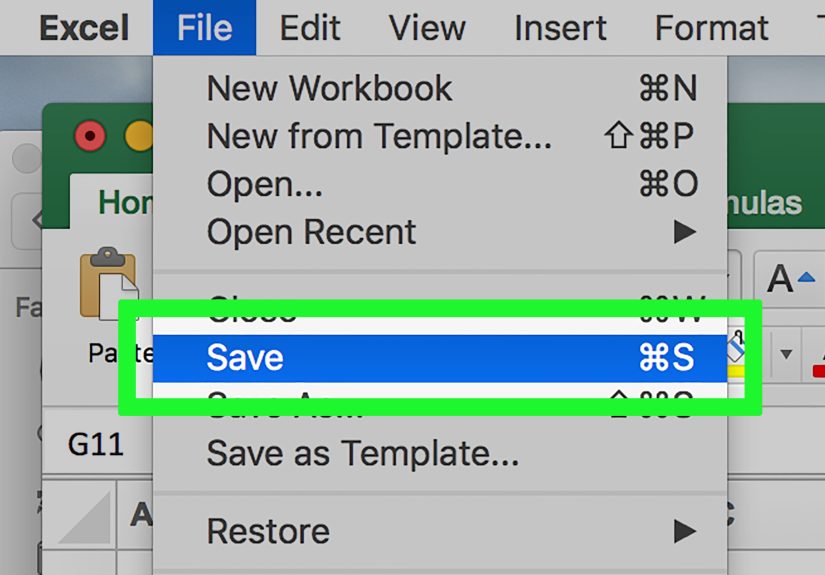
- Go to File > Info.
- Choose Manage Workbook or Recover Unsaved Workbooks.
- Open any promising file and save it under a new name.
This is especially useful if corruption happened during a crash, forced restart, or accidental close before the last save. Excel’s AutoRecover setting is often enabled by default, commonly saving recovery information every 10 minutes, though users can change that interval.
What to look for
- A recent timestamp close to when you last edited the file
- A version that opens cleanly even if the original does not
- A temporary file that contains data but lacks formatting
If you find multiple versions, start with the newest one. Save the recovered copy somewhere local before opening it from a synced folder. Cloud syncing is useful, but during recovery it can behave like an overly helpful friend who keeps rearranging the tools on your workbench.
Way 3: Restore a Previous Version From OneDrive, SharePoint, Dropbox, Google Drive, Windows, or Mac
If the current file is damaged, an older version may still be perfectly fine. This is one of the smartest ways to recover a corrupt Excel file because you are not repairing the bad copy. You are simply rolling back to a healthy one.
Use version history in cloud storage
If your workbook lives in OneDrive or SharePoint, right-click the file and check Version History. You can open earlier versions, compare timestamps, and restore the one that existed before corruption appeared.
The same idea works in Dropbox and Google Drive. Both services keep version history for supported files, which can be a lifesaver when a file gets overwritten, partially synced, or saved in a broken state.
Use local backup history on Windows or Mac
On Windows, right-click the folder or file and look for Restore previous versions if File History or another backup system was enabled. On a Mac, you may be able to use File > Revert To > Browse All Versions or restore from Time Machine.
Why this method is powerful
- You avoid making the corruption worse
- You can recover the entire workbook, not just bits of data
- You often get back formulas, formatting, and structure intact
The main downside is obvious: version history only helps if it existed before disaster struck. Still, if your file was stored in the cloud, this method can feel less like recovery and more like time travel with better accounting.
Way 4: Extract the Data Into a New Workbook
If the original workbook opens only partially, or if Excel keeps choking on one sheet, one macro, or one embedded object, your best move may be to salvage the usable content and move it into a fresh file.
Simple ways to extract data
- Open the file in Excel after choosing Extract Data
- Copy individual sheets into a new workbook
- Copy and paste values only if formulas are unstable
- Open the file in another spreadsheet program and export it again
- Remove problematic charts, external links, or macros one by one
This method is especially useful when the workbook itself is damaged but the cell content remains readable. For example, if a finance workbook opens but crashes every time you click the dashboard sheet, you can often move the raw data tabs into a clean file and rebuild the dashboard later.
A practical example
Let’s say you have a sales report workbook with eight sheets. The summary tab is broken, but the monthly data tabs still open. Instead of trying to revive the entire workbook forever, copy those monthly sheets into a new file, recreate the summary formulas, and move on with your life. The spreadsheet may not return exactly as it was, but your data survives, which is what pays the bills.
If you suspect a macro is causing trouble, save the rescued workbook as a macro-free format if possible, then rebuild only what you truly need. Not every fancy automation deserves a heroic rescue mission.
Way 5: Repair Excel Itself and Check for Backup or Temporary Copies
Sometimes the workbook is not the only problem. A damaged Office installation, unstable add-in, or system-level storage issue can make healthy files behave like corrupt ones. In that case, repairing Excel or Microsoft 365 may solve the problem.
Repair Microsoft Office
- Open Windows settings and go to installed apps.
- Find Microsoft 365 or Office.
- Choose Modify.
- Start with Quick Repair.
- If needed, use Online Repair.
This can fix broken program files, damaged components, and odd behavior that keeps interfering with workbook recovery. If Excel crashes on multiple files, not just one, this step becomes much more important.
Search for backup or temporary copies
Also check for:
- Files ending in temporary naming patterns
- Older local copies in Downloads, email attachments, or shared folders
- Automatic backup folders from your IT department or backup software
- Files copied to external drives before the corruption happened
This is not the flashiest method, but it is often effective. Plenty of “recovered” Excel files were actually just found sitting quietly in another folder while everyone panicked in high definition.
What to Do Immediately After You Recover the File
Once the workbook opens and your blood pressure returns to a medically interesting range, take a few smart next steps:
- Save the recovered file with a new name
- Store a copy locally and a copy in the cloud
- Test formulas, links, pivot tables, and charts
- Check whether macros still work correctly
- Remove broken external references
- Split oversized workbooks into smaller files if needed
If the recovered workbook contains mission-critical business data, create a second clean version after reviewing everything. Recovery is great. Verified recovery is better.
How to Prevent Excel File Corruption in the Future
No one wants to become an expert in corrupt spreadsheet recovery through repeated field practice. A few habits can dramatically reduce the risk.
- Turn on AutoRecover and keep the interval short
- Save important workbooks to OneDrive or SharePoint for version history
- Avoid editing directly from flaky USB drives or network shares
- Close Excel properly before shutting down your computer
- Keep Office and your operating system updated
- Reduce workbook bloat caused by excessive formatting, links, and embedded media
- Back up important spreadsheets routinely
If a workbook is used by multiple people, establish rules for who edits what and where the master copy lives. Shared chaos is still chaos, even when it is stored in the cloud.
Final Thoughts
If you are trying to recover a corrupt Excel file, start with the least destructive options first: Open and Repair, AutoRecover, and version history. Those three methods solve a surprising number of cases without requiring third-party tools or spreadsheet wizardry. If that does not work, move on to data extraction and app repair to salvage what you can.
The biggest mistake people make is opening, closing, re-saving, renaming, and syncing the same broken file over and over until every backup copy becomes equally suspicious. Slow down, duplicate the file, and work methodically. Excel recovery is not glamorous, but it is often possible.
And if all else fails, remember this timeless spreadsheet survival rule: the best corrupt file recovery plan is a boring backup strategy you thought you would never need. Until Tuesday.
Common Real-World Experiences With Corrupt Excel Files
In real life, corrupt Excel files rarely arrive with a dramatic soundtrack. They usually show up five minutes before a meeting, right after someone says, “I only changed one little thing.” One of the most common experiences is opening a file that worked yesterday and getting a warning about unreadable content today. In many offices, that happens after the workbook was saved to a synced folder, edited on two machines, or closed during a slow upload. The file is not always destroyed. Sometimes it is simply out of sync, partially saved, or stuck between versions.
Another common scenario involves giant workbooks that have slowly turned into spreadsheet lasagna: formulas layered on formulas, pivot tables pulling from old tabs, conditional formatting copied across entire columns, and a heroic number of pasted screenshots. These files may open for months and then suddenly fail after one crash or one interrupted save. When people recover them, they often realize the corruption was not random at all. The workbook had been living on the edge for weeks.
There is also the classic laptop-battery disaster. Someone is working on a budget, forecast, or project tracker on a flight, in a coffee shop, or in a conference room with exactly one outlet and three people glaring at it. The computer dies mid-save. When Excel opens again, the original file is broken, but an AutoRecover version appears and saves the day. It may not contain every last change, but recovering 95% of a workbook feels like winning the spreadsheet lottery.
People also run into corruption after moving files around too casually. A workbook gets dragged from desktop to USB drive, emailed three times, downloaded again, renamed twice, and finally stored in a folder called “New New Final Actual Use This One.” At that point, half the battle is figuring out which version is the real one. Many recoveries succeed not because the broken file is repaired, but because an earlier good copy is found in OneDrive, Dropbox, email, or a shared drive.
Then there is the emotional side, which is very real. Corrupt Excel files do not just threaten data. They threaten time. Rebuilding a model, report, or tracker can mean hours or days of work. That is why the best recovery experiences usually come from people who pause, make a copy, and work through the built-in options step by step. The worst outcomes usually come from panic-saving over the damaged file, clicking everything in sight, or letting sync tools overwrite the only healthy version. In other words, a calm recovery plan beats a dramatic keyboard performance almost every time.