Table of Contents >> Show >> Hide
- Why folders on Android are so useful
- Method 1: Make an app folder on your Android Home screen
- Method 2: Make a file folder in Internal storage or on an SD card
- Method 3: Make a photo or media folder on Android
- Common problems when making folders on Android
- Best practices for naming Android folders
- Which Android folder method should you use?
- Real-world experiences with making folders on Android
- Conclusion
- SEO Tags
If your Android phone looks like a yard sale for apps, screenshots, and random PDFs you swore you would read later, good news: making a folder is easy. Better news: there is more than one way to do it. On Android, “folder” can mean an app folder on your Home screen, a real storage folder for files, or a photo folder for organizing media. That is why some tutorials feel oddly confusing, like they were written by someone arguing with their own phone.
This guide clears that up. Below, you will learn three simple ways to make a folder on Android, plus when to use each one, what to do if your phone behaves differently, and how to avoid the classic mistake of creating an “Important Stuff” folder that becomes a digital junk drawer in two weeks. Whether you use a Pixel, Samsung Galaxy, Motorola phone, or another Android device, these methods cover the most common setups.
If your goal is to tidy your apps, you want a Home screen folder. If you want to organize downloads, documents, or videos, you need a file folder. And if you are trying to sort photos into a specific location, you may want a media folder or, in some cases, an album. Same word, different job. Android loves a little plot twist.
Why folders on Android are so useful
Folders do more than make your phone look neat. They cut down on visual clutter, reduce endless scrolling, and make it easier to find what you need when you need it. A simple “Work,” “Travel,” or “Banking” folder can save time every single day. The same goes for file folders. Instead of letting downloads pile up like mystery leftovers in the fridge, you can sort contracts, photos, class notes, receipts, and videos into places that actually make sense.
In short, Android folders help with three things:
- Speed: Fewer taps to find apps and files.
- Storage sanity: Easier cleanup and better organization.
- Less stress: Your phone stops feeling like a chaotic drawer full of cables.
Method 1: Make an app folder on your Android Home screen
This is the fastest and most common way to make a folder on Android. It is perfect when you want to group apps together, such as social apps, games, shopping apps, or productivity tools.
How to create a Home screen folder
- Go to your Home screen.
- Tap and hold one app icon.
- Drag that app on top of another app you want in the same group.
- Release your finger when the folder appears.
- Tap the new folder to open it.
- Rename it with something useful, like Work, Travel, Games, or School.
- Drag more apps into the folder if needed.
That is it. No wizardry. No secret settings menu hidden behind three dots and a moon phase. Just drag one app onto another.
Best examples of Home screen folders
Here are a few folder ideas that actually work in real life:
- Work: Gmail, Slack, Docs, Calendar, Zoom
- Money: Banking app, payment apps, budgeting tools, crypto tracker
- Travel: Maps, airline app, hotel app, translation app
- Content: Camera, CapCut, Canva, Notes, Drive
- Entertainment: YouTube, Spotify, Netflix, Kindle
If you tend to over-organize, try not to create fifteen tiny folders with two apps each. That defeats the point. The goal is convenience, not building a filing cabinet for your calculator.
What if the folder does not appear?
If dragging one app over another does not work, one of these may be happening:
- Your launcher handles folders differently.
- You are trying to drag from the app drawer instead of the Home screen.
- The app needs to be placed on the Home screen first.
- Your phone brand adds a slightly different folder menu.
On many Android phones, the drag-and-drop method still works. On some devices, you may also find folder options after pressing and holding an empty area of the Home screen.
Method 2: Make a file folder in Internal storage or on an SD card
If you want to organize downloads, documents, music, videos, or screenshots, this is the method you want. A file folder is a real storage folder inside your Android device, not just a shortcut for apps.
How to create a file folder on Android
The exact app name may vary. On many phones, you will use Files, Files by Google, or My Files.
- Open your phone’s file manager app.
- Tap Internal storage or SD card.
- Go to the location where you want the new folder.
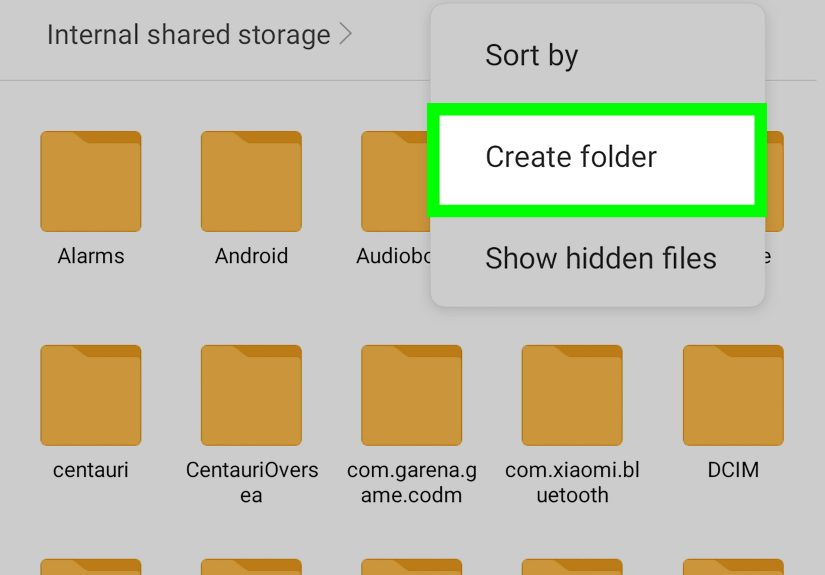
- Look for New folder, Create folder, or Add new folder.
- Type the folder name.
- Tap Create or Done.
Some versions of Android, especially in Files by Google, may show the new-folder option while you are moving or copying files. So if you do not see a Create Folder button right away, try selecting a file first, tapping Move to or Copy to, and then looking for Add new folder.
When this method is best
Create file folders when you want better control over storage. For example:
- A folder named Invoices for PDF bills
- A folder called Client Videos for editing projects
- A Study Notes folder for class materials
- A Receipts 2026 folder for expense tracking
- A Transfer to Laptop folder for files you plan to back up later
This method is especially helpful if your Downloads folder has become the digital equivalent of a kitchen junk drawer. Everything is technically there, but emotionally? It is a disaster.
Samsung, Pixel, and other Android variations
If you have a Samsung phone, you may use My Files. If you have a Pixel or many stock Android devices, you may use Files by Google. Motorola and other brands often include their own version of a file manager or rely on Google’s app.
The steps are similar on all of them: open storage, choose a location, create the folder, then move files into it. The wording may change slightly, but the logic stays the same.
Method 3: Make a photo or media folder on Android
This method is useful when you want to sort photos, screenshots, memes, camera images, or saved pictures into a dedicated place. Here is where Android gets a little sneaky: a folder and an album are not always the same thing.
Folder vs. album on Android
A folder is a storage location on your device. An album is often just an organizational view inside a photo app. If you want your photos physically stored in a new location, make a real folder using your file manager or Gallery app. If you only want a cleaner viewing experience in a photo app, an album may be enough.
How to create a media folder
- Open your Gallery app if your phone includes one.
- Go to Folders or a similar section.
- Tap More or the menu icon.
- Select New folder.
- Name the folder.
- Choose whether to save it in Internal storage or on an SD card.
- Move or copy your photos into that folder.
If your phone mainly uses Google Photos, remember that Google Photos often emphasizes albums rather than creating a device folder in the same way a Gallery app does. In that case, use your file manager if you want a true storage folder.
Good times to use a media folder
- Separate work images from personal photos
- Store edited content away from raw photos
- Move screenshots into their own folder
- Keep travel photos grouped before backup
- Organize social media assets for faster posting
Common problems when making folders on Android
You cannot create a folder on the Home screen
Make sure both apps are on the Home screen, not just in the app drawer. Also check whether your launcher supports folder creation in the same way. Most do, but the animation or menu may look different.
You do not see “Create folder” in Files
Open Internal storage first. On some phones, the new-folder option appears only after you enter a storage location or start a move/copy action.
You made an album instead of a real folder
This happens a lot. If you need a true device folder for storage or transfer, use the file manager rather than relying on a photo app alone.
You want a folder shortcut on the Home screen
Some phones and file manager apps let you place a shortcut to a folder on the Home screen. Some do not. Samsung devices often offer more shortcut flexibility than stock Android. If you do not see the option, your phone may support app folders but not file-folder shortcuts.
Best practices for naming Android folders
A folder name should tell you what is inside without requiring a detective investigation. Good folder names are short, clear, and practical.
Good examples:
- Work Docs
- Family Photos
- Bills 2026
- Editing Apps
- Travel Receipts
Bad examples:
- Stuff
- Things
- New Folder 2
- Important Maybe
- AAAA Final Real Final
Be honest with yourself. If you label a folder “Misc,” you are basically giving up politely.
Which Android folder method should you use?
Use this quick rule:
- Want to group apps? Make a Home screen folder.
- Want to organize files? Make a storage folder in Files or My Files.
- Want to sort photos or media? Make a media folder or use an album, depending on your goal.
Once you know which type of folder you need, Android gets much easier to manage. The hard part is not the taps. The hard part is admitting that yes, you really do have six shopping apps and three note apps doing the same job.
Real-world experiences with making folders on Android
In everyday use, folders on Android make the biggest difference when your phone starts reflecting your habits a little too honestly. The first sign is usually your Home screen. One day it is clean and efficient. The next day it looks like every app you have ever downloaded got into a minor traffic accident. That is when app folders become less of a design choice and more of a survival tactic.
A lot of people start with the obvious categories: social, work, finance, photos, travel, and entertainment. At first, it feels almost too simple to matter. Then a few days pass, and you realize you are no longer hunting for one banking app hidden between a food delivery icon and a meditation app you opened exactly twice. A “Money” folder saves time. A “Work” folder keeps your brain from wandering into Instagram when you meant to open Docs. Tiny win, huge impact.
The same thing happens with file folders. Android phones quietly collect clutter. Screenshots, downloaded PDFs, contracts, random memes, edited videos, duplicate images, and that one spreadsheet you absolutely needed last month all pile into storage. Creating folders for these files feels boring for about thirty seconds. After that, it feels brilliant. Suddenly, “Receipts,” “Projects,” “School,” or “Uploads” are doing the heavy lifting. When you need a file fast, you are not scrolling through a chaotic download list like you are panning for gold in a river of nonsense.
Photo folders are another game changer, especially for people who use their phones for work, content creation, or school. Separating screenshots from camera photos is surprisingly satisfying. So is making one folder for edited images and another for originals. It saves time when uploading content, backing up media, or sending files to someone else. It also cuts down on the weird moment where you open your gallery to show a vacation picture and accidentally swipe into twenty screenshots of shipping confirmations and unread reminders.
What surprises most people is how quickly folders become part of their routine. Once you start using them, your phone feels calmer. You spend less time searching and more time doing the thing you picked up your phone to do in the first place. That might not sound dramatic, but on a device you use dozens or even hundreds of times a day, small improvements add up fast.
The best experience usually comes from keeping folder systems simple. A few clear app folders, a handful of useful storage folders, and maybe one or two media folders are often enough. Go overboard, and you create a beautifully organized maze. Keep it practical, and Android starts working with you instead of against you. That is the sweet spot: not perfection, just fewer taps, less clutter, and a Home screen that does not look like it lost a bet.
Conclusion
If you were wondering how to make a folder on Android, the answer depends on what you are organizing. For apps, drag one icon onto another on the Home screen. For files, use your file manager to create a real storage folder. For photos and media, use Gallery or your file manager when you need a true folder instead of just an album. Three methods, three jobs, one much cleaner phone.
Once you start using Android folders the right way, your device feels faster, tidier, and far less annoying. And honestly, that is the dream.