Table of Contents >> Show >> Hide
- What Autofill on iPhone Actually Includes
- Method 1: Clear Safari History and Website Data
- Method 2: Remove Safari Contact Info and Saved Credit Cards
- Method 3: Delete Saved Passwords and Passkeys
- Method 4: Clear Autofill Data in Chrome, Firefox, or Edge
- Which Method Should You Use?
- Common Mistakes to Avoid
- Final Thoughts
- Real-World Experiences With Removing Autofill on iPhone
- SEO Tags
Autofill on an iPhone is one of those features that feels magical right up until it starts suggesting the wrong email, an old address, a card you canceled three haircuts ago, or a password from your “I thought this username was cool in 2018” era. Then it stops feeling convenient and starts feeling like your phone is exposing your digital fossil record.
The good news is that removing Autofill info on an iPhone is absolutely doable. The slightly less fun news is that Autofill is not just one thing. On iPhone, it can come from Safari, your Contacts card, saved credit cards, the Passwords app, or a browser like Chrome, Firefox, or Edge. So if you want to clean it up properly, you need to know which bucket the annoying suggestion is coming from.
In this guide, you’ll learn how to remove Autofill info on an iPhone with four easy methods, when to use each one, and how to stop old data from coming back like an uninvited sequel. Whether you want better privacy, fewer wrong suggestions, or just a less chaotic checkout experience, this walkthrough has you covered.
What Autofill on iPhone Actually Includes
Before you start tapping around in Settings like a detective in a hurry, it helps to know what “Autofill” can mean on iPhone. Apple and third-party browsers handle different types of data in different places.
| Type of Autofill Data | Usually Comes From | Where to Remove It |
|---|---|---|
| Name, email, phone, address in Safari | Your contact card (My Card) | Contacts app or Safari AutoFill settings |
| Saved credit or debit cards in Safari | Safari AutoFill | Settings > Apps > Safari > AutoFill |
| Passwords and passkeys | Passwords app / iCloud Keychain / chosen password provider | Passwords app or Settings > General > AutoFill & Passwords |
| Addresses and payment info in Chrome | Chrome settings and possibly Google Account sync | Chrome > Settings > Addresses and more / Payment methods |
| Saved addresses in Firefox | Firefox app | Firefox > Settings > Addresses |
| Autofill form data in Edge | Edge app and Microsoft account sync | Edge > Settings > Saved info / Clear browsing data |
That’s why one “clear everything” button usually does not exist. If Safari is offering the wrong home address, clearing browser history might not fix it. If Chrome keeps suggesting an old shipping address, editing Safari won’t help. Welcome to modern convenience: fast when it works, mildly theatrical when it doesn’t.
Method 1: Clear Safari History and Website Data
This is the fastest cleanup option when the problem is tied to Safari website data, cookies, cached form behavior, or stored browsing information. It is especially useful if websites keep remembering you in weird ways or checkout forms keep acting like they know you personally.
When to use this method
- Safari is showing old website behavior or stale form suggestions.
- You want to clear cookies and browsing traces.
- A site still remembers a login or shopping session you want gone.
How to do it
- Open Settings.
- Tap Apps, then Safari.
- Tap Clear History and Website Data.
- Confirm the action.
If you want a narrower cleanup, you can also go to Settings > Apps > Safari > Advanced > Website Data, then remove website data without using the bigger history button.
What this removes
This method clears Safari history, cookies, cache, and website data. In practical terms, it can sign you out of sites, remove some remembered site behavior, and stop certain forms from acting a little too familiar.
What this does not remove
Here’s the important catch: this method usually does not remove your contact card, saved passwords, passkeys, or all saved card info. So if Safari keeps filling the wrong phone number or your iPhone still offers an old password, you’ll need one of the next methods.
Best for: clearing Safari-related clutter fast.
Method 2: Remove Safari Contact Info and Saved Credit Cards
If Safari keeps suggesting the wrong name, email, phone number, or address, it is often pulling that information from your contact card. If the wrong payment card appears, that is usually stored in Safari’s saved credit cards section.
This method is the one people miss most often. They clear history, sigh dramatically, try the form again, and the same old address pops up like it pays rent.
Part A: Stop Safari from using your contact info
- Open Settings.
- Tap Apps, then Safari.
- Tap AutoFill.
- Turn off Use Contact Info.
If you do not want Safari filling personal details at all, that toggle is the cleanest fix. If you still want Autofill, but with the right info, tap My Info and make sure the correct contact card is selected.
Part B: Edit or delete the old contact details
- Open the Contacts app.
- Tap My Card at the top.
- Tap Edit.
- Delete or update outdated phone numbers, email addresses, street addresses, or other details.
- Tap Done.
If Safari is filling outdated information, this is often the real fix. For example, if a checkout page keeps suggesting your college apartment from three moves ago, odds are your old address is still sitting in My Card like it never got the memo.
Part C: Remove saved credit cards from Safari
- Open Settings.
- Tap Apps, then Safari.
- Tap AutoFill.
- Tap Saved Credit Cards.
- Authenticate with Face ID, Touch ID, or your passcode.
- Select the card you want to remove or edit.
- Delete it from AutoFill or update the details.
This is a smart cleanup step before selling your phone, handing it to a family member, or simply removing expired payment methods so your iPhone stops trying to pay for things with a ghost card.
Best for: wrong names, addresses, emails, phone numbers, or saved cards in Safari.
Method 3: Delete Saved Passwords and Passkeys
If the Autofill issue involves login credentials, you need to go beyond Safari. Passwords and passkeys live in Apple’s Passwords system or in a chosen third-party password manager. In newer iPhone versions, the easiest path is the Passwords app. On older versions, you may still see similar options under Settings > Passwords.
How to remove a saved password or passkey
- Open the Passwords app.
- Tap All.
- Select the website or app account you want to change.
- Tap Edit.
- Tap Delete Password or Delete Passkey.
- Confirm the deletion.
If you use iCloud Keychain, this cleanup can affect the saved credential across your Apple setup, not just on one screen. That is helpful when the same outdated login keeps appearing on more than one Apple device.
How to stop password Autofill altogether
- Open Settings.
- Tap General.
- Tap AutoFill & Passwords.
- Turn off AutoFill Passwords and Passkeys.
You can also change which password provider your iPhone uses. So if Chrome, 1Password, or another password manager is feeding suggestions you do not want, this is where you can switch it off or choose a different provider.
When this method makes the biggest difference
- Your iPhone keeps suggesting an old login for a site or app.
- You changed a password but the old one still appears.
- You no longer want passwords or passkeys stored on the device.
- You use a third-party password manager and want tighter control.
Best for: login Autofill, account credentials, passkeys, and password manager cleanup.
Method 4: Clear Autofill Data in Chrome, Firefox, or Edge
Here is the part that surprises many people: if you use Chrome, Firefox, or Edge on your iPhone, those browsers may store their own Autofill details. So if the bad suggestion only appears in one browser, skip Safari and clean up the app that is actually causing the trouble.
Chrome on iPhone
To remove saved addresses or payment methods in Chrome:
- Open Chrome.
- Tap More, then Settings.
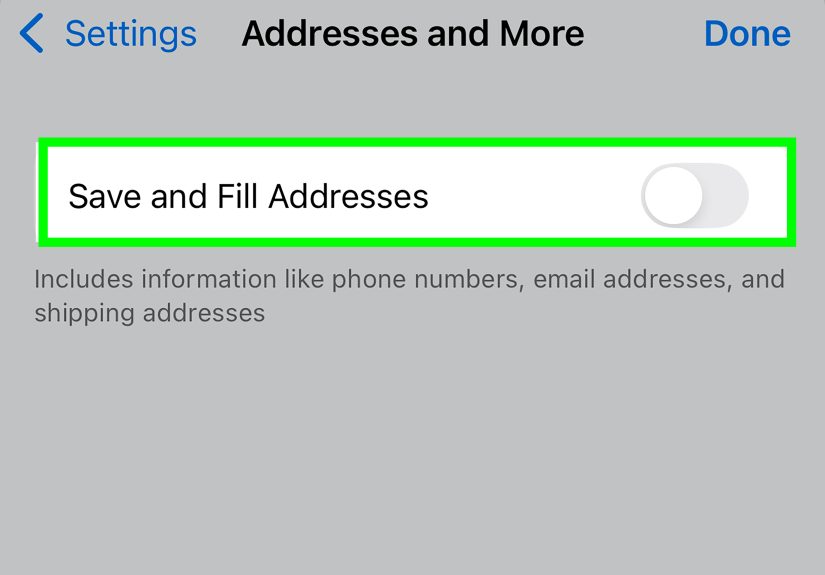
- Tap Addresses and more or Payment methods.
- Edit or delete the entry you do not want.
You can also turn off Save and fill addresses or Save and fill payment methods. If you want a broader reset, Chrome also lets you delete Autofill form data through its browsing data controls. If you are signed in, changes can reflect across Chrome Autofill settings tied to your Google account, which is convenient until it is inconvenient.
Firefox on iPhone
To manage saved addresses in Firefox:
- Open Firefox.
- Tap the menu icon.
- Tap Settings.
- Under Privacy, tap Addresses.
- Edit or delete saved addresses as needed.
If the issue is passwords, check Firefox’s saved password settings too. Firefox can Autofill credentials separately from address data, so the source of the problem matters.
Edge on iPhone
Microsoft Edge also stores Autofill information and can sync it with your Microsoft account. To manage or reduce that data:
- Open Edge.
- Go to Settings.
- Check Saved info for addresses, payment info, or password-related settings.
- Use Clear browsing data if you want broader cleanup.
- Review Sync settings if data keeps reappearing across devices.
If you clear Edge data while sync is active, that cleanup may affect other synced devices too. So yes, one phone tap can have “surprise, your laptop noticed” energy.
Best for: Autofill suggestions that appear only in one third-party browser.
Which Method Should You Use?
If you are not sure where to start, use this simple logic:
- Safari remembers a site strangely? Start with Method 1.
- Safari fills the wrong personal details or card? Use Method 2.
- The problem is a password or passkey? Go to Method 3.
- The issue only happens in Chrome, Firefox, or Edge? Use Method 4.
In many cases, the cleanest result comes from combining methods. For example, if a shopping site in Safari keeps suggesting the wrong address and still remembers an old session, you may want to update your My Card and clear Safari website data.
Common Mistakes to Avoid
- Assuming Safari history cleanup removes everything. It does not.
- Forgetting that contact info comes from My Card. Wrong address? Check Contacts.
- Ignoring sync. Chrome, Edge, and Apple services can sync data across devices.
- Deleting the wrong thing. If you need a password later, make sure you have another safe copy before removing it.
- Cleaning the wrong browser. If the problem is in Chrome, Safari settings will not save the day.
Final Thoughts
Learning how to remove Autofill info on an iPhone is really about understanding where your iPhone stores different kinds of convenience data. Safari, Contacts, Passwords, and third-party browsers all play their own little part. Once you know which layer is responsible, the cleanup becomes much easier.
The biggest takeaway is simple: Autofill is useful, but it needs maintenance. If you update your contact card, remove old cards, delete stale passwords, and occasionally clean browser data, your iPhone becomes faster, tidier, and much less likely to blurt out outdated personal info at exactly the wrong moment.
In other words, your iPhone can absolutely be helpful. It just sometimes needs a gentle reminder that you do not still live in that apartment with the suspicious plumbing.
Real-World Experiences With Removing Autofill on iPhone
One of the most common real-life situations involves people noticing the problem during online shopping. Everything seems fine until checkout, and then the iPhone proudly suggests an old shipping address, an expired card, and an email they only use for newsletters and mild regret. In many of these cases, users assume Safari itself is “broken,” but the issue is usually much more specific. The address may still live in My Card, the card may still be saved in Safari AutoFill, and the browser may simply be doing exactly what it was told months or years ago. The experience feels annoying, but it also shows why Autofill cleanup works best when you identify the source instead of trying one random fix and hoping for a miracle.
Another common experience happens when someone changes jobs, schools, or phone numbers. Suddenly, forms keep suggesting the old work email, the previous office phone line, or an address attached to a former apartment. This is especially frustrating because the information feels half-deleted. The person updated it in one place, but not in another. On iPhone, that mismatch matters. Your Contacts card may say one thing, your browser may store something else, and your password manager may still be holding onto older credentials. A lot of Autofill frustration comes from this exact split: the user made a legitimate update, but not every service got the memo. Once people go through Contacts, Safari AutoFill, Passwords, and their main browser, the problem usually clears up much faster than expected.
There is also the privacy angle, and this one matters more than many people realize. Users often decide to remove Autofill info before lending a phone to a relative, trading in a device, or letting a child use it for school or travel. In those moments, Autofill stops being a convenience feature and starts feeling like a giant “please browse my personal details” button. People are often surprised by how much data is ready to appear with just a tap: names, addresses, card fragments, logins, and more. The cleanup process gives them peace of mind, not just a tidier browser. It feels less like digital housekeeping and more like locking the front door properly.
Then there are the people who use more than one browser and get tripped up because each app behaves differently. They remove old info from Safari, open Chrome, and there it is again. Or they clean Chrome, then Firefox still offers an outdated address. This creates the illusion that the iPhone is ignoring instructions when the reality is simpler: each browser can manage its own saved data. Once users understand that Safari, Chrome, Firefox, and Edge may all need separate cleanup, the experience becomes far less confusing. It is one of those moments where technology becomes much easier the second you stop expecting one master switch to rule them all.
Finally, many users report that the best long-term result comes not from deleting everything, but from being selective. They keep Autofill on for the information they actually use and remove the outdated or sensitive items that cause friction. That balance is what makes Autofill genuinely helpful. A clean iPhone does not mean turning every smart feature off. It means making sure the smart feature is not still living in last year’s reality.