Table of Contents >> Show >> Hide
- What “New Tab Shortcuts” Are (and Why They Keep Coming Back)
- Fastest Fix (Desktop): Hide All Shortcuts in 30 Seconds
- Remove Just One Shortcut Tile (Desktop)
- Switch from “Most Visited” to “My Shortcuts” (Stop the Reappearing Act)
- How to Add, Edit, and Arrange Shortcuts (Desktop)
- Android: Remove or Hide New Tab Shortcuts
- iPhone & iPad: What’s Different (and Why You Might Not See the Controls)
- Privacy-First Options (Because Sometimes You Just Want a Clean Slate)
- Troubleshooting: “Customize Chrome” or “Shortcuts” Is Missing
- If You Want a Totally Blank New Tab Page
- Quick Examples: Which Method Should You Use?
- Conclusion
- Real-World Experiences (500+ Words): What People Actually Run Into
Chrome’s New Tab page is like that friend who means well but overshares: it proudly displays “helpful” shortcut tiles to websites you visit a lot.
Sometimes that’s convenient. Other times it’s… a little too honest. (Yes, Chrome, I did research “best mattress” for three weeks. You can stop reminding me.)
The good news: you can remove individual New Tab shortcuts, hide them all, or switch from Chrome’s automatically generated “Most visited” tiles to your own hand-picked set.
This guide walks through the exact steps on desktop (Windows/Mac/Linux) and explains what to do on Android and iPhone/iPad, plus fixes for the common “Why can’t I see the option?” moments.
What “New Tab Shortcuts” Are (and Why They Keep Coming Back)
On Chrome’s New Tab page, the grid of icons under the search box is usually one of two things:
- Most visited sites: Chrome auto-fills tiles based on your browsing habits (aka your browser history’s greatest hits).
- My shortcuts: a custom set you add, edit, and curate yourself.
If you remove a tile while using Most visited, Chrome may add it back later if you visit that site frequently againbecause it’s doing exactly what it was designed to do.
If you want something more permanent, you’ll typically either (1) hide shortcuts completely or (2) switch to My shortcuts and manage the list manually.
Fastest Fix (Desktop): Hide All Shortcuts in 30 Seconds
If your goal is “make them all disappear,” this is the cleanest optionand it also removes the “Add shortcut” tile.
Steps for Windows, Mac, and Linux
- Open Chrome and press Ctrl + T (Windows/Linux) or Command + T (Mac) to open a New Tab.
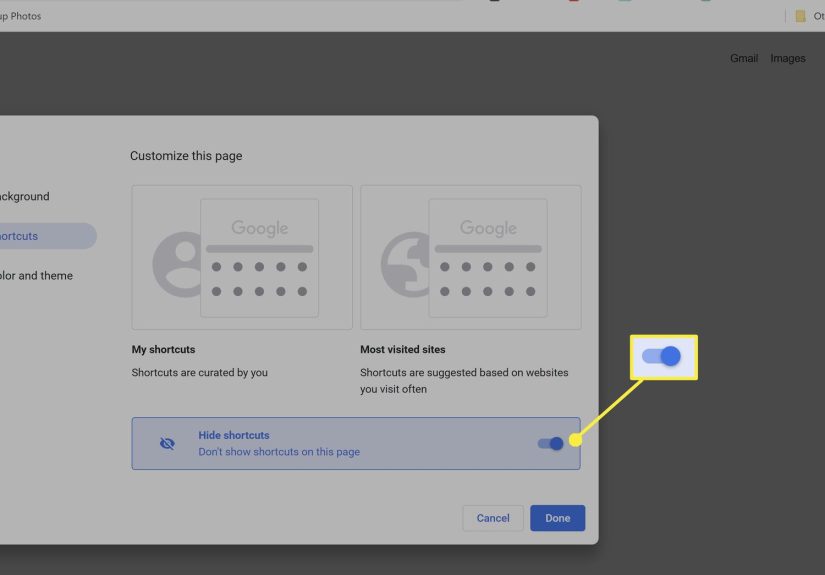
- Look in the bottom-right corner for Customize Chrome (often a pencil icon). Click it.
- Open the Shortcuts section.
- Turn off Show shortcuts (or toggle on Hide shortcuts, depending on your Chrome layout).
Once you toggle that setting, your New Tab page will look calmer, cleaner, and slightly more like a blank canvaswithout Chrome advertising your browsing routine to anyone nearby.
Remove Just One Shortcut Tile (Desktop)
Want to keep shortcuts in general, but remove that one tile that shows up at the worst possible time? Do this:
Steps
- Open a New Tab.
- Hover your mouse over the shortcut tile you want to remove.
- Click the three-dot menu (or small “X,” depending on your version).
- Select Remove.
Tip: If you’re using Most visited, removing a tile is more like telling Chrome, “Not right now,” not “Never again.”
If you keep visiting the site, Chrome may eventually re-add it as a top site. For a permanent list, switch to My shortcuts or hide shortcuts entirely.
Switch from “Most Visited” to “My Shortcuts” (Stop the Reappearing Act)
If your shortcuts keep repopulating with sites you didn’t choose, you’re probably on Most visited.
Switching to My shortcuts gives you control.
Steps
- Open a New Tab and click Customize Chrome (bottom right).
- Go to Shortcuts.
- Select My shortcuts instead of Most visited sites.
- Close the panel.
From here, you can add your own shortcuts (work tools, school portal, recipes you swear you’ll cook, etc.) and Chrome won’t “help” by swapping them out behind your back.
How to Add, Edit, and Arrange Shortcuts (Desktop)
Once you’re using My shortcuts, you can treat the grid like a tiny launchpad for your daily internet life.
Add a shortcut
- Open a New Tab.
- Click Add shortcut.
- Enter a Name and URL.
- Click Done (or Save).
Edit or remove a shortcut
- Hover over the tile.
- Click the three dots.
- Choose Edit shortcut or Remove.
Reorder shortcuts
In most Chrome layouts, you can click-and-drag tiles to reorder them. If dragging doesn’t work, you may be in Most visited mode (switch to My shortcuts first).
Android: Remove or Hide New Tab Shortcuts
Chrome on Android also gives you control over what appears below the search box on a New Tabthough the menu looks different than desktop.
Hide shortcuts (Android)
- Open Chrome on your Android device.
- Open a New Tab.
- Tap the three dots (top right).
- Select Customize new tab page.
- Find My shortcuts and toggle it off to hide the shortcuts area.
Remove a specific frequently visited site (Android)
Many Android builds let you long-press a tile and remove it. If you don’t see that option, your version may be using a different layoutor the site may be coming from a feed/card module rather than classic shortcuts.
iPhone & iPad: What’s Different (and Why You Might Not See the Controls)
On iOS, Chrome’s customization can be more dependent on your setup. In many cases, to customize what appears on the New Tab page you’ll need:
- To be signed in to your Google Account in Chrome, and
- To have Google set as your default search engine in Chrome.
If you’re missing the customization options on iPhone/iPad, check those two items first. If they’re already correct and you still don’t see New Tab controls, your Chrome version or regional settings may be limiting what can be adjusted from the app UI.
Privacy-First Options (Because Sometimes You Just Want a Clean Slate)
If your real reason for removing shortcuts is “I don’t want anyone else seeing my frequent sites,” you’ve got a few choices:
Option 1: Hide shortcuts completely
This is the simplest: no tiles, no “Most visited,” no accidental oversharing.
Option 2: Use a separate Chrome profile
Profiles keep browsing data separate. If you share a computer, having a separate profile is often more effective than playing whack-a-mole with tiles.
Option 3: Keep shortcuts, but switch to “My shortcuts”
This is a great middle ground: you can keep only what you want visible (email, calendar, work tools) without Chrome auto-filling the grid based on history.
Troubleshooting: “Customize Chrome” or “Shortcuts” Is Missing
If the instructions above don’t match what you see, it’s usually one of these situations:
1) Your New Tab page is controlled by an extension
Some extensions replace Chrome’s New Tab page entirely (productivity dashboards, wallpaper tabs, “search” pages, etc.). If an extension is in charge, Chrome’s built-in shortcut controls may vanish.
- Open Chrome’s menu (three dots).
- Go to Extensions → Manage Extensions.
- Temporarily toggle off anything that mentions “New Tab,” “Start page,” “Homepage,” or similar.
- Open a new tab again and check for Customize Chrome.
2) Your Chrome is managed by an organization
If you see “Managed by your organization” in Chrome settings, your school or workplace may enforce a custom New Tab page or restrict changes.
In managed environments, admins can set policies such as the New Tab page URL, which can override normal customization.
3) You’re on an older layout (or Chrome needs an update)
Chrome’s New Tab customization has been redesigned over time (including a side panel UI on desktop). If your UI looks wildly different, update Chrome and try again.
If You Want a Totally Blank New Tab Page
Hiding shortcuts gets you close, but the New Tab page will still show Chrome’s search box and other elements depending on your setup.
If your goal is a truly minimal page (or a custom dashboard), people often use a New Tab extension from the Chrome Web Store.
Just be picky: New Tab extensions can see and modify what appears when you open a tab, so stick to well-known options with strong reviews and clear privacy practices.
And if you’re on a work/school device, extensions might be blocked or controlled by policy anyway.
Quick Examples: Which Method Should You Use?
Example A: You want to remove one awkward tile
Use Remove on that tile. If it reappears, switch to My shortcuts or hide all shortcuts.
Example B: You’re setting up a “clean” browser for a shared family computer
Hide shortcuts and consider creating separate Chrome profiles. This keeps your New Tab page from becoming a public diary of your browsing habits.
Example C: You want the New Tab page to be your personal launchpad
Switch to My shortcuts, add your most-used sites manually, and keep the grid curated like a tiny digital bookshelf.
Conclusion
Removing New Tab shortcuts in Chrome is less about fighting the browser and more about choosing the right level of control:
remove a tile when you want a quick fix, switch to My shortcuts when you want a stable list, or hide shortcuts entirely when you want peace and privacy.
If the options are missing, don’t panicextensions and managed policies are the usual suspects. Once you get Chrome’s default New Tab page back in charge,
the shortcut controls are straightforward and (thankfully) don’t require any arcane browser wizardry.
Real-World Experiences (500+ Words): What People Actually Run Into
In everyday use, the biggest “gotcha” is the difference between hiding shortcuts and deleting a shortcut tile. Hiding is like closing the curtain:
everything is still there behind the scenes, and you can bring it back instantly by toggling the setting. Deleting a tile in Most visited mode, on the other hand, is more like
swatting away a mosquitosatisfying in the moment, but it doesn’t stop another one from showing up tomorrow. If you keep visiting the same site, Chrome may decide it belongs on the New Tab page again.
Another common experience is the “Why does my New Tab page look different than yours?” problem. Chrome changes the interface over time (desktop now often uses a side panel for customization),
and mobile builds vary even more. On Android, some people can long-press and remove tiles easily, while others see a different “Customize new tab page” menu that focuses more on toggles than individual tiles.
On iPhone and iPad, people frequently notice that customization options appear only when they’re signed in and using Google as the default search engine in Chromeso the same app can look
“fully customizable” for one person and “mysteriously locked down” for another.
A surprisingly frequent scenario: someone installs a “pretty” New Tab extension (daily quotes, scenic photos, productivity widgets), then later forgets they installed it.
Weeks pass. Suddenly they want to remove shortcuts, but the Customize Chrome button is gone. The truth is Chrome isn’t being stubbornthe extension is replacing the New Tab page entirely.
Once they disable the extension, the built-in Chrome New Tab page returns, along with the shortcut controls. This is also why “my New Tab page got weird” reports often trace back to extensions
that bundle a search feature or a custom homepage.
People on work or school laptops often face the “managed device” twist. They follow normal instructions, but the New Tab page keeps snapping back to a company portal,
or the shortcut section disappears. In those cases, it’s not a bugit’s policy. Organizations can set the New Tab page URL and prevent changes. The experience feels frustrating because
it looks like a personal setting, but it’s being governed like a workplace tool. The practical takeaway: if you see “Managed by your organization,” expect limits, and don’t waste an hour clicking
the same toggle hoping Chrome will suddenly become rebellious.
Finally, there’s the “privacy wake-up call.” Many people try to remove New Tab shortcuts after realizing those tiles can reveal sensitive patternsbanks, health portals, job sites, or
the “I swear it was only research” kind of browsing. The most satisfying fix tends to be hiding shortcuts completely, because it stops the page from acting like a highlight reel.
If someone still wants convenience, the next best real-world solution is switching to My shortcuts and only adding a few neutral, daily-use sites. It’s the difference between
Chrome guessing your routine and you choosing your launchpad. And honestly, letting Chrome guess is how you end up with a tile that appears precisely when a friend leans over your shoulder.