Table of Contents >> Show >> Hide
- Before You Start: Pick Your Mail “Home Base”
- Quick Way #1: Mark All Emails as Read in Apple Mail (Single Mailbox)
- Quick Way #2: Apple Mail “Unread-Only” Method (Cleaner + Fewer Oops Moments)
- Quick Way #3: Mark All as Read in the Gmail App on iPhone
- Quick Way #4: Use Outlook (App) or Safari Webmail (The “Nuclear Option”)
- Troubleshooting: If the Unread Badge Won’t Go Away
- Pro Tips: Keep the Unread Count From Coming Back (Without Becoming a Minimalist)
- Wrap-Up: Your 4 Quick Ways (Pick Your Fighter)
- Experiences: What “Mark All as Read” Feels Like in Real Life (500+ Words)
That little red badge on the Mail icon is basically a tiny digital life coach screaming, “You have responsibilities!”
Whether you’ve got 27 unread messages or (no judgment) 27,000, marking everything as read on your iPhone is one of
the fastest ways to reset your inbox stress level without deleting anything important.
In this guide, you’ll get four quick, reliable methodscovering Apple Mail, Gmail, and Outlookplus troubleshooting
tips for when the unread count refuses to die like a villain in a sequel.
Before You Start: Pick Your Mail “Home Base”
“Mark all as read” works a little differently depending on the app you use:
- Apple Mail (the built-in Mail app): Usually the fastest for bulk actions in a single mailbox.
- Gmail app: Great if you live in labels and categories, but you may need to select in batches.
- Outlook app: Powerful on iPhone, with selection tools that can clear a folder quickly.
- Webmail in Safari: The “nuclear option” for huge inboxes (especially Gmail) because desktop-style selection is more complete.
One important note: marking as read doesn’t delete emails. It just removes the “unread” status, which is why it’s
a low-risk way to clean up your badge and focus on what actually matters.
Quick Way #1: Mark All Emails as Read in Apple Mail (Single Mailbox)
This is the classic, most direct method. It works best when you target one mailbox at a timelike Inbox, VIP,
Archive, or a custom folderbecause iOS can be picky when multiple mailboxes are “selected” at once.
Steps (Apple Mail)
- Open Mail on your iPhone.
- Go into the specific mailbox you want to clean up (for example, Inbox or All Inboxes).
-
Tap Edit.
Tip: On some iOS versions, you may see a More button (often three dots) insteadtap it, then choose Select. - Tap Select All.
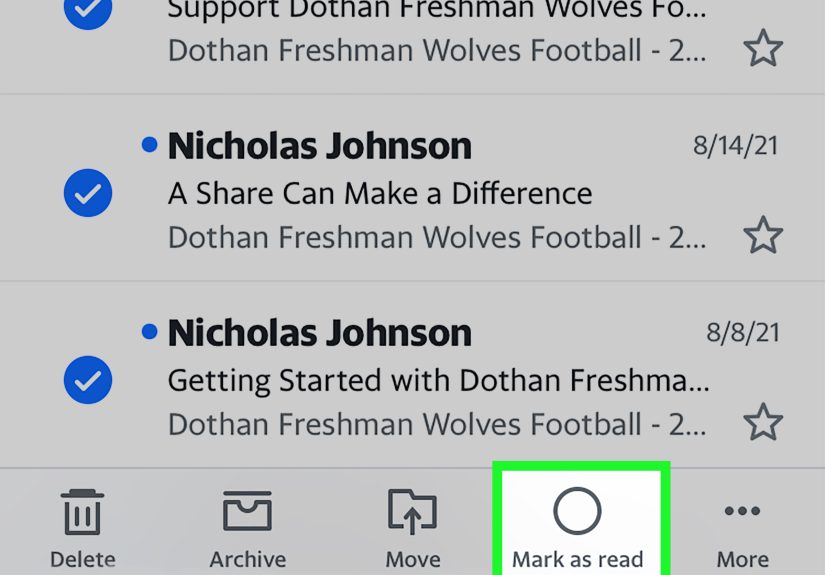
- Tap Mark, then choose Mark as Read.
Why this works: you’re applying a single bulk status change inside one mailbox, so it’s fast and
less likely to glitch. If you want to avoid accidentally toggling things the wrong way, the next method is your
safer “only unread” approach.
Quick example: If your Inbox shows 2,418 unread emails, this clears that Inbox count in seconds.
If the badge still shows a number afterward, the unread messages are probably hiding in another folder (Junk, Archive,
“All Mail,” Promotions, etc.). Don’t worrywe’ll tackle that in troubleshooting.
Quick Way #2: Apple Mail “Unread-Only” Method (Cleaner + Fewer Oops Moments)
Sometimes “Select All” includes emails that are already read. In those cases, iOS may show you options like
“Mark as Unread,” which is the exact opposite of what you came here to do (and the beginning of a villain origin story).
Steps (Filter to Unread, Then Mark)
- Open Mail and enter the mailbox you want to fix.
-
Turn on an Unread filter.
Where is it? Depending on your iOS version, look for a filter control near the bottom of the message list.
If you don’t see one, you can also use the search bar and filter by unread from there. - Tap Edit (or More → Select).
- Tap Select All (now you’re selecting unread messages only).
- Tap Mark → Mark as Read.
Bonus: If Your Mail App Uses Categories
Some newer iOS Mail layouts include category-style groupings (like Transactions, Updates, or Promotions). Those can
be helpful, but they can also make selection feel differentsometimes selecting one grouped message can select more
than you expect. If you’re trying to clear unread status from a specific sender (like a store that thinks you’re
still shopping for a waffle maker you bought in 2019), this can actually be a win.
Why this works: you’re only touching messages that are actually unread. That means the action menu
is more likely to offer “Mark as Read,” and you’re less likely to accidentally flip read messages back to unread.
Quick Way #3: Mark All as Read in the Gmail App on iPhone
The Gmail iPhone app can mark multiple messages as read quickly, including a “Select all” control. The catch:
like many mobile apps, it often selects what’s currently loaded on screenso if you have thousands of unread emails,
you may need to scroll and repeat in chunks.
Steps (Gmail app)
- Open the Gmail app.
- Go to the mailbox/label you want to clean (for many people, that’s Inbox).
- Tap the sender’s profile image (or circle) next to any email to enter selection mode.
- Tap the Select all box near the top of the screen.
- Tap Mark as read (usually an open-envelope icon).
- If you still have unread emails, scroll down to load more messages and use Select all again to include more.
Pro move for giant inboxes: if you’re trying to wipe out unread status everywhere, repeat this in
key labels like Promotions/Social (if you use them), or in “All Mail” (if your Gmail setup uses it heavily).
Quick example: You’re at 8,000 unread. Start with Promotions first (it’s usually the biggest pile),
select all, mark as read, then move to Social, then Primary. You’ll see the unread badge drop fast without needing
to delete anything.
Quick Way #4: Use Outlook (App) or Safari Webmail (The “Nuclear Option”)
If Apple Mail isn’t your main appor you want more controlthis method gives you two strong alternatives. Pick the one
that matches your setup.
Option A: Outlook App on iPhone (Fast Folder Cleanup)
- Open the Outlook app.
- Go to the folder you want to clean (Inbox, Archive, etc.).
- Press and hold on any email to enter selection mode.
- Use Select All (often shown as a stacked-checkbox icon).
- Tap Mark as Read (commonly the open-envelope icon) and confirm if prompted.
Why this works: Outlook’s selection mode is designed for bulk folder actions, and it’s often very
consistent once you’re in that “multi-select” state.
Option B: Safari Webmail (Gmail and Others) for Truly Massive Unread Counts
If you have a mountain of unread Gmail (or you need desktop-grade selection tools), Safari can be your best friend.
You’re essentially borrowing the power of the desktop web interfaceon your iPhone.
Steps (Gmail on the web in Safari)
- Open Safari and go to Gmail (sign in if needed).
-
If you see a mobile version with fewer controls, open Safari’s website settings and choose
Request Desktop Website. - In Gmail’s search bar, type is:unread and run the search.
- Click the top checkbox to select messages on the page.
- Look for the option to select all conversations that match this search, then choose it.
- Click Mark as read.
Why this works: Gmail’s web interface can select far more than what a mobile app loads at once.
It’s one of the quickest ways to clear an unread backlog that took years of “I’ll deal with that later” energy to build.
Troubleshooting: If the Unread Badge Won’t Go Away
If you marked everything as read and your iPhone still shows unread counts, you’re not imagining things.
Here are the most common reasonsand the fastest fixes.
1) Unread Mail Is Hiding in Another Folder
The unread badge often includes messages in folders you don’t check dailylike Junk, Archive,
All Mail, or provider-specific folders. In Apple Mail, repeat “Select All → Mark as Read” for any folder that shows a blue dot.
2) “All Mailboxes” Views Can Be Weird
Depending on your iOS version and how many accounts you have, you may not see Select All until you enter a specific mailbox
(or even a specific account view) rather than trying to do it from a top-level Mailboxes screen. If the option feels like it vanished,
go one level deeper into the mailbox first.
3) Your Mail App Offers “Mark as Unread” Instead of “Mark as Read”
That usually means your selection includes messages that are already read. Use the Unread-only filter method so the action menu
stays aligned with your goal.
4) Sync Lag (Especially After Huge Bulk Actions)
If you just marked thousands of messages as read, the server may take a little time to catch up. Try force-closing the Mail app and reopening it.
If the badge is still stuck, toggle Mail off and on for that account in iPhone settings (carefully), or refresh the mailbox list.
5) Gmail-Specific Tip: Search Is Your Flashlight
In Gmail (app or web), searching is:unread is the fastest way to confirm whether unread messages still exist, even if they’re
buried in labels you don’t look at.
Pro Tips: Keep the Unread Count From Coming Back (Without Becoming a Minimalist)
Create a “Triage Routine” That Matches Your Life
- Daily 2-minute scan: star/flag what matters, mark the rest read.
- Weekly cleanup: search “unsubscribe” and prune newsletters that don’t spark joy (or revenue).
- Use folders/labels intentionally: if everything goes to Inbox, Inbox becomes a junk drawer with push notifications.
Mark as Read Isn’t DefeatIt’s Strategy
Some emails don’t deserve your attention but also don’t deserve your deletion anxiety. Marking as read is how you
say, “I acknowledge your existence… and I decline your invitation to ruin my afternoon.”
Wrap-Up: Your 4 Quick Ways (Pick Your Fighter)
- Apple Mail (mailbox): Edit → Select All → Mark → Mark as Read.
- Apple Mail (unread-only): Filter to Unread → Edit → Select All → Mark as Read.
- Gmail app: Select mode → Select all → Mark as read (repeat in batches if needed).
- Outlook or Safari webmail: Outlook Select All + Mark, or Gmail web search is:unread → select all matching → mark read.
Once you’ve done it, enjoy the rare peace of a quiet badge-free home screen. Take a screenshot. Frame it.
Make it your lock screen. (Okay, maybe don’tbut you’ll be tempted.)
Experiences: What “Mark All as Read” Feels Like in Real Life (500+ Words)
There’s a special kind of emotional weight that comes from an unread email count. It’s not always logicalhalf the time
the messages are coupons, shipping updates, and that one brand that insists you’re still “just browsing.” But the number
sits there like a tiny scoreboard you never agreed to play.
One common experience is the “Sunday night clean slate” attempt: you open Mail with good intentions, see four digits,
and your brain immediately negotiates. “What if I miss something important?” “What if there’s a bill?” “What if my dentist
emailed me personally to say I’m their favorite patient?” That’s when marking all as read becomes less of a tech trick and
more of a mindset shift: you’re choosing to prioritize the present over the backlog.
People who use Apple Mail often describe the first successful bulk mark as read as a weirdly satisfying momentlike clearing
a cluttered countertop. The action itself takes seconds, but the relief is immediate. The badge disappears. The mailbox stops
shouting. And suddenly you remember that your phone is also for photos, music, and texting your friend “I’m on my way”
while still not being on your way.
Gmail users tend to have a slightly different experience because the inbox can be split across Primary, Social, and Promotions.
It’s easy to mark your Primary inbox as read and still have the badge mocking you because Promotions is holding a small
civilization of unread messages. The best “aha” moment for many people is discovering that search is the real power tool.
Typing is:unread feels like turning on a flashlight in a messy garageyou finally see what’s actually there, instead of guessing.
Once you can see the unread messages in one place, marking them read becomes a clear decision instead of a blind leap.
Outlook users often talk about bulk actions as “office survival.” If you’re juggling work threads, meeting invites, and automated
notifications, unread counts can climb fast even when you’re staying on top of important tasks. In that world, “mark all as read”
isn’t pretending the messages don’t existit’s acknowledging that unread does not equal urgent. It’s a way to reset your folder
so the truly new messages stand out again.
And then there’s the universal experience: the tiny fear that you’ll tap the wrong button. In Apple Mail especially, options like
Flag or Move to Junk can sit close to Mark as Read. People learn quickly to slow down for one secondjust enough to confirm the
menu option before committing. After you do it a couple times, your confidence goes up, and “mass unread cleanup” turns from a
once-a-year event into something you can do whenever life gets busy.
The best part? After the cleanup, you usually develop a healthier relationship with unread status. You stop treating it like a moral
failing. You start using it as a tool: unread means “needs attention,” and read means “not today.” That’s not laziness. That’s inbox
hygienelike washing the dishes so you can cook again, instead of staring at the sink until you order takeout.