Table of Contents >> Show >> Hide
- Why Backing Up LXQt Settings Matters
- Understanding Where LXQt Stores Desktop Settings
- The Main LXQt Settings You Should Back Up
- Method 1: Back Up LXQt Settings With tar
- Method 2: Back Up LXQt Settings With rsync
- Method 3: Back Up the Whole .config Folder
- How to Restore LXQt Desktop Settings
- How to Verify Your LXQt Backup
- Common Mistakes When Backing Up LXQt
- A Practical LXQt Backup Script
- Should You Back Up System-Wide LXQt Settings?
- Best Practices for LXQt Desktop Backups
- Real-World Experience: What Actually Matters When Backing Up LXQt
- Conclusion
Editorial note: This guide is based on current LXQt, Lubuntu, freedesktop XDG, GNU tar, rsync, PCManFM-Qt, Openbox, and Linux desktop configuration practices.
Why Backing Up LXQt Settings Matters
LXQt is one of those Linux desktop environments that quietly wins people over. It is lightweight, fast, modular, and refreshingly uninterested in eating half your RAM before you even open a browser. But after you spend an afternoon adjusting the panel, choosing the right icon theme, setting keyboard shortcuts, arranging desktop behavior, tuning power settings, and convincing your wallpaper to behave like a civilized image file, you probably do not want to repeat that work after a reinstall.
That is where backing up LXQt desktop settings becomes useful. Whether you are moving to a new Linux distribution, reinstalling Lubuntu, experimenting with Arch Linux, cloning your setup to another laptop, or simply preparing for the classic “I’ll just change one config file” adventure, a good LXQt backup can save time, frustration, and several dramatic sighs.
The good news is that LXQt follows common Linux desktop conventions. Most personal desktop configuration files live inside your home directory, especially under ~/.config. The even better news is that you do not need a complicated enterprise backup system to preserve your LXQt setup. A few careful commands using tar or rsync can capture the important files and make restoration straightforward.
Understanding Where LXQt Stores Desktop Settings
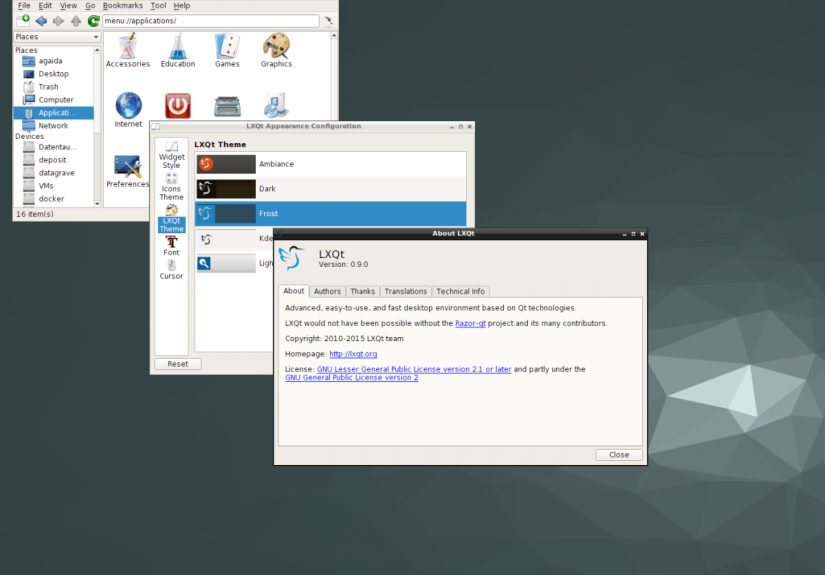
Before you back up anything, it helps to know what you are saving. LXQt stores user-specific configuration mainly in ~/.config/lxqt. This directory usually contains settings for the LXQt panel, session, runner, global shortcuts, appearance, monitor layout, notifications, power management, locale, and other desktop components.
The XDG Base Directory standard explains why this location is so common. On Linux, user-specific configuration is normally stored under $XDG_CONFIG_HOME. If that variable is not set, the default location is ~/.config. In ordinary human language: when an application wants to save your personal settings, it usually heads to ~/.config like a homing pigeon with excellent file-system manners.
For LXQt, the most important directory is:
Inside it, you may find files such as:
lxqt.conffor general LXQt settingspanel.conffor panel layout and widgetssession.conffor session behaviorglobalkeyshortcuts.conffor keyboard shortcutslxqt-powermanagement.conffor power settingslxqt-config-appearance.conffor appearance preferenceslxqt-config-monitor.conffor monitor settingsnotifications.conffor notification behavior
However, LXQt is modular. That means some parts of your “desktop experience” may be controlled by related tools. For example, PCManFM-Qt is commonly used by LXQt to manage the desktop, including desktop icons and wallpaper behavior. If you only back up ~/.config/lxqt, you may save the panel and session settings but miss desktop background preferences.
The Main LXQt Settings You Should Back Up
A reliable LXQt settings backup should include more than one folder. The exact list depends on your distribution and personal setup, but the following paths are usually worth checking.
1. LXQt Core Configuration
This is the heart of the backup. If you back up only one LXQt folder, make it this one. It contains most of the desktop environment’s user-level settings, including panel layout, shortcuts, appearance, session options, and more.
2. PCManFM-Qt Desktop Settings
PCManFM-Qt is the Qt-based file manager used by LXQt for desktop handling in many setups. This directory may include settings related to the desktop profile, wallpaper, icon behavior, file manager preferences, and other desktop-related details.
On many systems, wallpaper settings are stored in a file similar to:
If your wallpaper is the crown jewel of your setup, do not forget this directory. Also remember to back up the actual wallpaper image if it is stored somewhere personal, such as ~/Pictures/Wallpapers.
3. Openbox Settings, If You Use Openbox
Many LXQt installations use Openbox as the window manager, especially traditional Lubuntu-style setups. Openbox controls window behavior, placement, right-click menus, keybindings, and some session-level behavior. Its key files often include rc.xml, menu.xml, autostart, and environment.
If you use a different window manager, such as KWin, Xfwm4, or another custom choice, back up that window manager’s configuration instead. LXQt lets you change the window manager through its session settings, so the “right” backup depends on what your system actually uses.
4. QTerminal Settings
QTerminal is often part of an LXQt desktop setup. If you have customized fonts, color schemes, transparency, tabs, shortcuts, or behavior, this folder is worth saving. A terminal may look small, but losing a carefully tuned terminal profile can feel oddly personal.
5. File Associations and Custom Launchers
If you have customized which apps open PDFs, images, text files, videos, or web links, mimeapps.list is important. Custom application launchers are often stored under ~/.local/share/applications. Backing up these files helps preserve the little conveniences that make your desktop feel like yours.
6. Themes, Icons, Fonts, and Wallpapers
LXQt appearance settings may point to themes, icons, fonts, and wallpapers that live outside LXQt’s own configuration folder. Consider backing up these locations if you use custom files:
If you restore LXQt settings but forget the theme package or wallpaper file, the desktop may still load, but it may look like it woke up in someone else’s apartment.
Method 1: Back Up LXQt Settings With tar
The simplest way to back up LXQt desktop settings is to create a compressed archive with tar. GNU tar is designed to store multiple files in one archive, making it perfect for saving a snapshot of configuration directories.
First, create a folder for backups:
Then run this command:
This creates a dated archive such as:
The option --ignore-failed-read prevents the command from completely failing if one optional folder does not exist. For example, if your system does not have ~/.config/openbox, tar can continue backing up the rest.
What the tar Options Mean
-ccreates a new archive.-zcompresses it with gzip.-vshows files as they are added.-fspecifies the archive filename.
This method is excellent for occasional backups before a reinstall, upgrade, theme experiment, or distribution hop. It is also easy to copy the archive to a USB drive, external disk, NAS, or cloud storage folder.
Method 2: Back Up LXQt Settings With rsync
If you prefer a folder-style backup instead of a compressed archive, use rsync. It is widely used for Linux backups because it can synchronize only changed files after the first copy. That makes it fast for repeated backups.
Create a destination folder:
Then sync the important directories:
If you use Openbox, add:
The -a option means archive mode, which preserves important file attributes. The -v option makes the command verbose, and -h shows human-readable file sizes. The --delete option removes files from the backup destination if they no longer exist in the source, keeping the mirror clean.
Be careful with --delete. It is useful, but it does exactly what it says. If the source path is wrong, the command will not politely ask whether you had enough coffee before pressing Enter.
Method 3: Back Up the Whole .config Folder
If you want a broader desktop backup, you can archive your entire ~/.config folder. This captures LXQt plus settings for many applications, such as terminal emulators, text editors, file managers, browsers that use XDG locations, and other desktop tools.
This approach is simple and often effective. However, it may include more than you need. Some application settings can be large, messy, outdated, or machine-specific. If you are moving between different Linux distributions or major desktop versions, a selective backup is safer.
How to Restore LXQt Desktop Settings
Restoring is the part where patience pays off. Do not restore settings while actively changing LXQt configuration tools. Ideally, log out of LXQt and restore from a TTY, another desktop session, or a live USB environment. Directly editing LXQt configuration while the session is running can cause settings to be overwritten when the session exits.
To restore a tar backup, copy the archive into your home directory and run:
Replace YYYY-MM-DD with the actual date in your archive filename.
After restoring, log out and log back in. If the panel does not refresh correctly, restart the LXQt panel:
If desktop icons or wallpaper do not appear correctly, restart PCManFM-Qt’s desktop process:
On some systems, simply logging out and back in is cleaner than manually restarting components. Linux lets you do both, because Linux believes in freedom, including the freedom to troubleshoot creatively.
How to Verify Your LXQt Backup
A backup you have never tested is more like a hopeful rumor. Before you trust it, inspect the archive:
Look for the directories and files you expected, especially:
You can also test restoration in a new temporary Linux user account. Create a test user, log in once, restore the backup there, and check whether the desktop layout appears correctly. This is especially useful before migrating to a new machine.
Common Mistakes When Backing Up LXQt
Backing Up Only One File
LXQt does not keep everything in one magic file. The panel, session, shortcuts, desktop icons, wallpaper, power settings, and window manager behavior may live in separate locations. Backing up only panel.conf is better than nothing, but it is not a complete LXQt desktop backup.
Forgetting the Window Manager
If your LXQt session uses Openbox, your window behavior may depend on ~/.config/openbox. If you restore LXQt without restoring Openbox, windows may behave differently, keyboard shortcuts may change, and your carefully tuned right-click menu may vanish like a snack left near a teenager.
Forgetting Actual Theme and Wallpaper Files
Configuration files often point to theme names, icon names, font names, and wallpaper paths. They do not always include the files themselves. If your theme came from a downloaded archive or your wallpaper lives in a custom folder, back up those assets too.
Restoring Across Very Different Versions
Restoring LXQt settings from an old system to a much newer LXQt release usually works, but not always perfectly. Configuration formats can change. Panel widgets can be renamed or removed. Monitor names can differ between machines. Restore selectively if something looks strange.
Running Commands Without Checking Paths
Never blindly paste backup commands without checking the paths. Your home directory, wallpaper folder, terminal profile, and window manager may differ. Run ls first:
If a folder does not exist, it may simply mean your setup does not use it.
A Practical LXQt Backup Script
If you back up LXQt settings regularly, create a small script. Save this as backup-lxqt-settings.sh:
Make it executable:
Run it whenever needed:
This script is intentionally simple. You can expand it later to copy the archive to another disk, encrypt it, upload it to cloud storage, or keep only the most recent backups.
Should You Back Up System-Wide LXQt Settings?
Most users only need to back up personal settings in their home directory. However, LXQt can also have global configuration files in locations such as /etc/xdg and /usr/share/lxqt. These are system-wide defaults and are usually managed by your Linux distribution or package manager.
If you personally modified files under /etc/xdg, back them up separately with administrator privileges:
Do not casually modify or restore files under /usr/share/lxqt. That area is typically owned by packages. If you want custom user settings, prefer your home directory. It is safer, cleaner, and less likely to start an argument with your package manager.
Best Practices for LXQt Desktop Backups
For a dependable backup routine, follow a few habits. First, create a backup before major updates, distribution upgrades, driver changes, or theme experiments. Second, store at least one copy outside your computer. A backup stored only on the same drive is convenient, but it will not help if the drive fails.
Third, use dated filenames. A file called backup.tar.gz is vague. A file called lxqt-settings-2026-04-25.tar.gz tells you exactly when it was created. Fourth, keep notes. A small text file explaining which distribution, LXQt version, window manager, and theme packages you used can make restoration much easier.
Finally, do not treat configuration backups as a substitute for full personal file backups. LXQt settings are important, but your documents, photos, projects, SSH keys, browser profiles, and personal data need their own backup strategy. Desktop settings are the icing; your data is the cake. Please back up the cake.
Real-World Experience: What Actually Matters When Backing Up LXQt
In real use, backing up LXQt desktop settings is less about memorizing every file and more about understanding how your desktop is assembled. LXQt is modular, which is wonderful because it stays light and flexible. The tradeoff is that your perfect setup may be spread across several small configuration directories. That is not a problem once you know where to look.
The first practical lesson is that ~/.config/lxqt should be treated as the core of your LXQt identity. If you have arranged your panel just right, added widgets, changed shortcuts, adjusted the power manager, or customized session behavior, that folder is where much of the magic lives. Losing it does not destroy your system, but it does return your desktop to that awkward “fresh install” feeling, where everything technically works but nothing feels like home.
The second lesson is that wallpaper and desktop icon settings can surprise people. Many users think “LXQt settings” means one LXQt folder, but desktop behavior often depends on PCManFM-Qt. If you restore your panel but your wallpaper is missing, check ~/.config/pcmanfm-qt and confirm the wallpaper file still exists at the same path. If the old setup used /home/alex/Pictures/wallpapers/mountain.png and the new machine uses a different username or folder name, the setting may point to a file that no longer exists. The desktop is not being dramatic; it is just following bad directions.
The third lesson is to back up after customization, not before. That sounds obvious, but it is easy to spend an hour adjusting the panel, forget to run the backup script, and then reinstall later with last month’s settings. A good habit is to run your backup command immediately after a successful round of customization. Think of it like saving a game after beating a difficult boss, except the boss is monitor scaling.
The fourth lesson is that restoring everything blindly is not always best. If you are moving from one version of LXQt to another, start with the core folders, then restore extras only when needed. For example, restore ~/.config/lxqt and ~/.config/pcmanfm-qt, log in, check the desktop, and then restore Openbox, terminal, themes, and file associations. This staged approach makes troubleshooting easier because you know which restored folder caused a problem.
The fifth lesson is to save a package list. Configuration files often reference programs, themes, icon packs, fonts, and panel plugins. If those packages are missing on the new system, LXQt may fall back to defaults. On Debian, Ubuntu, or Lubuntu-based systems, you can save manually installed packages with package manager tools. On Arch-based systems, you can save explicit packages with pacman. The exact command depends on your distribution, but the principle is universal: settings are more useful when the software they reference is installed.
The sixth lesson is to keep backups boring. Fancy backup systems are fun until you need to restore quickly. A plain .tar.gz archive is boring in the best way: easy to inspect, easy to copy, easy to extract, and easy to understand years later. You can still use advanced tools, encryption, scheduled jobs, or cloud sync, but keep at least one simple archive around. Future you may be tired, under-caffeinated, and very grateful.
Finally, remember that Linux desktops reward curiosity. Backing up LXQt settings teaches you how your desktop works: where panels are stored, how sessions start, how wallpapers are referenced, how window managers fit into the picture, and how XDG directories organize user configuration. Once you understand that structure, restoring your desktop stops feeling risky. It becomes just another Linux skill, right between “editing config files safely” and “pretending you meant to reboot.”
Conclusion
Backing up LXQt desktop settings on Linux is simple once you know where LXQt keeps its configuration files. Start with ~/.config/lxqt, then include related directories such as ~/.config/pcmanfm-qt, ~/.config/openbox, ~/.config/qterminal.org, custom launchers, file associations, themes, icons, fonts, and wallpapers. Use tar for portable compressed snapshots or rsync for repeatable folder synchronization.
The best backup is not the biggest one; it is the one you can restore confidently. Test your archive, keep dated copies, store backups outside your main drive, and remember that LXQt’s lightweight design makes it especially friendly to practical, file-based backup habits. With a few commands and a little discipline, you can reinstall, migrate, or experiment without rebuilding your desktop from scratch.