Table of Contents >> Show >> Hide
- What “Accuracy” Means in AI Photo Editing (And Why It’s So Hard)
- What Changed: Gemini’s Newer Image Editing Model
- Gemini Photo Editing vs. Google Photos “Help me edit”
- Where Gemini’s Accuracy Finally Feels Real
- Practical Examples: Prompts That Get Accurate Results
- How to Get More Accurate Gemini AI Photo Edits
- Accuracy Still Has Limits (Because Physics, Reality, and Also AI)
- Trust, Transparency, and “Is This Still a Real Photo?”
- What This Means for Creators, Small Businesses, and Regular People With Messy Camera Rolls
- Real-World Experiences With Gemini Photo Edits (The 500-Word Reality Check)
- Conclusion: Accuracy Is the New Magic
AI photo editing has spent the last couple of years doing that thing where it promises “quick, magical improvements”
and then quietly gives your dog a new face and your kid an extra elbow. You asked it to remove a stranger in the
background, and it removed… your dignity.
But Google’s Gemini is making a serious push to change the vibe. With a newer image editing model (yes, the one that
wore the delightfully unserious nickname “Nano Banana” in early chatter), Gemini’s edits are getting noticeably more
accurate: faces stay recognizable, pets stop shapeshifting, and small changes (like “make my shirt blue”) no longer
require sacrificing half the background to the algorithm gods.
In this article, we’ll break down what “accuracy” actually means in AI photo edits, what Gemini is doing differently,
how Gemini-powered editing works across the Gemini app and Google Photos, and how to get cleaner, more realistic
results without needing a PhD in Prompt Engineering (minor in Desperation).
What “Accuracy” Means in AI Photo Editing (And Why It’s So Hard)
When people say an AI photo edit is “accurate,” they usually mean a few practical things:
- Identity consistency: You still look like you. Your spouse still looks like your spouse. Your dog still looks like your dog.
- Localized changes: The AI edits the part you asked for, not the entire universe surrounding it.
- Prompt adherence: If you request “remove sunglasses,” it removes sunglasseswithout inventing a new jawline.
- Visual realism: Lighting, shadows, textures, and perspective match the original photo.
- Detail preservation: Patterns, logos, and small features don’t melt into painterly mush.
The reason accuracy is hard is simple: most generative systems don’t “edit” like Photoshop. They often recreate large
parts of the image to make the change fit. That can be fine for artistic transformations, but it’s a nightmare for
everyday edits where the goal is “same photo, just better.”
What Changed: Gemini’s Newer Image Editing Model
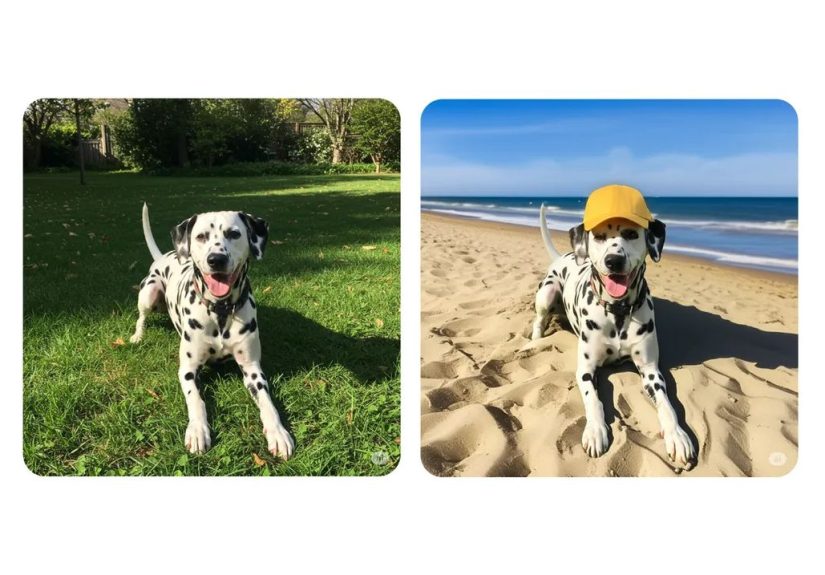
Google says the updated Gemini image editing model is designed to keep people and pets looking consistently like
themselveseven when you’re making creative changes (new outfits, new hairstyles, new scenes, new vibes). That’s a
big deal because “almost like you” is the uncanny valley’s favorite genre.
This upgraded approach also leans into more flexible editing workflows:
you can edit a photo with a prompt, keep iterating in multiple turns, blend multiple photos, and even apply a style
from one image onto another. In other words: fewer one-shot edits, more “work with me” edits.
The “Nano Banana” Era: Why Everyone Suddenly Started Paying Attention
If you followed the online buzz, you may have seen the nickname “Nano Banana” floating around. The name itself is
unserious, but the point was serious: early previews suggested the model was unusually strong at small, precise edits
while preserving likeness and details. That’s exactly the kind of accuracy improvement people actually want.
Gemini Photo Editing vs. Google Photos “Help me edit”
Here’s where things get interesting: Gemini-powered editing shows up in more than one place, and the experience
depends on where you use it.
1) Editing inside the Gemini app
In the Gemini app experience, you can upload an image and tell Gemini what to change. This is where you’ll see more
generative flexibility (reimagining scenes, changing outfits, style transfer, multi-image blending, and multi-turn
editing). It’s great for creative transformations and “let’s try a few versions” experimentation.
2) Editing inside Google Photos with “Help me edit”
Google Photos has a Gemini-powered conversational editor that lets you describe edits using text or voiceright in
the editorwithout hunting through sliders and tool menus. The goal here is speed and practicality: “make it warmer,”
“remove that person,” “brighten faces,” “fix the sky,” “make this look less like it was shot during the Great Gloom.”
In the U.S., this feature rolled out first tied to newer Pixel devices and then expanded more broadly to eligible
Android users. You’ll typically see it as a “Help me edit” option in the Photos editor.
Where Gemini’s Accuracy Finally Feels Real
Plenty of AI editors can do flashy transformations. Accuracy is about getting the boring, everyday stuff rightthe
edits normal humans make when they’re not trying to create a sci-fi album cover.
Faces and pets: the “uncanny valley” problem
The biggest headline improvement is identity preservation. Gemini’s newer model is tuned to keep familiar faces and
pets recognizable across edits, so a hairstyle change doesn’t become a full identity swap and your dog doesn’t end up
looking like it’s wearing a mask of itself.
Small edits that used to break everything
The difference between a decent AI editor and a great one often shows up in small requests:
- “Change my shirt color to red, but keep the pattern the same.”
- “Remove the sunglasses without changing my face.”
- “Make the background blurrier, but leave hair edges clean.”
- “Fix the lighting on faces, not the entire photo.”
When an AI model can handle tiny changes while preserving textures, patterns, and edges, it’s a sign the
editing is more controlled and less like “re-roll the whole image and hope.”
Multi-turn editing: accuracy improves when you can iterate
One underrated reason edits look more accurate is the ability to refine them step-by-step. Instead of trying to jam
every instruction into one prompt, you can:
- Make the main change (“remove the photobomber”).
- Then fine-tune (“match the background texture,” “keep the lighting natural,” “don’t blur faces”).
- Then polish (“slightly warm the tones,” “increase contrast a little,” “keep it realistic”).
This multi-turn workflow is how humans edit. Gemini leaning into that makes the results feel less chaotic and more
intentional.
Practical Examples: Prompts That Get Accurate Results
Accuracy-friendly prompts are usually specific, grounded, and politely bossy. Here are examples you can adapt:
Remove distractions (without collateral damage)
- Prompt: “Remove the person in the background. Keep the rest of the photo unchanged and realistic.”
- Prompt: “Remove the trash can on the left. Reconstruct the sidewalk texture naturally.”
Fix lighting and color (without turning it into a filter apocalypse)
- Prompt: “Brighten the faces slightly and reduce harsh shadows. Keep skin tones natural.”
- Prompt: “Warm the photo a little and increase contrast subtly. No heavy stylization.”
Change outfits or details (the classic ‘AI breaks faces’ scenario)
- Prompt: “Change the jacket to a dark denim jacket. Keep my face, hair, and background the same.”
- Prompt: “Add clear eyeglasses. Do not change facial features. Keep lighting consistent.”
Background changes that still look believable
- Prompt: “Replace the gray sky with a golden sunset. Keep the subject unchanged and match lighting.”
- Prompt: “Remove the clutter behind us. Keep it realistic like a clean living room, not a studio set.”
How to Get More Accurate Gemini AI Photo Edits
If you want edits that look like real edits (not an alternate timeline where your photo was remade by aliens), these
tips help a lot:
1) Tell it what to preserve
Add one short “do not change” clause. It’s the difference between a clean edit and the AI deciding your eyebrows are optional.
Examples: “Keep the face unchanged,” “Keep the background the same,” “Preserve the shirt pattern.”
2) Ask for realism explicitly
“Keep it realistic,” “match the original lighting,” and “natural texture” are simple phrases that steer away from
plastic-looking results.
3) Make one major change at a time
If you request “remove that person, change my outfit, add fireworks, fix lighting, and make it look like Paris,” the
AI may comply by reimagining the entire image. Break it into steps if accuracy matters.
4) Use multi-turn refining
If the first output is close but not perfect, don’t restart. Follow up with a correction:
“Greatnow keep the hair edges sharper and remove the blur around the shoulders.”
5) If you’re using Google Photos, start with everyday language
The whole point of “Help me edit” is that you can talk like a human. Start simple (“make it brighter”),
then add details (“but keep the background unchanged”).
Accuracy Still Has Limits (Because Physics, Reality, and Also AI)
Even with a big leap forward, you’ll still see occasional issues:
- Tricky hair and transparent objects: Glasses, veils, wind-blown hair, and fine strands can still confuse edits.
- Complex patterns: Plaids, tiny logos, and repeating textures can warp if the model “repaints” the area.
- Multi-image blending edge cases: Combining two different photos can still cause mismatch in lighting or facial structure.
- Text in images: AI is improving at text rendering, but accurate, brand-safe typography is still a careful-use zone.
The takeaway: Gemini is better at targeted edits and identity preservation, but you’ll get the best
results when your request is clear and your expectations are “smart assistant,” not “all-knowing reality engine.”
Trust, Transparency, and “Is This Still a Real Photo?”
As AI edits get more accurate, transparency matters morebecause the more realistic an edit looks, the easier it is
for misinformation to hitch a ride.
Google has emphasized labeling in different parts of its ecosystem. Images created or edited in the Gemini app include
visible watermarking and an invisible digital watermark (SynthID). In Google Photos, Google has also pointed to
adding support for content credentials standards (like C2PA) to improve clarity around how images were edited.
For everyday users, this is a win: you can enjoy faster edits while the platform tries to make “AI involvement”
clearer behind the scenes.
What This Means for Creators, Small Businesses, and Regular People With Messy Camera Rolls
The practical impact of more accurate AI photo editing is bigger than “cool tech demo” energy:
- Creators: Faster iteration for thumbnails, product shots, and social contentwithout the weird face drift.
- Small businesses: Quicker cleanup of product backgrounds and lighting fixes without needing a full edit suite.
- Families: Better “save this memory” editsremove distractions, fix blur, improve lightingwithout turning your kid into a different kid.
- Anyone: Less time hunting tools. More time living your life (or doomscrolling, but at least with better photos).
Real-World Experiences With Gemini Photo Edits (The 500-Word Reality Check)
Let’s talk about what using Gemini for photo edits actually feels like in the real worldwhere your photos are not
perfectly lit studio portraits, but chaotic birthday parties, restaurant meals taken in cave lighting, and sunsets
that looked stunning in person and suspiciously gray on your phone.
The first “aha” moment most people report is how quickly you can get a decent result without knowing the name of a
single tool. In Google Photos, tapping “Help me edit” and saying “make this brighter” is basically the new baseline.
It feels like the app is finally meeting users where they are: you shouldn’t need three sliders and a minor
existential crisis to fix a backlit photo.
The second moment is more surprising: subtle edits start working. Historically, AI editors were good at dramatic
“remove the object” tasks but wobbly at small changes. With Gemini, small requests“remove sunglasses,” “change my
shirt color,” “make the sky warmer”are more likely to keep the person looking like the same person. That matters
because most edits people want are small. You’re not trying to become a cyberpunk wizard; you’re trying to look like
you got eight hours of sleep.
There’s also a very practical workflow that emerges after a few tries: you stop writing “perfect prompts” and start
talking like a normal human, then refining. Example: “Remove the guy in the background.” If the background looks a
little smudged, you follow up with “Match the wall texture and keep it realistic.” That multi-turn back-and-forth
feels less like wrestling an image generator and more like giving notes to a fast junior editor who actually listens.
Small business use cases are especially satisfying. People selling items online often need consistent, clean product
shots. A prompt like “remove clutter behind the product and keep the lighting natural” can save timeespecially when
it doesn’t accidentally warp the product itself. The difference between “good enough to post” and “why does my mug
have a melted handle” is where accuracy becomes money.
Of course, the experience isn’t perfect. Hair edges, transparent objects, and complex patterns can still cause
occasional weirdness. And when you ask for too many changes at once, Gemini may decide it’s easier to reimagine the
whole image, which can reduce accuracy. The best real-world habit is simple: one main change per step, then refine.
When you treat AI editing like a conversation instead of a lottery ticket, the results get noticeably betterand you
spend less time yelling “WHY ARE MY EYEBROWS DIFFERENT?” at your screen.
Conclusion: Accuracy Is the New Magic
Gemini’s biggest win in AI photo edits isn’t flashy style filters or dramatic transformationsit’s accuracy. When the
AI can make targeted changes while keeping faces, pets, textures, and details stable, it stops feeling like a risky
experiment and starts feeling like a practical tool.
If you’ve avoided AI editing because it made people look “close but not quite,” now is the time to try again. Keep
prompts simple, tell it what to preserve, refine in steps, and let Gemini do what it’s finally getting good at:
making your photos look like your photos… just a little more like you meant them to look.