Table of Contents >> Show >> Hide
- What You Need Before Notifications Will Work
- Step 1: Turn On Notifications in the Fitbit App (All Phones)
- Step 2: iPhone Setup (iOS) The “Share System Notifications” Requirement
- Step 3: Android Setup Notification Access + Battery Settings
- How to View (and Manage) Notifications on Your Versa 2
- Why Notifications Sometimes Don’t Show Up (and How to Fix Them)
- Fix #1: Make sure Do Not Disturb or Sleep Mode isn’t blocking alerts
- Fix #2: Confirm the phone is receiving the notification
- Fix #3: Toggle notification settings off and on
- Fix #4: Restart both devices (yes, both)
- Fix #5 (iPhone): Re-check Share System Notifications
- Fix #6 (Android): Remove battery limits and confirm Notification Access
- Fix #7: Make sure you’re not paired to multiple phones/tablets
- Fix #8: Re-pair the Versa 2 (the “fresh start” option)
- Make Notifications Useful (Not Annoying)
- Real-World Experiences and Tips (Extra )
- Conclusion
Your Fitbit Versa 2 can be a tiny wrist-sized personal assistantbuzzing you about calls, texts, calendar reminders,
and selected app alertsso you don’t have to pull your phone out every five seconds like you’re auditioning for
“World’s Most Distracted Human.”
But here’s the key: the Versa 2 doesn’t magically “get” notifications on its own. It mirrors what your phone is already receiving.
So if your phone isn’t showing a notification (or the Fitbit app can’t access it), your watch can’t mirror it.
The good news: once you set it up correctly, notifications are usually reliableand when they’re not, the fixes are pretty predictable.
What You Need Before Notifications Will Work
Quick checklist (the “don’t skip this” edition)
- Your Versa 2 is paired to your phone through the Fitbit app (not just Bluetooth settings).
- Bluetooth is on and your phone stays within range most of the day.
- The Fitbit app is installed and allowed to run in the background (especially important on iPhone and newer Android versions).
- Your phone is actually receiving the notifications you want to see on your watch (texts, calls, app alerts, etc.).
- Do Not Disturb / Sleep Mode isn’t blocking notifications on the watch.
If all of that is true, you’re already 80% of the way there. The remaining 20% is flipping the right settings in the Fitbit app
and (depending on your phone) enabling the correct permissions.
Step 1: Turn On Notifications in the Fitbit App (All Phones)
This is the core setup for both iPhone and Android. The exact menu wording can vary slightly by app version,
but the path is usually very close to this:
- Open the Fitbit app on your phone.
- Tap your profile icon (often in the top corner).
- Select Versa 2 from your devices list.
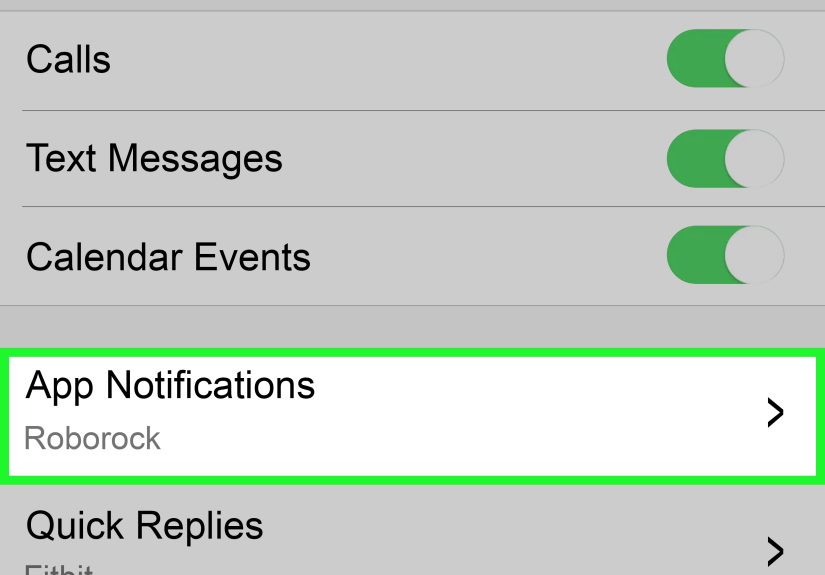
- Tap Notifications.
- Turn on what you want:
- Calls
- Texts (SMS/Messages)
- Calendar
- App notifications (choose specific apps)
Choosing “App Notifications” without turning your wrist into Times Square
App notifications are where things get powerfuland also where people accidentally invite 47 apps to tap them on the wrist all day.
Be picky. Start with a short list (e.g., Messages, WhatsApp, Gmail, Slack, Calendar). Live with it for a day.
Then add more if you truly miss something.
Step 2: iPhone Setup (iOS) The “Share System Notifications” Requirement
On iPhone, the most common reason Versa 2 notifications fail is a single iOS Bluetooth setting that sounds like it was named by a committee:
Share System Notifications.
Enable Share System Notifications
- Open Settings on your iPhone.
- Tap Bluetooth.
- Find your Versa 2 in the device list and tap the “i” (info) icon next to it.
- Turn on Share System Notifications.
If you don’t see this option, a restart and re-pair often makes it appear. Also, iOS may prompt you to allow notifications for the devicetap Allow.
(Yes, it’s dramatic. Yes, it matters.)
Make sure iOS is allowed to show the notifications in the first place
The watch can only mirror what your iPhone is permitted to display. For the apps you care about:
- Go to Settings > Notifications.
- Select the app (e.g., Messages).
- Turn on Allow Notifications.
- Enable at least Lock Screen and Notification Center (so the phone can receive/display them reliably).
- Set Show Previews to Always or When Unlocked (if previews are set to “Never,” message content may not mirror well).
Background App Refresh: the quiet deal-breaker
If your iPhone aggressively suspends the Fitbit app, notifications can become inconsistent. Check:
- Settings > General > Background App Refresh → make sure it’s on for Fitbit.
- Also verify the Fitbit app has permission for Bluetooth and notifications in iOS settings.
Important iPhone limitation: replies
On iPhone, you can read texts and alerts on Versa 2, but replying is typically limited compared with Android.
If replying from your wrist is a must-have, Android offers more options (more on that below).
Step 3: Android Setup Notification Access + Battery Settings
Android gives you more control (and usually more reply features), but it also loves to “optimize” apps into silence.
For Versa 2 notifications to work consistently, Android usually needs two things:
notification access and background/battery permissions.
Grant notification access (so Fitbit can read and mirror alerts)
Exact labels vary by manufacturer (Samsung, Pixel, OnePlus, etc.), but look for something like:
- Settings > Apps (or Apps & notifications)
- Special app access (or Advanced)
- Notification access
- Turn on access for Fitbit
Then go back into the Fitbit app > Versa 2 > Notifications and enable the categories (calls/texts/calendar/app notifications).
Disable battery restrictions for the Fitbit app
If your phone puts Fitbit to sleep in the background, your watch can stop receiving alerts until you open the app again.
Helpful? No. Common? Absolutely.
Look for settings like Battery optimization, Battery restrictions, or Background limits:
- Set Fitbit’s battery usage to Unrestricted (or Not optimized).
- Allow Background data / Unrestricted data if your phone offers those toggles.
Enable Quick Replies (and customize them)
One of the best Android perks is replying to messages right from your wrist with short canned responses (and on some setups, voice-to-text).
To set it up:
- Open the Fitbit app.
- Select your Versa 2.
- Go to Notifications.
- Look for Quick Replies (and/or Voice Replies) and turn them on.
- Edit replies so they sound like you, not like a customer service chatbot from 2009.
Tip: Quick replies may only work for certain messaging apps. If you don’t see “Reply” on a notification, it likely isn’t supported for that app.
How to View (and Manage) Notifications on Your Versa 2
Where notifications live
On Versa 2, you typically access notifications by swiping down from the clock face.
You’ll see recent alerts in a list, and you can tap one to read it.
What you can do with notifications
- Read texts/app alerts
- Dismiss individual notifications
- Clear multiple notifications (handy after a group chat goes feral)
- Android only: send quick replies on supported messaging alerts
Calls: what to expect
Your Versa 2 can alert you to incoming calls and let you accept or decline.
However, you’ll still talk on your phonethe watch isn’t a full “phone-on-wrist” experience for voice calls.
Think of it as a polite wrist tap that says, “Hey, your phone is ringing. Maybe it’s important. Maybe it’s a robocall about your car’s extended warranty.”
Why Notifications Sometimes Don’t Show Up (and How to Fix Them)
If notifications aren’t working, don’t panic. Most issues fall into a few predictable buckets.
Work through these in orderlike a calm, logical adult… even if your group chat is not.
Fix #1: Make sure Do Not Disturb or Sleep Mode isn’t blocking alerts
Your Versa 2 has modes that intentionally silence notifications. Open your watch’s quick settings and confirm:
- Do Not Disturb is off
- Sleep Mode is off
On your phone, also check iOS Focus modes or Android Do Not Disturb settings.
Fix #2: Confirm the phone is receiving the notification
This sounds obvious, but it’s a top culprit. If your phone isn’t showing the alert (because it’s muted, filtered, or disabled),
your Versa 2 can’t mirror it. Open your phone’s notification settings and confirm notifications are enabled for the app.
Fix #3: Toggle notification settings off and on
In the Fitbit app, go to Versa 2 > Notifications, toggle the problem category off, then back on.
This “turn it off and on again” move is cliché for a reason: it works a lot.
Fix #4: Restart both devices (yes, both)
- Restart your phone.
- Restart your Versa 2 (via its settings menu).
After restarting, open the Fitbit app once and let it connect. Then test with a real notification (text yourself, set a calendar reminder, etc.).
Fix #5 (iPhone): Re-check Share System Notifications
iOS updates and Bluetooth reconnections can sometimes toggle settings or break the handshake.
Go back to Settings > Bluetooth > (i) next to Versa 2 and confirm Share System Notifications is still enabled.
Fix #6 (Android): Remove battery limits and confirm Notification Access
If your Android phone says something like “notification service not running” or notifications only work when the Fitbit app is open,
it’s usually a background restriction.
- Set Fitbit to Unrestricted battery use (or Not optimized).
- Confirm Fitbit has Notification access enabled.
Fix #7: Make sure you’re not paired to multiple phones/tablets
If your Versa 2 is trying to connect to more than one device, notifications can get flaky.
Keep it paired to one primary phone. If you must use multiple devices, turn Bluetooth off on the “secondary” device when you want
your watch to behave.
Fix #8: Re-pair the Versa 2 (the “fresh start” option)
If you’ve tried everything and it’s still silent, removing and re-adding the device in the Fitbit app can reset the notification pipeline.
It’s not anyone’s favorite chore, but it often resolves stubborn issues.
Make Notifications Useful (Not Annoying)
Once notifications work, the next goal is quality notifications. Because your wrist deserves better than 18 separate buzzes for one email thread.
My go-to “sane person” notification setup
- On: Calls, texts, calendar, and 2–5 essential apps (messaging + one work app + one email app).
- Off: shopping apps, news blasts, game alerts, “Your order shipped!” confetti cannons.
- Nighttime: use Sleep Mode on the watch or Focus/Do Not Disturb on your phone.
Example: A practical app-notification shortlist
If you’re not sure where to start, try:
- Messages (or your main messaging app)
- Phone
- Calendar
- Gmail/Outlook (if you truly need it)
- Slack/Teams (if you’re on-call or you’ll miss something important)
Real-World Experiences and Tips (Extra )
In day-to-day use, Versa 2 notifications feel less like “technology” and more like a habit you don’t noticeuntil it breaks.
People often start with the dream: every app, every alert, all the time. Then day one happens. Your wrist buzzes at lunch because a store
wants you to “come back and save 10%,” your group chat starts debating pizza toppings like it’s a Supreme Court hearing, and your watch
becomes a tiny vibrating espresso shot.
The best experience usually comes from a deliberate setup. A common pattern is enabling only calls, texts, and calendar first,
then adding one or two must-have apps. For example, if you’re waiting on an important family update, you turn on your messaging app
and keep everything else quiet. If you’re working a shift job, calendar and calls might matter more than email. The Versa 2 is at its best
when it acts like a filternot a firehose.
In practical situationslike a grocery runyou’ll appreciate how quickly you can glance at your wrist and decide whether a notification
deserves attention. Is it your partner asking you to grab eggs, or is it an app reminding you that you once looked at sneakers online?
That split-second decision is where smartwatches quietly save time. You don’t need to unlock your phone, open an app, and fall into
the scroll-hole. (We’ve all been there. You pick up your phone to check a text, and suddenly it’s 23 minutes later and you’ve learned
three new facts about raccoons.)
For Android users, quick replies are a real “small but mighty” feature. People tend to customize replies like “On my way,” “Can’t talktext me,”
or “Yep!” because those cover 80% of real-life messaging. It’s not about writing novels from your wristit’s about acknowledging something quickly
when your hands are busy (carrying bags, cooking, walking a dog that thinks every squirrel is a personal enemy).
On iPhone, the experience leans more “read and decide.” Many users still love it for meetings: you can see whether a buzz is urgent without
pulling out your phone and doing the awkward “I’m totally not checking my messages” move. The biggest “aha” moment tends to be enabling
Share System Notifications and making sure message previews aren’t blocked. Once those are correct, the watch often goes from silent to suddenly
very communicativelike it finally learned you can’t read minds.
One more real-world tip: if notifications are inconsistent, don’t only test with random app pings. Test with something controlled:
send yourself a text, create a one-minute calendar reminder, and call your phone from another line. Those three tests cover the big categories
and help you pinpoint whether the issue is “everything,” “messages only,” or “app notifications only.” Troubleshooting gets a lot easier when
you know exactly what’s failing.
Conclusion
Getting notifications on a Fitbit Versa 2 is mostly about building a clean bridge between your phone and your watch:
enable notifications in the Fitbit app, give the Fitbit app the right permissions on your phone, and avoid battery/background settings
that quietly shut the app down. Once the basics are in place, you can fine-tune which apps get through so your Versa 2 becomes helpful
instead of… aggressively friendly.