Table of Contents >> Show >> Hide
- First, Pick the Right “Onscreen Keyboard” (Yes, There Are Two)
- How to Enable the Accessibility Keyboard (macOS Ventura, Sonoma, Sequoia and Newer)
- How to Enable the Accessibility Keyboard (macOS Monterey, Big Sur, Catalina and Older)
- Turn It On Fast: Keyboard Shortcuts and the Accessibility Shortcut Panel
- How to Use the Keyboard Viewer (The “Lightweight” Onscreen Keyboard)
- Make the Accessibility Keyboard More Useful (Not Just “A Big Rectangle That Types”)
- Use the Onscreen Keyboard at the Login Screen (So You Can Actually Get In)
- Troubleshooting: When the Onscreen Keyboard Won’t Show Up
- Quick Cheat Sheet
- Conclusion
- Real-World Experiences: When the Mac Onscreen Keyboard Saves the Day (and Your Sanity)
- 1) The “one key is stuck, and now my password is impossible” situation
- 2) Traveling (a.k.a. the land of crumbs, spills, and mysterious keyboard behavior)
- 3) Accessibility needs that change day-to-day
- 4) Switching languages without memorizing every keyboard layout ever invented
- 5) Helping someone else troubleshoot their Mac
Your Mac keyboard can be a drama queen. One coffee splash, one toddler “piano recital,” one mysteriously sticky Shift key… and suddenly
you’re negotiating with your login screen like it’s a hostage situation. The good news: macOS includes built-in onscreen keyboard options
that can get you typing again fastno emergency trip to the store, no interpretive dance with Copy/Paste.
In this guide, you’ll learn how to enable the Accessibility Keyboard (the “full” onscreen keyboard), how to use the lighter
Keyboard Viewer, how to turn them on quickly with shortcuts, and what to do when macOS acts like it’s never heard of your request.
First, Pick the Right “Onscreen Keyboard” (Yes, There Are Two)
When people search “enable onscreen keyboard on Mac”, they usually mean one of these:
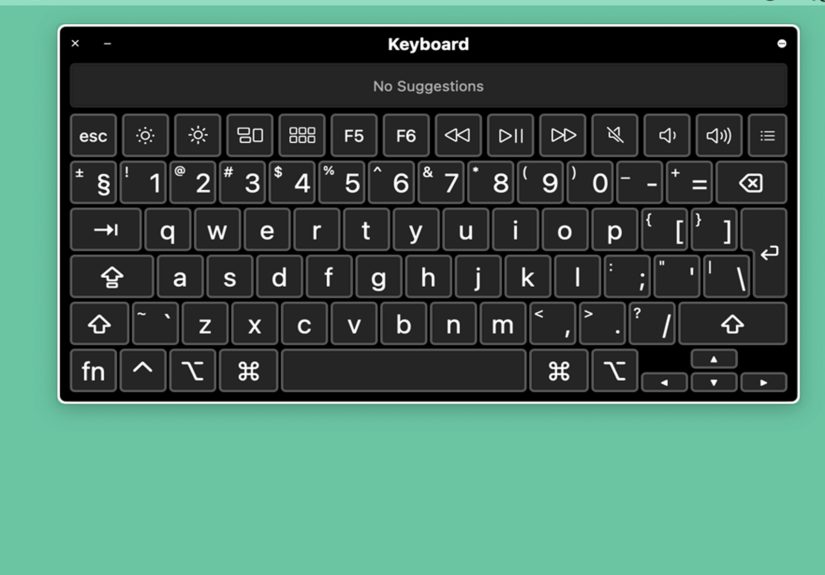
Option A: Accessibility Keyboard (Best for typing without a physical keyboard)
- Full onscreen keyboard you can click with a mouse/trackpad.
- Includes helpful extras like typing suggestions, system controls, resizing, and customization.
- Great for a broken keyboard, accessibility needs, or one-handed input.
Option B: Keyboard Viewer (Best for seeing layouts and special characters)
- A visual keyboard that reflects your current input source/layout (useful for accents, symbols, alternate languages).
- Lightweight and quickperfect when you need one weird character that isn’t on your physical keys.
- Not as feature-rich as Accessibility Keyboard, but super handy.
If your physical keyboard is not working (or you can’t type comfortably), start with
Accessibility Keyboard. If you mainly need to view or input special characters,
use Keyboard Viewer.
How to Enable the Accessibility Keyboard (macOS Ventura, Sonoma, Sequoia and Newer)
On newer macOS versions, Apple moved a lot of settings into System Settings. The path is still simplejust slightly more
“scroll-friendly” than it used to be.
- Click the Apple menu () in the top-left corner.
- Select System Settings.
- In the sidebar, click Accessibility.
- Scroll to find and click Keyboard (under accessibility options).
- Turn on Accessibility Keyboard.
Once enabled, the onscreen keyboard should appear on your screen. You can click keys using your mouse or trackpad, just like tapping on a
giant digital keyboardminus the greasy fingerprints (unless you’re also eating chips; no judgment).
Quick wins right after it appears
- Resize it: drag a corner to make it bigger or smaller.
- Move it: drag the keyboard window where it’s not in your way.
- Close it: use the close button on the keyboard window when you’re done.
How to Enable the Accessibility Keyboard (macOS Monterey, Big Sur, Catalina and Older)
On older macOS versions, the same feature typically lives in System Preferences, and you may see a Viewer tab
involved. Here’s the usual route:
- Click the Apple menu () → choose System Preferences.
- Click Accessibility.
- Select Keyboard in the sidebar.
- Look for a setting like Enable Accessibility Keyboard (often under a Viewer-related area/tab).
- Turn it on, and the onscreen keyboard should appear.
If you don’t see the exact wording, don’t panic. Apple has renamed and rearranged keyboard accessibility options over time, but the feature is still there.
The keywords to look for are Accessibility, Keyboard, and Accessibility Keyboard.
Turn It On Fast: Keyboard Shortcuts and the Accessibility Shortcut Panel
If you want quick access (or your mouse hand is tired of clicking through menus), macOS provides an accessibility shortcut panel.
This is especially useful if you only occasionally need the Mac virtual keyboard.
Open the Accessibility Shortcuts panel
- Option + Command + F5 (common shortcut on Macs)
- If your Mac or Magic Keyboard has Touch ID, you may be able to press Touch ID three times to open the panel.
Make “Accessibility Keyboard” appear in that panel
- Go to System Settings → Accessibility.
- Find Shortcut (sometimes labeled “Accessibility Shortcut”).
- Check Accessibility Keyboard so it’s available in the shortcut panel.
Pro tip: If you only enable one item in the shortcut panel, it becomes a one-stop toggle instead of a “choose-your-own-adventure” menu.
How to Use the Keyboard Viewer (The “Lightweight” Onscreen Keyboard)
If you want to show a keyboard layout, type accented characters, or confirm what a key does in another language layout, Keyboard Viewer is your friend.
It’s also helpful when your physical keyboard works… but your brain doesn’t remember where “É” lives.
Step 1: Turn on the Input menu in the menu bar
- Open System Settings → click Keyboard.
- Find Text Input and click Edit (you may need to scroll).
- Enable Show Input menu in menu bar.
Step 2: Open Keyboard Viewer
- Click the Input menu icon in your menu bar (it may show a flag or language abbreviation).
- Select Show Keyboard Viewer.
Now you’ll see a floating keyboard that changes depending on your selected input source. Switch layouts (U.S., Dvorak, Spanish, Emoji, etc.)
and watch Keyboard Viewer adapt in real time.
Make the Accessibility Keyboard More Useful (Not Just “A Big Rectangle That Types”)
The Accessibility Keyboard isn’t only for emergencies. It’s surprisingly customizablelike a Swiss Army knife that happens to type.
Resize, fade, and simplify
- Resize: drag a corner; make it huge for visibility or small for convenience.
- Fade after inactivity: helpful if it’s covering parts of your screen.
- High-contrast look: easier to see if your eyes are tired (or your monitor is pretending it’s 2009).
Typing suggestions and word completion
Many Macs show suggestions as you type on the Accessibility Keyboard. If you’re typing with clicks (which is slower than normal typing),
word completion can save timeespecially for long passwords you definitely didn’t create with your cat walking across the keys.
Custom panels for common tasks
Advanced users can create custom panels (think: buttons for frequent shortcuts, app controls, or workflow actions). If you rely on the onscreen keyboard
daily, custom panels can turn “typing” into “tap one button and watch the magic happen.”
Pair it with other accessibility features
- Sticky Keys: press modifier keys one at a time (great if key combos are tough).
- Full Keyboard Access: navigate UI elements more easily using the keyboard.
- Voice Control / Dictation: speak text when clicking keys is too slow.
Use the Onscreen Keyboard at the Login Screen (So You Can Actually Get In)
Sometimes the physical keyboard fails before you even log in (tragic). macOS can allow certain accessibility options in the login window so you can
enter your password without a working hardware keyboard.
Enable accessibility options at the login window
- Go to System Settings → Lock Screen.
- Scroll and click Accessibility Options.
- Turn on the options you want available at login (including keyboard-related accessibility when offered).
Also remember: the Accessibility Shortcuts panel may be available at the login window, letting you temporarily switch features on/off.
If you can’t type but you can still click with a mouse/trackpad, enabling login-window accessibility can be the difference between “I’m locked out”
and “I’m back, baby.”
Troubleshooting: When the Onscreen Keyboard Won’t Show Up
1) “I turned it on, but nothing happened.”
- Make sure you enabled Accessibility Keyboard (not just a related keyboard setting).
- Check if the keyboard opened on another display (especially with multiple monitors).
- Try toggling it off and on once, then close and reopen System Settings.
2) “I can’t find the setting you’re describing.”
- On newer macOS: it’s under System Settings → Accessibility → Keyboard.
- On older macOS: it’s under System Preferences → Accessibility → Keyboard (often a Viewer tab/area).
- Apple’s labels change. Search inside System Settings for Accessibility Keyboard to jump directly.
3) “I need the keyboard at login, but I’m already locked out.”
- If you can use a mouse/trackpad, look for accessibility options on the login screen (often an accessibility icon).
- If you can still press shortcuts, try Option + Command + F5 to open accessibility shortcuts at login (hardware keyboard required).
- If neither is possible, you may need a temporary external keyboard to set login accessibility options later.
4) “Is there a single hotkey to show/hide the Accessibility Keyboard?”
macOS doesn’t always provide a simple, dedicated default toggle key for the Accessibility Keyboard itself. The most reliable built-in method is using the
Accessibility Shortcuts panel (Option + Command + F5) and selecting it there. Some users also set up workarounds like Hot Corners or automation tools,
but if you want “official and simple,” the shortcut panel is usually the cleanest route.
Quick Cheat Sheet
- Full onscreen keyboard: System Settings → Accessibility → Keyboard → Accessibility Keyboard
- Keyboard Viewer: System Settings → Keyboard → Text Input → Edit → Show Input menu → Input menu → Show Keyboard Viewer
- Accessibility shortcuts panel: Option + Command + F5 (or triple-press Touch ID on supported devices)
- Login window accessibility: System Settings → Lock Screen → Accessibility Options
Conclusion
Enabling the onscreen keyboard on a Mac is one of those “why didn’t I set this up sooner?” features. Whether you need a full virtual keyboard because
your hardware keys are out of commission, or you just want Keyboard Viewer for symbols and alternate layouts, macOS has options built inand they’re
easier to access once you know where Apple hid them this year.
If you’ll only use the feature once in a while, add Accessibility Keyboard to the Accessibility Shortcut panel so you can
toggle it quickly. If you use it regularly, explore customization so it fits your workflow instead of blocking half your screen like an overeager pop-up.
Real-World Experiences: When the Mac Onscreen Keyboard Saves the Day (and Your Sanity)
People usually don’t go looking for an onscreen keyboard because everything is going great. It’s often a “small crisis, big inconvenience” moment
the kind where you don’t needIT-level panic, but you do need to send a message, log in, or finish a task before your next class, shift, or deadline.
Here are some common, real-world scenarios where enabling the Accessibility Keyboard or Keyboard Viewer turns a bad day into a manageable one.
1) The “one key is stuck, and now my password is impossible” situation
A surprisingly frequent problem: one key starts repeating, or a modifier (like Shift) behaves like it’s permanently pressed. Your password suddenly
fails because you’re unknowingly typing extra characters or the wrong case. The Accessibility Keyboard helps because you can click each character
intentionally and visually confirm what you’re entering. It’s not fast, but it’s accurateand accuracy beats being locked out of your own Mac.
2) Traveling (a.k.a. the land of crumbs, spills, and mysterious keyboard behavior)
On the road, keyboards live dangerously: coffee lids loosen, backpacks squeeze laptops, and hotel-room desks are basically obstacle courses. If your
keyboard gets unreliable mid-trip, the onscreen keyboard can be a temporary bridge while you back up files, message someone, or finish urgent work.
Pair it with Dictation for longer text and use clicking only for short bursts (passwords, search terms, quick replies) so you don’t feel like you’re
writing a novel one mouse click at a time.
3) Accessibility needs that change day-to-day
Not every accessibility need is constant. Some people have chronic pain that flares, an injury that limits movement, or fatigue that makes precise
typing harder on certain days. The Accessibility Keyboard is useful because it can shift input from “ten fingers on tiny keys” to “controlled clicks,”
especially when combined with Sticky Keys or Voice Control. The best part is you can enable it quickly, use it for a while, and then turn it off when
you’re readyno permanent change required.
4) Switching languages without memorizing every keyboard layout ever invented
If you type in more than one language, Keyboard Viewer is like having a friendly translator standing over your shoulder (but less judgmental).
For example, if you switch to a Spanish or French input source for accents, Keyboard Viewer helps you see where characters live without guessing.
It’s also great for symbols and punctuation that move around depending on layout. Instead of hunting and pecking on your physical keyboard,
you can literally see what you’ll get before you click.
5) Helping someone else troubleshoot their Mac
If you’re the designated “family tech person,” you’ve probably heard: “My keyboard won’t type, and I can’t log in, and also I changed nothing!”
In many cases, enabling login-window accessibility options (ahead of time) plus knowing the Accessibility Keyboard path can be the difference between
a five-minute fix and an hour-long meltdown. Even when you’re not physically there, you can guide them: “Go to System Settings, then Accessibility…”
and get them typing again without installing anything sketchy.
The main takeaway from these experiences is simple: the Mac onscreen keyboard isn’t just an accessibility featureit’s a practical backup plan.
If you set up the shortcut panel now, you won’t be learning these steps during a stressful moment later. Future-you will be grateful. Present-you can
celebrate with a snack that is nowhere near your keyboard.