Table of Contents >> Show >> Hide
- First, What Exactly Is a “Network Security Key”?
- The Fastest Method: Use a Device That’s Already Connected
- How to Find Your Network Security Key on Windows (Quickly)
- How to Find Your Network Security Key on a Mac (macOS)
- How to Find Your Network Security Key on iPhone or iPad
- How to Find Your Network Security Key on Android
- How to Find Your Network Security Key in Your Router or ISP App
- If You Still Can’t Find It: Use the “Reset and Replace” Strategy
- Make It Faster Next Time: Quick Security & Convenience Upgrades
- Quick Troubleshooting: When Things Don’t Look Like the Instructions
- Real-World Experiences: What People Run Into (and What Actually Works)
- 1) “The Wi-Fi works on my phone… but I need it for the TV.”
- 2) “The sticker password is wrong and now I’m suspicious of everything.”
- 3) “I can connect, but I can’t find where the password is stored.”
- 4) “I’m helping my grandparents, and the router is… somewhere.”
- 5) “We changed the password, and half the house stopped working.”
- 6) “I just want something that won’t make me do this again.”
- Conclusion
You know the moment: you’re trying to connect a new phone, a smart TV, or that “definitely not haunted” printer,
and suddenly you’re asked for a network security key. Translation: “Please type the Wi-Fi password
you absolutely swear you remember… until this exact second.”
Good news: if you’re connecting to a network you own or have permission to use (like your home Wi-Fi, your
family’s network, or your own hotspot), you can usually find the key in under two minuteswithout guesswork, without
app-hopping, and without performing an ancient ritual in front of the router.
This guide walks you through the fastest ways to find your network security key on Windows, Mac, iPhone/iPad, Android,
and common routers/ISP gatewaysplus what to do if the password was changed, forgotten, or lost to history.
First, What Exactly Is a “Network Security Key”?
A network security key is the password that protects a wireless network. Most modern home networks use
WPA2 or WPA3 security, and the “key” is the passphrase you type to join the Wi-Fi. You might also see it labeled as:
- Wi-Fi password
- Wireless password
- WPA key
- Network key
- Security key
Same idea, different outfits. The important part: you don’t need to “hack” anything. If you’re already connected on at
least one device (or you can access the router/admin app), you can reveal or reset it cleanly.
The Fastest Method: Use a Device That’s Already Connected
If any device is currently connected to your Wi-Fi, that device (or its settings) is often your quickest path.
Think of it like asking someone already inside the party what the secret knock is.
Option A: Check the Router Label (Yes, Really)
Many routers and ISP gateways ship with the default Wi-Fi name (SSID) and password printed on a stickeroften on the
bottom or back. Look for fields like “SSID,” “Wi-Fi Password,” “Wireless Key,” or “WPA Key.”
Two quick notes:
- If you (or your ISP) changed the password after setup, the sticker may be outdated.
- Some mesh systems use apps instead of stickers, so the label may show only a setup code.
How to Find Your Network Security Key on Windows (Quickly)
Windows gives you a couple reliable ways to view the password for the network you’re connected to (or previously saved).
The best method depends on your Windows version and settings layout.
Windows 11 (Settings Method)
- Open Settings.
- Go to Network & internet.
- Select Wi-Fi and open your current connection (or Manage known networks for saved ones).
- Look for Wi-Fi network password and choose Show.
Tip: If you’re helping someone connect, Windows may also offer a QR code in certain buildshandy for phones that can scan to join.
Windows 10/11 (Classic Control Panel Method)
- Open Control Panel → Network and Internet → Network and Sharing Center.
- Next to Connections, click your Wi-Fi network name.
- Click Wireless Properties.
- Go to the Security tab.
- Check Show characters to reveal the password.
This is the “it looks old, but it works” approachlike a reliable diner that’s been open since forever.
Windows (Fast Power-User Method: Command Prompt)
If you’re comfortable with a quick command, Windows can display the saved key for a specific Wi-Fi profile:
- Search for Command Prompt (you may need admin permissions depending on your setup).
- Run:
to see saved Wi-Fi names.
- Then run:
- Look for Key Content (that’s the password).
If you share your computer with others, remember: anyone with sufficient access can potentially view saved Wi-Fi passwords.
Consider using separate accounts and strong device login security.
How to Find Your Network Security Key on a Mac (macOS)
On a Mac, your Wi-Fi password is typically stored in iCloud Keychain or local Keychain. That’s greatbecause it means
you can reveal it as long as you can authenticate with your Mac login or Touch ID.
Method 1: Check Saved Passwords in macOS Settings
- Open System Settings.
- Go to Passwords.
- Authenticate (Touch ID or your Mac password).
- Search for your Wi-Fi network entry and reveal the password.
Method 2: Keychain Access (Classic, Still Useful)
- Open Keychain Access (Applications → Utilities).
- Search for your Wi-Fi network name (SSID).
- Open the matching entry, then check Show password.
- Authenticate when prompted.
This feels a bit “behind the scenes,” but it’s a legitimate built-in toolno sketchy downloads, no “password finder” apps needed.
How to Find Your Network Security Key on iPhone or iPad
Apple makes this surprisingly painless on modern iOS/iPadOS: if you’ve joined the network before, you can reveal the saved password
after Face ID/Touch ID/passcode verification.
Method 1: Reveal the Current Wi-Fi Password
- Open Settings → Wi-Fi.
- Tap the info icon next to the connected network.
- Tap the Password field.
- Authenticate to reveal it, then copy if needed.
Method 2: Use the Passwords App (Where Available)
- Open the Passwords app.
- Go to Wi-Fi.
- Select the network and reveal/copy the password.
Bonus: Share the Wi-Fi Password Without Saying It Out Loud
If someone nearby has an iPhone/iPad/Mac, Apple’s Wi-Fi sharing can prompt you to share access automaticallyno password dictation,
no “was that a capital O or a zero?” drama.
How to Find Your Network Security Key on Android
Android often shows Wi-Fi credentials through a Share option that generates a QR code. Many devices also display the password
(or at least make it retrievable) after you confirm your identity.
Method: Share the Network (QR Code)
- Open Settings.
- Tap Network & internet → Internet (wording varies by brand).
- Select your connected Wi-Fi network.
- Tap Share.
- Authenticate (PIN, pattern, fingerprint).
- Use the QR code to connect another device, or view the password if your phone displays it.
Pro tip: If your friend’s phone can scan QR codes in the camera app, this is the fastest “no-typing” method in real life.
How to Find Your Network Security Key in Your Router or ISP App
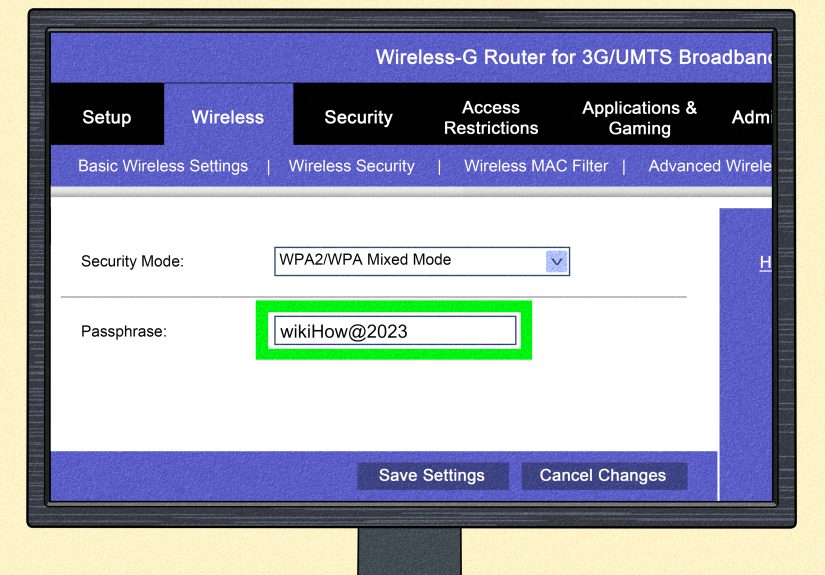
If the sticker doesn’t match (because you changed the password) and your devices aren’t showing it clearly, the router’s admin panel
or your ISP’s app is the official source of truth.
Common Places to Look (Router Admin Panel)
- Wireless Settings
- Wi-Fi Settings
- SSID & Password
- Security (WPA2/WPA3)
Many routers are accessible at addresses like 192.168.0.1 or 192.168.1.1, but some ISPs use other defaults.
You’ll need the router’s admin login (which is different from the Wi-Fi password).
NETGEAR (Common Pattern)
NETGEAR often uses a router login page (like a branded URL) to reach settings, where the Wi-Fi password appears as the “Password (Network Key)”
under Wireless settings. If you changed the admin password and forgot it, you may need account recovery or a reset process.
Linksys (App or Web Dashboard)
Linksys routers commonly expose the Wi-Fi name and password in the Linksys app or the router dashboard. If you can log in, you can view and manage Wi-Fi settings quickly.
Xfinity (Comcast) Using the Xfinity App
For many Xfinity gateways, the fastest method is the Xfinity app’s Wi-Fi details area, where you can view or change the network name and password.
Verizon Fios
Verizon typically provides ways to view/change Wi-Fi credentials through the router’s admin interface, and the default credentials are often printed on the router label.
AT&T Internet Gateways
AT&T commonly uses a gateway interface address specific to their equipment, and they also support managing Wi-Fi settings through their Smart Home Manager experience.
Spectrum
Spectrum customers can often view Wi-Fi name and password through their account/app experience, and Spectrum-issued equipment may include credentials on the device label.
T-Mobile Home Internet / Hotspots
T-Mobile gateways and hotspots typically let you view/change the SSID and password in the device settings UI (often via an app or web user interface).
If You Still Can’t Find It: Use the “Reset and Replace” Strategy
If the password is truly unrecoverablemaybe the only connected device was retired, the admin login is unknown, and the sticker doesn’t matchyour best move is to
set a new Wi-Fi password.
Safe, Clean Reset Options
- Change the Wi-Fi password in the router/ISP app (preferred if you can log in).
- Use password recovery for the router admin account if your brand supports it.
- Factory reset only as a last resort, then reconfigure Wi-Fi and reconnect devices.
Factory reset is the “break glass” option because it can revert network name, password, and settings. It’s effectivebut it also means every device in your home
will need the new credentials (and your smart home gadgets may act personally offended for a few minutes).
Make It Faster Next Time: Quick Security & Convenience Upgrades
Once you’ve found the network security key, take two extra minutes to make future-you’s life easier (and your network safer).
1) Store the Password in a Password Manager
Save your Wi-Fi password in a reputable password manager or your device’s secure password vault. Label it clearly, like:
“Home Wi-Fi (Downstairs Router)” instead of “wifi2finalFINAL.”
2) Use WPA2/WPA3 and a Strong Passphrase
A good Wi-Fi password is long, unique, and not guessable. Skip names, birthdays, addresses, or anything a neighbor could learn by looking at your mailbox.
Aim for a memorable passphrase: multiple words plus a twist.
3) Enable Easy Sharing (QR Code / Apple Share)
QR sharing on Android and password sharing on Apple devices can eliminate typing errors and keep the password off sticky notes (which, historically, migrate to monitors).
4) Rename Your Network (SSID) Something Useful
If your network name is still “NETGEAR_38A2” or “ATTz9kQ,” rename it. Your guests will thank you. Your future troubleshooting self will also thank you.
(Name it something normal“FBI_Surveillance_Van” is funny until your aunt refuses to connect.)
Quick Troubleshooting: When Things Don’t Look Like the Instructions
“I don’t see the password option on Windows Settings.”
Windows menus can vary by version, device policies, or build. Try the classic Control Panel method, or use the command prompt method if you have permission.
“Android only shows a QR code, not the actual password.”
Some Android versions prioritize QR sharing. If you need the text password, try scanning the QR code with another device that reveals the encoded Wi-Fi details,
or check the router/ISP app for the plain-text value.
“The sticker password doesn’t work.”
That usually means the Wi-Fi password was changed after setup. Use a connected device to reveal it, or log in to the router/ISP app to view the current credentials.
“I forgot the router admin password (not the Wi-Fi password).”
Router admin credentials are separate. If you can’t recover them through the brand’s account flow, you may need to factory reset the router and set it up again.
If it’s an ISP gateway, your ISP app/support can often guide you through credential recovery.
Real-World Experiences: What People Run Into (and What Actually Works)
The steps above are straightforward on paper, but in real life, Wi-Fi passwords tend to hide in the same dimension as missing socks. Here are common situations
people run intoand the practical fixes that save time.
1) “The Wi-Fi works on my phone… but I need it for the TV.”
This is the classic. A phone is connected, the TV is not, and someone is ready to type the password using a remote control that feels like texting on a calculator.
The fastest win is usually QR sharing on Android or revealing the password on iPhone and copying it. If you can’t copy/paste
directly, reading it off the phone is still easier than guessing. Also, watch out for look-alikes: O vs 0, l vs 1, and that sneaky capital I.
2) “The sticker password is wrong and now I’m suspicious of everything.”
When the label password fails, people often assume the router is broken. More often, the network was customized at some pointby you, a roommate, an installer,
or a well-meaning relative who proudly changed the Wi-Fi password to “Password1234” (and then forgot to tell anyone).
In these cases, the most reliable move is to go to the ISP app (Xfinity app, My Verizon, AT&T Smart Home Manager, Spectrum account tools)
and check the current Wi-Fi credentials. ISP gateways especially love to be managed through official apps now, which is greatbecause the app
typically shows the live settings, not the ancient sticker.
3) “I can connect, but I can’t find where the password is stored.”
On Macs, people forget about Keychain and spend 20 minutes digging through browser settings (which is like searching your fridge for your car keyscreative,
but not the right habitat). The fix is to remember that Wi-Fi credentials are stored as secure items: System Settings → Passwords or
Keychain Access. On Windows, people sometimes open Credential Manager and expect to see the Wi-Fi password there; the more consistent method
is Wi-Fi properties in the network settings or the Control Panel security tab.
4) “I’m helping my grandparents, and the router is… somewhere.”
Real homes are not lab environments. Routers get tucked behind TVs, inside cabinets, or perched on a shelf like a dusty museum exhibit.
If physically checking the label is hard, use a connected device instead. If they have an iPhone that’s connected, reveal the password in Wi-Fi settings.
If they have an Android phone, use Share to generate a QR code. These methods avoid the “let’s move furniture” chapter entirely.
5) “We changed the password, and half the house stopped working.”
Changing Wi-Fi credentials is good securitybut it can cause a temporary smart-home rebellion. Doorbells, speakers, thermostats, and cameras need to be updated.
The easiest strategy is to keep the network name (SSID) the same and only change the password (or vice versa), then reconnect devices one at a time.
Some smart-home ecosystems also behave better if you keep the SSID and password exactly the same when swapping routersso devices “think” nothing changed.
6) “I just want something that won’t make me do this again.”
After you find the network security key, the best “experience-based” advice is boringbut powerful:
save it in a password manager, keep WPA2/WPA3 enabled, and use QR/password sharing instead of repeating the password aloud.
Future-you will feel like you time-traveled and left yourself a gift.
Conclusion
Finding your network security key doesn’t need to be a scavenger hunt. Start with the quickest route:
a device already connected to the Wi-Fi (Windows settings, macOS Keychain, iPhone Wi-Fi password reveal, Android QR share).
If that fails, check your router label or your ISP/router app for the current Wi-Fi password.
And once you’ve got it, do yourself a favor: store it safely, strengthen it, and use easy sharing features so you’re not stuck typing a 20-character
passphrase with a TV remote ever again. Your thumbs deserve better.