Table of Contents >> Show >> Hide
- Quick Reality Check: Does macOS Still Let You Add Facebook?
- Method 1 (Older Macs): Add Facebook in System Preferences
- Where Facebook Might Appear (Depending on Your macOS)
- Step-by-Step: Add Your Facebook Account (High Sierra and Earlier)
- What “Integration” Actually Means on Older macOS
- Bonus: Pull Facebook Profile Photos Into Contacts (If Your Version Supports It)
- If It Fails: A Quick Note Before You Lose an Afternoon
- Method 2 (Modern Macs): Integrate Facebook Without System-Level Accounts
- Option A: Turn Facebook Into a “Web App” (Fast, Simple, Surprisingly Nice)
- Option B: Use Messenger for macOS (For People Who Live in DMs)
- Option C: Add Facebook Events to Apple Calendar (The Sneaky-Good Integration)
- Option D: Smarter Sharing From Photos and Finder (Because “Upload” Is Still a Workflow)
- Option E: Use Password AutoFill and Keychain (So Login Doesn’t Feel Like a Part-Time Job)
- Troubleshooting: Common Problems (And How to Fix Them Without Screaming)
- Privacy & Security: Integrate Without Oversharing
- Conclusion: The Best Way to “Add Facebook to Mac” Depends on Your macOS
- Real-World Experiences: What Facebook “Integration” Feels Like Day to Day
Adding a Facebook account to your Mac used to be a very “Apple-y” experience: type your login once, and macOS would politely sprinkle Facebook across your system like parmesan on pastaContacts, Notifications, sharing menus, the whole deal.
Then macOS basically said, “Actually… no.” (In the nicest way possible, of course.)
Today, whether you can literally add Facebook to macOS depends heavily on your macOS version. The good news: you can still integrate Facebook into your daily Mac workflowyou’ll just do it differently on modern macOS.
Quick Reality Check: Does macOS Still Let You Add Facebook?
There are two “eras” of Facebook-on-Mac:
-
Older macOS (High Sierra 10.13 and earlier): You may see Facebook as an option under System Preferences → Internet Accounts
(or Mail, Contacts & Calendars on even older versions). - Modern macOS (Mojave 10.14 and later): Facebook is not available as a built-in Internet Account provider anymore. No button. No “Add Facebook.” No dramatic soundtrackjust… gone.
Step 1: Check Your macOS Version (So You Don’t Chase a Button That Isn’t There)
- Click the Apple menu (&) in the top-left.
- Select About This Mac.
- Look at the version number (example: 10.13.6, 10.14, 13.x, 14.x).
If you’re on 10.13 or earlier, you can try the classic “add Facebook account” method. If you’re on 10.14+, skip aheadyour “integration” will be done using apps, browser features, Calendar subscriptions, and smarter shortcuts.
Method 1 (Older Macs): Add Facebook in System Preferences
If you’re using macOS High Sierra (10.13) or earlier, macOS may still offer Facebook as a built-in account you can add once and use across the system.
Where Facebook Might Appear (Depending on Your macOS)
- OS X Mountain Lion (10.8): System Preferences → Mail, Contacts & Calendars
- OS X Mavericks (10.9) through macOS High Sierra (10.13): System Preferences → Internet Accounts
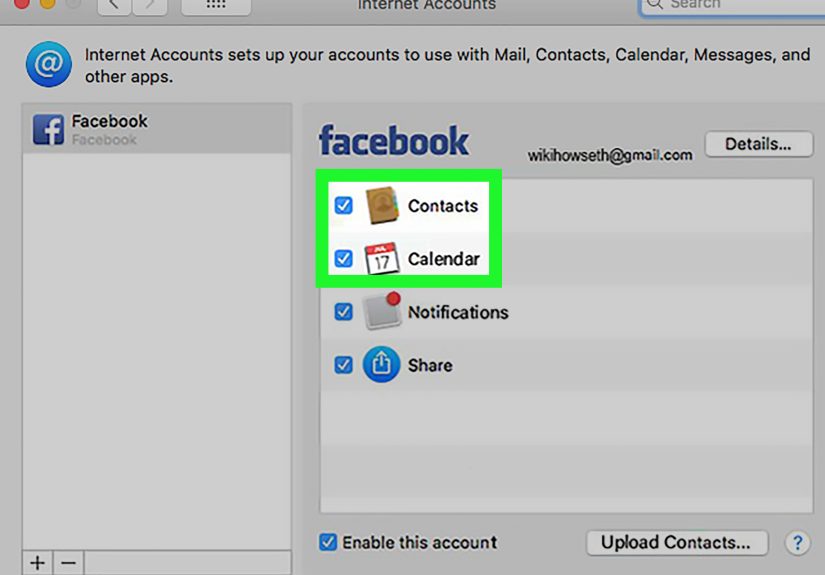
Step-by-Step: Add Your Facebook Account (High Sierra and Earlier)
- Open System Preferences.
- Click Internet Accounts (or Mail, Contacts & Calendars on older systems).
- Look for Facebook in the list of account providers.
- Click Facebook, then sign in with your Facebook credentials.
-
Choose what you want to enable (options vary by macOS version), such as:
- Contacts (sync friends/contact cards)
- Calendar (events integration, when supported)
- Notifications (depending on the era/version)
What “Integration” Actually Means on Older macOS
When it works, this kind of integration can:
- Pull Facebook friend info into the macOS Contacts app (often grouped as “Facebook”).
- Add profile photos to contact cards (which makes your inbox and messages feel more human and less like a spreadsheet).
- Enable easier sharing to Facebook from certain apps using built-in sharing menus (depending on your setup and the app).
Bonus: Pull Facebook Profile Photos Into Contacts (If Your Version Supports It)
- Open Contacts.
- From the menu bar, choose Contacts → Accounts (or manage accounts via System Preferences).
- If available, look for an option like Get Profile Photos / Update Contacts.
- Confirm, then let macOS fetch photos (this can take a bit if you have a lot of contacts).
If It Fails: A Quick Note Before You Lose an Afternoon
Even on High Sierra and earlier, some people run into sign-in errors like “unable to verify username and password” due to changes on the Facebook/Meta side or older authorization flows. If your login is correct and it still refuses to cooperate, it’s usually not youit’s the combination of an older OS integration and a modern web platform that has moved on.
Method 2 (Modern Macs): Integrate Facebook Without System-Level Accounts
If you’re on macOS Mojave (10.14) or later, you can’t add Facebook under Internet Accounts anymore. But you can still build a clean, convenient setup that feels integratedwithout handing macOS a master key to your social life.
Option A: Turn Facebook Into a “Web App” (Fast, Simple, Surprisingly Nice)
If your goal is quick access and fewer tabs, a web app-style setup is the modern Mac way.
- Open Facebook in your browser (Safari or Chrome).
-
Create an “app-like” shortcut:
- Safari: look for an option like Add to Dock (wording varies by version).
- Chrome/Edge: use Install / Create shortcut and choose “Open as window.”
- Pin it to your Dock for one-click access.
Want notifications? Allow them in the browser when prompted, then double-check macOS notification permissions so they actually show up when you need them (and not at 2:00 AM because someone liked a photo from 2014).
Option B: Use Messenger for macOS (For People Who Live in DMs)
If “Facebook integration” to you really means “I need Messenger on my Mac all day,” you’ll get a better experience by using the dedicated Messenger app (or the Messenger web app).
- Sign in once, enable notifications, and you’re basically set.
- You can keep it separate from your main Facebook browsing, which is great for focus (and your sanity).
- It integrates naturally with macOS notifications and works like a regular Mac app.
Option C: Add Facebook Events to Apple Calendar (The Sneaky-Good Integration)
Facebook can expose an events calendar feed (an iCal/ICS link) for some accounts/pages. If you can grab that link, you can subscribe to it in Apple Calendar. This is one of the closest modern equivalents to “system integration.”
- On Facebook (in a desktop browser), locate the Events area for your profile or a Page you manage.
- Look for something like Add to Calendar, then copy the calendar link (often an iCal/ICS URL).
- Open the Calendar app on your Mac.
- Go to File → New Calendar Subscription.
- Paste the URL, then choose refresh frequency and where to store it.
Heads-up: Facebook calendar feeds can change, break, or behave inconsistently over time. If it stops updating, it’s usually the feed (not your Mac) throwing a tantrum.
Option D: Smarter Sharing From Photos and Finder (Because “Upload” Is Still a Workflow)
On modern macOS, sharing to Facebook often works best with a simple, repeatable routine:
- From Photos: Export the image (File → Export) and upload via Facebook in your browser or web app window.
- From Finder: Drag-and-drop directly into a Facebook post composer in your browser.
- For big files: Use a cloud link (iCloud Drive/Dropbox/Google Drive) and share the link in Facebook.
It’s not as magical as the old “one account to rule them all,” but it’s reliableand reliability is basically the hottest feature in tech.
Option E: Use Password AutoFill and Keychain (So Login Doesn’t Feel Like a Part-Time Job)
One reason people miss system-level Facebook accounts is that logging in repeatedly is annoying. The modern fix is password tools:
- iCloud Keychain can store your login and fill it quickly in Safari.
- Password managers can also fill logins and handle 2FA codes cleanly.
Translation: you get the convenience of “integration” without embedding Facebook into system settings.
Troubleshooting: Common Problems (And How to Fix Them Without Screaming)
Problem: “Facebook” Doesn’t Appear Under Internet Accounts
This is normal on macOS Mojave (10.14) and later. There’s nothing to “fix” because Apple removed the built-in option. Use the modern integration options above (web app, Messenger, Calendar subscription).
Problem: “Unable to Verify Account Name or Password” (Older macOS)
If you’re on High Sierra or earlier and Facebook is listed but login fails:
- Confirm credentials by signing in successfully on facebook.com first.
- Check for security prompts (Facebook may require you to approve a new login).
- Remove and re-add the account in System Preferences.
- Update your OS to the newest version that your Mac supports (within that older macOS line, if possible).
If it still fails, the honest answer is: older built-in integrations can stop working when the service changes its sign-in requirements. In that case, your best “fix” is switching to browser/app-based integration.
Problem: Notifications Don’t Show Up
- On macOS, open System Settings (or System Preferences).
- Go to Notifications.
- Find your browser (Safari/Chrome) or Messenger and enable notifications.
- In the browser, make sure Facebook notifications are allowed for the site.
Problem: Contacts Got Messy After Sync
If you used older Contacts integration, you may see duplicates or “merged” cards:
- Turn off Facebook contact syncing (where available) and let Contacts settle.
- Manually link/unlink cards carefully rather than mass-merging.
- Consider keeping Facebook data separate from your main iCloud contacts if it creates noise.
Privacy & Security: Integrate Without Oversharing
“Integration” sounds cozy, but it’s still account access. A few smart habits:
- Use 2FA on Facebook. It’s annoying until the day it saves you.
- Review connected devices in Facebook’s security settings occasionally.
- Avoid “all-in” syncing if you don’t need it (especially contacts).
- Keep your Mac locked and your browser profiles separated if multiple people use the computer.
Conclusion: The Best Way to “Add Facebook to Mac” Depends on Your macOS
If you’re on an older macOS version that still offers Facebook under Internet Accounts, you can try the classic setup and enjoy that old-school, system-level convenience.
If you’re on modern macOS (Mojave and later), don’t waste time hunting for a Facebook button that doesn’t exist. Instead, build a modern integration stack: a Facebook web app for quick access, Messenger for communication, Calendar subscriptions for events, and password autofill for painless logins.
You’ll end up with something better than the old integration anywaybecause it’s flexible, reliable, and doesn’t treat your social feed like a system utility.
Real-World Experiences: What Facebook “Integration” Feels Like Day to Day
In real life, most people don’t wake up thinking, “Today I want deeper OS-level Facebook integration.” They wake up thinking, “Where is that event invite?” or “I need to reply to this message,” or “Why did I promise to upload 87 photos from a weekend trip?”
That’s why modern Facebook-on-Mac setups tend to become a set of small habits rather than one big switch you flip in System Settings.
For example, a lot of Mac users end up treating Facebook like a “work tool” even when it’s personalespecially if they run a small business, manage a community group, or coordinate events. The web app approach becomes the favorite because it keeps Facebook contained in its own window. No tab jungle. No “I opened one post and suddenly it’s 40 minutes later” situation. You click the Dock icon, do what you need, and close it like a responsible adult.
Messenger is often the real star of the show. People who don’t even scroll Facebook much still rely on Messenger constantly. On a Mac, having Messenger act like a proper desktop app makes life smoother: notifications come through like they should, you can search messages quickly, and you don’t have to keep a Facebook tab open like it’s a houseplant that will die if you look away.
Calendar integration is the sleeper hitwhen it works. If you’re someone who actually attends events (or at least intends to), subscribing to an events feed can turn Facebook from “that place where invitations go to be forgotten” into a calendar that behaves like the rest of your life. The common experience, though, is that Facebook event feeds can be a little unpredictable. People will set it up, love it for a while, then notice it stopped refreshing. When that happens, the fix usually isn’t a Mac settingit’s re-grabbing the feed link, resubscribing, or switching to manual adds for important events. Annoying? Yes. Still sometimes worth it? Also yes.
Another very real experience: sharing photos is rarely “one-click” anymore. Instead, users develop a reliable routine: export from Photos (or drag from Finder), upload in the browser, and move on. It feels less magical than the old days, but it’s more predictableespecially if you’re posting albums, scheduling posts, or uploading media for a Page.
Finally, the biggest quality-of-life upgrade people notice is password autofill. Once iCloud Keychain (or a password manager) is doing the heavy lifting, Facebook stops feeling like a login puzzle. You still get the security benefits of 2FA, but you don’t have to memorize anything beyond “Yes, this is me” when a security prompt appears. That’s the modern version of integration: not a Facebook toggle in System Preferences, but a workflow that makes Facebook feel native enough without letting it move into your system like an uninvited roommate.