Table of Contents >> Show >> Hide
- First, a quick reality check: what “off” means on Xbox
- Way 1: Use Sleep mode + automatic updates (the “set it and forget it” method)
- Way 2: Use Shutdown (energy saving) the smart way (overnight updates without the always-on vibes)
- Way 3: Start downloads remotely (Xbox app, Xbox.com, or Microsoft Store on PC)
- Common hiccups (and quick fixes)
- Speed and sanity tips for overnight downloads
- Wrap-up: pick the “off” that works for you
- Experiences: what it’s like once you set this up (the 500-word “real world” section)
Ever turned your Xbox “off,” went to bed, and woke up to… a download bar that looks exactly the same? It’s the gaming equivalent of
putting laundry in the washer and realizing you never hit Start.
The good news: Xbox consoles can download games and updates while they’re “off.” The slightly confusing news:
it depends on which kind of “off” you’re using, a couple of settings that sound like they were named by a sleepy robot,
and whether your storage is allowed to keep breathing while the console naps.
Let’s fix it. Below are three reliable ways to keep downloads moving in the background so your Xbox is ready when you arewithout
turning your living room into a 2 a.m. progress-bar watch party.
First, a quick reality check: what “off” means on Xbox
On modern Xbox consoles (Xbox Series X|S and Xbox One), “off” can mean one of two things:
Sleep (low-power standby) or Shutdown (energy saving) (much lower power use).
Both can support background updates, but they behave differently.
-
Sleep mode: The console stays in a low-power state that’s more “nap” than “coma.” It boots faster and is more
likely to play nicely with remote features (like remote installs). -
Shutdown (energy saving): The console uses dramatically less power while off and may still perform overnight updates
during scheduled maintenance, but some remote/wake-style features can be limited.
Translation: if you want the simplest “download while off” experience, Sleep is usually the easiest. If you want to save energy and
still get overnight updates, Shutdown (energy saving) can work tooespecially if your settings are aligned.
Way 1: Use Sleep mode + automatic updates (the “set it and forget it” method)
This is the most straightforward approach if your goal is:
start a download, turn the Xbox off, and let it finish overnight.
Step-by-step setup
-
Set your power mode to Sleep.
On your Xbox, open Settings → General → Power options (wording may vary slightly by model/update),
then choose Sleep. -
Turn on automatic updates.
Go to Settings → System → Updates and enable options like
Keep my games & apps up to date (and, if you want, system updates too). -
Make sure storage can stay available while “off.”
If you install games to an external drive, look for a setting similar to “When Xbox is off, turn off storage”.
If that’s enabled, your external drive can power down, which can prevent updates/downloads to games stored there. -
Queue the download, then power off normally.
Start the download from the Microsoft Store, Game Pass library, or your game library. Once it’s moving,
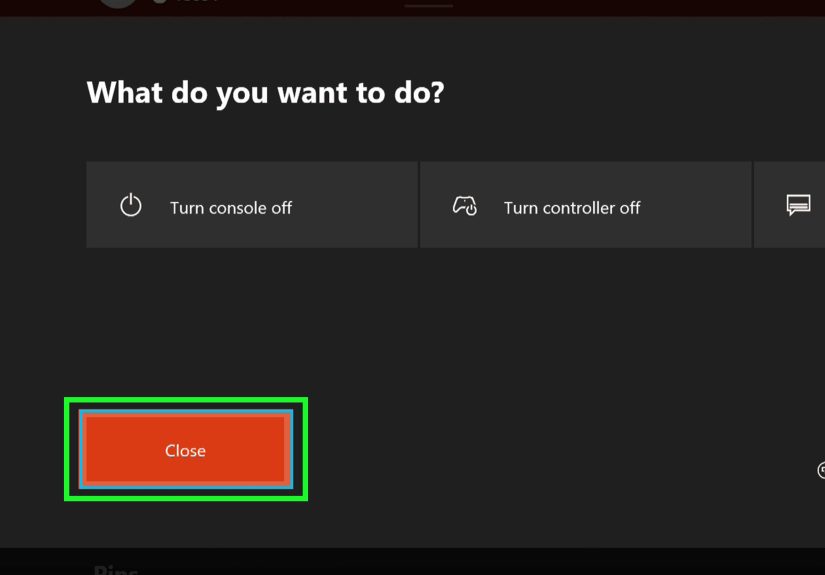
press the Xbox button → Power → Turn off console.
What this looks like in real life
Let’s say you’re installing a brand-new open-world game that’s 110 GB. In Sleep mode, you can queue it up before bed, turn the console off,
and (assuming your internet is behaving like a responsible adult) wake up to a finished installor at least meaningful progress.
If you also enabled Keep my games & apps up to date, you’re more likely to wake up to fewer surprise patches
when you launch the game. Fewer “update required” messages = more actual gaming.
Best for
- People with slower internet who rely on overnight downloads
- Anyone who wants the highest chance downloads keep going while “off”
- Players who also want remote features (remote installs, remote play readiness, etc.)
Tradeoff
Sleep mode generally uses more power than Shutdown (energy saving). If you’re energy-conscious (or your electric bill has started
giving you side-eye), Way 2 will be your jam.
Way 2: Use Shutdown (energy saving) the smart way (overnight updates without the always-on vibes)
Here’s the plot twist: modern Xbox consoles can still handle overnight updates even in the energy-saving shutdown option.
Microsoft has leaned into sustainability features like scheduled maintenance windows and “carbon aware” update timing in some regions.
The key idea is simple: you don’t need to keep the console in Sleep 24/7 to get background updates. If your settings allow it,
the console can wake briefly during maintenance windows, grab updates, and then go back to being quietly responsible.
Step-by-step setup
-
Set power mode to Shutdown (energy saving).
Go to Settings → General → Power options and select Shutdown (energy saving). -
Enable automatic updates.
Go to Settings → System → Updates and enable options like
Keep my games & apps up to date. -
Start your download before you shut down.
This is the simplest way to ensure the console “knows” there’s work to do. Queue the game download, confirm it’s started,
and then turn the console off.
Use Active Hours to get the best of both worlds
If your Xbox offers Active Hours, you can set the times you usually play. During those hours, the console can behave more like
“ready to wake quickly,” and outside those hours it can prioritize lower power usage. Think of it like telling your Xbox:
“Be alert when I’m awake. Be a monk when I’m not.”
Example schedule:
- Active Hours: 6:00 PM – 11:30 PM (fast access for after-school/after-work gaming)
- Outside Active Hours: Energy-saving shutdown behavior (lower power, but still capable of overnight updates if enabled)
Best for
- People who want background updates but also want lower energy use
- Households that prefer the console to be “really off” most of the day
- Players who don’t need remote wake/remote install all the time
Tradeoff
Some remote features may not work the same way when the console is fully shut down. If your dream is “I’m out, I tap Install on my phone,
and my Xbox wakes up and does the thing,” Way 3 (with the right power/remote settings) is usually a better fit.
Way 3: Start downloads remotely (Xbox app, Xbox.com, or Microsoft Store on PC)
This method is perfect for people who remember games exist at inconvenient timeslike when you’re not at home, your console is off,
and you suddenly realize tomorrow is “new season update day.”
Remote installs let you send a game to your console from:
- The Xbox mobile app
- Xbox.com
- The Microsoft Store on Windows
If your console is configured correctly, your Xbox can download the game while you’re awayso it’s ready when you get back.
Step-by-step setup
-
Enable remote features / remote access.
In Settings, find the section for Devices & connections (or similar) and enable
remote features. -
Use Sleep mode if you want the smoothest remote behavior.
Remote installs are most dependable when the console can stay in a low-power standby state. -
Pick the game and choose “Install to” your console.
In the Xbox app (or online store), find the game and select the option to install it to your Xbox. -
Check your storage target.
If you’re tight on internal space, set your default install location ahead of time so remote installs don’t fail at the finish line.
Practical examples
-
The “after-school surprise”: You’re at school (or out) and your friends decide on a new co-op game. You remote install it,
and by the time you get home it’s readyor at least downloading. -
The “big update ambush”: A game you love drops a massive patch. You remote install the update (or re-install a title you deleted),
so you’re not staring at a progress bar when you finally have free time. -
The “preload before a disc arrives”: Some titles can be installed ahead of time digitally (where allowed),
so you’re not waiting hours after the package shows up.
Common hiccups (and quick fixes)
If downloads still won’t continue while the Xbox is “off,” it’s usually one of these:
1) Your Xbox is actually shut down (and not set up for overnight updates)
Double-check your power mode. If you want reliable background downloading, try Sleep first.
If you prefer Shutdown (energy saving), confirm automatic updates are enabled and that you started the download before powering off.
2) “Keep my games & apps up to date” is off
This setting is the difference between “overnight magic” and “why is this still at 2%?” Go to Settings → System →
Updates and turn it on.
3) Storage is powering down
If your games live on an external drive, the setting that turns off storage while the Xbox is off can block background updates/downloads
to that drive. If you want overnight updates to games stored externally, keep storage available.
4) Your internet is doing the “we’re on a break” thing
If your Wi-Fi drops at night, downloads pause. If you can, use Ethernet. If not, try moving the console closer to the router,
using a 5 GHz band, or reducing network congestion (like big uploads) during the download window.
5) You’re running a game or app in the background
Downloads can slow down when a game is running. Before shutting down, quit any open games. Your download speed may thank you immediately.
Speed and sanity tips for overnight downloads
- Use Ethernet when possible. It’s the simplest “free upgrade” for stability.
- Schedule big downloads for low-traffic hours. Less competition on your home network usually means better speeds.
- Keep storage organized. If you’re constantly at 99% capacity, installs fail more oftenespecially remote installs.
-
Choose the right power mode for your life. If you remote install a lot, Sleep is convenient.
If you mostly want updates overnight and lower power use, energy-saving shutdown can be enough.
Wrap-up: pick the “off” that works for you
If you want the simplest, most consistent background downloading, go with Way 1 (Sleep mode + automatic updates).
If you want lower energy use while still getting overnight updates, set up Way 2 (Shutdown energy saving + updates).
And if you want your Xbox to download games while you’re away, Way 3 (remote installs) is your power move.
The best part? Once it’s configured, you can stop babysitting downloads and start using your free time for important things
like actually playing the games you’ve been hoarding since 2018.
Experiences: what it’s like once you set this up (the 500-word “real world” section)
Once you configure background downloads correctly, the biggest “experience shift” isn’t technicalit’s emotional. You stop treating
downloads like a suspense thriller and start treating them like a toaster: you push the button, walk away, and trust that bread will
eventually become toast.
One common experience is the overnight win: you queue a massive game (the kind that could double as a small planet),
turn the console off, and go to sleep. In the morning, you power on expecting disappointmentbecause history has taught you caution
and instead you’re greeted by an “Ready to play” message. It feels oddly productive, like your Xbox did chores while you rested.
Another frequent scenario is the patch ambush that no longer hurts. Before, you’d sit down with a snack, ready to play,
and the console would hit you with a surprise update. Not a cute update eitheran update measured in gigabytes and heartbreak.
After enabling automatic updates, you still get updates, but they happen quietly in the background, often during times you’re not using
the console. The result is less waiting at the exact moment you’re most excited.
People who switch from Sleep to energy-saving shutdown often describe a different kind of satisfaction: the quiet power bill peace.
You don’t feel like the console is “half-awake” all the time, but you can still wake up to new updates installed. It’s the best of both worlds
when it works wellespecially for households that prefer devices to be truly off most of the day.
Remote installs create their own mini-moments of joy. The classic one is realizing you can start a download while you’re not home.
You see your friends chatting about a game, tap “Install” on your phone, and by the time you get back, the console has already done the boring part.
It feels like sending a helpful robot ahead of you to set up camp.
Of course, there are “learning experiences,” too. Many players run into the external-drive gotcha: everything looks perfect,
but downloads don’t update the games stored on the external drive because storage is set to power down when the console is off.
Once you flip that setting, it’s like the console suddenly remembers how to be helpful again.
The biggest takeaway people report is simple: after you set it up, gaming sessions start fasternot because the console is magically more powerful,
but because you’ve removed the hidden time traps. No surprise downloads. No giant installs at the moment you want to play. Just you, your controller,
and the comforting realization that your Xbox can handle background tasks like a grown-up.