Table of Contents >> Show >> Hide
- What You Need for a Smooth Boomerang
- Fastest Method: Turn It Into a Boomerang Inside Instagram
- iPhone Built-In Trick: Make a Live Photo “Bounce” (Boomerang-ish)
- The Works-Everywhere Method: Duplicate + Reverse (Best for Any Video)
- How to Make a Boomerang on iPhone Using CapCut (Simple + Popular)
- How to Make a Boomerang on Android Using CapCut (Same Steps, Different Phone)
- Alternative Editors That Also Work (If CapCut Isn’t Your Thing)
- Export Settings That Make Your Boomerang Look Good Everywhere
- Troubleshooting: When Your Boomerang Looks Weird (And How to Fix It)
- Creative Boomerang Ideas (That Don’t Feel Like 2016)
- FAQ
- Real-World Experiences: What Actually Makes a Boomerang “Work” (500+ Words)
A “boomerang” video is basically a tiny moment that plays forward, then reverses back to the start, and loops like it’s
stuck in a delightful time glitch. It’s perfect for anything with clear motion: a coffee pour, a high-five, a dog head-tilt,
a dress twirl, a “ta-da” product reveal, or that one friend who can’t walk past a mirror without doing a spin.
The good news: you don’t need fancy gear or a film degree. The even better news: you can turn an existing video into a
boomerang on both iPhone and Android. This guide covers the easiest methods (Instagram), the built-in iPhone option
(Live Photos), and the “works every time” editor method (duplicate + reverse).
What You Need for a Smooth Boomerang
- A short clip: 0.5–3 seconds is the sweet spot. Longer clips tend to look messy (and impatient).
- Clear movement: pouring, waving, jumping, turning, opening, tossing, flippingmotion sells the loop.
- A clean start/end: if the first and last frame don’t “match,” you’ll see a jarring jump.
- Stable framing: keep your subject in roughly the same spot, or the loop will feel like a mini earthquake.
Fastest Method: Turn It Into a Boomerang Inside Instagram
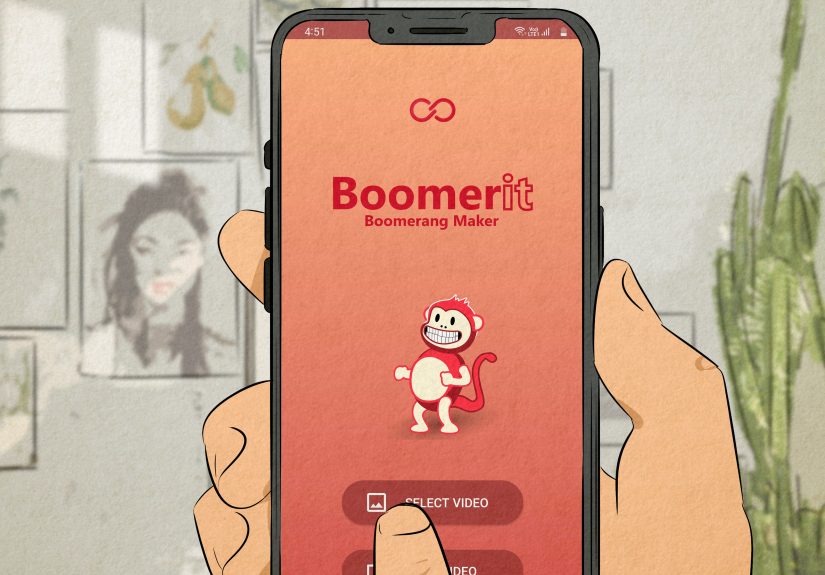
If your end goal is Instagram Stories anyway, you can often skip extra apps. Instagram has a built-in Boomerang mode
(the infinity symbol). This is ideal when you’re recording fresh, but it can also help with certain saved media
(especially Live Photos on iPhone).
Option A: Record a Boomerang in Instagram (New Footage)
- Open Instagram and start a Story.
- Tap the ∞ (Boomerang) icon.
- Tap/hold record (depending on your version) to capture a quick burst.
- Use Instagram’s edit tools (trim, effects) and post.
Option B: Use Camera Roll (Best for iPhone Live Photos)
Here’s the catch: Instagram is most reliable at boomeranging Live Photos (iPhone) rather than any random,
long video clip. If you pick a compatible Live Photo, you may see the infinity symbol and be able to convert it into a
boomerang-style loop inside Stories.
- Open Instagram → create a Story.
- Swipe up to open your Camera Roll.
- Select a Live Photo (if eligible, you’ll see a Boomerang/∞ indicator).
- Press/hold or tap the Boomerang option (varies by app version) to apply the effect.
- Trim, add text/stickers, and post.
If Instagram doesn’t offer Boomerang for your saved video, don’t fight it. That usually means your clip is too long, not
compatible, or the feature isn’t available in that flow. Use the editor method below (it’s foolproof).
iPhone Built-In Trick: Make a Live Photo “Bounce” (Boomerang-ish)
On iPhone, you can turn Live Photos into looping animations directly in the Photos app. The effect that most
resembles a boomerang is typically Bounce (forward then backward). If your “video” is already a Live Photo,
this is the fastest no-download route.
How to Bounce or Loop a Live Photo (iPhone Photos App)
- Open Photos and find your Live Photo (look for the “Live” label).
- Tap the Live Photo to open it.
- Tap the Live Photo controls (often a Live dropdown or Live icon near the top).
- Select Bounce for the boomerang-style motion, or Loop for a continuous repeat.
Want to share it with people who don’t use Apple devices? You can also turn a Live Photo into a standard video file from
within Photos (helpful for posting elsewhere). Once it’s a normal video, you can apply the editor method to boomerang it.
The Works-Everywhere Method: Duplicate + Reverse (Best for Any Video)
This is the universal boomerang recipe. It works on iPhone and Android, and it doesn’t care whether your original clip
came from your camera, a download, a screen recording, or your cousin’s “cinematic masterpiece” from last weekend.
The Basic Formula
- Trim a short segment with obvious motion (1–2 seconds is usually perfect).
- Duplicate that segment.
- Reverse the duplicate.
- Place the reversed clip immediately after the original.
- Optional: remove audio, adjust speed, add a tiny transition, export.
If you want the loop to feel seamless, choose a clip where the start and end frames are visually similarlike a hand
reaching toward a cup and then pulling back. If the ending is totally different (say, you walk out of frame), the loop
will “snap” and look like teleportation (fun, but not always the vibe).
How to Make a Boomerang on iPhone Using CapCut (Simple + Popular)
CapCut is a common choice because it has a straightforward Reverse tool and makes it easy to copy clips.
The exact button names can shift slightly by version, but the workflow stays the same.
- Open CapCut → tap New project.
- Select your video and add it to the timeline.
- Trim the clip down to the best 1–2 seconds (the part with the clearest motion).
- Tap the clip → choose Copy/Duplicate (CapCut often shows “Copy” as a timeline action).
- Select the duplicated clip → tap Reverse.
- Play it back: you should see forward, then backward motion.
- Optional polish:
- Try a slight speed adjustment (e.g., a bit faster) if it feels sluggish.
- Mute audio if reversing makes it sound like a haunted cassette tape.
- Add a very subtle transition only if you notice a harsh “snap.”
- Export in a format that matches where you’ll post (see export tips below).
How to Make a Boomerang on Android Using CapCut (Same Steps, Different Phone)
On Android, the CapCut steps are basically identical. The big difference is where your media lives (Gallery, Google Photos,
Downloads). If you can import the clip, you can boomerang it.
- Open CapCut → New project.
- Import your video → add it to the timeline.
- Trim to the best 1–2 seconds.
- Tap Copy to duplicate the trimmed clip.
- Tap the duplicate → choose Reverse.
- Export.
Alternative Editors That Also Work (If CapCut Isn’t Your Thing)
Adobe Premiere Rush (Mobile)
If you already use Adobe tools, Premiere Rush on mobile supports reversing clips. The idea is the same: trim, duplicate,
reverse, export. Great for creators who want a more “editing suite” feel without going full Hollywood.
Kapwing (Online)
Prefer doing it in a browser? Kapwing offers an online approach where you reverse the clip and place it after the original
to create the classic boomerang motion. It’s handy when you don’t want another app living rent-free on your phone.
Canva (Looping Playback)
Canva can loop video playback inside designs (helpful for presentations, landing pages, or social graphics). But for a true
boomerang effect (forward then backward), you still need a reverse step from an editor that supports reversing clips.
Export Settings That Make Your Boomerang Look Good Everywhere
A boomerang is only as good as the place you post it. Export with the destination in mind so your loop stays crisp, doesn’t
crop your subject’s forehead, and doesn’t turn into a pixelated slideshow.
Best Sizes by Platform
- Instagram Stories/Reels, TikTok, Shorts: 1080 × 1920 (9:16 vertical)
- Instagram feed square: 1080 × 1080 (1:1)
- Landscape platforms: 1920 × 1080 (16:9)
Frame Rate + Quality Tips
- 30 fps is usually plenty; go higher only if your original is high-fps and your app supports it cleanly.
- Avoid exporting as a low-quality GIF unless you really need a GIF. Video loops generally look smoother and sharper.
- If your loop “stutters,” shorten the clip and remove heavy filters.
Troubleshooting: When Your Boomerang Looks Weird (And How to Fix It)
Problem: The Loop Has a Harsh “Jump”
- Fix: Trim so the first and last frames look similar (like matching “poses”).
- Fix: Choose a motion that naturally reverses well (pouring, nodding, waving, opening/closing).
Problem: The Reverse Clip Looks Choppy
- Fix: Start with a higher-quality original (avoid heavily compressed downloads).
- Fix: Don’t over-trim to a fraction of a secondgive the motion enough frames to breathe.
Problem: Audio Sounds Terrible (Because Reverse Audio Is… Reverse Audio)
- Fix: Mute the clip and add music or leave it silent.
- Fix: Keep audio only on the forward section (some editors allow splitting audio).
Problem: The Subject Moves Out of Frame
- Fix: Crop or reframe so the subject stays centered throughout the trimmed segment.
- Fix: Use stabilization (if available), but don’t overdo itrubbery stabilization looks odd in loops.
Creative Boomerang Ideas (That Don’t Feel Like 2016)
- Product demo: twist-open → twist-close (perfect for skincare, bottles, gadgets).
- Food: sprinkle salt → “unsprinkle” (oddly satisfying), cheese pull → rewind.
- Outfit: jacket toss → jacket return, heel tap → heel tap rewind.
- Travel: waves crash → rewind, spinning sign → spinning sign reverse.
- Pets: head tilt → un-tilt, paw wave → paw wave rewind (internet points guaranteed).
FAQ
Can I turn any long video into a boomerang?
Technically yesbut you shouldn’t. Boomerangs shine when they’re short and punchy. Take the best 1–2 seconds of motion,
then boomerang that segment.
Is a boomerang the same as a GIF?
Not exactly. People use the terms interchangeably, but modern “boomerangs” are often exported as short videos that loop.
GIFs can work, but they’re usually lower quality and larger than you expect for the visual payoff.
What if I only have a photo, not a video?
If you have an iPhone Live Photo or an Android Motion Photo, you can often turn that motion into a loop. Otherwise, you’ll
need a tool that animates photos or converts multiple frames into a moving sequence.
Real-World Experiences: What Actually Makes a Boomerang “Work” (500+ Words)
In real life, the difference between a boomerang that people rewatch and a boomerang that people skip isn’t your camera
brandit’s the moment you choose. The best loops usually have one simple idea: clear motion that looks natural in both
directions. That’s why a coffee pour is undefeated. Forward: satisfying stream. Backward: magically un-pours like you’re
undoing your caffeine decisions in real time. Same with clinking glasses, flipping a menu closed, popping a product cap on
and off, or tossing a baseball glove in the air and catching it.
A super common “first try” is boomeranging a clip where the camera moves a lotlike walking forward, panning across a room,
or chasing a toddler who has discovered speed. The loop technically works, but it feels chaotic because the background is
changing so much that the reverse looks like you’re being pulled backward by a tractor beam. When you’re filming or picking
your segment, try this rule: let one thing move. Either the subject moves (a wave, a spin, a jump) or the
camera moves (a small push-in), but not both at full intensity. That small tweak makes the loop feel intentional instead of
accidental.
Another real-world lesson: the start and end frames are the secret handshake of smooth boomerangs. If your
clip begins with a hand at the bottom of the frame and ends with the hand fully out of view, the loop will “snap” when it
restarts. A simple fix is to trim your clip so it begins and ends in a similar poselike hand near the cup at both ends.
This is why boomerangs of doors opening/closing or lids twisting on/off are so satisfying: they have a built-in “return to
start” structure, which is basically boomerang-friendly by design.
People also learn quickly that boomerangs can be great for storytelling in a tiny space. If you’re showing a
product, the loop isn’t just a gimmickit’s a way to highlight one key action. Example: a skincare brand can loop the moment
a dropper squeezes and refills. A bakery can loop the moment powdered sugar falls. A DIY creator can loop the “before →
after” reveal by holding the finished result up, then pulling it back out of frame and repeating. When you keep the action
simple, a boomerang becomes a mini “product demo” that doesn’t demand attentionit earns it.
Finally, there’s the “posting reality” experience: sometimes the app you want to use (Instagram, for example) won’t apply a
boomerang effect to a random saved video the way you expect. That’s when the duplicate + reverse method becomes your best
friend. It’s the reliable, boring, always-on-time optionlike the friend who shows up early with snacks. You edit the
boomerang once, export it as a standard video, and now it will loop anywhere you post it: Stories, Reels, TikTok, Shorts,
even a text message. That flexibility is why creators who post often tend to boomerang in an editor first, then upload the
finished loop wherever they need it.