Table of Contents >> Show >> Hide
- Why your browser keeps showing the “same old” page
- Quick cheat sheet: hard refresh shortcuts (desktop)
- 1) Use the hard refresh keyboard shortcut (desktop)
- 2) Shift-click the Reload button (desktop)
- 3) Use “Empty Cache and Hard Reload” (Chrome/Edge DevTools)
- 4) Temporarily disable cache while you reload (desktop “debug mode”)
- 5) Clear site data for just one website (desktop & mobile)
- 6) Clear your browser cache (desktop & mobile “reset the pantry”)
- 7) Try Private/Incognito mode (desktop & mobile)
- 8) Bust the “hidden” caches: service workers, DNS, and the “it’s not you, it’s the network” factor
- When a force refresh still doesn’t work
- Wrap-up
- Real-world refresh stories and “yep, that happened” moments
- SEO Tags
You know that feeling when you swear a website changed, but your browser is acting like it’s loyal to the past? That’s usually caching: your browser
(and sometimes the network) saving copies of files so pages load faster. Most of the time it’s great. The rest of the time it’s like your browser is
politely saying, “I heard you, but I’m going to do my own thing.”
This guide walks through eight practical ways to force a refresh on both desktop and mobilestarting with quick keyboard shortcuts and moving into the
“fine, we’re doing this the hard way” fixes like clearing site data and dealing with service workers.
Why your browser keeps showing the “same old” page
A normal refresh (like pressing the reload button) often reuses saved filesimages, scripts, stylesheetsif the browser thinks they’re still valid.
That’s efficient, but it can hide updates when:
- Browser cache holds on to old CSS/JS/images.
- Cookies/site storage keeps a session or preference that affects what you see.
- Service workers (offline features) keep serving a previously saved version.
- Network layers (DNS, ISP, CDNs) deliver cached versions before the “fresh” one reaches you.
- The website itself is caching aggressively or hasn’t actually deployed the change everywhere yet.
Quick cheat sheet: hard refresh shortcuts (desktop)
If you’re on a computer, try these first. They’re fast, safe, and satisfyingly dramatic.
| Browser | Windows / Linux | macOS |
|---|---|---|
| Chrome | Ctrl + Shift + R (or Ctrl + F5) | Cmd + Shift + R |
| Microsoft Edge | Ctrl + Shift + R (ignores cached content) | Cmd + Shift + R |
| Firefox | Ctrl + Shift + R (or Ctrl + F5) | Cmd + Shift + R |
| Safari | (Safari is macOS-only) | Cmd + Option + R (common “ignore cache” shortcut) If needed: enable Develop menu > Empty Caches |
1) Use the hard refresh keyboard shortcut (desktop)
A “hard refresh” tells your browser to reload the page while bypassing (or minimizing reliance on) cached files. It’s the first move when a page looks
stuck.
Chrome (Windows/Mac)
- Windows/Linux: Ctrl + Shift + R (or Ctrl + F5)
- Mac: Cmd + Shift + R
Microsoft Edge (Windows/Mac)
- Windows: Ctrl + Shift + R (explicitly “ignoring cached content”)
- Mac: Cmd + Shift + R
Firefox (Windows/Mac)
- Windows/Linux: Ctrl + Shift + R (or Ctrl + F5)
- Mac: Cmd + Shift + R
Safari (Mac)
- Common shortcut: Cmd + Option + R (often reloads while ignoring cache)
- If that doesn’t do it: Use Safari’s developer cache controls (see method #3) because Safari can be especially “helpful” about caching.
2) Shift-click the Reload button (desktop)
If keyboard shortcuts feel like secret handshakes, this method is the “I’m holding Shift and I mean it” approach. Many browsers treat a modified reload
click as a stronger refresh.
- Chrome/Edge: Hold Shift and click the reload icon in the toolbar.
- Firefox: Hold Shift and click reload (often bypasses cache behavior).
Tip: On laptops, your F-keys might be media keys. If Ctrl + F5 isn’t working, you may need to hold Fn too (device-dependent).
3) Use “Empty Cache and Hard Reload” (Chrome/Edge DevTools)
When you want the browser to stop negotiating with cached files and just go to the network, DevTools has a very direct option:
Empty Cache and Hard Reload. It’s one of the most reliable ways to force a truly fresh load on desktop Chrome and Edge.
Chrome (desktop)
- Open DevTools: F12 or Ctrl + Shift + I (Windows) / Cmd + Option + I (Mac).
- In the browser toolbar, click and hold the reload icon (or right-click it).
- Select Empty Cache and Hard Reload.
Microsoft Edge (desktop)
- Open DevTools: F12 or Ctrl + Shift + I (Windows) / Cmd + Option + I (Mac).
- Click and hold the reload icon.
- Choose Empty Cache and Hard Reload (wording may vary slightly, but the intent is the same).
When this shines: stubborn CSS changes, JavaScript bundles that won’t update, or pages that keep “remembering” an old layout like it’s a treasured family heirloom.
4) Temporarily disable cache while you reload (desktop “debug mode”)
If you’re troubleshooting a site update (or you’re on a team where “it works on my machine” is a lifestyle), disabling cache while DevTools is open can save
a ton of time. This prevents the browser from reusing cache for requests made during reloads while DevTools remains open.
Chrome (desktop)
- Open DevTools.
- Go to the Network tab.
- Check Disable cache.
- Now reload the page (a hard refresh is even better).
Firefox (desktop)
Firefox has comparable DevTools settings that can disable HTTP cache for tabs where DevTools is open. If you’re diagnosing caching behavior, this can help
isolate whether you’re seeing an old cached file versus a server-side issue.
Good to know: This is temporary for troubleshooting. Once DevTools closes, normal caching returnslike your browser saying, “Okay, I did the thing. Now let’s be fast again.”
5) Clear site data for just one website (desktop & mobile)
If one site is misbehaving, clearing everything for the whole browser can be overkill. Clearing data for a single site is the “surgical” option:
it can fix broken logins, stale pages, weird formatting, and “why is it still showing yesterday’s version?” problems.
Chrome (desktop)
- Open the site.
- Click the lock icon (or sliders icon) near the address bar.
- Look for Site settings and then clear data for that site (wording varies by version).
Safari (Mac)
- Open Safari settings/preferences.
- Go to Privacy > Manage Website Data.
- Search for the site and remove its stored data.
Safari (iPhone/iPad)
- Open Settings > Safari (or Apps > Safari on newer iOS versions).
- Tap Advanced > Website Data.
- Remove data for the specific site (or remove all website data if needed).
Heads-up: Clearing site data may sign you out and reset site preferences. It’s effectivejust not subtle.
6) Clear your browser cache (desktop & mobile “reset the pantry”)
If multiple sites are acting weirdor your browser feels sluggishclearing the cache can help. Think of it as cleaning the fridge:
you don’t do it for fun, but you’re glad you did it afterward.
Fast shortcut (desktop)
- Windows: Ctrl + Shift + Delete
- Mac (many browsers): Cmd + Shift + Delete
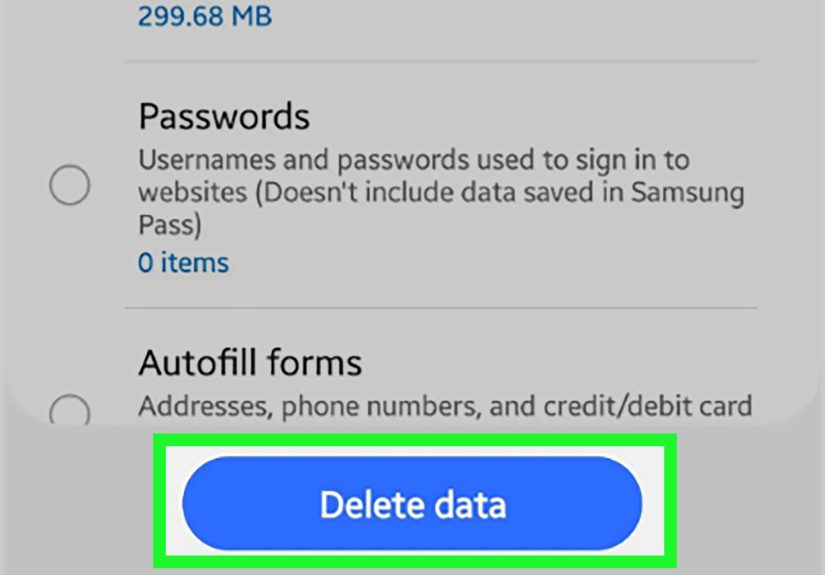
This often opens a “Clear browsing data” dialog where you can choose Cached images and files (and optionally cookies/history).
Chrome (iPhone/iPad/Android)
- Open Chrome.
- Open the menu (three dots).
- Tap Delete browsing data (or Clear browsing data).
- Select Cached images and files (and other items if needed), then confirm.
Safari (iPhone/iPad)
- Open Settings > Safari.
- Tap Clear History and Website Data (or use Advanced > Website Data for more control).
Pro move: If you’re trying to fix a single website, start with method #5 before wiping everything. Your future self will appreciate not having to log back into 19 sites.
7) Try Private/Incognito mode (desktop & mobile)
Private browsing doesn’t magically erase every kind of caching, but it often helps because it starts a fresh session with fewer stored cookies and less reused site state.
It’s also a great test: if the site looks updated in private mode but not in your normal window, you’ve learned something valuable.
Common ways to open a private window
- Chrome/Edge: New Incognito/InPrivate window
- Firefox: New Private Window
- Safari (Mac/iOS): New Private Window/Private Tab
Example: If a site redesign appears in private mode but not in normal mode, your regular profile likely has cached resources or site data hanging on to the old version.
That’s your cue to use method #5 or #6.
8) Bust the “hidden” caches: service workers, DNS, and the “it’s not you, it’s the network” factor
If you’ve tried the usual refresh tricks and a page still won’t update, the issue might be outside the basic browser cache. Here are three common culpritsand what you can do.
Unregister a service worker (desktop, advanced)
Some modern sites use service workers to enable offline behavior and fast repeat visits. That’s greatuntil the service worker keeps serving an old version.
If you suspect that’s happening:
- Open DevTools.
- Look for an Application or Storage section (Chrome/Edge).
- Find Service Workers and unregister the one tied to the site (if present).
- Reload (using method #3 is ideal).
Flush DNS or reset the network path (desktop & mobile)
Sometimes you’re not seeing the “new” site because your device is still resolving an older route. Simple fixes:
- Mobile: Toggle Airplane Mode on/off, or switch Wi-Fi off and on.
- Desktop: Disconnect/reconnect Wi-Fi, or restart your router if nothing else works.
- Windows (advanced): Use the built-in DNS flush command (common troubleshooting step).
Add a cache-busting query string (fast test)
If you just need to verify whether the server has a newer version, add a harmless “cache buster” to the end of the URL:
?refresh=1 or ?v=2026. Many systems treat that as a different URL and fetch fresh content.
It won’t fix every case, but it’s a quick way to test.
When a force refresh still doesn’t work
If you’ve tried multiple methods and the page still looks outdated, here are the most common explanations:
- The website’s server or CDN is caching and hasn’t expired the old version yet.
- You’re logged into an A/B test that intentionally shows different versions to different users.
- The change rolled out gradually (common with large sites), so different regions see updates at different times.
- The “updated” file has the same name (like style.css), and the site isn’t using versioningthis is a classic cause of sticky CSS.
In those cases, your browser may not be the villain. It might be an innocent bystander watching the internet’s caching machinery do its thing.
Wrap-up
Start simple: hard refresh shortcuts and Shift-reload handle most cases. If a page is truly stubborn, use DevTools “Empty Cache and Hard Reload,” clear site data,
or test in private mode. For the rare “nothing works” situations, look at service workers and network-level caching.
The goal isn’t to clear cache all dayit’s to get the latest page when it matters, without turning your browser into a blank slate every time a button looks weird.
Real-world refresh stories and “yep, that happened” moments
If you’ve ever refreshed a page five times and then stared at your screen like it owed you money, you’re in good company. Force refresh problems tend to show up
in a handful of classic scenarioseach with its own little plot twist.
The “my CSS changes aren’t showing” spiral: This one usually starts with a tiny changemaybe a button color or a font sizeand ends with someone
questioning reality. Stylesheets are notorious because they’re frequently cached and reused, and a normal reload often decides it’s “close enough.”
In these cases, a hard refresh (method #1) sometimes works, but the real hero is usually “Empty Cache and Hard Reload” (method #3). It’s the difference between
politely asking the browser to check again and escorting the cache out of the building.
The “it works in Incognito” mystery: Few things are more confusing than a site that looks updated in a private window but stubbornly old in a
normal one. That’s a giant neon sign pointing to cookies, site storage, or cached files tied to your regular profile. The practical fix is clearing the site’s
data only (method #5), which often restores sanity without nuking everything. This is also why private mode is such a good troubleshooting step: it’s less a
solution and more a diagnostic flashlight.
The mobile “why is my phone showing yesterday’s page?” moment: Mobile browsers can be aggressively efficient. They’re trying to save data,
speed things up, and keep your battery from melting into the sidewalk. So when a page won’t update on iPhone Safari, it’s often faster to clear website data
for that specific site (method #5) than to keep pulling down to refresh like it’s a slot machine. On Chrome mobile, clearing cached images and files (method #6)
is usually the quickest reset without wiping everything else.
The service worker surprise: Modern web apps can behave like installed apps, thanks to service workers. That’s awesomeuntil an app-like site
keeps serving an older shell even after you hard refresh. People tend to assume the browser is lying, but it’s often the offline layer doing exactly what it was
designed to do. When that happens, unregistering the service worker (method #8) plus a hard reload is the cleanest fix. It feels a bit technical, but the steps
are straightforward, and it’s incredibly effective when you’re stuck in “old version land.”
The “it’s not my browser” plot twist: Sometimes the refresh tricks work perfectlyand the site still doesn’t change. That’s usually server-side
caching, a CDN rollout delay, or a staged deployment where only some users see the update. In those cases, adding a cache-busting query string (method #8) can
quickly confirm whether the server is actually delivering something different. If the “new” version never appears anywhere (even on another device or network),
your browser probably isn’t the problem. It’s just getting blamed because it’s the only thing in the room you can yell at.
The good news: once you know the eight methods, you can stop guessing. Start with the fast shortcuts, escalate to DevTools when needed, and save the full
cache-clearing for when you truly want a clean slate. Your browser gets to stay speedy, and you get to see the updated pageeverybody wins.