Table of Contents >> Show >> Hide
- What You’ll Learn
- Quick Checklist: Try These Before You Deep-Dive
- How to Fix It on iPhone: The Most Common Reasons You Can’t Delete Apps
- Reason #1: You’re removing the icon, not deleting the app
- Fix: Delete the app the right way
- Reason #2: Screen Time (or parental controls) is blocking deletion
- Fix: Allow app deletion in Screen Time
- Reason #3: The iPhone is managed by a school or employer (MDM)
- Fix: Check for configuration profiles and device management
- Reason #4: It’s a built-in Apple app (and some can’t be deleted)
- Fix: Confirm whether it’s removable
- Reason #5: The app is stuck (downloading, updating, or “ghosted”)
- Fix: Unstick the app
- Reason #6: You’re offloading instead of deleting (or vice versa)
- Fix: Use iPhone Storage to choose Offload or Delete
- Last-Resort iPhone Fixes (When the Delete Button Still Won’t Show)
- How to Fix It on Android: Why “Uninstall” Is Missing (and What to Do)
- Reason #1: The app is a system app (you can’t uninstall itbut you can usually disable it)
- Fix: Disable the app (the “polite eviction” method)
- Reason #2: The app has Device Admin privileges (or is a “policy” app)
- Fix: Turn off admin access, then uninstall
- Reason #3: You have a Work Profile (and the app belongs to it)
- Fix: Remove the work profile (this removes work apps and work data)
- Reason #4: Parental controls are blocking uninstall
- Fix: Check parental control settings
- Reason #5: The app is misbehavinguse Safe Mode to uninstall it
- Fix: Boot to Safe Mode, then uninstall
- Reason #6: You’re trying to uninstall from the wrong place
- Fix: Use the Google Play Store uninstall method
- Last-Resort Android Fixes (Use When Nothing Else Works)
- How to Prevent “Can’t Delete Apps” Problems in the Future
- FAQ: Quick Answers to Common “App Won’t Delete” Questions
- Experiences Related to “Why Can’t I Delete Apps?” (The Real-World Version)
- Experience 1: “I swear I deleted it… why is it still on my phone?”
- Experience 2: “There is no delete option. It’s like my phone is trolling me.”
- Experience 3: “My old job is haunting my phone.”
- Experience 4: “Android says it can’t uninstall because the app is an administrator.”
- Experience 5: “I bought this phone and it came with 47 apps I didn’t ask for.”
- Conclusion
You tap, you hold, you wait for the little “X” or “Delete App” button… and your phone responds with the digital equivalent of a shrug.
No delete option. No uninstall. Just vibes.
The good news: in most cases, your phone isn’t brokenit’s either protecting you (parental controls, work/school management),
protecting itself (system apps), or simply hiding the real delete button behind a different menu.
This guide synthesizes troubleshooting advice from official Apple/Google documentation and trusted U.S.-based tech help sources,
rewritten into a practical, step-by-step fix-it plan.
Quick Checklist: Try These Before You Deep-Dive
If you want the “skip the drama” path, start here. These steps solve most “why can’t I delete apps?” situations on both iPhone and Android.
1) Confirm you’re trying to delete the app (not just remove the icon)
- iPhone: “Remove from Home Screen” does not uninstall the appit just hides the icon.
- Android: Some launchers let you remove the shortcut without uninstalling.
2) Restart your phone (yes, really)
If an app is stuck updating/downloading or your system UI is glitching, a reboot can restore the missing “Delete/Uninstall” option.
It’s not glamorous, but neither is arguing with a rectangle.
3) Look for restrictions
- iPhone: Screen Time restrictions can remove the delete option entirely.
- Android: Work profiles, device admin apps, or parental controls can block uninstalling.
4) Try deleting from Settings instead of the home screen
Both iPhone and Android have a “boss-level” delete method in Settings that often works even when the home screen option disappears.
How to Fix It on iPhone: The Most Common Reasons You Can’t Delete Apps
Reason #1: You’re removing the icon, not deleting the app
iOS gives you two similar-looking options that do very different things:
one hides the icon, the other deletes the app.
If you chose the “hide” option earlier, you might think the app is goneuntil your storage says otherwise.
Fix: Delete the app the right way
- Touch and hold the app on your Home Screen.
- Tap Remove App.
- Tap Delete App, then confirm Delete.
If you don’t see the app on the Home Screen, swipe to the App Library, touch and hold the app there, and delete it from that menu.
Pro tip: If you only see “Remove from Home Screen,” that means iOS is offering to hide the icon.
Look for the separate Delete App option to uninstall.
Reason #2: Screen Time (or parental controls) is blocking deletion
When “Deleting Apps” is restricted, iOS doesn’t just block deletionit often removes the option completely.
So you’re not imagining things. The button really is gone.
Fix: Allow app deletion in Screen Time
- Open Settings > Screen Time.
- Tap Content & Privacy Restrictions (turn it on if needed).
- Tap iTunes & App Store Purchases (or App Store, Media, Web, & Games on some versions).
- Tap Deleting Apps and set it to Allow.
If this is a child’s device managed through Family Sharing, you may need the Screen Time passcode to change these settings.
Translation: the phone is doing what it was told, and it was told “no.”
Reason #3: The iPhone is managed by a school or employer (MDM)
If your iPhone (or iPad) is connected to a work/school management system, certain apps can be required and protected from deletion.
Sometimes the device is “supervised,” and the rules are set by an administratornot you.
Fix: Check for configuration profiles and device management
- Open Settings > General.
- Look for VPN & Device Management (or Profiles).
- If you see a management profile you don’t recognize, tap it to review details.
Important: If the device is truly managed by your employer/school, you generally shouldn’t try to “work around” it.
The correct fix is to contact the administrator and ask what can be removed.
If it’s your personal phone and you installed a profile yourself (for example, for a beta, a VPN service, or a work email setup),
removing that profile can restore normal delete behaviorbut it can also remove related settings and managed apps.
Reason #4: It’s a built-in Apple app (and some can’t be deleted)
Apple allows you to delete many built-in apps, but not all of them.
If it’s an Apple system app and iOS won’t delete it, you might be able to remove it from the Home Screen or disable its functionality,
but full deletion may not be available.
Fix: Confirm whether it’s removable
- Try the standard delete flow (touch and hold > Remove App > Delete App).
- If deletion isn’t offered, remove it from the Home Screen and keep it in the App Library.
- If it’s an Apple app you deleted earlier and want back, re-download it from the App Store.
Reason #5: The app is stuck (downloading, updating, or “ghosted”)
Sometimes an app gets stuck in a weird limbo statelike it’s installing forever or showing a dimmed icon.
iOS may refuse to delete it until the process finishes (which it may never do, because life is cruel).
Fix: Unstick the app
- Restart the iPhone.
- Check your Wi-Fi connection and try letting the update/download finish.
- Try deleting the app from Settings > General > iPhone Storage.
Reason #6: You’re offloading instead of deleting (or vice versa)
iPhone has two different storage actions:
Offload App removes the app but keeps its documents/data, while Delete App removes both.
If you’re trying to fully wipe the app, “offload” might feel like the app never truly left.
Fix: Use iPhone Storage to choose Offload or Delete
- Go to Settings > General > iPhone Storage.
- Select the app.
- Tap Delete App for a full removal, or Offload App if you want to keep data.
Last-Resort iPhone Fixes (When the Delete Button Still Won’t Show)
- Update iOS: A system update can fix UI bugs and management glitches.
- Check for Screen Time passcode issues: If you don’t know it, you’ll need the account owner/admin.
- Remove suspicious profiles: Only if you recognize them and understand what will be removed.
- Back up and reset: If the phone is yours and nothing else works, a full reset can clear persistent management or corruption issues.
How to Fix It on Android: Why “Uninstall” Is Missing (and What to Do)
Reason #1: The app is a system app (you can’t uninstall itbut you can usually disable it)
Many Android phones ship with pre-installed apps. Some are removable, some are not.
When Android doesn’t allow uninstalling, it often offers Disable instead.
Disabling usually stops the app from running, hides it from your app drawer, and prevents updates from reactivating it (unless you re-enable it).
Fix: Disable the app (the “polite eviction” method)
- Open Settings > Apps (or Apps & notifications).
- Tap the app you want to remove.
- If Uninstall is missing but Disable is available, tap Disable.
- Optionally tap Storage > Clear data to remove its local data (if allowed).
Heads-up: If the app is critical (think: core services, phone functions), Android may block disable/uninstall.
That’s your phone’s way of saying, “I enjoy being able to boot.”
Reason #2: The app has Device Admin privileges (or is a “policy” app)
Some apps gain extra control so they can enforce security rules (common with workplace tools, antivirus suites, and parental control apps).
If an app is a Device Admin app or part of a Device Policy setup, Android may refuse to uninstall it until you revoke that access.
Fix: Turn off admin access, then uninstall
- Open Settings > Security (or Security & privacy).
- Find Device admin apps (sometimes under More security settings or Advanced).
- Toggle off the app you want to remove.
- Go back to Settings > Apps and uninstall normally.
If it’s managed by work/school, you may not be allowed to disable admin accessbecause the whole point is that you can’t casually delete the rules.
In that case, skip to the Work Profile section below.
Reason #3: You have a Work Profile (and the app belongs to it)
Work Profile apps often have a little “briefcase” badge. They can be controlled by your organization, which can block uninstalling.
If you’re done with the work setup (new job, old job, or you just want your phone to feel like your phone again),
removing the work profile can remove the managed apps and the policy controller that enforces them.
Fix: Remove the work profile (this removes work apps and work data)
- Open Settings.
- Search for Remove work profile (Android often lets you search Settings).
- Tap Remove work profile > Delete to confirm.
If you don’t see that option, check:
- Settings > Passwords, Passkeys & Accounts (or Accounts), then look for a Work tab/profile.
- Settings > Accounts > your work account > remove account (wording varies by device).
Note: If the work profile was required by your employer, removing it may break access to work email/apps.
That’s not a bugit’s your phone enforcing the “work rules stay at work” agreement.
Reason #4: Parental controls are blocking uninstall
On supervised devices, parents can block app installs, purchases, or changes.
That can also mean “no uninstalling,” even if you’re holding the phone with full confidence and zero patience.
Fix: Check parental control settings
- If the phone is supervised with a family app, the parent/guardian typically needs to approve changes.
- Look for Digital Wellbeing & parental controls in Settings.
- Check for a linked supervision account or a family management app that may require a parent passcode.
Reason #5: The app is misbehavinguse Safe Mode to uninstall it
If a buggy (or suspicious) app keeps crashing Settings, hijacking your screen, or generally acting like it pays rent,
Safe Mode loads Android with only core system apps. That can make stubborn apps easier to remove.
Fix: Boot to Safe Mode, then uninstall
- Use Android’s Safe Mode steps for your device (often via the power menu).
- Once in Safe Mode, open Settings > Apps.
- Tap the problem app > Uninstall.
- Restart normally to exit Safe Mode.
If the problem goes away in Safe Mode, an app is likely the causethen you can remove apps one by one until things return to normal.
Reason #6: You’re trying to uninstall from the wrong place
Android gives you multiple uninstall paths. If one doesn’t work, try another:
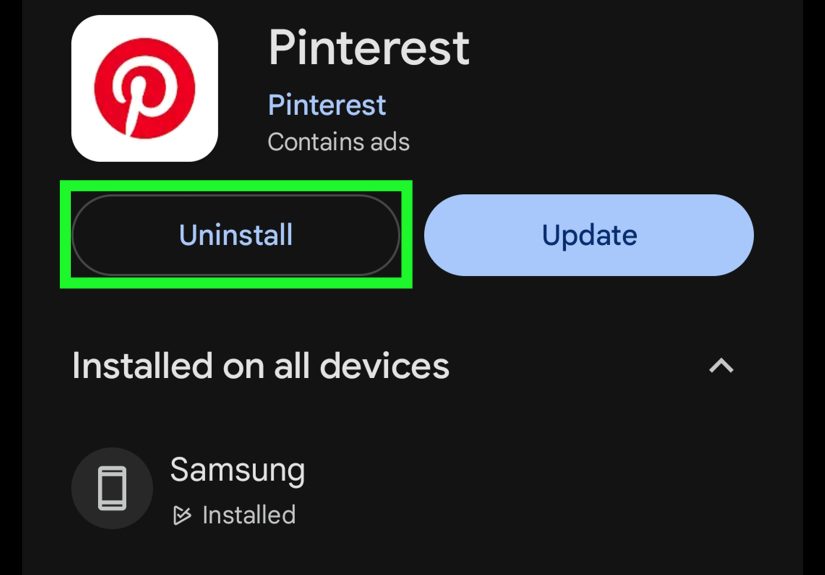
Fix: Use the Google Play Store uninstall method
- Open the Google Play Store.
- Tap your profile icon.
- Tap Manage apps & device > Manage.
- Select the app > tap Uninstall.
This is especially handy if the app icon is missing, the launcher is glitchy, or you’re not sure which app entry is the real one.
Last-Resort Android Fixes (Use When Nothing Else Works)
- Update Android and Play Store: Uninstall issues can come from system bugs or policy glitches.
- Remove work/school management: If the phone is managed, you may need the organization to unenroll it properly.
- Factory reset: If it’s your personal phone and you’re locked out by a broken policy/work profile, resetting can clear itafter you back up your data.
How to Prevent “Can’t Delete Apps” Problems in the Future
Once you’ve wrestled the “Delete” button back into existence, a few habits can keep it from vanishing again:
Keep restrictions intentional
- If you use Screen Time (iPhone) or parental controls (Android), document your passcodes and settings.
- If you enroll in a work/school program, ask what happens when you leavehow do you unenroll cleanly?
Audit “power permissions” occasionally
- Android: Be cautious with Device Admin access, Accessibility access, and VPN-based “security” apps.
- iPhone: Be selective with configuration profiles and device management prompts.
Use disable/offload as your “maybe later” option
- Android: Disable system apps you don’t use instead of trying to remove them.
- iPhone: Offload apps you rarely use if you want to save space without losing data.
FAQ: Quick Answers to Common “App Won’t Delete” Questions
Why don’t I see “Delete App” on iPhone?
The most common reasons are: Screen Time restrictions, the app is managed by a profile/MDM, the app is stuck updating,
or you’re only being offered “Remove from Home Screen.”
Why does Android only show “Disable” instead of “Uninstall”?
That usually means it’s a system app or an app installed as part of a manufacturer/carrier package.
Disabling is the safe, supported option.
Will removing a work profile delete my personal stuff?
Generally, removing the work profile deletes work apps and work data, not your personal photos and personal apps
but always read the confirmation screen so you know exactly what’s being removed.
If I factory reset, will that fix it?
If the phone is yours and the uninstall problem is caused by a broken policy state or corruption, a reset often fixes it.
But if the device is still enrolled in an organization’s management, the management can come right back after setup.
Experiences Related to “Why Can’t I Delete Apps?” (The Real-World Version)
The technical explanations above are accuratebut the way this problem shows up in everyday life is usually way messier,
because it happens at the worst possible time. Here are some common “this is definitely what’s happening to me” experiences
people run into, plus the tiny clue that reveals the real cause.
Experience 1: “I swear I deleted it… why is it still on my phone?”
This is the classic iPhone scenario: you hold the icon, tap something that sounds correct (“Remove App”), and boomthe icon disappears.
Victory dance. Two days later your phone says you’re low on storage and the same app is listed as taking up 3.2 GB. Rude.
The clue is the wording: if you tapped Remove from Home Screen, the app didn’t leaveit just moved into the App Library like a teenager
relocating to the basement. The fix is easy once you know it: search the app in App Library and choose Delete App to actually uninstall.
It’s not that iPhone lied… it just used “remove” in a way that feels emotionally dishonest.
Experience 2: “There is no delete option. It’s like my phone is trolling me.”
When the delete option is missing entirely, people usually assume the phone is glitching. Sometimes it isbut more often, it’s a rule.
On iPhone, Screen Time restrictions can quietly remove the delete option. On Android, a device policy or admin privilege can lock an app in place.
The clue is consistency: if you can’t delete any apps (or you can delete some but not others), it’s usually not random.
Restrictions tend to be predictable: either system apps are protected, or everything is protected because “Deleting Apps” isn’t allowed.
Once you flip the right setting (Screen Time > Content & Privacy > Deleting Apps), the button returns like nothing happened.
Phones are great at gaslighting: “What delete button? I’ve never even heard of her.”
Experience 3: “My old job is haunting my phone.”
On Android, work profile situations can feel extra confusing because the same phone suddenly has “two versions of reality.”
You might see two Gmail icons, two versions of a chat app, or apps with a tiny briefcase badge that refuse to uninstall.
People often discover this after leaving a job or switching schoolswhen they just want to clean up and move on.
The clue is the briefcase badge (or a Work section in Settings). If the app is installed under a work profile,
uninstalling it might be blocked by policy. Removing the work profile can wipe all work apps in one sweep.
It’s dramaticbut it’s also clean. Think of it as finally returning the company keycard… except the keycard is living inside your Settings menu.
Experience 4: “Android says it can’t uninstall because the app is an administrator.”
This shows up a lot with security apps, parental control apps, and certain “phone cleaner” apps that ask for big permissions.
People install them intending to tidy up, then realize the app is impossible to removelike a Roomba that moved in and claimed tenant rights.
The clue is the warning text: if Android mentions “device administrator,” you have to revoke admin access first.
Once you disable it under the Device Admin apps menu, uninstall becomes normal again. The bigger lesson:
anytime an app asks for admin-level control, it should come with a moment of pauselike, “Do I want this app to have the power to refuse eviction?”
Experience 5: “I bought this phone and it came with 47 apps I didn’t ask for.”
Pre-installed apps are one of the most common Android frustrations. People try to uninstall the obvious stuffcarrier apps, store apps, brand apps
and discover the uninstall button is missing. In many cases, Android offers “Disable,” which feels like a half-measure… until you realize it’s often enough.
Disabling a pre-installed app can remove it from your app drawer, stop it from running, and prevent it from updating.
For most people, that’s the practical win: fewer icons, fewer background processes, fewer “why is this here?” moments.
The phone stays stable, and you get your home screen back. Not every battle needs a full uninstall. Sometimes a quiet disable is the healthiest boundary.
Bottom line: when you can’t delete an app, your phone is usually following a ruleeither one you set (restrictions),
one your organization set (management), or one the system set (protected apps). Once you identify which rule it is, the fix gets straightforward fast.