Table of Contents >> Show >> Hide
- What You’ll Learn (Without the Tech Headache)
- Before You Start: Quick Checklist
- Method 1: Set a Custom Ringtone in Google Contacts (Most Android Phones)
- Method 2: Set a Contact Ringtone from the Phone App (Google Phone App / Many Devices)
- Method 3: Samsung Galaxy (Contacts App) The “View More” Adventure
- Method 4: Other Android Brands (Motorola, OnePlus, Xiaomi, etc.)
- How to Use Your Own Audio File as a Contact Ringtone
- Specific Examples (So You Can Copy-Paste the Strategy Into Your Life)
- Troubleshooting: When Your Custom Contact Ringtone Doesn’t Work
- Best Practices: Make Your Contact Ringtones Actually Useful
- FAQ
- Extra: of Real-World Experience (Because That’s Where the Bugs Live)
- Conclusion
You know that moment when your phone rings and you do the Olympic-level pocket-pat-down… only to discover it’s
your dentist’s office calling to “confirm your appointment” (aka: remind you of your life choices)?
If you could give that contact a ringtone that sounds like a tiny trombone of disappointment,
you’d instantly know whether to answer, ignore, or dramatically stare out a window.
Setting a custom ringtone for a specific Android contact is one of those “small tweak, big sanity” features.
Done right, you’ll know who’s calling without even looking at the screenperfect for important people,
frequent callers, and that one friend who only calls when they need help moving.
What You’ll Learn (Without the Tech Headache)
- How to assign a ringtone to an individual contact using Google Contacts or your phone app
- Samsung Galaxy steps (because Samsung likes to be “unique”)
- How to use your own song/audio file as a contact ringtone
- Common issues (why your custom ringtone doesn’t play) and how to fix them
- Practical examples and best practices so it actually works in real life
Before You Start: Quick Checklist
Most Android phones can set a unique ringtone per contact, but the menus can vary by brand, Android version,
and which apps manage your contacts/calls. Before we jump into steps, make sure:
- Your contact is saved to your phone or Google account (SIM-only contacts often won’t support custom ringtones).
- You’re editing the right contact entry (duplicate contacts can sabotage your efforts).
- Your audio file is usable (MP3/M4A/OGG typically work; weird formats can fail silently).
- Do Not Disturb isn’t blocking calls (or is set to allow that contact).
Method 1: Set a Custom Ringtone in Google Contacts (Most Android Phones)
If you use the Google Contacts app, you can usually set a ringtone directly from a contact’s info.
On some newer versions, Google also includes a dedicated “contact ringtones” management area (if you see it, use itit’s easier).
Option A: Set the ringtone from the contact card
- Open the Contacts app (Google Contacts).
- Search for and tap the contact you want to customize.
- Tap Edit (pencil icon).
- Tap More or the three dots menu (if shown).
- Select Set ringtone (wording may be “Ringtone” or “Contact ringtone”).
- Choose a ringtone and tap Save.
Pro tip: If you don’t see a ringtone option, look for a “View more” or “More fields” link while editing.
Some phones hide the good stuff like it’s a secret family recipe.
Option B: Use the “Contact ringtones” tool (if your Google Contacts app has it)
Some versions of Google Contacts add a dedicated section that lets you manage contact ringtones in one place
which is fantastic if you’re assigning ringtones to multiple VIPs (or multiple chaos agents).
- Open Google Contacts.
- Tap Fix & manage (or a similar tab/menu).
- Look for Contact ringtones.
- Pick a contact, select a ringtone, and tap Save.
If you don’t see this feature, don’t panic. It may not be available on your version yet, or your phone uses a different contacts app.
You can still use the Phone app method below.
Method 2: Set a Contact Ringtone from the Phone App (Google Phone App / Many Devices)
On many Android phonesespecially Pixels and devices using the Google Phone appyou can set a custom ringtone from the Phone app itself.
This is handy when you’re already in “call management mode” and want to make someone’s ringtone unforgettable.
- Open the Phone app.
- Go to the Contacts tab (or “Directory”).
- Select the contact.
- Tap the three dots menu.
- Choose Set ringtone.
- Select your sound and tap Save.
Reality check: If your ringtone doesn’t stick, you may be editing a duplicate contact record.
In that case, set the ringtone on every duplicate entry for that person, or merge the duplicates (we’ll cover this in Troubleshooting).
Method 3: Samsung Galaxy (Contacts App) The “View More” Adventure
Samsung generally supports per-contact ringtones, but the option is often tucked inside the contact edit screen.
Also, Samsung commonly warns that contacts stored on the SIM may not support this featureso save them to your phone or Google account.
Steps (Samsung Galaxy)
- Open Contacts.
- Tap the contact you want.
- Tap Edit (pencil icon).
- Tap View more (or expand options).
- Scroll to Ringtone.
- Select a ringtone, then tap Save.
Samsung-specific note: If you use a Samsung account + Google account + SIM contacts, you might have multiple “versions” of the same person.
Choose the one that’s actually used for calls (typically the phone/Google-synced contact), then assign the ringtone there.
Method 4: Other Android Brands (Motorola, OnePlus, Xiaomi, etc.)
Most manufacturers follow the same logic: open the contact, tap edit, find “Set ringtone.” The exact words and placement change,
but the pattern is consistent.
Generic steps that work surprisingly often
- Open your device’s Contacts app.
- Select the contact.
- Tap Edit.
- Tap More (three dots) or scroll down for ringtone settings.
- Choose Ringtone → pick a sound → Save.
If your phone uses a manufacturer contacts app, you can also try installing Google Contacts from the Play Store
and managing contact ringtones there (if your system allows it). Some brands restrict which app can write ringtone settings.
How to Use Your Own Audio File as a Contact Ringtone
Want your best friend to ring in with a theme song? Or your boss to ring with gentle ocean waves so you don’t develop stress hives?
You can use your own audiojust make sure Android can “see” it as a ringtone.
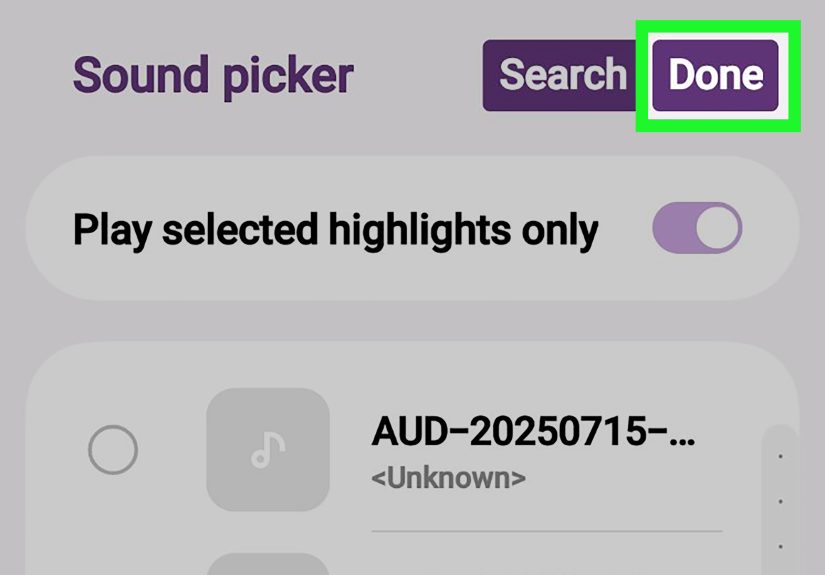
Option A: Add the file through Settings (common approach)
- Put the audio file on your phone (Downloads, Music, etc.).
- Open Settings → Sound & vibration.
- Tap Phone ringtone (or “Ringtone”).
- Look for My Sounds or a + button.
- Select your audio file to add it to the ringtone list.
Once it appears in your ringtone list, you can assign it to a contact using any method above.
Option B: Use Files by Google to set a file as a ringtone
If you have Files by Google, it can set an audio file as your ringtone directly (and may ask permission to modify system settings).
This is a quick way to turn a downloaded sound into an official ringtone.
Option C: Put the file in the “Ringtones” folder (old-school, still effective)
If you connect your phone to a computer (or use a file manager), you can place an audio file into your device’s
Ringtones folder. Android typically scans that folder and makes those sounds available in ringtone pickers.
- Internal storage → Ringtones (create the folder if it doesn’t exist)
- Copy your audio file there
- Then select it from your ringtone list when assigning to a contact
Specific Examples (So You Can Copy-Paste the Strategy Into Your Life)
Example 1: Make “Family” impossible to miss
Set your parents, siblings, or guardian contacts to a ringtone that’s loud and unmistakable. The goal:
you hear it from across the room and immediately know it’s family. Bonus points if it’s a ringtone you’d never
accidentally confuse with a spam call.
Example 2: Give “Work” a calm ringtone
Pick something subtle for your manager or key coworkers. Not because you don’t respect thembecause your nervous system deserves a raise too.
A calmer ringtone lowers the “jump scare” effect when someone calls during dinner.
Example 3: Give unknown callers the default sound
The default ringtone becomes your “mystery caller alert.” If you hear the default, you know it’s someone not saved (or a saved contact you forgot to customize).
That’s useful information in itself.
Troubleshooting: When Your Custom Contact Ringtone Doesn’t Work
If your phone keeps playing the default ringtone even after you set a custom one, don’t worrythis is common.
Here are the most frequent culprits and fixes.
1) Duplicate contacts (the #1 silent villain)
You may have two or more entries for the same person (Google, SIM, WhatsApp, device memory).
When they call, Android might use the “other” entry, ignoring the ringtone you set.
- Open the contact and check if there are multiple entries for the same name/number.
- Use Merge or Fix & manage → Merge & fix (Google Contacts) to combine duplicates.
- If you can’t merge, try assigning the same ringtone to each duplicate entry.
2) The contact is saved to SIM (limited features)
Many phones won’t allow custom ringtones for SIM-only contacts. Move that contact to your phone or Google account:
export/import or “Move to device/Google” options vary by phone.
3) Do Not Disturb or call screening is interfering
If DND is on, you might not hear the ringtone you expector you might not hear anything at all.
Check Settings → Sound → Do Not Disturb and confirm your exceptions.
Consider marking important contacts as Favorites/Starred and allowing those calls through.
4) Your ringtone file isn’t accessible anymore
If you picked a file from Downloads and later deleted it, moved it, or the app lost access, Android may fall back to the default ringtone.
Keep custom ringtones in the Ringtones folder for stability.
5) Wrong app is handling calls/contacts
If you switched to a different dialer app (third-party Phone app), it might not respect the same ringtone settings.
Try using the default Phone app, or check the dialer’s own settings for contact ringtones.
6) Permissions/settings restrictions
Some apps need permission to modify system settings to set ringtones. If you used a file manager or Files by Google,
follow any prompts that request “Allow modify system settings.”
Best Practices: Make Your Contact Ringtones Actually Useful
Choose sounds that communicate meaning
- Urgent: loud, distinct tones
- Work: calm, professional tones
- Fun friends: quirky tones you’ll recognize instantly
Keep the first 2–5 seconds recognizable
When your phone rings, you usually decide whether to answer in the first couple seconds.
Pick ringtones with a strong openingavoid long intros that sound like “ambient spaceship hum” until the chorus arrives.
Don’t over-customize (yes, it’s possible)
If every contact has a different ringtone, your brain will be playing “Name That Tune” all day.
Start with a short list: family, partner, boss, and maybe your ride-or-die friend.
FAQ
Can I set a ringtone for a contact group?
Some Android versions and apps support group labels, but group ringtone support is inconsistent.
If your Contacts app offers group settings with a ringtone option, great. If not, it’s usually more reliable to set ringtones per individual contact.
Can I set a custom vibration pattern too?
On many devicesespecially Samsungyou can often set both a custom ringtone and a custom vibration pattern for a contact.
Look for “Vibration pattern” or similar in the contact edit screen.
Why do texts from a contact still use the default sound?
Contact ringtones typically affect calls, not texts. SMS and messaging apps often manage notification sounds separately.
Check your messaging app’s notification settings for per-conversation or per-contact sound options (if supported).
Extra: of Real-World Experience (Because That’s Where the Bugs Live)
In theory, setting a contact ringtone should be a simple “tap-tap-save” situation. In real life, it can feel like you’re negotiating
with a very tiny, very stubborn robot who insists, “No, you meant to use the default ringtone. You love the default ringtone.”
Here are a few experience-based lessons that save time and frustration.
First: duplicates are sneaky. I’ve seen people set a custom ringtone, test it with a call, and it worksthen later it stops.
Why? They had two entries for the same person: one from Google, one from the SIM, and sometimes a third from a messaging app profile.
The call didn’t always “hit” the same contact entry. The fix is boring but effective: merge duplicates (Google Contacts makes this easier),
or set the ringtone on every duplicate entry until you can clean it up. Think of it like labeling identical twins: you need consistency.
Second: SIM contacts are the party poopers. Many phones treat SIM contacts like they’re carved into stone tablets:
readable, but not very customizable. If you don’t see a ringtone option, move that contact to your phone storage or Google account.
Once it’s in your main contacts database, the ringtone option typically appears like magicexcept it’s not magic, it’s file structure and permissions.
Which is basically modern magic anyway.
Third: if you’re using a custom MP3, store it somewhere stable. Downloads is a chaotic place. Files get cleaned,
moved, or “optimized” away. When the ringtone file disappears, Android doesn’t always warn youit just quietly reverts to the default ringtone,
like a cat knocking something off a shelf and pretending it didn’t. Put your custom ringtones in the Ringtones folder,
and you’ll avoid the “Why did my boss suddenly start sounding like everyone else?” moment.
Fourth: test with a real call. Don’t rely on the preview sound in the picker. Have the person call you (or use another phone),
make sure the ringtone plays while your screen is locked, and confirm your Bluetooth situation too. If you’re connected to earbuds or a car,
you might hear the ringtone differentlyor not at alldepending on your audio routing.
Finally: keep it practical. The goal isn’t to turn your phone into a chaotic jukebox. Start with a handful of important contacts.
Once you feel the benefit (fewer missed important calls, fewer accidental answers to spam), you can add more. Custom ringtones are best
when they’re a helpful signalnot a daily pop quiz.
Conclusion
Setting a ringtone for an Android contact is one of the easiest ways to make your phone feel smarterlike it’s helping you,
not just interrupting you. Whether you’re using Google Contacts, the Phone app, or a Samsung Galaxy, the process is usually:
open contact → edit or menu → set ringtone → save. Add your own audio files for extra personality, and troubleshoot duplicates or SIM contacts
if the ringtone won’t stick.
Once you’ve set up a few key ringtones, you’ll start recognizing calls instantlyno screen required. And that’s the dream:
fewer surprises, better priorities, and a little more control over the soundtrack of your day.