Table of Contents >> Show >> Hide
- Why date and time settings matter (more than you think)
- Before you start: a quick “where are these settings?” cheat sheet
- Option 1 (recommended): Set date & time automatically
- Option 2: Set the date & time manually
- Troubleshooting: when the date & time won’t change (or won’t stick)
- Extra tips to keep time under control
- FAQ: quick answers
- Conclusion: pick the option that matches your life
- Real-World Experiences (and surprisingly common “time problems”)
Your Samsung Galaxy is basically a tiny computer that happens to take great photos and occasionally reminds you to stand up.
Like any computer, it gets grumpy when the date and time are wrong. Calendar invites land on the wrong day, alarms betray you,
some apps refuse to log in, and secure websites may suddenly act like you’re time-traveling from 2009.
The good news: changing the date and time on a Samsung Galaxy is easy, and you’ve got two solid options:
automatic (recommended for most people) and manual (perfect when you want control).
This guide walks you through both, plus the most common “why is this greyed out?!” fixes.
Why date and time settings matter (more than you think)
On a Galaxy phone, the system clock isn’t just for your lock screenit’s a backstage manager for tons of tasks.
If your device time is off, you can run into:
- Login and security problems (apps and websites can reject a device with an incorrect clock)
- Calendar chaos (meetings shift, reminders fire at the wrong time, time zones get messy)
- Sync issues (email, cloud backups, and messaging can behave oddly)
- Alarm and timer surprises (the worst kindespecially on weekdays)
Before you start: a quick “where are these settings?” cheat sheet
Samsung’s menu labels can vary slightly by model and One UI version, but on most Galaxy phones you’ll find it here:
Settings > General management > Date and time
Shortcut: use Settings search
If you don’t feel like playing hide-and-seek, open Settings, tap the Search icon,
and type date or time. Then tap Date and time.
This works even if your menus are arranged differently.
Option 1 (recommended): Set date & time automatically
This is the “set it and forget it” method. Your phone pulls the correct time from your network and/or location services.
It’s the best choice if you travel, deal with daylight saving time, or just want your phone to stop being dramatic.
Step-by-step: enable automatic date and time
- Open Settings.
- Tap General management.
- Tap Date and time.
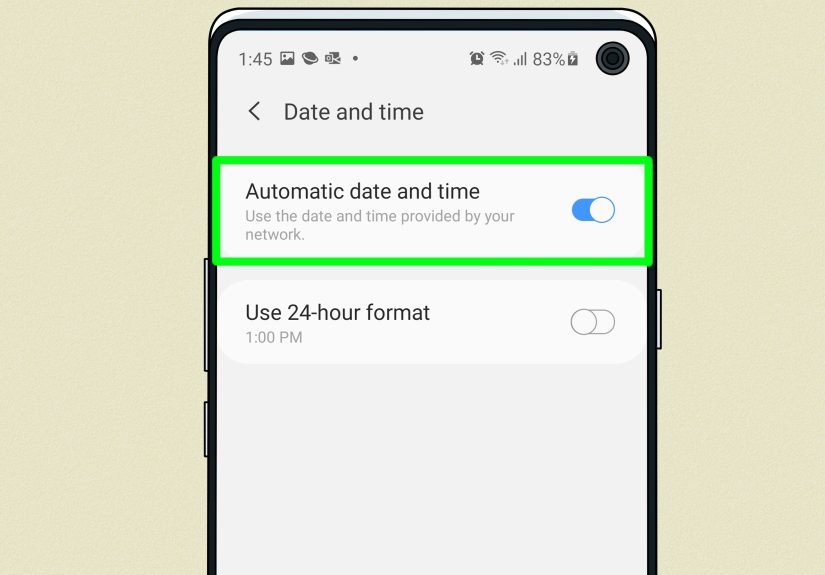
- Turn on Automatic date and time.
Also enable automatic time zone (if you see it)
Many Galaxy phones include a separate toggle for time zones. If you travelor if your time zone keeps “sticking” to the wrong place
this setting is your best friend.
- Stay on Settings > General management > Date and time.
- Turn on Automatic time zone or Set time zone based on location (wording may vary).
What “automatic” really means
Automatic time usually comes from your mobile network (carrier time) and can be assisted by location-based time zone detection.
In plain English: when your phone can “phone home” to a reliable source, it stays accurateand it automatically handles daylight saving
time changes in supported regions.
When automatic is the best choice
- You travel between time zones (or even just commute near a border between zones).
- You want daylight saving time changes handled automatically.
- Your phone time is wrong and you want the most reliable fix.
- You use banking apps, authentication apps, or work apps that are picky about device time.
Pro tip: After enabling automatic settings, give your phone a moment to update.
If it doesn’t change within a minute, toggle Airplane mode on and off or restart your device (more on troubleshooting below).
Option 2: Set the date & time manually
Manual mode is for when you want full controllike keeping your phone on “home time” while traveling,
working around a temporary network issue, or testing how an app behaves when the clock changes.
Just remember: manual settings can create confusion if you forget you changed them (future-you may not be amused).
Step-by-step: turn off automatic time
- Open Settings.
- Tap General management.
- Tap Date and time.
- Turn off Automatic date and time.
Step-by-step: set date, set time, and pick a time zone
Once automatic mode is off, you should see manual options appear:
- Tap Set date and choose the correct date, then tap Done.
- Tap Set time, adjust the time, then tap Done.
- Tap Select time zone (or similar) and choose your region/time zone.
How to switch between 12-hour and 24-hour time
In the same Date and time area, you’ll often see a toggle for 24-hour format.
Turn it on for 24-hour time (13:00) or off for 12-hour time (1:00 PM).
Manual mode: two common scenarios
-
Staying on “home time” while traveling: Some people prefer their phone clock to match their home office
or family time zone, even when they’re elsewhere. Manual time zone makes that possible. -
Working around a temporary connection issue: If your carrier signal is down or your device can’t reliably detect
the right time zone, setting it manually can keep you functional until service returns.
Troubleshooting: when the date & time won’t change (or won’t stick)
Problem: “Set date” / “Set time” is missing or greyed out
This usually happens for one of two reasons:
- Automatic date and time is still ON. Turn it off to reveal manual controls.
-
A work/school policy is controlling your device. If your Galaxy is managed by an employer or school
(or you’re using a work profile), an admin can restrict time changes.
If this is a managed phone, you may need to contact your IT admin. This isn’t youit’s policy.
(Your phone is basically wearing a tiny corporate tie.)
Problem: the time is wrong even though automatic is enabled
Try these fixes in order:
- Toggle Airplane mode on for 10 seconds, then off (forces a fresh network connection).
- Restart the phone (classic, but effective).
-
Confirm Automatic time zone or Set time zone based on location is enabled (if available).
If it’s off, your clock can be correct but your time zone can be wronglike showing the right time… in the wrong universe. -
Ensure Location is enabled if your device relies on location-based time zone detection.
(You can disable it later if you preferjust use it to help the phone “find itself.”)
Problem: traveling broke your time zone
If you crossed time zones and your Galaxy didn’t catch up, enabling automatic time zone is usually the fix.
If you prefer manual time zone, double-check it after flights or long drivesespecially in multi-time-zone countries.
Problem: Wi-Fi-only tablets and time zone weirdness
Some Wi-Fi-only Galaxy tablets can be less reliable at updating time zones automatically, depending on model and Android version.
If you notice time zone drift, set the time zone manually and confirm your clock after travel.
Problem: your clock keeps changing back after you set it
This can happen if:
- A system update reset settings back to automatic.
- A work profile or device management tool enforced automatic settings.
- A carrier/network refresh updated time after you set it manually.
If you truly need manual time, re-check that both Automatic date and time and any Automatic time zone toggle
are off. If it still resets, look for a “Device management,” “Work profile,” or “Security policy” clue in Settings.
Extra tips to keep time under control
Add a “home clock” for travel
If you travel often, consider adding a home time zone in the Clock app so you can see both local time and home time.
This is especially useful when scheduling calls across time zones (and avoiding the classic “wait, are you three hours ahead or behind?”).
Double-check alarms after switching time zones
Most alarms behave correctly when your time zone updates automatically, but if you manually changed time or time zone,
quickly review upcoming alarmsespecially if you rely on them for work, school, or medication reminders.
Automation idea (optional): Modes and Routines
Samsung’s Modes and Routines can automate behaviors based on time or location.
While it’s not a replacement for correct system time, it can reduce time-based stress (like switching settings when you arrive at work
or when your bedtime window starts).
FAQ: quick answers
Should I use automatic time or manual time?
Use automatic unless you have a specific reason not to. It’s more accurate and handles daylight saving time and travel better.
Manual is best for special cases (home time while traveling, temporary network issues, testing).
Why do some apps break when the time is wrong?
Many apps rely on accurate timestamps for security and syncing. If the device time is far off,
authentication and secure connections can fail and sync can behave unpredictably.
Why can’t I change date and time on my work phone?
Your employer or school may manage the device and restrict clock changes for security and compliance.
If you see a work profile or management notices, you’ll likely need IT to adjust policy.
Conclusion: pick the option that matches your life
If you want your Galaxy to quietly do the right thing in the background (like a responsible adult),
turn on Automatic date and time and enable Automatic time zone when available.
If you need control, switch to manual and set your date, time, and time zone yourselfjust remember to switch back when you’re done.
Either way, once your device clock is correct, everything else tends to fall back into place:
calendars behave, alarms stay loyal, and apps stop acting like your phone is living in an alternate timeline.
Real-World Experiences (and surprisingly common “time problems”)
In real life, date and time issues on a Samsung Galaxy usually show up in the most inconvenient wayslike five minutes before
a video call, right when an online exam starts, or exactly when someone says, “Can you share your location?” and your phone responds
by being confidently wrong about what day it is.
One common scenario happens during travel. A Galaxy phone that’s set to automatic time may update perfectly after landing,
but only once it reconnects to a mobile network. People sometimes stay on airplane Wi-Fi, keep cellular off, and wonder why their phone
still thinks it’s in their departure city. The fix is usually simple: turn on automatic time zone (or location-based time zone),
then briefly reconnect to cellular. After that, maps, ride-share ETAs, and calendar notifications suddenly make sense again.
Another frequent “wait, what?” moment is daylight saving time. Most of the time, automatic settings handle it quietly.
But if someone switched to manual time months agomaybe to troubleshoot somethingand forgot, DST becomes a personal surprise party
nobody asked for. The result can look like missed alarms, early wake-ups, or calendar events that appear to “move.”
Turning automatic time back on typically brings everything back to reality within moments.
There’s also the security side of time accuracy. People often discover clock problems when secure websites won’t load
or an app refuses to log in. To a security system, a device with the wrong time can look suspicious.
It’s not being rude; it’s doing its job. Once the time is correctedusually by enabling automatic date and timesign-ins tend to work normally.
This is especially noticeable with banking apps, password managers, and two-factor authentication.
If the phone’s clock drifts, time-based codes can fail, which is a uniquely frustrating way to learn that “seconds matter.”
Work phones introduce a different kind of reality: policies. Some users try to switch to manual time and discover the controls are missing
or locked. That’s often because a company or school installed management tools that enforce clock settings.
In those environments, IT may require network-provided time to keep security logs accurate and reduce fraud.
It can feel annoying, but it’s also why a lost phone can be tracked, why compliance reports make sense,
and why devices behave consistently across a fleet.
Finally, there’s the subtle “home time vs. local time” preference. Some travelers keep their phone on home time so they don’t accidentally
call family at 3 a.m. or miss a work deadline tied to headquarters. Manual time zone makes that possible, but it requires a small habit:
periodically checking whether you’re reading your phone’s clock or your actual local clock. People who do this well often rely on a “home clock”
inside the Clock app, so they get the best of both worldslocal time for daily life, home time for planning and communication.
The biggest takeaway from these everyday situations is simple: if you want less stress, stick with automatic settings.
If you want control, manual settings are powerfuljust treat them like a kitchen knife: useful, precise, and not something you leave lying around
without remembering where you put it.