Table of Contents >> Show >> Hide
- Before You Start: What “Kernel Version” Means (In Human Words)
- The Quick Answer: 4 Ways to Check Your Kernel Version
- Step 1: Check Kernel Version in Settings (No Apps, No Cables)
- Step 2: Use ADB From Your Computer (Fastest + Most Precise)
- Step 3: Use a Terminal App on Your Phone (No PC Needed)
- Step 4: Use a Device Info App (Best for Screenshots + Extra Details)
- How to Read the Kernel Version String (Without a Decoder Ring)
- Why You Might Care About Your Kernel Version
- Troubleshooting: If You Can’t Find “Kernel Version” in Settings
- FAQ
- Common Experiences When Checking Kernel Versions (500+ Words)
- Conclusion
- SEO Tags
“Kernel version” sounds like something you’d ask your mechanic about right after,
“So… why is my phone doing that?” In reality, it’s simply the version of the Linux kernel
running underneath Androidthe part of the system that handles core tasks like hardware drivers
(Wi-Fi, Bluetooth, camera), process scheduling, memory, and a big chunk of device security.
Whether you’re troubleshooting a weird bug, comparing phones, confirming what an update changed,
or gathering details for support/IT, checking your Android kernel version is quick once you know where to look.
Below are four reliable methodsfrom “no tools, no stress” to “hello, command line.”
Before You Start: What “Kernel Version” Means (In Human Words)
Android uses a Linux-based kernel. Think of the kernel as the bridge between your apps and your phone’s hardware.
It’s responsible for making sure the CPU, memory, storage, and device drivers cooperate instead of starting
their own reality show.
Two clarifications that prevent about 90% of kernel confusion:
- Android version ≠ kernel version. Android 14/15/16 is the platform you interact with. The kernel version is the Linux engine underneath.
- Kernel strings look “extra” on purpose. They often include build tags, dates, and identifiers so developers can trace exactly what shipped.
The Quick Answer: 4 Ways to Check Your Kernel Version
- Settings: easiest and most common
- ADB (computer): most consistent and copy/paste friendly
- Terminal app (phone): no computer required
- Device info app: great for screenshots and extra system details
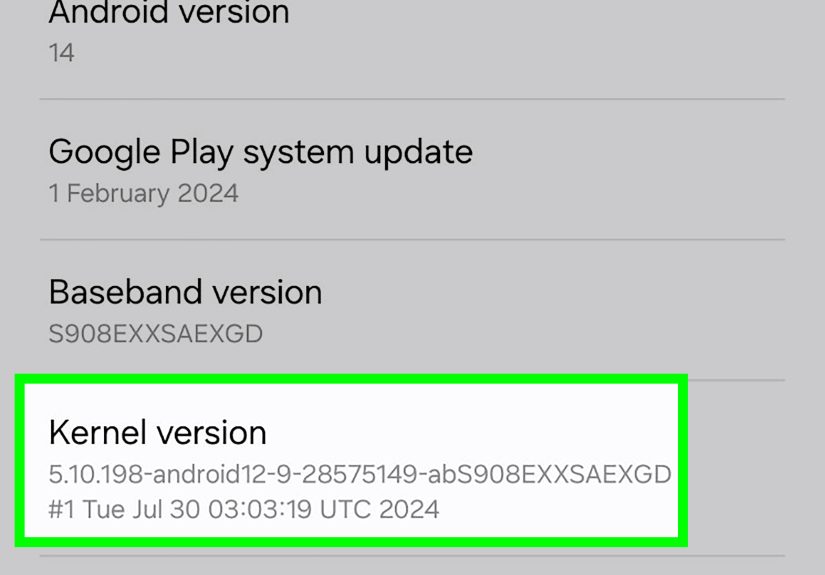
Step 1: Check Kernel Version in Settings (No Apps, No Cables)
This is the method most people should use. On most Android phones, the kernel version is listed in
About phone (or About device)sometimes nested under
Android version or Software information.
Common paths (your phone may vary slightly)
- Google Pixel (often): Settings → About phone → Android version → Kernel version
- Samsung Galaxy (often): Settings → About phone → Software information → Kernel version
- Motorola / many “stock-ish” devices: Settings → About phone → (Device details / Software info) → Kernel version
Shortcut: Use the search bar in Settings and type “kernel.” If nothing appears,
try “Android version” or “software information.” Manufacturers love reorganizing menus like it’s a hobby.
What you’ll see
Kernel version lines often look like one of these:
5.10.66-android12-9-00007-g66c74c58ab386.1.84-android14-11-gki6.6.50-android15-8
If you see extra words like SMP, PREEMPT, or a long build date, don’t panic.
That’s normaland we’ll decode what it means in a later section.
Step 2: Use ADB From Your Computer (Fastest + Most Precise)
If you want the most consistent approach across brandsand you’re okay plugging in a USB cableuse
ADB (Android Debug Bridge). It lets you run read-only commands on your phone and pull
the kernel version directly from the operating system.
Set up (quick, standard, and reversible)
- Enable Developer options: Settings → About phone → tap Build number 7 times (enter your PIN/pattern if prompted).
- Turn on USB debugging: Settings → System (or Developer options) → Developer options → USB debugging.
- Connect to your computer: Install Android platform-tools (ADB), plug in your phone, and approve the “Allow USB debugging?” prompt.
Security note: If you enabled USB debugging just for this, consider turning it back off when you’re done.
It’s not “dangerous by default,” but leaving extra doors open isn’t a great lifestyle choice.
Commands to check kernel version
Open Terminal (macOS/Linux) or Command Prompt/PowerShell (Windows), then run:
adb devicesconfirms your phone is detectedadb shell uname -rshows the kernel release number (simple and clean)adb shell uname -ashows kernel release + extra build detailsadb shell cat /proc/versionshows a verbose kernel version string
Want to compare kernel details with your Android version too? These are useful:
adb shell getprop ro.build.version.releaseAndroid version (example: 14, 15)adb shell getprop ro.build.version.sdkAPI level (example: 34, 35)
Why ADB is worth it
Settings menus can move around depending on brand, carrier, and Android version. ADB is much more consistent.
It’s also the easiest way to copy the exact kernel string into a support ticket, bug report, or forum post
without mistyping one character and accidentally claiming you’re running “Android 1,000.”
Step 3: Use a Terminal App on Your Phone (No PC Needed)
If you can’t (or don’t want to) use a computer, a terminal emulator app can often run the same read-only commands
directly on your device. The classic command for kernel info is uname.
What to do
- Install a reputable terminal emulator from the Google Play Store.
- Open the app and run one of these commands:
uname -rkernel releaseuname -akernel release + extra detailscat /proc/versionverbose kernel version string
On many devices, these commands work without root access because Android includes common command-line utilities
through toolsets such as toybox.
If a command doesn’t work
- “command not found”: Try another command (for example,
cat /proc/versionoften works even whenunamedoesn’t). - “permission denied”: You’re likely trying to read a protected file. Stick to
unameand/proc/versionfor kernel info.
Step 4: Use a Device Info App (Best for Screenshots + Extra Details)
If you’d rather avoid command lines, a device info app can show your kernel version (and a lot more).
This is especially useful when you’re helping someone remotely and need a screenshot that clearly shows
the kernel line.
What to look for
- A System section listing Android version, kernel version, and build number.
- A copy button (some apps let you copy the kernel string to your clipboard).
Privacy and sanity tips
- Prefer well-known apps with strong review history and clear developer info.
- Avoid apps that ask for odd permissions (a kernel version does not need your contacts or microphone).
- If the app is ad-heavy or sketchy, uninstall it after you get what you need.
How to Read the Kernel Version String (Without a Decoder Ring)
Kernel output can look like your phone tried to create a password while sneezing. Here’s how to interpret it.
The most important part is usually the base kernel version (like 5.10, 6.1, 6.6) plus any Android build tag.
The simple view: uname -r
Example:
6.1.84-android14-11-gki
- 6.1.84 Linux kernel base version (major.minor.patchlevel)
- android14-11 Android kernel branch/build tag (often tied to an Android platform release line)
- gki may indicate a Generic Kernel Image setup (more common on newer devices)
The detailed view: uname -a and /proc/version
You may see additional terms like:
- SMP: built for multiple CPU cores
- PREEMPT: a configuration aimed at responsiveness
- #1 / build number: a build identifier used by the builder/manufacturer
- Build date/time: when that kernel build was compiled
- Architecture: often
aarch64for modern 64-bit Android phones
Why You Might Care About Your Kernel Version
Most of the time, you don’t need to know your kernel versionjust like you don’t need to know what type of screws
hold your couch together. But when you’re troubleshooting or comparing devices, it’s surprisingly useful.
Common reasons people check it
- Troubleshooting hardware weirdness: Wi-Fi drops, Bluetooth instability, camera crashes, or random reboots can sometimes relate to driver/kernel changes.
- Security context: many fixes involve the kernel or kernel-adjacent drivers, so kernel info helps when comparing updates or devices.
- Support/IT requests: some help desks ask for the kernel/build string to match your device to known issues.
- Comparing “same” phones: regional and carrier variants may ship different builds even on the same model name.
Important: kernel updates don’t always match Android updates
It’s completely normal for two phones running the same Android version to have different kernel versions, especially
when they have different chipsets or manufacturer drivers. It’s also possible for a device to update Android while
keeping a compatible kernel baseparticularly on newer device architectures that prioritize compatibility between
platform releases and kernel versions.
Troubleshooting: If You Can’t Find “Kernel Version” in Settings
If the kernel version seems to be playing hide-and-seek, try these:
- Use Settings search: “kernel,” “software information,” or “Android version.”
- Check “Software information”: especially common on Samsung.
- Open the Android version details page: many devices show kernel info there.
- Use ADB or a terminal app: if the UI won’t show it, the OS usually will.
On some managed work devices, certain settings pages may be restricted. In that case, a device info app (if allowed)
or ADB (if permitted by policy) may be the simplest option.
FAQ
Is the kernel version the same as the Android version?
No. Android version is the platform release you see (like Android 14). Kernel version is the underlying Linux kernel
release plus build tags (like 6.1.84-android14-11).
Do I need to root my phone to check the kernel version?
Usually not. Settings is enough for most people, and read-only commands like uname or cat /proc/version
often work without root.
Will a security update change my kernel version?
Sometimes. Some updates include kernel changes; others focus on the Android framework or apps. The simplest way to confirm
is to check your kernel version before and after an update.
Should I update my kernel manually?
For most users, no. Kernel updates are best handled through official over-the-air updates from your manufacturer/carrier.
Manual kernel changes can break drivers, cause boot issues, and turn your afternoon into a long, awkward stare at a “Recovering…”
screen.
Common Experiences When Checking Kernel Versions (500+ Words)
Most people don’t check their kernel version for fun. They check it because something happenedan update landed, a feature broke,
a support agent asked for details, or a friend said, “My phone doesn’t do that.” Here are some real-life patterns people commonly
run into, and what kernel checking tends to reveal.
1) “My phone updated, but nothing looks different.”
This is incredibly common. Many Android updates are under-the-hood. Your home screen might look identical, but performance, battery
behavior, and connectivity can change because drivers and low-level components were updated. When people check kernel versions before
and after an update, they sometimes notice the base version remains the same (for example, still on 6.1), but the build identifier
or date changes. That’s still meaningful: it confirms the device received a new kernel build even if the major number didn’t jump.
In troubleshooting, that “same base, new build” detail can help you correlate a new issue to the timing of an updatewithout guessing.
2) “Two ‘identical’ phones behave differently.”
Friends buy the same model, install the same apps, and then one phone drops Bluetooth connections while the other is rock solid.
Kernel checks won’t magically solve everything, but they can quickly answer a key question: are these phones truly running the same
software stack? Carrier variants, regional builds, and phased rollouts can mean one device is on a newer (or simply different) kernel
build than the other. The Settings screen might show a different build date or tag, and ADB may reveal a slightly different release string.
Once you confirm they’re not identical at the kernel/build level, your next steps get smarter: you stop chasing “app differences” and start
looking at update versions and vendor-specific changes.
3) “Support asked me for a screenshotand I don’t want to mess it up.”
Many support teams (manufacturer, carrier, workplace IT) ask for exact build and kernel details because it helps them match your problem
to known issues. The experience here is very consistent: people prefer the simplest method they can reliably repeat. That’s why device info
apps can be surprisingly helpfulespecially for non-technical users. Opening an app, scrolling to “Kernel version,” and sending a clean
screenshot is often easier than navigating three nested menus (which may be different on every phone). Even if you use Settings, a screenshot
is a great “receipt” that prevents typos when you’re relaying the version string.
4) “I’m learning ADBwhat’s a safe first test?”
A lot of people try ADB for the first time because they’re following a harmless how-to: copying files, checking device properties, or confirming
software versions. Kernel commands are a perfect starter task because they’re read-only, quick, and low-risk. Running adb shell uname -r
and seeing it match what Settings reports is satisfying in a nerdy wayand it’s useful. It proves your ADB connection works, your drivers are set,
and your device authorization is correct. After that, people often feel more confident using ADB for other legitimate diagnostics (like checking
Android version properties or capturing logs), because they’ve already done a successful “hello world” with real device output.
5) “I’m not modding my phone, but I keep hearing about kernels.”
Even if you never install a custom ROM, kernel version knowledge can make tech conversations make more sense. For example, when reading about update
promises, security support windows, or performance improvements tied to low-level changes, knowing your current kernel base gives you context. The most
common “experience lesson” here is: checking your kernel version is an information-gathering step, not a commitment to change anything. You can learn a lot
just by identifying what you already havethen deciding whether you need to do anything at all (usually: you don’t).
The overall pattern is simple: kernel version checks are about clarity, not bragging rights. Once you know exactly what your device is running,
troubleshooting gets faster, support conversations get less painful, and you spend less time guessing. And that’s a winbecause your phone should be
a tool you use, not a mystery you constantly solve.
Conclusion
Checking your Android kernel version isn’t difficultit’s just tucked away behind a few menus and an intimidating name.
Start with Settings for the fastest answer. If you need a precise, copy/paste-friendly result (especially across different brands),
use ADB. If you don’t have a computer, a terminal app can do the job. And if you want the easiest shareable proof, a device info app is your best friend.
Whichever method you choose, the goal is the same: get the exact kernel version string so you can troubleshoot smarter, compare devices accurately,
and better understand what’s powering your Android under the hood.