Table of Contents >> Show >> Hide
- What You’ll Learn
- Why Page Numbers Matter (More Than You Think)
- How to Insert Page Numbers in Word 2007 in 4 Steps
- Customize Page Numbers Like You Actually Know What You’re Doing
- Example: Roman Numerals for Intro Pages, Arabic Numbers for Chapter 1
- Troubleshooting: When Page Numbers Go Full Gremlin
- Problem 1: My page numbers restart at 1 randomly
- Problem 2: I deleted the number on page 1 and it vanished everywhere
- Problem 3: I have page numbers in two places (top AND bottom)
- Problem 4: The formatting is different in odd/even pages
- Problem 5: My page number shows weird code instead of a number
- Quick sanity checklist (takes 30 seconds)
- Conclusion: A Clean Document Has Clean Page Numbers
Microsoft Word 2007 is basically the friend who “organized” your closet by stuffing everything into one drawer and saying, “It’s fine.” Page numbers live in that drawerspecifically in headers and footersso once you know where Word hides the controls, you can add page numbers in minutes and customize them like a pro.
This guide gives you a clean 4-step method (the kind you can do with one hand while sipping coffee), plus practical fixes for the most common page-number chaos: skipping the title page, starting at page 1 later, switching to Roman numerals, and handling section breaks without summoning a printer-smashing rage.
What You’ll Learn
Why Page Numbers Matter (More Than You Think)
Page numbers aren’t just decoration. They help readers reference your work (“See page 12”), help instructors grade without playing scavenger hunt, and help you keep your own sanity when your document hits 20+ pages. They also reduce printing mishapsbecause nothing says “I love chaos” like a shuffled stack of identical-looking pages.
The key idea: Word 2007 inserts page numbers as fields in the header/footer area. That’s why manually typing “1, 2, 3…” in the corner is a trap. Word will happily let you do itthen punish you later when you add pages and everything breaks.
How to Insert Page Numbers in Word 2007 in 4 Steps
Step 1: Open the Insert Tab (The “I swear it’s here somewhere” step)
Open your document in Word 2007. Look at the Ribbon across the top and click Insert. This is where Word keeps anything it considers “extra,” including headers, footers, andyeppage numbers.
Step 2: Click Page Number in the Header & Footer Group
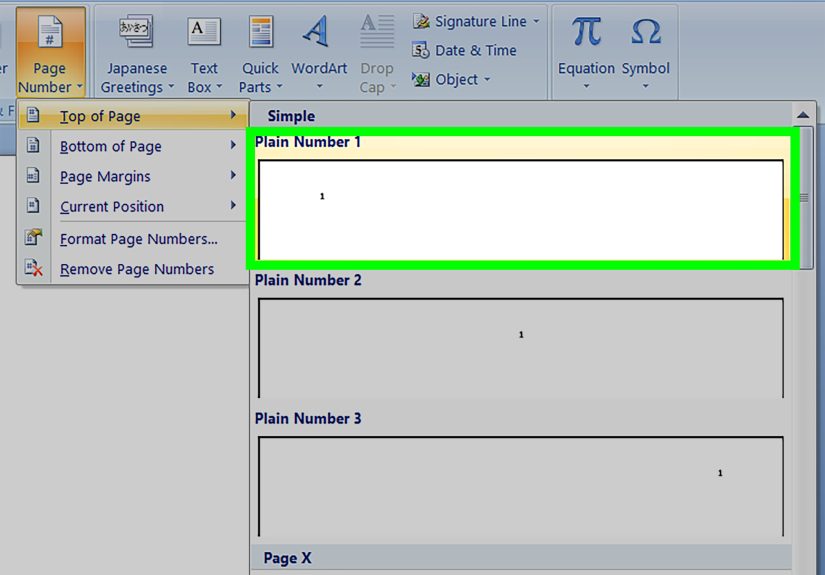
On the Insert tab, find the Header & Footer group and click Page Number. A drop-down menu appears with placement options:
- Top of Page (header)
- Bottom of Page (footer)
- Page Margins (side margins)
- Current Position (where your cursor is inside a header/footer)
Translation: Word is asking, “Where do you want the little number to live?” Choose the general location first.
Step 3: Choose a Style (Plain is classy; fancy is… a choice)
After you pick the location, you’ll see a gallery of formats (for example, plain numbers aligned left/center/right). Click the one you want, and Word inserts page numbers automatically across your document.
Pro tip: If you’re writing for school, work, or anything that will be judged by humans with opinions, “Plain Number” is usually the safest bet. Decorative swirls can be fun, but they can also scream “2009 wedding invitation.”
Step 4: Close Header/Footer Editing and Save
Once inserted, Word usually puts you into header/footer editing mode. To exit:
- Click Close Header and Footer (on the header/footer toolbar), or
- Double-click anywhere in the main document body.
Save your file. Congratulationsyour document is now officially “grown-up enough to wear a blazer.”
Customize Page Numbers Like You Actually Know What You’re Doing
Option A: Remove the Page Number From the First Page (Title page = no number)
Many formats (APA, reports, title pages) want no visible page number on page 1. In Word 2007, you do this with Different First Page.
- Double-click the header or footer area on the first page.
- In Header & Footer Tools, click the Design tab.
- Check Different First Page.
- Click the page number on page 1 and press Delete.
The rest of your pages keep numbering, but page 1 stays clean. (Like a good title page should.)
Option B: Start Page 1 on the Second Page (So page 2 shows “1”)
This is a classic: you want a cover page with no number, and the next page should display 1. Word can do it, but you must change the starting value.
- Open the header/footer (double-click near the top or bottom of page 2).
- Click Page Number → Format Page Numbers…
- Under Page numbering, select Start at and set it to 0.
- Click OK.
Word uses that “0” as the hidden first page number, which makes the second physical page display as page 1. Sneaky, but effective.
Option C: Use “Page X of Y” (Because people love knowing how long this is)
If you want page numbers like Page 3 of 12:
- Go to Insert → Page Number.
- Choose a location (or Current Position if you’re already in the header/footer).
- Scroll in the gallery until you see a Page X of Y style and click it.
This is especially handy for printed packets, manuals, proposals, and anything that tends to get stapled wrong by someone in a hurry.
Option D: Change the Number Format (1, 2, 3 vs. i, ii, iii vs. A, B, C)
Need Roman numerals for front matter? Letters for appendices? You’ll use the same dialog:
- Open the header/footer where the page number lives.
- Select Page Number → Format Page Numbers…
- Pick your desired Number format (for example, i, ii, iii).
- Choose Continue from previous section or Start at depending on your goal.
If your document is a single continuous section, changing the format changes everything. If you want mixed formats, you’ll need sections. Which brings us to the real boss level…
Example: Roman Numerals for Intro Pages, Arabic Numbers for Chapter 1
This is the most common “serious document” setup: your preliminary pages (Abstract, Acknowledgments, Table of Contents) use Roman numerals (i, ii, iii), and your main content begins at page 1 using Arabic numerals (1, 2, 3).
Step 1: Insert a Section Break Where the Main Content Starts
- Click at the end of the last intro page (right before Chapter 1).
- Go to the Page Layout tab.
- Click Breaks → under Section Breaks, choose Next Page.
Now you have at least two sections: intro (Section 1) and main content (Section 2).
Step 2: Break the “Link to Previous” Connection
This part is crucial. If you don’t unlink sections, Word treats headers/footers like a chain reaction.
- Double-click the header or footer in the first page of Chapter 1 (Section 2).
- In Header & Footer Tools → Design, click Link to Previous to turn it off.
You’ll know it worked when “Same as Previous” disappears from the header/footer area.
Step 3: Set Roman Numerals in the Intro Section
- Go back to any intro page (Section 1) and open its header/footer.
- Choose Page Number → Format Page Numbers…
- Set Number format to i, ii, iii.
- Pick Start at if required by your formatting rules (some schools want the first visible intro page to be “ii”).
Step 4: Set Arabic Numbers Starting at 1 in Chapter 1
- Open the header/footer in Chapter 1 (Section 2).
- Go to Page Number → Format Page Numbers…
- Set Number format to 1, 2, 3.
- Select Start at and enter 1.
Result: your front matter uses Roman numerals, and Chapter 1 begins at page 1 like the universe intended.
Troubleshooting: When Page Numbers Go Full Gremlin
Problem 1: My page numbers restart at 1 randomly
That usually means you have section breaks and one section is set to Start at 1 instead of Continue from previous section.
- Open the header/footer in the “problem” section.
- Go to Page Number → Format Page Numbers…
- Select Continue from previous section.
Problem 2: I deleted the number on page 1 and it vanished everywhere
That’s not a bugit’s how Word fields work inside a single section. If pages 1 and 2 are in the same section and you delete the page number field, you’re deleting it for the section.
Fix: use Different First Page instead of deleting the field across the section.
Problem 3: I have page numbers in two places (top AND bottom)
This happens when you insert page numbers more than once (for example, you tried Top of Page, didn’t like it, then tried Bottom of Page). Word doesn’t always remove the first set automatically.
- Open the header/footer area and look for extra page number fields.
- Click the unwanted page number and press Delete.
- If needed, use Insert → Page Number → Remove Page Numbers, then re-insert once.
Problem 4: The formatting is different in odd/even pages
If you turned on different odd/even headers (common in book layouts), you may need to insert page numbers in both header/footer versions. Make sure you’re editing the correct header/footer (odd or even), then apply formatting consistently.
Problem 5: My page number shows weird code instead of a number
Word can display field codes. If you see something like a field expression instead of a number, toggle field code display (commonly with a shortcut), then update fields if necessary. When in doubt, reinsert the page number field from the menu instead of trying to “edit” the code manually.
Quick sanity checklist (takes 30 seconds)
- Did you insert page numbers from Insert → Page Number (not manually typed)?
- Do you have section breaks where numbering changes?
- Did you turn off Link to Previous in the section where you want a different format?
- Is each section set to Continue or Start at intentionally?
Conclusion: A Clean Document Has Clean Page Numbers
If you remember only one thing, make it this: in Word 2007, page numbers are controlled through the header/footer system. Once you master Insert → Page Number, plus Format Page Numbers, Different First Page, and Link to Previous, you can handle almost any page-numbering requirement without turning your document into a formatting haunted house.
Experience-Based Add-On (500+ Words): The Real World Is Where Page Numbers Get Spicy
Here’s what typically happens outside of perfect tutorial land: you’re finishing a paper at 11:47 PM, your file name includes “FINAL_v9_FORREAL.docx,” and you suddenly realize your title page says “1” and your chapter starts on “7.” That’s not because you’re cursed. It’s because Word 2007 treats page numbering like a polite bureaucracyeverything is governed by sections, and nobody tells you until you break a rule.
One common scenario: you insert page numbers early, then later you add a Table of Contents, a dedication page, an abstract, and maybe a dramatic quote you swear is essential. Suddenly the “real” page 1 isn’t the first page anymore. People often try to fix it by deleting the number on page 1. Then Wordcalmly, confidentlyremoves page numbers from all pages in that section. It feels personal. It’s not. It’s just Word being consistent. The practical move is Different First Page if you only want to hide the number on a title page, and Start at 0 if you want the second physical page to display as “1.”
Another real-world favorite is the “Roman numerals vs. Arabic numerals” requirement for theses, dissertations, and big reports. The mistake people make is changing the number format and expecting only the intro pages to change. Word hears “change the format” and obediently changes it everywherebecause it’s all still one section. The fix is almost always the same: insert a Next Page section break where the main content begins, then turn off Link to Previous, then format each section’s numbering separately. Once you do it once, it feels less like magic and more like flipping two switches in the right order.
In office documents, the pain point tends to be printing and packet handling. Someone prints your 30-page proposal, drops it, and re-staples it with the confidence of a person who’s never been wrong in their life. If your footer says Page 7 of 30, you can recover quickly. If it only says “7,” you can still recover, but you’ll spend an extra minute doing detective work. That’s why “Page X of Y” is underratedit’s not fancy; it’s survival gear.
Also, watch out for “hidden” section breaks. People copy/paste content from older documents and accidentally import layout baggage: section breaks, different odd/even page settings, or a header/footer already linked across sections. The symptom is page numbers that restart or disappear in the middle of the file. The solution is rarely to retype anythingit’s to open the header/footer in the problem area, check whether it says “Same as Previous,” and then decide whether you need Link to Previous on or off. If you’re trying to keep numbering continuous across sections, choose Continue from previous section. If you want a fresh start (like Chapter 1 beginning at page 1), choose Start at 1.
Finally, don’t underestimate the power of doing a quick “page-number audit” before you export to PDF or hit print: scroll the first five pages, the first page of each major section, and the last page. If those look right, the rest usually follows. It’s a tiny habit that saves you from re-exporting, reprinting, and re-explaining to your boss why “page 1” appears three times. Word 2007 may be old, but with the right steps, it can still behavemost of the time.