Table of Contents >> Show >> Hide
- What the Echo Warning Feature Actually Does
- Why Echo Happens (And Why It’s So Annoying)
- Where You’ll See the Warning in Google Meet
- The 2-Minute Echo Fix Checklist (Do This First)
- The Slightly More Nerdy Fixes (When the Easy Stuff Isn’t Enough)
- How Google Meet Tries to Prevent Echo Before You Even Notice
- Echo-Proofing Group Meetings: Companion Mode, Proximity Detection, and Adaptive Audio
- Tips for Meeting Hosts: Stop Echo Before It Starts
- Is the Echo Warning “Always Right”?
- Conclusion: The End of Echo Detective Work
- Experiences From Real Meetings: What Echo Problems Look Like (And How People Actually Fix Them)
Every video call has that one moment: someone starts talking, and suddenly their words come back like a boomerang with a caffeine problem.
“Hello… hello… hello…” Meanwhile, the chat fills with polite chaos: “Echo”, “Who is that?”, “Not me”, and the classic,
“I’m on headphones!”
Google Meet finally decided we shouldn’t have to play audio detective. If Meet thinks your setup is feeding sound back into the call,
it can warn you directlyso the entire meeting doesn’t have to stop while everyone points at their laptops like they’re in a whodunit.
What the Echo Warning Feature Actually Does
Google Meet already tries to remove echo automatically, but it can’t magically tame every combination of microphones, speakers, docks, Bluetooth devices,
and “I joined from my phone too” situations. When Meet detects a notable echo coming from your systemmeaning other people may hear
their own voice bouncing backMeet can alert you with:
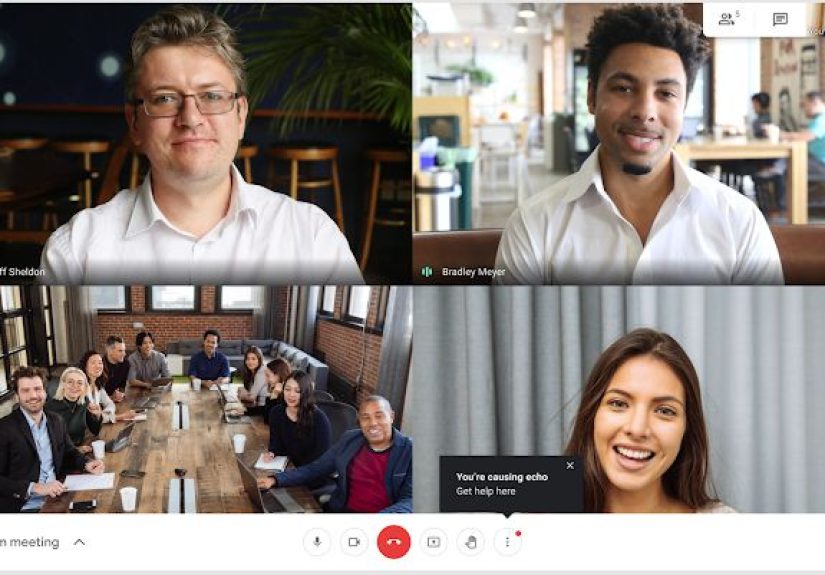
- A red dot on the More options (three-dot) menu
- An on-screen notification that you may be causing echo
- A direct path to Troubleshooting & help with steps to reduce it
Translation: instead of the group guessing, Meet taps you on the shoulder and says, “Heyyour audio setup is doing that thing. Let’s fix it.”
Why Echo Happens (And Why It’s So Annoying)
Echo is usually not a “bad internet” problem. It’s a feedback loop problem: sound comes out of a speaker, gets picked up by a nearby
microphone, and gets transmitted back into the meeting. Then the other person hears their own voice delayed or repeated, which is about as pleasant as
hearing yourself chew through a megaphone.
Common real-world causes
- Speakers too loud (your mic hears the call audio)
- No headphones in a reflective room (hello, “bathroom acoustics”)
- Two devices joined to audio in the same room (laptop + phone = audio chaos)
- External speakers aimed right at your mic
- Bluetooth surprises (audio routes to a device across the room, mic stays on the laptop)
- Remote desktop / virtual setups that don’t play nicely with echo cancellation
The big problem is social: the person causing the echo often can’t hear it. Everyone else does. So the meeting becomes a group exercise in awkward
honesty. The warning is Meet’s way of making the fix fast and targeted.
Where You’ll See the Warning in Google Meet
When the warning triggers, look for a red dot on the More options menu. Click it, then choose Troubleshooting & help.
In that panel, Meet surfaces specific suggestions under your audio and video device settings to minimize the echo.
This matters because “fix your echo” is not one single action. Meet’s guidance focuses on the three fixes that work most of the time:
use headphones, lower your speaker volume, and mute when you’re not speaking.
The 2-Minute Echo Fix Checklist (Do This First)
If Meet says you’re the echo culprit, don’t panic. You’re not a bad person. You just have speakers.
Here’s the fastest path back to peace:
1) Put on headphones (or earbuds)
Headphones are the “off switch” for most echo. They stop speaker audio from re-entering your mic like a boomerang.
Wired earbuds are especially reliable when Bluetooth is being dramatic.
2) Turn your speaker volume down
If you can’t use headphones, lower volume. The goal is to reduce how much call audio your mic can pick up.
3) Mute when you’re not talking
If you’re listening, mute. This prevents your mic from capturing room sound and speaker output.
Bonus: it also saves everyone from your keyboard’s greatest hits.
4) Make sure you’re not “double-joined”
If you joined the same meeting from a phone and a laptop, pick one device for audio.
If you need your phone camera but want laptop audio, use Meet’s companion mode (more on that below).
The Slightly More Nerdy Fixes (When the Easy Stuff Isn’t Enough)
Sometimes echo sticks around because your system is routing audio in a weird way. If the quick checklist doesn’t squash it, try these:
Confirm the correct microphone and speaker are selected
In Meet settings, make sure your mic is the one you’re actually using (headset mic vs. laptop mic) and your speaker output matches your device.
Wrong device selection can create “phantom echo” where you swear nothing is loud, but Meet disagrees.
Restart (yes, really)
Restarting your computer or phone clears stuck audio routing and reconnects your devices cleanly. It’s the classic fix because it works.
Close extra tabs and apps using your mic
Browser tabs, screen recorders, communication apps, or “helpful” audio enhancement tools can interfere with Meet’s processing.
Close what you don’t need, then re-check your Meet audio devices.
Watch out for Bluetooth and AirPlay routing
Bluetooth can hijack your audio output unexpectedly. If your laptop is sending audio to a Bluetooth speaker across the room, your mic may happily pick it up.
Turn Bluetooth off temporarily (or disconnect the device) to test.
How Google Meet Tries to Prevent Echo Before You Even Notice
Echo prevention isn’t just a pop-up. Meet has built-in audio processing, including echo cancellation and other signal-processing tricks, to keep voices clear.
But modern setups are messyUSB mics, docks, conference speakers, and virtual environmentsso Meet also adds “guardrails” like the echo warning to catch the
cases that slip through.
Noise cancellation vs. echo cancellation: not twins
Meet’s noise cancellation focuses on non-speech background sounds (typing, doors, construction, and even some room echo/reverb).
Echo cancellation is specifically about feedbackthe call audio looping back into the call.
Turning on noise cancellation can make your audio cleaner, but if your speaker is blasting into your mic, headphones are still the hero.
Echo-Proofing Group Meetings: Companion Mode, Proximity Detection, and Adaptive Audio
Echo gets especially spicy in meeting rooms and classrooms, where multiple people join from multiple laptops in the same space.
Google Meet has added features that aim to prevent the “everyone joins, everyone echoes” disaster.
Companion mode + Proximity Detection: an echo-free start
In supported Google Meet rooms, Meet can use proximity detection (via an ultrasonic signal) to recognize you’re physically in a room and
highlight the “Use Companion mode” option before you join. That way, you can join for chat, captions, Q&A, or presenting without turning
your laptop into a second audio source.
In other words: Meet tries to steer you toward the option that prevents the classic “room system + laptop speakers” echo situation.
Adaptive Audio: when multiple laptops share one room
Adaptive Audio is designed for those “we don’t have conference hardware, but we have laptops” meetings. When Meet detects multiple laptops in the same room,
it can switch into a mode that merges microphones and speakers across devices to avoid feedback and improve clarity.
You may see a message like: “To avoid feedback, your audio is merged with other devices nearby.”
This is especially useful for impromptu rooms, coworking spaces, and classroomsanywhere people cluster with their own devices.
Tips for Meeting Hosts: Stop Echo Before It Starts
Hosts can’t control everyone’s hardware, but you can set up a meeting culture that prevents echo problems from eating your agenda.
Build an “audio first” opening routine
- Ask everyone to join muted.
- Encourage headphones for anyone not in a dedicated conference room.
- If people are co-located, remind them to use companion mode instead of joining full audio on every device.
Use the chat as a diagnostic tool
If echo is happening, ask people to mute one at a time until it stops. That identifies the source without turning the meeting into an audio trial.
The new echo warning helps, but a quick mute check can still be the fastest “human fallback.”
Is the Echo Warning “Always Right”?
No detection system is perfect. Meet’s warning is built to flag notable echo that’s likely affecting others, but:
- Echo can be intermittent (someone’s volume changes, a device reconnects).
- The “echo source” can shift if multiple people have speaker/mic setups that flirt with feedback.
- Virtual desktop environments and unusual audio pipelines can create edge cases.
The best way to treat the warning is like a smoke alarm: it’s not accusing you of arson, it’s telling you to check the kitchen.
Conclusion: The End of Echo Detective Work
The best meetings feel effortless. Echo is the opposite: it’s distracting, time-wasting, and weirdly personal (“Is it me?”).
Google Meet’s “you’re causing an echo” warning is a simple but powerful upgrade: it identifies the likely source and gives you practical steps to fix it
without making the whole group suffer.
Keep it simple: headphones, lower volume, mute when you’re not speaking, and avoid joining audio on two devices.
If you’re in a shared room, features like companion mode, proximity detection, and adaptive audio can keep your meeting from turning into an accidental remix.
Experiences From Real Meetings: What Echo Problems Look Like (And How People Actually Fix Them)
In real life, echo rarely shows up like a neat textbook example. It shows up like this: a project manager starts the meeting, someone says, “Can everyone hear me?”
and immediately three people respond, “Yes… yes… yes…” because their own voices bounce back and overlap. Nobody wants to be the one “causing it,” because it feels
like being told you’re the reason the Wi-Fi is slow. That’s exactly why Meet’s echo warning is such a mood-improverwhen the app quietly tells the right person,
the fix stops being a public debate.
One common scenario is the “two-device trap.” Someone joins on their laptop for video and also dials in from their phone because cellular audio feels more stable.
For about 30 seconds, everything seems fineuntil the laptop speakers pick up the phone audio (or vice versa) and the call turns into a hall of mirrors. The fastest
fix is boring but effective: choose one device for audio, mute or disconnect the other, and suddenly everyone can think again.
Another frequent culprit is the “external speaker flex.” People use a Bluetooth speaker so the room sounds louder and clearergreat intention, chaotic execution.
If the speaker sits near the laptop mic (or points toward it), the mic dutifully captures the room sound and retransmits it. The fix that people actually stick with:
move the speaker farther away, lower the volume, or swap to a headset when the meeting matters. The moment you do, the echo drops so fast it feels like magic.
Then there’s the “conference room without conference gear” meeting: five people around a table, each on a laptop, each joining the same Meet link, and every machine
trying to be the main character. This is where features like companion mode and adaptive audio can save the day. In practice, teams often adopt a simple rule:
one device handles room audio (or a room system does), and everyone else joins in a mode that doesn’t add another set of speakers and microphones to the mix.
The funniest (and most relatable) experience is how quickly echo becomes a personality test. Some people start troubleshooting like IT proschecking device settings,
muting systematically, swapping to earbuds. Others go with “It’s not me, I’m on mute!” even while their mic light is clearly on. The echo warning is the diplomatic
middle path: it’s direct enough to be useful and quiet enough to avoid embarrassment. It doesn’t blame; it guides. And in the messy reality of modern meetings, that’s
exactly what keeps calls moving.