Table of Contents >> Show >> Hide
- Invisible vs. Offline: What’s the Difference?
- How to Appear Offline on Discord Desktop (Step-by-Step)
- How to Appear Offline on Discord Mobile (Step-by-Step)
- What Invisible Hidesand What It Doesn’t
- Advanced Privacy Setup (Best Practice)
- Can You Appear Offline to One Person Only?
- Common Mistakes People Make
- Troubleshooting: If Invisible Doesn’t Seem to Work
- Use Cases: When Appearing Offline Is Actually Useful
- Mini FAQ
- 500-Word Experience Section: Real-Life Lessons from Going Invisible on Discord
- Final Takeaway
Sometimes you want to chat without looking “available.” Maybe you’re dodging nonstop pings, maybe you’re focusing on homework, maybe you just opened Discord to check one message and suddenly your night became a 3-hour meme debate. We’ve all been there.
The good news: Discord makes this easy with Invisible status. When you set yourself to Invisible, you appear offline to others, but you can still use Discord normallysend messages, join servers, and lurk like a stealth ninja with great emoji taste.
In this guide, you’ll learn exactly how to appear offline on Discord on desktop and mobile, what Invisible does (and doesn’t do), and how to layer in extra privacy settings so your status, activity, and DMs match your comfort level. We’ll also cover practical examples, common mistakes, troubleshooting, and a real-world experience section at the end.
Invisible vs. Offline: What’s the Difference?
Before you tap anything, let’s clear this up:
- Offline usually means you are not connected (or app closed).
- Invisible means you are connected, but Discord presents you as offline to others.
That distinction matters because Invisible gives you control. You can still message friends, read channels, and join voice channels if you want, without broadcasting “I am online, come ask me 17 things.”
How to Appear Offline on Discord Desktop (Step-by-Step)
These steps work on the desktop app and browser version in nearly the same way.
- Open Discord on your computer and sign in.
- Look at the lower-left corner for your avatar/profile area.
- Click your avatar (or status bubble).
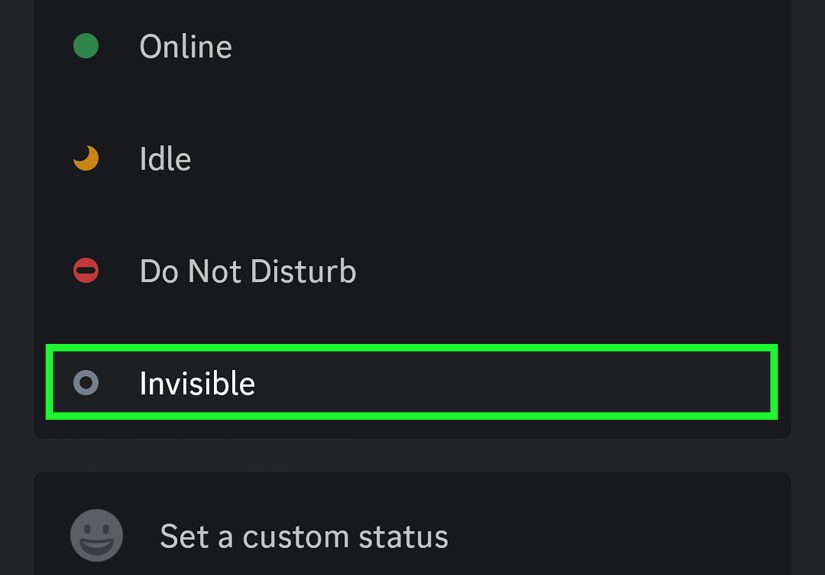
- In the status picker, choose Invisible.
- Confirm your status bubble turns into the offline-style indicator.
- Keep using Discord normallymessages, channels, servers all still work.
Desktop Pro Tip
If you often switch between “Online” and “Invisible,” pair it with a short custom status (for example, “Heads-down mode”) so close friends understand delayed replies without you appearing actively online.
How to Appear Offline on Discord Mobile (Step-by-Step)
On mobile, Discord layout has evolved over time, but the core flow is still quick:
- Open the Discord app on iPhone or Android.
- Go to your profile area (often You tab or profile icon in the lower-right area).
- Tap your profile image/status area.
- Open status options.
- Select Invisible.
- Return to chatsDiscord remains usable while you appear offline.
Mobile Pro Tip
If you use desktop and mobile together, set Invisible on mobile too. Otherwise, your activity habits can feel inconsistent to others (“Wait, weren’t you offline two minutes ago?”).
What Invisible Hidesand What It Doesn’t
What Invisible Usually Hides
- Your visible “online now” presence.
- Mobile presence indicator (the mobile-only signal).
- Your general immediate availability signal to friends/server members.
What Invisible Does Not Fully Hide
- Your messages. If you type in a channel, people can still see you’re active in that moment.
- Your server participation. Replies, reactions, and voice activity are still actions.
- Everything about activity status unless you tune activity settings separately.
Translation: Invisible is a presence control, not a magical “cloak all behavior forever” button.
Advanced Privacy Setup (Best Practice)
If your goal is stronger privacy, don’t stop at Invisible. Use this stack:
1) Set Invisible as your primary status when needed
This is your immediate “appear offline on Discord” action for both desktop and mobile.
2) Review Activity Sharing settings
Discord activity visibility has global and per-server behavior. If you don’t want people seeing what you’re playing/listening to, adjust activity-related controls so your profile reveals less by default.
3) Use per-server privacy controls
In larger communities, reduce exposure server by server. This is especially useful if one server is friends-only and another is 50,000 strangers with anime avatars and very loud opinions.
4) Tighten DM permissions
In settings, limit who can direct-message you from shared servers. This cuts random message requests while preserving conversations with actual friends.
5) Add a custom status (optional, strategic)
If you still want social clarity, set a short status like “Replying slower today.” It reduces misunderstandings without exposing full online presence.
Can You Appear Offline to One Person Only?
Short answer: not directly through status. Invisible is generally a global status across Discord, not a per-person visibility filter.
If one specific person is the issue, use targeted tools:
- Mute notifications from that user/server.
- Restrict DMs from server members.
- Block users when necessary.
Common Mistakes People Make
“I set Invisible, but people still know I’m around.”
If you’re actively chatting, reacting, or joining voice channels, your behavior signals presence even if status says offline.
“I turned Invisible on desktop, but mobile felt different.”
Check mobile status too, and review activity visibility settings. App version differences can make menus look different, but the setting exists.
“I’m on Do Not Disturb. Isn’t that the same?”
Nope. Do Not Disturb means visible, but suppressing notifications. Invisible means appearing offline.
“I forgot I was Invisible.”
It happens. Add a subtle custom status or habit loop: check status before joining group chats or voice calls.
Troubleshooting: If Invisible Doesn’t Seem to Work
- Refresh app/session: close and reopen Discord.
- Update app: older builds can show odd behavior in status UI.
- Reapply status: switch to Online, then back to Invisible.
- Check linked sessions: desktop and mobile can create confusion if one is stale.
- Review activity settings: invisible status and activity sharing are separate controls.
Use Cases: When Appearing Offline Is Actually Useful
Study Sessions
You can keep Discord open for class server updates while avoiding constant social pings.
Deep Work / Coding
Invisible lets you stay connected to one project channel without inviting every “quick question” in your friends list.
Mental Recharge
Going Invisible can be a healthy communication boundary. You’re not ghosting; you’re pacing attention.
Moderation and Admin Workflow
Server mods often need quiet observation windows. Invisible helps reduce “mod online = summon mod” moments.
Mini FAQ
Does Invisible stop message notifications?
Not by itself. Use Do Not Disturb or notification settings for that.
Can I still join voice chat while Invisible?
Yes. But visible participation in voice can still reveal you’re active.
Will Invisible hide mobile presence?
Yessetting Invisible is the standard way to hide the mobile presence indicator.
Is Invisible permanent?
It stays until you change it, unless you manually switch status.
Can I combine Invisible with a custom status?
Yes, and it’s often the best balance between privacy and communication clarity.
500-Word Experience Section: Real-Life Lessons from Going Invisible on Discord
Experience #1: The “I Just Need Five Minutes” Trap
A student I coached (let’s call him Jay) used to open Discord “for one file” during homework. Every time, friends saw him online and pulled him into chat. Homework time doubled. He switched to Invisible on both desktop and mobile, kept one class server pinned, and finished assignments faster within one week. The biggest surprise? No social fallout. His friends didn’t get offendedthey just stopped assuming instant availability. The lesson: appearing offline on Discord isn’t antisocial; it’s expectation management.
Experience #2: Remote Team, Better Boundaries
A small gaming content team used Discord for work and fun. The editor kept getting “quick edits?” messages late at night because everyone saw the green dot. She moved to Invisible after work hours and used a custom status: “Back tomorrow at 9 AM.” Response quality improved, stress dropped, and ironically, team communication became cleaner because requests moved into proper channels instead of random DMs. Moral of the story: boundaries plus clear status text beats burnout plus passive resentment.
Experience #3: The Moderator Who Needed Quiet Time
One community moderator handled reports in a 30k-member server. When visible online, members flooded him with pings before he could review context. He switched to Invisible during moderation blocks, then responded in batches with better decisions and fewer knee-jerk calls. He also adjusted DM permissions for non-friends in shared servers. Result: less harassment, more effective moderation. Invisible didn’t make him unreachableit made him intentional.
Experience #4: Mobile Presence Confusion
Another user thought logging off desktop was enough. But friends still saw signs of activity because he was active on mobile in short bursts. He learned to set Invisible on mobile too and checked activity settings. The confusing “I thought you were offline” messages dropped to near zero. The key insight here is that desktop and mobile habits create a pattern. If your presence feels inconsistent, your friends will notice, even if nobody means to be nosy.
Experience #5: The Balanced Approach
My favorite setup came from a creator who used three modes: Online during planned hangouts, Do Not Disturb during live edits, and Invisible during off-hours. She added one custom status for context and kept per-server privacy tighter in large public communities. That one workflow removed 80% of unnecessary interruptions without isolating her from real friends. Her phrase was perfect: “I didn’t disappearI just stopped living in the notification queue.” If that sounds like your life, this setup is worth trying today.
Final Takeaway
If your goal is to appear offline on Discord while still using the app, Invisible is your best first move on both desktop and mobile. For stronger control, pair it with activity sharing adjustments, DM privacy settings, and a lightweight custom status when needed. This gives you privacy without chaos, boundaries without drama, and enough quiet to enjoy Discord on your own terms.