Table of Contents >> Show >> Hide
- Quick glossary: Bookmark vs Favorites vs Reading List vs Home Screen icon
- How to bookmark a website in Safari on iPad
- How to view, open, and manage bookmarks on iPad
- How to add a website to Favorites on iPad (fast access)
- How to add a website to your iPad Home Screen (Safari shortcut)
- Best practices: Bookmark smarter, not harder
- Sync your bookmarks across devices with iCloud (iPad, iPhone, Mac)
- Troubleshooting: When bookmarking doesn’t behave
- Home Screen organization ideas (so your icons don’t take over)
- Frequently asked questions
- Conclusion: Build your own “fast internet” on iPad
- Extra: of real-world bookmarking experiences (the “I learned this the hard way” section)
Your iPad is basically a tiny supercomputer that can handle school research, streaming, spreadsheets, and that one website you
swear you’ll come back to “later.” And then… later never happens.
The fix is simple: bookmark it. Better yet, turn your most-used sites into Home Screen icons so they behave like apps.
In this guide, you’ll learn the best ways to bookmark websites on an iPad in Safari, organize them like a reasonable adult,
and add one-tap shortcuts to your Home Screen (without turning your Home Screen into a junk drawer).
Quick glossary: Bookmark vs Favorites vs Reading List vs Home Screen icon
Safari Bookmarks (the “I want this later” bucket)
A bookmark saves a web page’s address so you can open it again quickly. Think of it like putting a sticky note on a page in a book
except it won’t fall out when you sneeze.
Favorites (the “I use this all the time” VIP section)
Favorites are basically bookmarks with better seating. They’re meant for sites you open constantlyemail, school portal,
your bank, your favorite news site, that recipe you’ve made 12 times and still mess up somehow.
Reading List (the “I’m going to read this… eventually” shelf)
Reading List is perfect for articles you want to read later, especially long ones. It keeps your actual bookmarks from becoming
a museum of “interesting links from 2019.”
Home Screen icon / Web App (the “make it feel like an app” move)
Adding a website to your Home Screen creates an icon you can tap like any other app. On newer iPadOS versions, some sites can even
open “as a web app,” which feels more app-like (often with fewer browser controls in your face).
How to bookmark a website in Safari on iPad
Method 1: Use the Share button (most common)
- Open Safari on your iPad.
- Go to the website (or the exact page) you want to save.
-
Tap the Share button (it usually looks like a square with an arrow pointing up).
Depending on your Safari layout, it may be near the address bar or in the toolbar. - Select Add Bookmark.
-
Edit the name if you want (highly recommendedfuture you will appreciate it).
Choose a folder (like “Bookmarks” or a custom folder you created). - Tap Save.
Pro tip: Bookmark the specific page you need, not just the homepage. “NYC Museum Tickets – Checkout”
is more useful than “Museum Homepage,” unless your hobby is clicking through menus like it’s a side quest.
Method 2: Add multiple open tabs as bookmarks (for serious research mode)
If you have a bunch of tabs open (study session, trip planning, “comparing 14 headphones I will never buy”), you can save them
together:
- Tap the Tabs button (it looks like stacked squares).
- Tap the More menu (often three dots).
- Choose Add Bookmarks for [number] Tabs.
- Name the folder or choose where to save them, then confirm.
This creates a neat folder of all those tabs so you can close them without fear. Your iPad’s memory will also stop silently judging you.
How to view, open, and manage bookmarks on iPad
Open your bookmarks list
In Safari, open the bookmarks area by tapping the Sidebar button (or the bookmarks icon, depending on your layout),
then select Bookmarks.
Edit or delete a bookmark
Once you’re viewing your bookmarks list:
- Press and hold a bookmark to bring up options like open, copy, edit, or delete.
- Use Edit to rename it or move it to a different folder.
- Use Delete to remove it (no ceremony required).
Create folders so your bookmarks don’t become chaos
The secret to bookmark sanity is folders. A simple system works best:
- Daily (email, calendars, school/work dashboards)
- Shopping (stores, wishlists, price trackers)
- Learning (courses, references, tools)
- Travel (airlines, hotels, maps, bookings)
- Read Later (or use Reading List for this)
If you ever think, “I’ll remember where I saved it,” that’s a trap. Folders are the grown-up version of remembering.
Search for a bookmark when the list is huge
If you’ve been bookmarking since the dawn of time, scrolling is not a plan. Use the bookmark search field (often revealed by swiping
down in the bookmarks list) to find saved sites quickly.
How to add a website to Favorites on iPad (fast access)
Favorites are perfect for websites you tap constantly. Many iPad layouts make Favorites easy to reach from a new tab/start page,
and some setups show them in a favorites bar.
- Open Safari and go to the site you want to favorite.
- Tap the Share button.
- Select Add to Favorites.
- Rename it if needed, then tap Save.
Reorder or rename Favorites
To keep your Favorites useful (instead of a random pile), reorder them so your top few are always easy to hit:
- Open your bookmarks/favorites area in Safari.
- Press and hold a favorite, then choose Edit to rename or Delete to remove.
- Use editing/reorder controls (if shown) to drag Favorites into the order you want.
Mini strategy: Put your top 5–9 sites in Favorites. If everything is a favorite, nothing is a favorite.
(That’s not just philosophy. It’s also how clutter works.)
How to add a website to your iPad Home Screen (Safari shortcut)
This is the “one tap and I’m in” method. Great for web portals, web tools, school sites, finance dashboards, recipe sites,
and anything you want to open like an app.
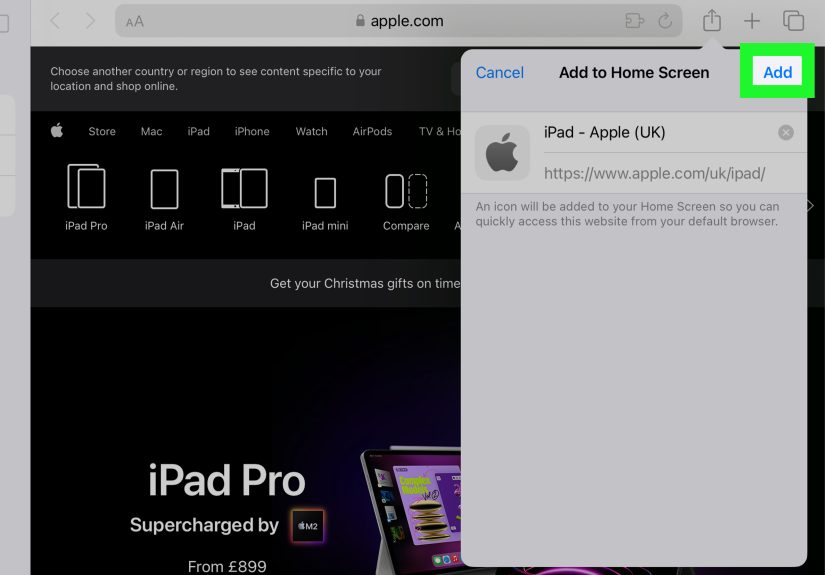
Classic “Add to Home Screen” steps
- Open Safari and load the website you want.
- Tap the Share button.
- Tap More if needed, then choose Add to Home Screen.
- Edit the name (shorter names look nicer under icons).
- Tap Add.
The icon shows up on your Home Screen like an app. You can move it into folders, park it on your Dock, or group it with similar icons.
(Yes, you can make a folder called “Useful Stuff” and pretend you’re organized.)
Optional: Open as a Web App (when available)
On newer iPadOS versions, you may see an option to open the site as a web app when adding it to the Home Screen.
If it’s offered, turning it on can make the site feel more “app-like.”
Important: A Home Screen icon is created on that iPad. If you want it on a different iPad, you’ll need to add it there too.
Best practices: Bookmark smarter, not harder
Use a “Home Base” folder for your most important links
Make a single folder called something like “Start Here” or “Daily Use.” Put your core links in it:
email, calendar, school/work dashboard, bank, notes, project trackerwhatever you open most days.
Save articles to Reading List instead of cluttering Bookmarks
If the link is something you plan to read once, use Reading List. If it’s something you’ll return to repeatedly, use Bookmarks or Favorites.
This one habit prevents your bookmarks from becoming the internet’s attic.
Name bookmarks like you’re leaving clues for your future self
“Login” is not a bookmark name. It’s a mystery novel title. Try:
“School Portal – Grades,” “Bank – Statements,” “Travel – Hotel Confirmation,” or “Recipe – Lemon Chicken (actually good).”
Organize by task, not by website brand
“Work,” “Study,” “Shopping,” “Bills,” “Health,” “Travel,” “DIY”these categories match how you think when you’re in a hurry.
You don’t think, “I need that site by that company.” You think, “I need the thing.”
Sync your bookmarks across devices with iCloud (iPad, iPhone, Mac)
If you use more than one Apple device, iCloud can sync Safari bookmarks, Reading List, and even Tab Groups so everything stays consistent.
This is especially handy if you bookmark something on your iPad and want it on your iPhone later.
How to turn on Safari syncing in iCloud
- Open Settings on your iPad.
- Tap your Apple Account name at the top.
- Tap iCloud, then See All (or Show All) if needed.
- Turn on Safari.
Tip: Use the same Apple Account on each device you want synced. If you’re signed into different accounts, your bookmarks won’t magically negotiate a treaty.
Troubleshooting: When bookmarking doesn’t behave
“Add Bookmark” or “Add to Home Screen” is missing
- Scroll the Share menusometimes options are lower down.
- Tap More in the Share sheet to find additional actions.
- Make sure you’re not in a restricted environment (like certain managed school/work devices).
Bookmarks aren’t syncing across devices
If your bookmarks don’t show up everywhere:
- Confirm Safari is enabled in iCloud on each device.
- Check your internet connection.
- Restart the device (yes, the classic fix still works).
- If Apple’s iCloud services are having issues, syncing can pause until things are resolved.
Also note: if you have extremely large bookmark folders, the order may not match perfectly on every device. That’s normal-ish.
My Home Screen icon opens the wrong page
Home Screen icons usually save the page you were on when you created them. If the site redirects (common with login pages),
create the icon from the “main” landing page after you sign in.
Home Screen organization ideas (so your icons don’t take over)
Create a “Web Apps” folder
If you add multiple site icons, group them into one folder called “Web Apps,” “Shortcuts,” or “Sites I Actually Use.”
Your Home Screen will look calmer, and you’ll feel like you have your life together. (At least visually.)
Put your top one or two in the Dock
The Dock is prime real estate. If you open one site constantlylike a class portal or your favorite writing toolput that icon in the Dock
so it’s available from any Home Screen page.
Frequently asked questions
Can I bookmark a website in Chrome on iPad the same way?
Chrome has its own bookmarking system. This guide focuses on Safari’s bookmarks and iCloud syncing. If you live in Chrome,
you can still add Home Screen shortcuts using Safari for the cleanest iPadOS integration.
Is “Add to Home Screen” the same as bookmarking?
Not exactly. Bookmarking saves the link inside Safari. Adding to Home Screen creates an icon outside Safari, so you can launch the site directly.
Many people use both: bookmarks for organizing, icons for the top few daily taps.
What’s the fastest way to find a saved site?
Use the address bar: Safari often suggests results from your bookmarks when you start typing. If you named your bookmark well,
finding it is quick. If you named it “Login,” you’re going to have a bad time.
Conclusion: Build your own “fast internet” on iPad
Bookmarking on iPad is one of those small habits that quietly upgrades your whole day. You waste less time re-googling,
fewer tabs pile up like laundry, and your iPad starts to feel like your iPadnot just a portal to the world’s chaos.
Use Safari bookmarks for anything you’ll revisit, Favorites for your everyday essentials, Reading List for articles you plan to read,
and Home Screen icons for the sites you want one-tap access to. Do that, and you’ll spend more time actually using the web
and less time hunting for it.
Extra: of real-world bookmarking experiences (the “I learned this the hard way” section)
The first time I really understood the power of bookmarking on an iPad was during a “simple” task: planning something that should’ve taken
10 minutes. It started with one website. Then another. Then five more. Suddenly Safari had 37 tabs open, my brain had the fan noise of a laptop,
and I was one accidental swipe away from losing a page I needed.
That’s when bookmarks became less of a “nice feature” and more of a survival skill. I began saving pages by purpose.
If I was researching something, I’d create a folder named after the project (like “Science Fair” or “Kitchen Remodel Ideas”) and dump the useful
pages in there. Later, when I needed to come back, everything was waitingorganized, labeled, and not mixed in with random stuff like “cool shoes”
and “why do cats do that.”
Favorites changed the game for my daily routine. I used to type the same sites into the address bar every dayemail, calendar, a school portal,
a notes app in the browser. It felt normal… until I put them in Favorites and realized I’d been doing extra work for no reason. After that,
opening Safari felt like walking into a room where everything I needed was already on the desk. Also: naming Favorites properly matters.
“Portal” is vague. “School Portal – Assignments” is the kind of clarity your future self deserves.
The Home Screen shortcut trick is what made the iPad feel most “pro.” I added a couple of site icons I use constantlyone for a writing tool
and one for a dashboard I check daily. Tapping those icons felt like launching apps, which meant I stopped “getting lost” in Safari. It also
helped when I needed to focus: instead of opening Safari and instantly falling into a loop of “just one more tab,” I tapped a single icon and
went straight where I meant to go. Less wandering. More doing.
I also learned the difference between bookmarking and Reading List the messy way. I used to bookmark every article I wanted to read later.
That turned my bookmarks into an endless list of headlines I never revisitedlike a digital pile of unopened mail. Switching to Reading List
fixed that. Articles went to Reading List, permanent tools went to bookmarks, and my bookmark folders stopped growing like a science experiment.
Finally, iCloud syncing is the quiet hero. Bookmark something on the iPad, then see it show up on the iPhone later? That’s the kind of smooth
convenience that makes you wonder why you ever lived without it. Once I got into the habit, bookmarking stopped being “tech stuff” and started
being just… how I keep life from turning into a scavenger hunt.