Table of Contents >> Show >> Hide
- What Is a WhatsApp Backup in Google Drive?
- Why You Might Want to Delete a WhatsApp Backup
- Before You Delete Anything, Read This First
- Method 1: Delete the WhatsApp Backup Through Google One Storage Management
- Method 2: Delete the Backup Through Google Dashboard
- Method 3: Delete Hidden WhatsApp Backup Data in Google Drive
- How to Stop WhatsApp From Creating Another Backup Right Away
- What Happens After You Delete the Backup?
- Common Problems and How to Fix Them
- Best Practices Before Deleting a WhatsApp Backup
- Frequently Asked Questions
- Real-World Experiences and Lessons From Deleting a WhatsApp Backup
- Final Thoughts
- SEO Tags
There comes a moment in every phone owner’s life when they look at their Google storage and think, “Who invited all this stuff?” If WhatsApp backups are quietly camping out in your Google Drive, eating space and overstaying their welcome, you are not alone. Whether you want to free up storage, protect privacy before selling an old phone, or simply start fresh with a cleaner backup setup, deleting a WhatsApp backup from Google Drive is absolutely doable.
The catch is that Google and WhatsApp do not always make the path feel obvious. In some accounts, the backup is easiest to remove through Google One storage management. In others, Google Dashboard or Drive’s older hidden app data tools may be the path that actually shows up. That sounds annoying, and honestly, it is a little annoying. But once you know where to look, the process is pretty straightforward.
This guide walks through the easiest ways to delete a WhatsApp backup from Google Drive, explains what happens after deletion, and shows you how to keep the backup from reappearing like the villain in a sequel nobody asked for.
What Is a WhatsApp Backup in Google Drive?
On Android, WhatsApp can store your chat history and supported media in your Google account so you can restore it later when reinstalling the app or moving to a new phone. That backup may include messages, photos, videos, voice notes, and other chat data depending on your settings.
This backup is different from the files you manually upload to Drive. You usually will not see it sitting in a normal folder called “WhatsApp.” Instead, it is often stored as app backup data or hidden app data linked to your Google account. That is why many users open Google Drive, search around for ten minutes, and come away convinced the backup is invisible magic.
Why You Might Want to Delete a WhatsApp Backup
There are several perfectly good reasons to remove a WhatsApp backup from Google Drive:
1. You need to free up Google storage
Google account storage fills up fast. Photos, Gmail attachments, device backups, and WhatsApp data can pile on until your account starts waving a tiny digital white flag.
2. You want a privacy reset
If you are changing devices, selling a phone, switching accounts, or cleaning up old personal data, deleting an outdated backup can feel like good digital housekeeping.
3. You want to stop restoring old chats
Sometimes the goal is not just cleaning storage. Sometimes you want a fresh WhatsApp setup without pulling back years of old group chats, screenshots, memes, and your aunt’s fourteen “Good morning” messages.
4. You are troubleshooting backup problems
Corrupt, outdated, or mismatched backups can complicate restore attempts. In some cases, removing the old backup and creating a new one is the simplest fix.
Before You Delete Anything, Read This First
Deleting your WhatsApp backup from Google Drive is a serious move in one important way: once it is gone, you may not be able to restore those chats later. That means this is not the time to tap random buttons with the confidence of a game show contestant.
Keep these points in mind:
- If the backup contains chats or media you still need, export important conversations or create a fresh backup first.
- If you delete the cloud backup and then reinstall WhatsApp, you may only be able to restore from whatever local backup remains on your phone, if one exists.
- Using the same Google account typically overwrites the previous WhatsApp cloud backup. In plain English: the newest backup usually replaces the older one.
- If you use end-to-end encrypted backups, deleting them means that restore copy is gone too.
Method 1: Delete the WhatsApp Backup Through Google One Storage Management
This is often the easiest current method, especially on accounts where Google now surfaces WhatsApp backups inside Google One storage tools.
On a computer
- Sign in to the Google account connected to your WhatsApp backup.
- Open Google One storage management.
- Look for the section that lists device backups or WhatsApp backups.
- Select the WhatsApp backup you want to remove.
- Click the delete option and confirm.
On Android
- Open the Google One app, if installed.
- Sign in with the Google account used by WhatsApp.
- Go to storage management or backup management.
- Find the WhatsApp backup entry.
- Tap it and choose to delete.
If you do not see a dedicated WhatsApp entry, do not panic. That does not mean the backup vanished into another dimension. It may simply be exposed through Google Dashboard or Drive’s app data controls instead.
Method 2: Delete the Backup Through Google Dashboard
Google Dashboard gives you a broader view of what is tied to your Google account. In some cases, this is where the WhatsApp backup becomes easier to locate.
- Open Google Dashboard while signed in to the correct Google account.
- Scroll until you find the section related to Google Drive, storage, or backup data.
- Look for a reference to WhatsApp backup data.
- Choose the option to delete data and confirm.
This route is especially useful if you know the backup exists but cannot find it through the regular Drive interface. Think of Dashboard as the “show me everything my account is hiding” page.
Method 3: Delete Hidden WhatsApp Backup Data in Google Drive
This is the older, still-useful method that many long-time Android users remember. Depending on your account and interface version, you may still be able to remove WhatsApp backup data from Drive’s app management area.
How to do it
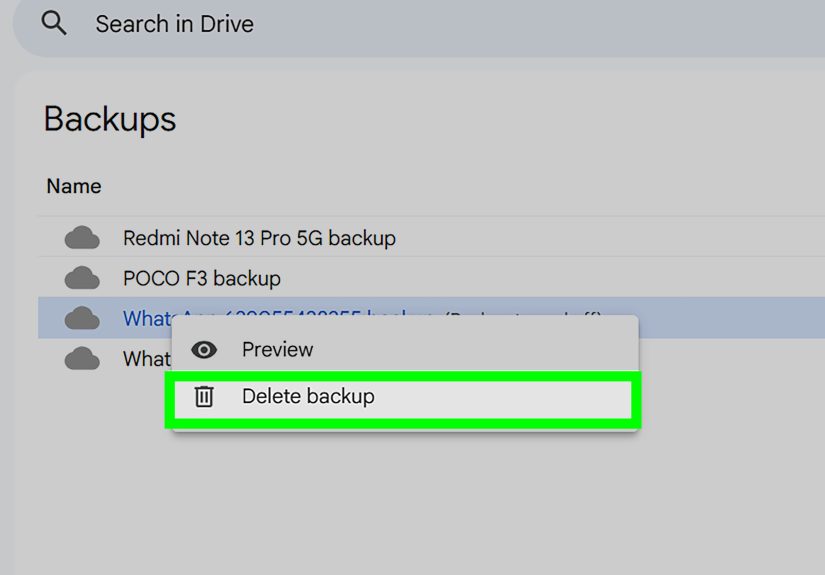
- Go to Google Drive on a desktop browser.
- Click the gear icon in the top-right corner.
- Select Settings.
- Open Manage apps in the left menu.
- Scroll to WhatsApp Messenger.
- If hidden app data is shown, open the options menu.
- Choose Delete hidden app data or the equivalent delete option.
- Confirm the deletion.
If you only see an option to disconnect WhatsApp from Drive, be careful. Disconnecting can stop the app link, but it does not always remove the hidden backup data by itself. When possible, choose the explicit delete option rather than assuming “disconnect” means “gone forever.”
How to Stop WhatsApp From Creating Another Backup Right Away
Deleting the backup is only half the job. If WhatsApp is still set to back up automatically, your cloud backup may return faster than leftovers in an office fridge.
Turn off automatic backup in WhatsApp
- Open WhatsApp.
- Tap the three-dot menu.
- Go to Settings > Chats > Chat backup.
- Find the Google account or backup scheduling setting.
- Set the backup frequency to Never, or turn off cloud backup if your version shows a toggle.
Check the linked Google account
If WhatsApp still shows a connected Google account under chat backup settings, remove or change it if your goal is a full reset. Menu names vary a bit by phone and app version, but the idea is the same: stop WhatsApp from pointing at the same Google account for future cloud backups.
What Happens After You Delete the Backup?
Once the WhatsApp backup is deleted from your Google account, it should no longer be available as a restore source during setup on a new or reinstalled device. That means:
- You may not be able to restore cloud chat history from that deleted backup.
- WhatsApp may still restore from a local backup on the phone if one exists.
- If automatic backup remains enabled, a brand-new cloud backup can be created later.
- Storage usage may not update instantly; it can take some time for Google account storage numbers to catch up.
If the deleted backup was your only copy, consider it the digital equivalent of shredding the only map. Do not expect a magical “undo” button to show up later wearing a cape.
Common Problems and How to Fix Them
I cannot find the WhatsApp backup anywhere
First, make sure you are signed into the same Google account used in WhatsApp. This is the number-one reason people feel like the backup has disappeared. Second, try all three places: Google One storage management, Google Dashboard, and Drive’s Manage apps area.
The backup still shows after I delete it
Give it some time. Storage and account interfaces do not always refresh instantly. Sign out and back in, reload the page, or wait a little while before checking again.
WhatsApp created a new backup after I deleted the old one
This usually means automatic backup is still enabled. Return to WhatsApp’s chat backup settings and turn off the schedule or unlink the Google account used for cloud backup.
I deleted the backup and now I want it back
If there is no newer cloud backup and no usable local backup on the device, recovery may not be possible. That is why it is smart to think through the consequences before deleting anything important.
Best Practices Before Deleting a WhatsApp Backup
If you want to be careful instead of dramatic, use this checklist first:
- Export any must-keep chats before deleting the backup.
- Confirm which Google account WhatsApp is using.
- Decide whether you want to stop future cloud backups or just remove one old backup.
- Check whether your phone still has a local backup.
- Delete the backup only after you are sure you will not need it later.
That may sound cautious, but cautious is underrated. So is not losing six years of chat history because you were trying to save 2 GB.
Frequently Asked Questions
Does deleting a WhatsApp backup from Google Drive delete chats from my phone?
No. Deleting the cloud backup does not automatically erase the chats that are already on your device. It removes the stored backup copy from your Google account.
Can I delete only videos and keep messages?
Not from the backup itself in a simple, granular way. The better approach is to adjust WhatsApp backup settings before making a new backup, such as excluding videos where that option is available.
Can I restore an older overwritten WhatsApp backup from Google Drive?
Usually no. When a new backup is created using the same Google account, the older cloud backup is generally overwritten.
Will deleting the backup free Google storage immediately?
It should free storage, but the displayed account usage may take a little time to update.
Is the process the same on iPhone?
No. iPhone users back up WhatsApp to iCloud, not Google Drive, so the removal steps are different.
Real-World Experiences and Lessons From Deleting a WhatsApp Backup
One of the most common experiences people have with this topic starts with a storage warning. You open Gmail or Google Photos and suddenly get the dreaded message that your account is almost full. At first, it looks like photos are the culprit. Then you dig a little deeper and realize a chunky old WhatsApp backup is sitting there too. The surprise is not that it exists. The surprise is that it is large enough to deserve its own zip code.
Another typical situation happens during a phone upgrade. Someone buys a new Android device, restores WhatsApp, and ends up pulling in years of chats they did not really want. Group messages from old jobs. Family chats from ancient holidays. Random videos that seemed funny in 2021 and deeply confusing now. After that, many users decide they want a cleaner start. Deleting the old WhatsApp backup from Google Drive becomes part of a larger digital reset.
Privacy is another big reason. Imagine selling an old phone, handing it down to a family member, or separating personal and work accounts. Even if your chats are encrypted, many people simply feel better knowing an outdated backup is no longer attached to their Google account. It is less about panic and more about control. People want to know where their data lives, who can access the account, and whether an old backup could reappear during setup on another device.
There is also the frustration factor. Plenty of users expect to find the backup in an obvious Drive folder, only to discover that WhatsApp backup data likes to hide like it is auditioning for a spy movie. That confusion leads people to think the backup cannot be deleted, when really it is just stored in a less visible place. Once they find Google One storage management or Drive’s hidden app data area, the whole thing suddenly makes more sense.
Some users also learn the hard way that deleting a backup and disabling future backups are not the same thing. They remove the old backup, feel victorious, then open Google storage a week later and find that WhatsApp quietly made a new one. Cue dramatic music. The lesson is simple: if you want the backup gone for good, you need to change WhatsApp’s backup settings too.
Perhaps the most useful lesson from real-world experience is this: deleting a WhatsApp backup is easy, but deciding whether to delete it deserves a minute of thought. For some people, removing it is the perfect move. It frees space, reduces clutter, and supports a fresh start. For others, that backup is the only convenient copy of years of conversations and media. The smartest users are the ones who pause, export what matters, confirm the correct Google account, and then hit delete on purpose instead of by accident.
In other words, treat your WhatsApp backup like your closet. If it is full of things you no longer need, cleaning it out feels great. But check the pockets before donating the jacket.
Final Thoughts
If you want to delete a WhatsApp backup from Google Drive, the job is very manageable once you know the right door to open. Start with Google One storage management, try Google Dashboard if needed, and use Drive’s hidden app data tools when they are available. Then, if your goal is a true cleanup, turn off WhatsApp’s automatic cloud backup so the file does not quietly return.
The biggest takeaway is simple: delete with intention. Backups are useful until they are not. If the old backup no longer serves you, clear it out, reclaim the space, and move on with a tidier Google account and one less digital mystery to solve.