Table of Contents >> Show >> Hide
- Before You Start: What You’ll Need (and Why)
- Big Picture Rules (So You Don’t Create a “PC Autopsy” Situation)
- Step 1: Back Up, Power Down, and “Photograph Everything”
- Step 2: Set Up a Static-Safe Work Area
- Step 3: Disconnect and Label External Cables (So Setup Isn’t a Guessing Game)
- Step 4: Open the Case and Do a “Shipping Risk Audit”
- Step 5: Remove the GPU (The #1 “Save This First” Part)
- Step 6: Stabilize or Remove the CPU Cooler and Drives (Only If Needed)
- Step 7: Pack the PC for Transport (Car, Shipping, or Flying)
- Step 8: Reassemble, Boot, and Verify Everything Works
- Mistakes People Make (So You Can Feel Smarter Than Yesterday)
- of Practical “Been-There” Experiences (Collected Wisdom, Not Hero Fantasy)
- Conclusion
Moving a desktop PC sounds easy until you remember it’s basically a glass-and-metal box full of expensive LEGO pieces that hate potholes, static electricity, and your one friend who “sets things down gently” like they’re dunking a basketball.
The good news: you don’t need to be a hardware wizard to move a PC safely. You just need a plan, a few basic supplies, and the discipline to not treat your GPU like it’s welded to the motherboard. This guide walks you through an eight-step process to disassemble what matters, transport it without heartbreak, and reassemble it with confidencewhether you’re moving across town, across the country, or just across the living room because your cat declared your old desk “too peaceful.”
Before You Start: What You’ll Need (and Why)
Tools
- Phillips #2 screwdriver (your main character)
- Small container or magnetic tray for screws
- Zip ties or Velcro straps for cable wrangling
- Painter’s tape + marker for labeling (optional, but future-you will cry happy tears)
Protection & Packing Supplies
- Anti-static wrist strap and/or anti-static mat (recommended for handling components)
- Anti-static bags for GPU and other parts (often reused from original packaging)
- Foam or bubble cushioning, plus a sturdy box (double-boxing is best for shipping)
- Soft blankets/towels and a seatbelt (for car transportyes, your PC deserves a seatbelt)
- Optional: expanding foam packs (like Instapak) only if you know how to use them safely
Big Picture Rules (So You Don’t Create a “PC Autopsy” Situation)
- Static is sneaky. Ground yourself and handle parts by edges, ideally in a static-safe setup.
- Heavy parts are the enemy of shipping. Large GPUs and big tower air coolers can act like wrecking balls during bumps. Removing or supporting them reduces risk.
- Original packaging is king. If you saved the case box and foam inserts, congratulations: you are emotionally stable and practically invincible.
- If you use internal shipping foam, remove it before powering on. It can block airflow and cause overheating.
Step 1: Back Up, Power Down, and “Photograph Everything”
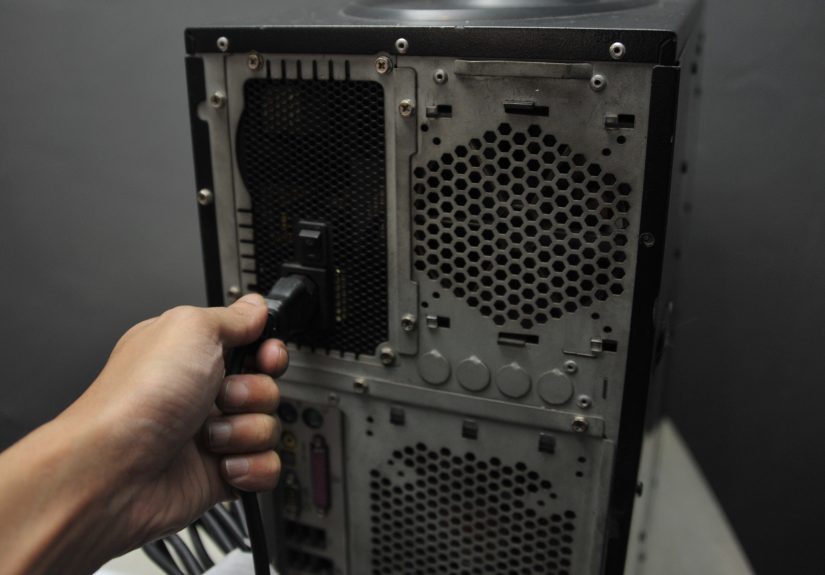
Before you touch a screw, back up what mattersespecially if your storage drive is older than your favorite hoodie. Then shut down Windows properly (no rage-holding the power button), flip the power supply switch to OFF, and unplug the power cable.
Now take a few quick photos: cable routing, GPU power connectors, front-panel headers (those tiny “PWR SW” pins that make grown adults whimper), and any weird adapter chains you created at 2 a.m. These photos are your reassembly cheat codes.
Pro tip
Put small parts (Wi-Fi antennas, USB dongles, tiny screws) into a labeled bag. If you don’t label it, that bag becomes a mystery artifact you’ll rediscover in 2031.
Step 2: Set Up a Static-Safe Work Area
Ideally, work on a table (not carpet), with an anti-static mat and a grounded wrist strap. Guidance from major manufacturers and ESD organizations consistently recommends proper grounding and static-safe handling practices when working with sensitive components.
If you don’t have a wrist strap, you can still reduce risk: avoid socks-on-carpet shuffling, handle parts by the edges, and keep components in anti-static bags whenever they’re not installed.
Step 3: Disconnect and Label External Cables (So Setup Isn’t a Guessing Game)
Unplug everything connected to the PC: monitor, keyboard, mouse, Ethernet, speakers, USB hubs, capture cardsthe whole spaghetti collection. Coil each cable and label it if you have multiple similar cables (DisplayPort vs HDMI, for example).
If you’re moving monitors too, follow proper packing methods and cushioning recommendationsespecially if shipping.
Step 4: Open the Case and Do a “Shipping Risk Audit”
Remove the side panels and take a calm look inside. You’re checking for parts that can flex, bounce, or snap under vibration:
- Large GPU (especially long, heavy models)
- Big tower air cooler (tall heatsinks with heavy fin stacks)
- Hard disk drives (HDDs) (moving parts + shock = sadness)
Car move vs shipping: how aggressive should you be?
- Short car move (you control the ride): you can often transport with more parts installed if the case is secured and oriented safelybut removing the GPU is still a smart safety move.
- Shipping or airline baggage: assume your box will be dropped, rotated, and tested for survival by physics. Remove heavy components and pack with proper cushioning/double-boxing.
Step 5: Remove the GPU (The #1 “Save This First” Part)
The graphics card is frequently the most vulnerable component during transport because it’s heavy and levered into a PCIe slot. Many official removal procedures follow the same basic idea: disconnect power, remove retaining screws/brackets, release the PCIe latch, and lift the card straight out.
How to remove it safely
- Unplug the GPU power cables (8-pin/12VHPWR, etc.).
- Remove the screws securing the GPU bracket to the case.
- Press the PCIe slot latch (often at the far end of the slot) and gently pull the GPU out.
- Place the GPU in an anti-static bag and cushion it in its original box if possible.
If you have a GPU support bracket, remove it and keep its screws with the GPU. When you reassemble, you’ll reinstall support to reduce long-term sag.
Step 6: Stabilize or Remove the CPU Cooler and Drives (Only If Needed)
Here’s the rule: if it’s heavy enough to make you nervous when you tap the case, it’s heavy enough to consider removing for shipping. Transport guides commonly call out large CPU coolers and drives as candidates for removal.
CPU cooler
- Large tower air cooler: strongly consider removing for shipping. Keep the mounting hardware together, and be prepared to clean and reapply thermal paste on reassembly.
- AIO liquid cooler: usually less “lever-arm” stress than huge towers, but still make sure the radiator and tubes aren’t being forced or kinked. If you transport by car, secure the case so it doesn’t tumble. (If shipping, evaluate based on weight and how the radiator is mounted.)
Storage drives
- HDDs: remove them for shipping if practical, and pack individually with anti-static protection and proper cushioning.
- SSDs: generally more shock-tolerant than HDDs, but still handle with anti-static precautions.
What about RAM?
RAM usually stays installed unless you’re shipping internationally, doing a full teardown, or your case will be handled roughly. If you do remove it, store it in anti-static packaging and label the slots (A2/B2, etc.) for easy reinstallation.
Step 7: Pack the PC for Transport (Car, Shipping, or Flying)
Option A: Transport by car (you’re the delivery service)
- Keep the case upright or lay it on its side to reduce stress on the motherboard and mounted components. If the GPU is removed, this becomes less criticalbut still avoid letting the case slide around.
- Wrap the case in a blanket and use a seatbelt. Your PC is now your most responsible passenger.
- Avoid stacking heavy boxes on top of the caseespecially if you have tempered glass panels.
Option B: Shipping (the “assume it will be dropped” method)
Use strong packaging, lots of cushioning, and ideally double-boxing. Major carriers recommend surrounding items with adequate packing material and using proper sealing methods.
- Inner box: Place the PC in a snug box with at least a thick cushion layer around it so it doesn’t move.
- Outer box: Center the inner box in a larger outer box with additional cushioning on all sides.
- Seal correctly: Tape all seams well (top and bottom).
- Pack components separately: Ship the GPU and any removed parts in their own protected packaging inside the larger shipment.
About internal expanding foam (Instapak-style)
Some system builders use expanding foam to lock components in place during shipping. If you do this, follow manufacturer-style instructions carefully to avoid damage and ensure foam is positioned properly around the GPU area.
And yesremove any internal foam before you power the PC back on. It can block airflow and interfere with cooling.
Step 8: Reassemble, Boot, and Verify Everything Works
Once you arrive, reverse the process methodically. Take your time. This isn’t a race; it’s a “please don’t bend a motherboard pin” kind of activity.
Reassembly checklist (in a sane order)
- Inspect the case: Look for loose screws or cables. Confirm nothing shifted.
- Reinstall drives (if removed): mount securely and reconnect data/power.
- Reinstall CPU cooler (if removed): clean old thermal paste and apply fresh paste before mounting. Tighten evenly.
- Reinstall GPU: seat it fully, lock the PCIe latch, screw the bracket, reconnect GPU power, and consider using a support bracket if you have one.
- Reconnect external cables: monitor, keyboard, network, etc.
First boot: what to expect
- It may take slightly longer on first boot as hardware reinitializes.
- If you hear unusual clicking or grinding from an HDD, shut down and re-check mounting/cabling.
- If the PC doesn’t power on, check the PSU switch, front-panel power connector, and GPU power cables first (they’re frequent culprits).
Windows activation note (usually not an issue)
Moving a PC doesn’t normally affect activation. But if you replaced a motherboard during the process (or swapped major hardware), Windows may require reactivation. Microsoft notes that significant hardware changesespecially motherboard replacementcan trigger reactivation steps.
Post-move “confidence tests”
- Check CPU and GPU temperatures at idle.
- Run a short, reputable stress test or game benchmark for 10–15 minutes.
- Listen for rattles (a loose screw is a tiny metal gremlin waiting to happen).
Mistakes People Make (So You Can Feel Smarter Than Yesterday)
- Leaving the GPU installed for shipping and hoping gravity will be kind. It won’t.
- Using loose packing that shifts and lets the inner box move around. Follow proper cushioning guidance and prevent movement.
- Powering on with internal foam still installed (congrats, you invented an oven).
- Ignoring ESD safety because “I touched the case once.” Proper grounding practices exist for a reason.
of Practical “Been-There” Experiences (Collected Wisdom, Not Hero Fantasy)
If you ask ten PC builders how they moved a desktop, you’ll get twelve opinions and at least one story that begins with, “So… I heard a clunk halfway there.” The most common lesson people learn is that moving a PC isn’t about being delicateit’s about removing leverage. A big GPU and a tall tower cooler are both heavy, and both are attached in ways that are strong for normal desk life but not designed for repeated impacts. Even when someone “only drove 20 minutes,” speed bumps and sudden stops can turn that weight into torque. That’s why experienced movers tend to pop the GPU out first, even for short trips, and pack it separately in a padded, anti-static-friendly setup.
Another real-world pattern: the move itself isn’t the only dangerthe reassembly rush is. People arrive, plug everything back in, and hit the power button like it’s a victory lap… then panic when there’s no display. In many cases, it’s something simple: the monitor is plugged into the motherboard instead of the GPU, the PCIe power cable isn’t fully seated, or the RAM got nudged and needs a firm reseat. That’s why photos and labels aren’t “extra”they’re your stress insurance. You’re basically leaving yourself breadcrumbs, except the breadcrumbs are “this cable goes here” and “don’t forget the tiny GPU latch.”
Shipping stories teach an even louder lesson: movement inside the box is the villain. If the inner box can slide or bounce, it will. People who ship successfully tend to double-box, pad generously, and make sure the PC cannot shift within the inner box. The same goes for components like drives and GPUseach one needs its own protection, not just a shared pile of bubble wrap like a tech-themed sock drawer. Builders who’ve worked with internal foam packs say the foam can be incredibly effective when done right, but it’s not a casual “let’s see what happens” solution. The foam must be positioned correctly, allowed to cure, andthis is importantremoved before powering on.
Lastly, experienced movers plan for the “first boot emotions.” They expect a longer boot time, they listen for odd sounds, and they check temperatures before they celebrate. The calmest PC movers treat the first boot like a pre-flight checklist: confirm everything is seated, confirm airflow isn’t blocked, and then test for stability. It’s not dramatic, but it’s how you turn “I moved my PC” into “I moved my PC and didn’t have to buy a new GPU,” which is the kind of happy ending we all deserve.
Conclusion
Moving a PC safely is mostly about removing or stabilizing the parts that hate vibration, packing with intention, and reassembling without rushing. Follow the eight steps, treat your GPU like the precious slab of silicon it is, and you’ll be back up and running without turning your move into a troubleshooting miniseries.