Table of Contents >> Show >> Hide
- First, Quick Clarity: Subtitles vs. Captions (Yes, There’s a Difference)
- The Fastest Way to Choose the Right Method
- Method 1 (Best for Creators): Download Captions from YouTube Studio
- Method 2 (For Viewers): Copy a YouTube Transcript from the Video Page
- Method 3 (For Developers): Download Caption Tracks via the YouTube Data API
- Choosing the Right Caption File Format: SRT vs. VTT vs. SBV
- How to Convert Captions (Without Turning It into a Weekend Project)
- When You Can’t Find Captions or “Show Transcript” (Troubleshooting)
- Legal and Ethical Notes (Because the Internet Has Rules)
- Practical Use Cases: Why People Download YouTube Captions in Real Life
- Common Mistakes (So You Don’t Step on the Rake)
- Real-World Experiences: What It’s Actually Like Downloading YouTube Captions (500+ Words)
- Wrap-Up: The Simple Way to Download YouTube Captions Without Drama
YouTube captions are basically the unsung heroes of the internet. They help people watch quietly in public, understand thick accents,
learn languages, and follow along when the audio is doing its best “muffled underwater podcast” impression.
But what if you want to download YouTube subtitles or save a YouTube captions file for editing,
translating, quoting, or repurposing content?
Good news: there are legit ways to grab captionsespecially if you own the video. And if you don’t own the video, you can often still
access a YouTube transcript (when captions are available) and save the text responsibly.
This guide walks you through the safest, most practical options, plus how to choose formats like SRT and VTT,
troubleshoot missing transcripts, and avoid the sketchy corners of the web.
First, Quick Clarity: Subtitles vs. Captions (Yes, There’s a Difference)
People use “subtitles” and “captions” interchangeably, but they’re not identical twinsmore like cousins who borrow each other’s hoodies.
- Subtitles usually display spoken dialogue (often for translation) and assume you can hear the audio.
- Closed captions often include non-speech audio cues like “[music]” or “[door slams]” for accessibility.
On YouTube, both typically live in the same “captions” ecosystem. The file you download might be used as subtitles, captions, or both
depending on how it was created.
The Fastest Way to Choose the Right Method
If you own the video (your channel):
Use YouTube Studio to download the caption track in formats like SRT, SBV, or VTT. This is the cleanest and most reliable option.
If you don’t own the video:
Use YouTube’s built-in transcript view (when available) and copy the text for personal reference, notes, or quoting.
Downloading the actual caption file generally requires owner permissions.
If you’re a developer:
Use the YouTube Data API captions endpoints, but only with proper authorization and permissions for the video.
Method 1 (Best for Creators): Download Captions from YouTube Studio
If the video is yours (or you have editor-level access), YouTube Studio lets you download the caption track directly.
This is ideal for editing timing, polishing wording, translating, or reusing captions in other platforms.
Step-by-step (Desktop)
- Sign in to YouTube Studio.
- In the left menu, click Subtitles.
- Select the video you want.
- Next to the language track you want, click Edit (or open the track options).
-
Click Options (often represented by a three-dot menu), then choose
Download / Download subtitles. - Save the file to your computer. You’ll usually get a timed subtitle format like .srt or .sbv (and sometimes .vtt).
Pro tip: If you have multiple languages, download each track separately so you can keep everything organized.
Name files clearly, like video-title_en.srt and video-title_es.srt. Your future self will thank you.
What you can do with the downloaded file
- Edit text (fix names, jargon, and the classic “we will rock you” misheard lyric situation).
- Adjust timing in a subtitle editor if lines appear too early/late.
- Convert formats for different platforms (SRT for broad compatibility, VTT for web/HTML5 workflows).
- Create translations by duplicating a track and translating line-by-line.
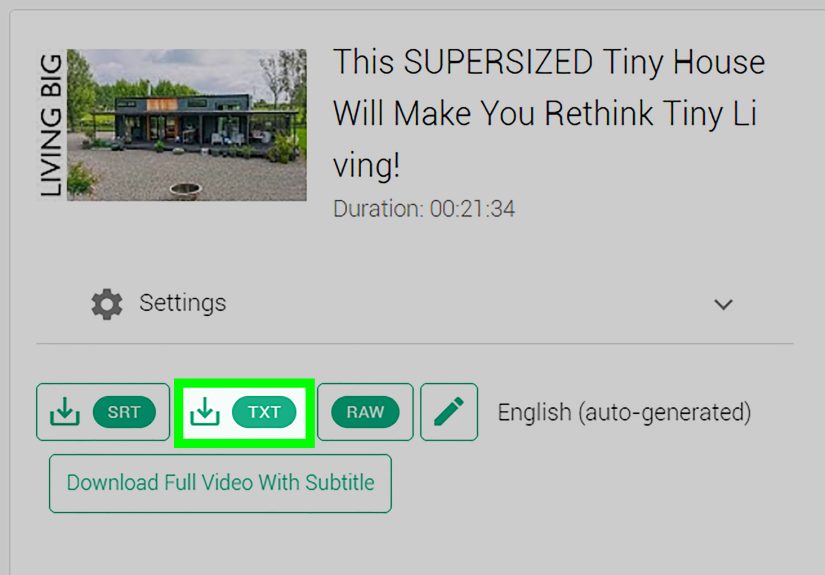
Method 2 (For Viewers): Copy a YouTube Transcript from the Video Page
If you don’t control the video, YouTube often still lets you view the transcript when captions exist.
This doesn’t always hand you a neat downloadable SRT file, but it gives you the texttimestamps included in many cases.
Desktop steps
- Open the YouTube video.
- Under the video title, expand the description (click …more or the description area).
- Click Show transcript.
-
A transcript panel opens. You can usually click a line to jump to that moment in the video.
Many users copy the text into a document for notes or reference.
Mobile notes
On mobile, the transcript option may appear in a similar “more”/description area, but the interface changes more often than fashion trends.
If you can’t find it, try the desktop site view or use a computer.
How to save it cleanly (without making a mess)
- Paste into a plain text editor first to strip weird formatting.
- Keep timestamps if you need citations or clip-finding later.
- Remove timestamps if you’re turning it into a blog outline or study notes.
Reality check: Not all videos offer transcripts. If captions are disabled or unavailable, “Show transcript” won’t appear.
Method 3 (For Developers): Download Caption Tracks via the YouTube Data API
If you’re building a workflow for your own channelor managing captions at scalethe YouTube Data API includes endpoints to
list and download caption tracks. This is powerful, but it’s not a loophole for grabbing captions from random videos.
What to know before you plan an API workflow
- Authorization is required (OAuth scopes apply).
- You need permission to edit/manage the video to download its caption track.
-
Downloads typically return the caption track in its original format unless you request a different format parameter
(depending on the endpoint’s supported options).
If you’re not a developer, you can skip this method without losing any sleep. If you are a developer, treat captions like you treat passwords:
permission-based and handled responsibly.
Choosing the Right Caption File Format: SRT vs. VTT vs. SBV
Downloaded captions usually come in a timed-text file format. Here are the most common options you’ll encounter when you download subtitles from YouTube
(or convert them later).
SRT (.srt): The universal “it works almost everywhere” option
SRT is a simple, widely compatible format. It’s basically a plain text file with numbered caption entries, timestamps, and lines of text.
If you’re unsure what to choose, choose SRT.
VTT (.vtt): Great for web workflows and HTML5 video
WebVTT is also a text format but is designed for web video. It supports additional metadata and cue settings that can be handy
for web players and accessibility workflows. If you’re working with websites, e-learning platforms, or HTML5 video, VTT often fits nicely.
SBV (.sbv): YouTube’s longtime favorite
SBV is another caption format YouTube supports. It’s still useful, especially if you’re editing captions specifically for YouTube uploads.
If your toolchain prefers SRT or VTT, you can convert SBV without too much pain.
Quick format cheat sheet
- Need maximum compatibility? SRT
- Working with web video players? VTT
- Staying YouTube-centric? SBV (or SRT)
How to Convert Captions (Without Turning It into a Weekend Project)
Sometimes you’ll download one format but need another. Converting captions is usually straightforward because these files are text-based.
You can convert with:
- Subtitle editors (best for adjusting timing, line breaks, and readability).
- Online converters (fast, but be mindful of privacycaptions can contain names, addresses, and other sensitive info).
- Manual edits in a text editor (fine for simple conversions, risky for complex formatting).
Example: simple SRT → VTT idea
Many conversions boil down to formatting differences (like timestamp punctuation and headers).
If you’re not comfortable editing subtitle syntax, use a tool built for itsubtitle formats are picky, and they will absolutely throw a tantrum
over one tiny character.
When You Can’t Find Captions or “Show Transcript” (Troubleshooting)
1) The video simply has no captions
Some creators don’t upload captions, and auto-generated captions may be unavailable for certain content, languages, or settings.
In that case, there’s nothing to download from YouTube directly.
2) Captions exist, but transcripts are disabled
If the channel disables transcripts, you may not see the transcript option even if captions exist.
3) You’re watching a format that doesn’t always show transcripts cleanly
Shorts and some music videos can be inconsistent with transcript availability. If you don’t see it on mobile, try desktop.
4) You’re the creator and captions are “processing”
Auto captions can take time to generate. If you just uploaded the video, wait a bit, refresh YouTube Studio,
and check the Subtitles section again.
What to do if you truly need text and there’s no transcript
- If it’s your video: consider uploading a transcript file or using YouTube’s captioning tools in Studio to create captions.
-
If it’s not your video: ask the creator if they can enable captions/transcripts or share a caption file.
This is the polite internet version of knocking before entering.
Legal and Ethical Notes (Because the Internet Has Rules)
Captions are part of a creator’s content package. Even if you can view a transcript, that doesn’t automatically mean you can republish it.
Keep it clean:
- For your own videos: you’re gooddownload, edit, translate, reuse.
-
For someone else’s video: use transcripts for personal study, quoting small portions, accessibility notes, or researchthen
link back and credit appropriately when publishing anything substantial. - Don’t repost full transcripts as a replacement for the video unless you have permission or a clear license that allows it.
If your goal is accessibility (for a classroom, a team, or a family member), asking the uploader for permission or support is often the best route.
Practical Use Cases: Why People Download YouTube Captions in Real Life
Content repurposing (blog posts, newsletters, and social clips)
A transcript makes it easier to turn a video into a blog article outline, pull quote-worthy lines for social media, and quickly find the
exact timestamp where your guest said something brilliant (or hilariously unhingedin a good way).
Translation and localization
Downloading an SRT file from YouTube Studio can be the starting point for translating captions into other languages.
You can translate line-by-line and reupload the translated track for a bigger global reach.
Study and research
Students and researchers love transcripts because they’re searchable. You can find the exact moment a speaker mentions “photosynthesis,” “quarterly earnings,”
or “why cats are secretly running the world,” without rewatching the whole thing.
Common Mistakes (So You Don’t Step on the Rake)
-
Mistake: Copying a transcript and assuming it’s “publish-ready.”
Fix: Clean up punctuation, add paragraphs, and verify names/technical terms. -
Mistake: Using auto-captions as if they’re flawless.
Fix: Treat auto-captions as a draft. They’re helpful, but they can misunderstand jargon, brand names, and accents. -
Mistake: Choosing a format your platform doesn’t support.
Fix: When in doubt, export SRT and convert as needed. -
Mistake: Uploading captions with long, unreadable lines.
Fix: Break lines naturally and keep captions short enough to read comfortably.
Real-World Experiences: What It’s Actually Like Downloading YouTube Captions (500+ Words)
In theory, downloading YouTube subtitles feels like it should be as easy as ordering fries: click a button, receive happiness, move on with your day.
In real life, it’s more like ordering fries and realizing you also need to pick a dipping sauce, confirm your order, and decide whether you’re
emotionally prepared for curly fries.
One of the most common experiences creators have is the “auto-captions confidence trap.” You open YouTube Studio, see an auto-generated track,
and think, “Fantastic. My job is done.” Then you read it and discover your guest’s name was translated into something that sounds like a medieval
disease. Technical terms get turned into word salad. Acronyms become full sentences with personality issues. And if you said anything remotely niche
like medication names, gardening cultivars, or software toolsYouTube’s best guess might be… aspirational.
That’s where downloading the captions file becomes a lifesaver. Once you have an SRT or SBV file, you can search and fix every recurring error quickly.
Creators often use a simple pattern: find the top 10 repeated mistakes, correct them globally, then do a slower read-through to catch the weird one-offs.
It’s not glamorous, but it’s effective. Bonus: once you fix the captions, your viewers who rely on them will noticeand that’s a good kind of “noticed.”
Viewers, on the other hand, tend to run into the “Where did YouTube hide the transcript button today?” experience. Sometimes “Show transcript” is right there.
Other times it’s buried in the description area like an Easter egg. And on mobile, it can feel like the interface was designed by a committee of squirrels.
People often switch to desktop just to make the transcript easier to access and copy. A practical trick is to paste the transcript into a plain text editor first,
because copying directly into a word processor can bring along formatting gremlinsrandom line breaks, timestamp weirdness, and spacing that looks fine until
you try to read it.
Another very real moment: deciding what you actually need. If your goal is to quote a creator or take notes for class, a transcript copy-paste is usually enough.
But if you’re trying to edit timing or upload captions somewhere else, you’ll want a real caption file with timecodes (SRT/VTT/SBV).
This is where many people realize they can’t legitimately download the caption track for videos they don’t controland that’s by design. Caption tracks are
tied to the video owner’s permissions. The good news is that creators are often happy to share a captions file if you ask politely and explain why you need it,
especially for accessibility, translation, or educational use.
Then there’s the format confusion experience: you download SBV, your editing tool wants SRT, your website wants VTT, and suddenly you’re collecting file
extensions like they’re Pokémon. The practical reality is that SRT is the “safe default,” VTT is excellent for web, and converters exist for the rest.
The key lesson most people learn is to keep a clean “master” caption file (often SRT), then convert copies for different platforms. That way, you’re not
making edits in six places and wondering why your captions drifted out of sync on only one version.
Finally, there’s the unexpected upside: once you have captions or a transcript, your video becomes searchable in a whole new way.
Creators use transcripts to build blog posts, create highlight reels, pull quotes for thumbnails, and even generate FAQ sections that match what people
actually asked in the video. Viewers use transcripts to skim, study, and find answers faster. The experience usually ends the same way:
“Why didn’t I start doing this sooner?”
Wrap-Up: The Simple Way to Download YouTube Captions Without Drama
If you want the cleanest results, download captions from YouTube Studio (for videos you manage).
If you’re a viewer, use YouTube’s transcript view to copy text when it’s available.
And if you’re building tools, the YouTube Data API can helpwhen you have proper permissions.
Pick the right format, clean up auto-caption quirks, and treat transcripts like content: useful, powerful, and worth handling respectfully.
Your ears, your audience, and your future editing sessions will all be happier.