Table of Contents >> Show >> Hide
- What Digital Touch Is (and What It Isn’t)
- Quick Check: Are You Actually Using iMessage?
- How to Open Digital Touch on iPhone (The “Where Did Apple Hide It This Year?” Section)
- How to Draw a Digital Touch Sketch (The Fun Part)
- How to Send Digital Touch Gestures (Taps, Fireballs, Kisses, Heartbeats)
- Add Digital Touch Drawings to a Photo or Video
- Tips to Make Your Digital Touch Drawings Look Way Better Than They Should
- Troubleshooting: When Digital Touch Is Missing, Laggy, or Just Being Weird
- Creative Ways People Actually Use Digital Touch (Beyond “Look, I Drew a Cat”)
- Conclusion: Your Pocket-Sized Doodle Studio
- Field Notes: of Real-World Digital Touch Experiences
iMessage has a secret little art studio hiding in plain sight. It’s called Digital Touch, and it lets you send
animated sketches (plus taps, kisses, heartbeats, and the infamous accidental fireball) right inside Messages.
It’s not “professional illustrator” energy. It’s more “I have 12 seconds to communicate a vibe” energyand that’s exactly why it’s great.
What Digital Touch Is (and What It Isn’t)
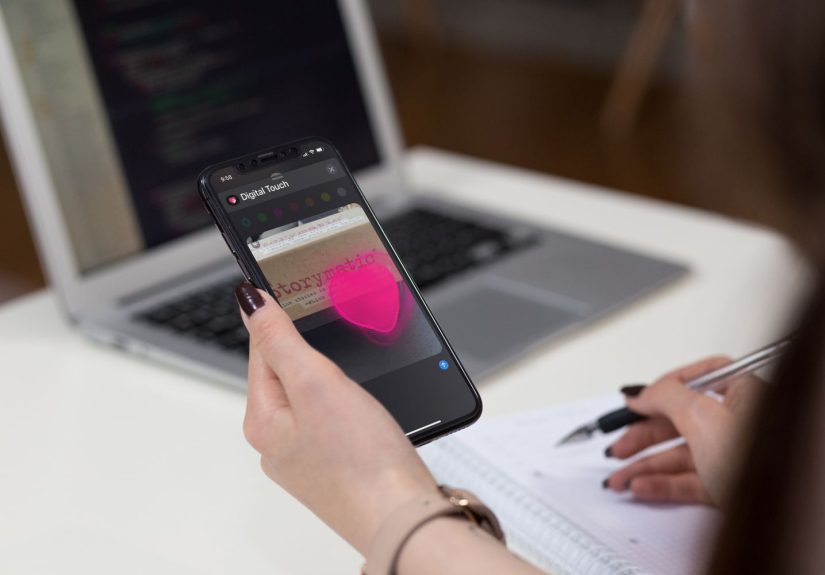
Digital Touch is a mini canvas inside iMessage where you can draw with your finger and send the result as an animated message.
The animation replays the order you drew it, which makes even a sloppy doodle feel kind of magical.
It’s also not the same thing as:
- Handwriting mode (white background, landscape keyboard “scribble pad”)
- Markup (editing a photo/screenshot with real drawing tools)
- Stickers/Memoji (fun, but different kind of chaos)
Think of Digital Touch as the quickest way to send a drawing that feels personallike you took two seconds to make something just for them.
Quick Check: Are You Actually Using iMessage?
Digital Touch only works in iMessage, not plain SMS. If your message bubbles are blue, you’re good.
If they’re green, you’re texting the old-fashioned way, and Digital Touch won’t behave the way you want (or may not show up at all).
If you’re not seeing iMessage features, make sure iMessage is turned on in Settings > Messages.
(Yes, the classic “turn it off and on again” still has a job in 2025.)
How to Open Digital Touch on iPhone (The “Where Did Apple Hide It This Year?” Section)
Apple has reorganized the Messages app drawer a few times, but the recipe is basically the same: open a conversation, hit the “apps” area,
then choose Digital Touch from the list.
On newer iOS versions (you’ll usually see a “+” button)
- Open Messages and tap the conversation you want.
- Tap the + button next to the text field.
- Swipe up (or tap More) to view the full app list.
- Tap Digital Touch.
On older layouts (app drawer icons near the text field)
- Open a conversation in Messages.
- Tap the apps icon (often the App Store “A” or an apps strip).
- Select Digital Touch (usually a heart icon or “Digital Touch” label).
Once you’re in, you’ll see a dark canvas. If it feels cramped, look for the option to expand it
(some versions let you swipe to make the canvas take over more of the screen).
How to Draw a Digital Touch Sketch (The Fun Part)
Sketches are the “draw whatever you want” version of Digital Touch. They’re perfect for quick arrows, tiny cartoons, doodled reactions,
and the occasional masterpiece that looks suspiciously like a potato.
Step-by-step: sending a sketch
- Open Digital Touch inside your iMessage conversation.
- Tap the color dot to pick a color.
- Draw on the canvas with one finger.
- Switch colors anytime and keep drawing (layering colors is half the charm).
- Tap the Send arrow to deliver your creation.
Your recipient can usually tap the drawing to replay the animation, so your sketch arrives with a little “drawing-in-real-time” flair.
Bonus points if you draw something that starts confusing and ends obviouslike a mystery novel, but with fewer chapters.
How to Send Digital Touch Gestures (Taps, Fireballs, Kisses, Heartbeats)
Gestures are the shortcut version of Digital Touchno art skills required. These are the ones people accidentally send at least once,
then pretend they meant it as “comedy.”
Common gestures you can send
- Tap: Tap with one finger to create bursts of color. Change colors and tap again for a confetti vibe.
- Fireball: Touch and hold with one finger. (Careful: it’s dramatic by design.)
- Kiss: Tap with two fingers.
- Heartbeat: Touch and hold with two fingers.
- Heartbreak: Touch and hold with two fingers until you see a heartbeat, then drag down to “break” it.
A key detail: many gesture effects send automatically when you finish the gestureso if you’re “just testing,” congratulations on your new habit
of live-firing emotional fireworks into the chat.
Add Digital Touch Drawings to a Photo or Video
Digital Touch isn’t limited to a blank canvas. You can take a photo (or record a short video) and draw on top of it with Digital Touch effects.
It’s like sending a personalized stickerexcept it’s your own chaotic handwriting and that makes it better.
How to draw on a new photo or video
- Open Digital Touch in the conversation.
- Tap the Camera button.
- Take a photo or record a quick video.
- Draw on the preview (or add a Digital Touch gesture effect).
- If you mess up, use the back/preview control to retry or erase what you drew.
- Tap Send.
This is a top-tier way to annotate something fastlike circling the snack you want at the grocery store, or drawing a giant arrow toward the one thing
your friend is definitely going to miss in the photo.
Tips to Make Your Digital Touch Drawings Look Way Better Than They Should
Digital Touch rewards simplicity. You’re drawing on glass with your fingernobody’s expecting museum work. But if you want your doodles to look cleaner
(or at least intentionally weird), try these:
- Go bold: thick lines and simple shapes read better than tiny details.
- Use layers: draw an outline in one color, then add highlights in another.
- Embrace symbols: hearts, stars, arrows, check marks, and “!!!” communicate faster than a paragraph.
- Pause strategically: lift your finger between strokes so the animation feels deliberate.
- Try landscape or full-screen canvas: more space, less accidental scribble spaghetti.
- Pick a high-contrast color: bright colors pop on the dark canvas and stay readable.
Troubleshooting: When Digital Touch Is Missing, Laggy, or Just Being Weird
If Digital Touch isn’t showing up, don’t panic. Messages has a lot of moving parts, and sometimes it just needs a gentle shove back into place.
If you can’t find Digital Touch
- Confirm you’re in an iMessage thread (blue bubbles).
- Tap + (or open the apps drawer), then check More for the full list.
- Update iOS if your device is behind (feature placement can change between versions).
- Restart Messages (or your iPhone) if the apps drawer is glitching.
If messages won’t send (or keep failing)
- Check your data/Wi-Fi connection.
- Go to Settings > Messages and toggle iMessage off, then on again.
- Verify Send & Receive is set to your phone number/email correctly.
If your drawing looks “different” on the other side
Digital Touch is designed for Apple-to-Apple messaging. If the recipient isn’t on iMessage, your “animated magic” may turn into a plain image (or fail).
When in doubt, send a quick test doodle to yourself or another iPhone friend first.
Creative Ways People Actually Use Digital Touch (Beyond “Look, I Drew a Cat”)
Digital Touch shines when words feel too slow. A few practical ideas:
- Micro-directions: draw an arrow and a circle to point out where to park or which door to use.
- Quick approvals: a green check mark is faster than “Yep, that’s good.”
- Soft reactions: a small heart doodle feels more personal than a standard emoji.
- Inside jokes: recurring doodles become your group’s unofficial logo.
- Celebration vibes: taps and bursts are perfect for tiny wins (“I passed!” “We got the tickets!”).
Conclusion: Your Pocket-Sized Doodle Studio
If you’ve ever wanted to make texting feel less like email and more like passing a note in class, Digital Touch is your feature.
It’s quick, expressive, and just messy enough to feel human. Use it for sketches when you want personality, gestures when you want instant emotion,
and photo overlays when you want to point at something like a sports commentator drawing on the screen.
And yesat some point you will probably send a fireball by mistake. Consider it a rite of passage. The good news: once you know where Digital Touch lives,
you can draw on iMessage whenever you want, not just when Apple decides to hide the button behind three menus and a scavenger hunt.
Field Notes: of Real-World Digital Touch Experiences
Digital Touch tends to start the same way for almost everyone: someone sends you a sketch, you tap it, it replays like a tiny time-lapse, and your brain goes,
“Wait… Messages can do that?” Then comes the experiment phaseusually in a low-stakes chat where the worst-case scenario is mild embarrassment
and a friend replying, “lol what is this.”
The first “experience” most people collect is the accidental fireball. You’re trying to draw a line, you hold your finger a beat too long,
and suddenly the screen is sending a blazing orb of rage to your mom. It feels intense, like you just challenged her to a duel at sunrise.
The recovery usually involves a follow-up text: “Sorry! Didn’t mean to send the flaming meteor. Love you.” Which, honestly, is kind of charming in a
“modern life is weird” way.
After that, Digital Touch becomes a surprisingly effective relationship shorthand. A quick heart doodle can say “thinking of you” without
forcing anyone into a full conversation when they’re busy. Two-finger kisses are a classic, but the real power move is sending a tiny custom sketch that
references something only the two of you understandlike the world’s simplest drawing of tacos that somehow means “date night?”
In group chats, Digital Touch becomes either (1) delightful or (2) chaos, with very little middle ground. A burst of taps can work like applause.
A string of doodles can become a running gag. And once one person starts sending quick sketch reactionsstars, arrows, dramatic “NOPE” scribbles
you’ll often see others join in because it’s contagious. It feels like everyone is passing around a shared napkin and doodling in the margins.
Practical moments show up too. Someone sends a photo: “Which one is the gift bag?” You circle it. Done.
Someone asks, “Do you mean this button?” You draw an arrow and a box. Communication improves instantly. No essays required.
Digital Touch is basically the “point at the thing” feature for when screenshots feel like overkill.
The funniest part is how much personality shows up in a tiny doodle. Some people draw clean, minimal lines like they’re designing a logo.
Others produce feral scribbles that look like a seismograph recording an emotional earthquake. Both are valid. Both communicate.
And that’s the real experience: Digital Touch isn’t about artit’s about making messages feel unmistakably yours.