Table of Contents >> Show >> Hide
- Can You Edit a Posted Instagram Story After Posting?
- What You Can Still Change After a Story Is Posted
- What You Cannot Edit on a Posted Instagram Story
- How to “Edit” a Posted Instagram Story on iPhone or iPad: The Real Workaround
- How to Fix Common Instagram Story Mistakes
- iPhone vs. iPad: Is the Process Different?
- How to Avoid Reposting Mistakes Next Time
- Final Thoughts
- Experiences Related to Editing a Posted Instagram Story on iPhone or iPad
If you came here hoping for a magical Edit Story button after posting, I have good news and bad news. The bad news: Instagram still does not let you fully edit a posted Instagram Story on iPhone or iPad the way it lets you edit some regular feed posts. The good news: you can still fix most mistakes with a few smart workarounds, and some of them take less time than reheating coffee you forgot on the counter.
So, what can you actually do? You can save a live Story, delete the wrong slide, edit the photo or video in your iPhone or iPad, then repost it. You can also adjust certain Story settings after posting, like who can see it, who can reply, whether it gets saved, and whether it should live on as a Highlight. In other words, you may not be able to surgically edit every sticker, word, or song clip after posting, but you are definitely not stuck staring at a typo for 24 hours in total despair.
This guide walks through the real-world answer to how to edit a posted Instagram Story on iPhone or iPad, including what is possible, what is not, and the fastest fix for common mistakes.
Can You Edit a Posted Instagram Story After Posting?
Here is the plain-English answer: not really, at least not in the full sense most people mean by “edit.” Once an Instagram Story is already live, you generally cannot reopen that exact Story frame and change its photo, video, text placement, music timing, stickers, filters, or doodles. Instagram treats Story creation as something you finish before you hit share.
That is why so many people search for how to edit a posted Instagram Story on iPhone or iPad, open the app, tap around for a while, and end up muttering things at their screen that should not be repeated in polite company.
Still, there is an important distinction here:
- You usually cannot directly edit the Story slide itself once it is posted.
- You can change certain Story-related settings after posting.
- You can delete and repost the Story after editing the original media on your device.
That delete-and-repost method is the closest thing to a true Instagram Story edit tool on iPhone or iPad. It is not elegant, but it works.
What You Can Still Change After a Story Is Posted
Even though Instagram does not offer full post-publication Story editing, it does let you modify a few useful things while the Story is still live or after it moves to your archive.
1. Story audience and privacy settings
If your problem is not the image itself but who can see it, you may not need to delete anything. You can change Story visibility settings, such as hiding your Story from certain people or using your Close Friends list for future Story sharing. This is helpful if you posted something harmless but suddenly remembered your nosy cousin, former boss, or that one mysterious follower with zero posts and maximum lurking energy.
2. Reply and interaction settings
If your Story is attracting more replies than you bargained for, you may be able to adjust reply or commenting controls. That means you can reduce interactions on a live Story without removing the whole thing.
3. Save the Story to your camera roll
This one matters a lot. If you want to fix a posted Story, your best first move is often to save that Story frame to your iPhone or iPad before deleting it. Once it is in your camera roll, you can trim it, crop it, correct lighting, or add text in another app before reposting.
4. Add it to Highlights later
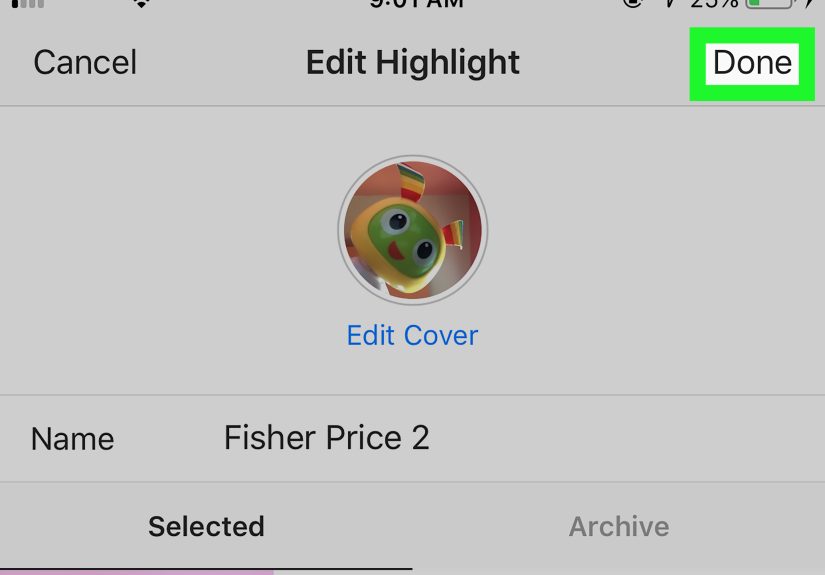
If the Story is worth keeping, you can add it to a Highlight. You can also edit the Highlight itself later by changing the cover, removing a Story, renaming the Highlight, or adding archived Story frames into it. That is not the same as editing the original Story slide, but it does help you clean up how your profile looks.
5. Use the archive to reshare old Stories
Instagram Stories disappear after 24 hours, but archived Stories can still be reviewed and reshared. That means a Story is not always gone-gone. It may just be resting privately in your archive, waiting for a comeback tour.
What You Cannot Edit on a Posted Instagram Story
Let us save you the frustration. These are the things you usually cannot directly change once the Story is live:
- The original photo or video inside the posted Story frame
- Typos in Story text
- Sticker placement
- Music selection or timing
- Drawing, effects, or filters already applied
- The order of slides in a Story sequence
- Mentions, polls, links, or interactive sticker content already published
If one of those elements is wrong, your realistic fix is to delete that Story frame and repost a corrected version.
How to “Edit” a Posted Instagram Story on iPhone or iPad: The Real Workaround
If your Story has a typo, weird crop, wrong song, awkward lighting, accidental double chin, or a sticker parked directly on someone’s forehead, this is the method that actually works.
Step 1: Open your live Story
- Open Instagram on your iPhone or iPad.
- Tap Your Story at the top of the app or from your profile picture.
- Navigate to the exact Story frame you want to fix.
Step 2: Save the Story frame first
- Tap the More or Options menu.
- Choose Save Photo or Save Video if available.
- Confirm that it is now in your camera roll.
This matters because once you delete a Story frame, you do not want to discover that your polished version was trapped only inside Instagram’s temporary universe.
Step 3: Delete the incorrect Story frame
- Stay on the Story frame you want to remove.
- Tap More or the options menu.
- Tap Delete.
- Confirm the deletion.
If your Story has multiple slides, only that one frame gets removed. Keep in mind that if you repost the corrected frame, it usually goes to the end of your Story sequence, not back into its old spot. That is annoying, yes. Instagram did not consult us.
Step 4: Edit the saved media on your iPhone or iPad
Now go to the Photos app on your device and edit the image or video there. On iPhone or iPad, you can:
- Crop the image
- Straighten and adjust perspective
- Change brightness, contrast, and saturation
- Apply a filter
- Trim a video
- Save a new clip while keeping the original
If you need text overlays, stickers, or graphics, you can also use a design app before reposting. Just make sure the final media still fits the vertical Story format nicely.
Step 5: Repost the corrected Story
- Return to Instagram.
- Start a new Story.
- Upload the edited version from your camera roll.
- Add any new stickers, text, music, mentions, or links.
- Share it to Your Story or Close Friends.
Congratulations. You have now effectively “edited” a posted Instagram Story on iPhone or iPad, even though Instagram made you walk around the block to do it.
Step 6: Restore it if you deleted too quickly
If you accidentally removed the wrong Story or panicked and deleted before saving, check Instagram’s Recently Deleted area. Deleted stories may remain recoverable for a limited time, especially if they were not already sitting in your Stories archive. That gives you a short grace period to rescue your content.
How to Fix Common Instagram Story Mistakes
You posted the wrong photo
Delete the Story frame immediately, then upload the correct image. The faster you do it, the fewer people will notice that your “Monday grind” Story was actually a screenshot of your grocery list.
You found a typo after posting
You cannot directly edit the text on the live Story. Save it, delete it, recreate the Story with corrected text, and repost.
Your video is too long or starts awkwardly
Save the Story or go back to the original video in Photos, trim the beginning or end, and repost the cleaner version. This is one of the easiest improvements to make on iPhone or iPad.
You want fewer people to see it
Adjust Story privacy settings, hide it from selected users, or delete and reshare to Close Friends. That often solves the problem without touching the media itself.
You want the Story to stay on your profile
Add it to a Highlight. Then organize the Highlight title and cover so your profile looks intentional instead of like a digital junk drawer.
iPhone vs. iPad: Is the Process Different?
For practical purposes, no. The taps and Story tools are nearly the same, and Instagram now supports iPad with an official app experience. Whether you are using an iPhone or an iPad, the rule stays the same: a posted Story is not fully editable, so your best option is still save, delete, edit, and repost.
The iPad can be more comfortable for reviewing images, typing longer text, and catching small design mistakes before reposting. The iPhone, meanwhile, is usually faster for quick fixes in the moment. So the better device is whichever one is already in your hand when you realize you posted the wrong thing.
How to Avoid Reposting Mistakes Next Time
If you post Stories often, prevention saves time. Here are a few smart habits:
- Preview every Story slide before sharing, especially text-heavy ones
- Use the iPhone or iPad Photos app to edit first, then upload
- Turn on Story saving so your media lands in your camera roll automatically
- Double-check mentions, links, polls, and music timing
- Post sensitive content to Close Friends if you are unsure
- Keep a backup of important Story graphics in Photos or Files
These tiny habits make a huge difference because the best way to edit a posted Instagram Story is, frankly, to catch the problem before it becomes a posted Instagram Story.
Final Thoughts
If you have been wondering how to edit a posted Instagram Story on iPhone or iPad, the honest answer is that Instagram still does not offer a true after-post edit button for Story frames. You cannot simply tap in, fix a typo, move a sticker, swap music, and glide away like a social media wizard.
What you can do is almost as useful: save the Story, delete the mistake, edit the media on your iPhone or iPad, and repost the corrected version. You can also tweak Story settings like privacy, replies, archive behavior, and Highlights. Once you know that workflow, fixing a Story becomes much less dramatic.
So no, Instagram has not made Story editing wonderfully convenient. But yes, you can still clean up a posted Story without losing your mind, your content, or your reputation as the friend who “totally meant to post that blurry one.”
Experiences Related to Editing a Posted Instagram Story on iPhone or iPad
One of the funniest things about trying to edit a posted Instagram Story on iPhone or iPad is that most people do not realize the limitation until the exact moment they need a fix. Everything feels fine while creating the Story. You choose the photo, add text, tap a song, maybe throw in a location sticker, maybe overdo it with sparkle effects, and then you post. Two seconds later, your brain suddenly becomes an elite copy editor. That is when you spot the typo, the weird crop, the song lyric starting at the wrong point, or the fact that your friend’s face is half-covered by a poll sticker the size of a billboard.
A common experience is posting too quickly during an event. Maybe you are at a birthday dinner, a concert, a road trip stop, or just trying to share a quick coffee photo before it gets cold. Because Stories are designed to feel fast and casual, people often treat them like disposable content. But the second something looks wrong, that “casual” vibe disappears and turns into a mission. Suddenly you are tapping through menus like a detective in a crime show, trying to find a hidden edit button that does not exist.
Another very real experience is the typo panic. A typo on a feed post feels annoying but manageable because feed posts usually have an edit option. A typo on a Story feels louder somehow, especially if the Story is mostly text. The mistake just sits there, glowing on-screen, daring people to notice it. Many users end up saving the Story, deleting it, fixing the text in a new version, and reposting it. It is not hard, but it does feel a little like rewriting a sticky note because you placed one letter wrong.
Video Stories bring their own drama. On iPhone or iPad, a video may look perfect in your camera roll but less perfect once it is sitting inside a Story. Maybe the beginning is awkward, maybe the sound hits too late, or maybe your hand lowers the phone in the final second and captures a lovely cinematic shot of the floor. That is where editing in the Photos app becomes a lifesaver. Many people eventually learn to trim first and post second, especially after having to delete and repost a Story because the opening two seconds were pure chaos.
Then there is the audience issue. Sometimes the media is fine, but the visibility is not. You post something silly, personal, or work-adjacent and realize a wider group can see it than you intended. That is when Story privacy tools become just as important as visual editing. People often discover Close Friends only after one of those “well, that was meant for six people, not six hundred” moments.
In the end, the shared experience is this: editing a posted Instagram Story on iPhone or iPad is less about one magic button and more about knowing the platform’s rhythm. The users who handle it best are not necessarily the most tech-savvy. They are just the ones who know when to save, when to delete, when to repost, and when to laugh at the fact that one tiny typo somehow became the biggest event of the day.