Table of Contents >> Show >> Hide
- Where Is the Search Key on a Chromebook?
- Why the Search Key Does Not Always Say “Search”
- What the Search Key Actually Does
- How to Confirm You Found the Right Key
- How to Find the Search Key on Different Chromebook Models
- What If You Are Using an External Keyboard?
- Why Chromebooks Replaced Caps Lock in the First Place
- How to Turn the Search Key Into Caps Lock
- Useful Shortcuts That Prove the Search Key Matters
- Common Reasons People Cannot Find the Search Key
- How to Teach Someone Else to Find It Fast
- Experience and Real-World Tips for Finding the Search Key on Chromebook Keyboards
- Conclusion
If you just opened a Chromebook and immediately thought, “Cool, where did the Search key go, and why does this keyboard look like it was designed by a minimalist with trust issues?” you are not alone. Chromebook keyboards are a little different from the old-school Windows and Mac layouts most people grew up poking at. The good news is that the Search key is not missing. It is just wearing a disguise.
On a Chromebook, the Search key is one of the most useful buttons on the entire keyboard. It can open the launcher, help you find apps, search files, look things up on the web, trigger shortcuts, and in some cases stand in for functions that other laptops assign to different keys. In other words, it is the overachiever of the keyboard. The trick is knowing what it looks like and where Chromebook makers like to hide it in plain sight.
This guide breaks down exactly how to find the Search key on Chromebook keyboards, what icons to look for, why it sometimes has a different name, and what to do if you are using an external keyboard or a newer Chromebook layout. We will also cover common mistakes, practical shortcuts, and real-world tips so you can stop staring at the keyboard like it owes you money.
Where Is the Search Key on a Chromebook?
Most of the time, the Search key is located on the left side of the keyboard, exactly where the Caps Lock key would be on many traditional laptops. That is the biggest clue. If your fingers keep drifting toward Caps Lock out of habit, congratulations, you have probably already found the Search key.
On older Chromebooks, the key often has a magnifying glass icon. On newer Chromebook models, that same key may show a circle icon instead. Google has referred to it over time as the Search key, the Launcher key, and even the Everything Button. Same neighborhood, same basic job, slightly different wardrobe.
So, if you are asking how to find the Search key on Chromebook keyboards, start here:
Look to the left of the A key. If the key between Tab and Shift has a magnifying glass or a circle instead of the words “Caps Lock,” that is your Search key or Launcher key.
Quick visual clue
If your keyboard has this order on the far left:
Tab → Search/Launcher → Shift
you are looking at a standard Chromebook-style layout.
Why the Search Key Does Not Always Say “Search”
Chromebooks have evolved over the years, and so has the branding around this key. That is why people search for “Search key on Chromebook,” “Launcher key on Chromebook,” and “Everything Button” as if they are three different things. In everyday use, they are usually talking about the same key.
Here is the easy version:
Search key is the classic name.
Launcher key is the name commonly used in newer Google help materials.
Everything Button is Google’s friendlier branding for the same idea, because the key can search apps, files, Drive, and the web.
This naming shuffle is the reason many Chromebook owners think their keyboard changed dramatically when really the icon just changed from a magnifying glass to a circle. It is less of a keyboard identity crisis and more of a marketing makeover.
What the Search Key Actually Does
Once you find it, the Search key becomes one of the handiest tools on your Chromebook. Tap it once and you can usually open the launcher, then start typing to find:
apps, settings, files, tabs, recent work, web results, and sometimes quick answers like math calculations or conversions.
That is why Google leaned into the “Everything Button” nickname. It is not just for search in the narrow sense. It is more like the front door to your Chromebook.
Here are a few popular ways people use it:
Open apps faster
Press the Search key, type the name of an app, hit Enter, and you are off. No hunting through menus like you are on a scavenger hunt.
Search files and the web
Need a document, a setting, or the answer to a random trivia question while pretending to work? The Search key helps with all of that.
Power useful shortcuts
Many Chromebook keyboard shortcuts use the Search or Launcher key. Google’s own shortcut references treat the Search key and Launcher key as equivalent for many commands.
How to Confirm You Found the Right Key
If you are still unsure whether that key is the Search key, try one of these easy tests.
Test 1: Press it once
If the launcher opens and you can immediately type to search for apps, files, or web results, you found it.
Test 2: Use a classic shortcut
Press Search + Alt. On many Chromebooks, that toggles Caps Lock on or off. If you see a notification about Caps Lock, mystery solved.
Test 3: Try a known system combo
Press Ctrl + Alt + / to pull up keyboard shortcuts, or on some ChromeOS versions open the Shortcuts app with a Search or Launcher-based shortcut. If that key participates the way Chromebook help docs describe, it is the right one.
How to Find the Search Key on Different Chromebook Models
Not every Chromebook keyboard looks identical. Acer, ASUS, HP, Lenovo, and other manufacturers follow Chromebook layout rules, but there can be small cosmetic differences. That means the Search key may appear with different symbols even when it sits in the same general location.
Older Chromebooks
You are more likely to see a magnifying glass icon. This is the most literal version of the Search key and the easiest to recognize.
Newer Chromebooks
You may see a circle icon instead. This is commonly referred to as the Launcher key or Everything Button. It still usually lives where Caps Lock would be.
Very new Chromebook Plus layouts
Some newer devices have introduced additional dedicated keys, including newer shortcuts tied to ChromeOS features. If your layout looks slightly different, do not panic. The traditional Search or Launcher area on the left side of the keyboard is still the first place to check, and ChromeOS shortcuts documentation continues to treat Search and Launcher as interchangeable in many cases.
What If You Are Using an External Keyboard?
This is where things get interesting. If you connect a standard keyboard to a Chromebook, the Search key may not be labeled as Search at all.
On many Windows keyboards, the Windows key works like the Search or Launcher key when used with a Chromebook. On some Mac-style external keyboards, the Command key may serve the same role. So if you are hammering away on a full-size keyboard and wondering why there is no Search key, the Chromebook is probably borrowing another key for that job.
This is especially helpful for people using docking stations, external monitors, or ChromeOS-compatible accessories. The Chromebook does not insist on a physically labeled Search button. It just wants a functional equivalent.
Why Chromebooks Replaced Caps Lock in the First Place
The Search key’s odd location makes more sense when you understand Chromebook philosophy. ChromeOS keyboards were designed to feel simpler and faster for everyday use. Google removed some legacy keys and emphasized tasks people actually perform all day, like searching, launching apps, switching windows, and navigating the web.
That is why the Search key sits where Caps Lock used to be. Google basically looked at the average person and said, “You search for stuff constantly. You scream in all caps less often. Let’s optimize accordingly.” It is hard to argue with that logic, even if your pinky still has trust issues.
How to Turn the Search Key Into Caps Lock
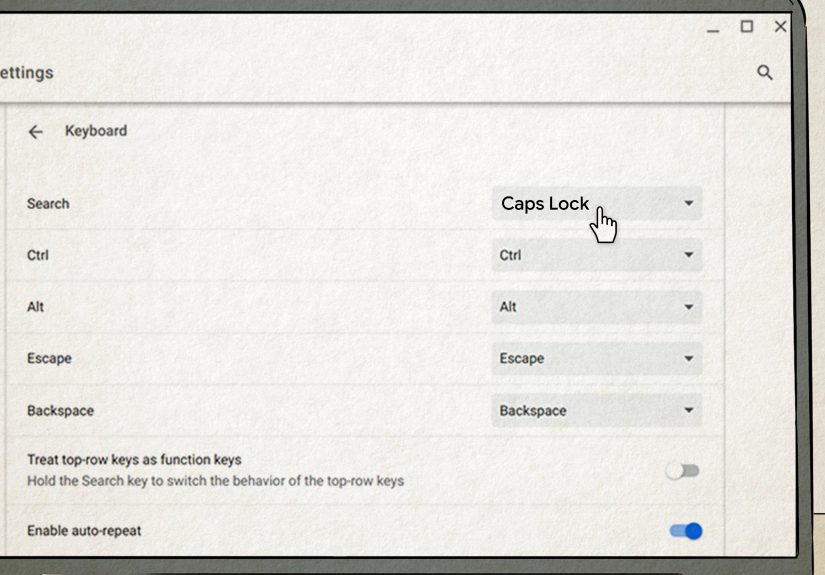
If you miss Caps Lock with the passion of a person writing angry emails at 6:12 a.m., ChromeOS does give you options. You can usually remap the Search or Launcher key to act as Caps Lock.
How to remap it
Open Settings, go to the Device section, choose Keyboard, and look for the option to remap keyboard keys. There, you can assign the Search or Launcher key a different function, including Caps Lock.
This is great for comfort, but there is a tradeoff. If you change the Search key permanently, you lose some of that quick-launch convenience unless you learn an alternative workflow. For many people, the better compromise is to leave it alone and use Search + Alt whenever they need Caps Lock.
Useful Shortcuts That Prove the Search Key Matters
Once you know where the key is, it becomes much easier to learn Chromebook keyboard shortcuts that actually save time.
Popular Search or Launcher shortcuts
Search + Alt turns Caps Lock on or off.
Search + L can lock the screen on many Chromebooks.
Ctrl + Alt + / shows available keyboard shortcuts.
Search/Launcher + number keys can help access traditional function key behavior on supported layouts.
Launcher + Ctrl + S or similar shortcut-help combinations may open the shortcuts manager depending on your ChromeOS version.
The exact behavior can vary slightly by device and ChromeOS version, but the pattern is the same: this key is not decoration. It is central to how Chromebook keyboards are meant to work.
Common Reasons People Cannot Find the Search Key
1. They are looking for the word “Search”
Most Chromebook keys are labeled with icons, not always words. If you are waiting for a key that literally says SEARCH in giant movie-poster letters, you may be waiting a while.
2. They expect a Caps Lock key
That familiar spot has been repurposed. What looks missing is usually just replaced.
3. Their Chromebook uses the circle icon
Newer layouts swapped the magnifying glass for a circle, which throws off first-time users.
4. They are using an external keyboard
In that case, the Windows or Command key may be doing Search duty.
5. They are reading old advice
Some guides say Search, some say Launcher, some say Everything Button. They are often describing the same key from different Chromebook eras.
How to Teach Someone Else to Find It Fast
If you are helping a student, parent, coworker, or a relative who still calls every laptop charger “the internet cord,” use this simple instruction:
“Look where Caps Lock usually is. If you see a magnifying glass or a circle, that is the Search key.”
That one sentence solves the problem for most people in under five seconds.
Experience and Real-World Tips for Finding the Search Key on Chromebook Keyboards
In real life, people usually do not struggle to find the Search key because it is hidden. They struggle because they are bringing years of keyboard muscle memory to a layout that plays by different rules. The first few minutes on a Chromebook can feel like moving into a new apartment where the light switch is on the wrong wall. Nothing is broken. Your hand just keeps going to the old place.
A common experience is this: someone sits down with a Chromebook to type a quick note, tries to hit Caps Lock, opens the launcher instead, and suddenly has a screen full of app suggestions. That moment feels mildly chaotic, but it is also the fastest way to learn where the Search key lives. After that happens once or twice, the brain starts to adjust.
Students often adapt the fastest because they do not have decades of laptop habits fighting back. Adults who switch from Windows tend to notice the Search key more dramatically because the missing Caps Lock feels personal. It is not personal, of course. The keyboard is just trying to make you more efficient, even if it introduces itself a little awkwardly.
Another real-world tip is to stop thinking of the Search key as a replacement for something you lost and start thinking of it as a shortcut to almost everything you need. The moment people use it to open an app, find a setting, or search for a file without digging through menus, the key suddenly makes sense. That is usually the turning point. Confusion turns into, “Oh, wait, this is actually useful.”
It also helps to pay attention to the icon rather than the name. On one Chromebook, the key might have a magnifying glass. On another, it might show a clean circle. If you train yourself to recognize the location first and the symbol second, you will be comfortable on almost any Chromebook keyboard within minutes.
For people using shared devices in schools or offices, the best habit is to test the key immediately. Press it once. If the launcher opens, great, now you know exactly where it is and what it does. That tiny test is faster than searching online, reading manuals, or asking a nearby person who may confidently give you the wrong answer with the energy of a game show contestant.
External keyboard users have their own learning curve. The moment you plug in a Windows keyboard, the Chromebook experience can feel more familiar, but that also makes the Search function easier to overlook. Many users do not realize the Windows key is effectively acting as the Search or Launcher key. Once they discover that, the whole setup feels more natural and far less mysterious.
One of the best practical tips is this: do not remap the Search key on day one unless you absolutely need to. Give yourself a few days first. Many users think they want Caps Lock back immediately, then discover the Search key is more useful than expected. It is easier to appreciate ChromeOS once you use its default workflow before changing it.
And finally, if you are teaching someone else, keep the explanation simple. Do not launch into a speech about ChromeOS design language, keyboard philosophy, or branding changes from Search to Launcher to Everything Button. Just say, “It is where Caps Lock would normally be.” That usually gets a laugh, a nod, and a correctly placed finger. Problem solved.
Conclusion
Finding the Search key on a Chromebook is easy once you know the one big rule: look where Caps Lock usually lives. Whether it shows a magnifying glass, a circle, or gets called the Launcher key or Everything Button, it is still one of the most important keys on the keyboard. It helps you search, launch, navigate, and use ChromeOS the way it was designed to be used.
So the next time someone asks where the Search key is on a Chromebook keyboard, you can give the smart answer without even blinking: it is the key on the left side, between Tab and Shift, pretending to be more mysterious than it really is. Once you find it, you will probably use it all the time. Funny how the “missing” key often becomes the one you miss most when you switch back to a regular laptop.