Table of Contents >> Show >> Hide
- Before You Fix Anything: Confirm It’s Really Stick Drift
- Why PS4 Stick Drift Happens (In Plain English)
- 5 Fast & Easy Ways to Fix Stick Drift on PS4
- 1) Do a Proper DualShock 4 Reset (The “Have You Tried Turning It Off?” Method)
- 2) Clean the Analog Stick Base (Fast, Safe, and Often Weirdly Effective)
- 3) Adjust In-Game Dead Zones (The “Mask It Like a Pro” Fix)
- 4) Re-Sync the Controller and Reduce Wireless Interference (Because Bluetooth Can Be Dramatic)
- 5) Deep Clean or Repair the Stick Module (When Basic Cleaning Isn’t Enough)
- Mistakes That Make Stick Drift Worse (Learn From Humanity)
- How to Prevent PS4 Stick Drift (So You Don’t Have to Do This Again Next Week)
- Quick Cheat Sheet: Which Fix Should You Try First?
- of Real-World Experiences (What Usually Happens in the Wild)
- Conclusion
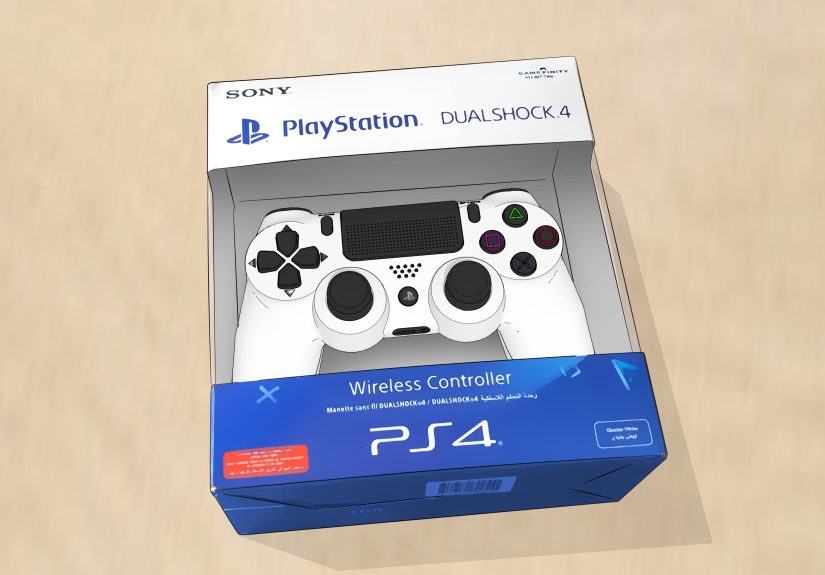
Your PS4 character is moving on their own. Your camera is slowly panning like it’s filming a nature documentary. And you’re just sitting there, controller in hand, whispering, “I didn’t touch anything.” Congrats: you’ve met stick driftthat annoying moment when a DualShock 4 registers movement even when the analog stick is supposedly resting in the center.
The good news: a lot of PS4 stick drift cases are caused by grime, dust, and minor sensor offset, which means you can often reduce (or completely fix) the problem at home. The slightly less-fun news: sometimes it’s wear inside the stick module, and cleaning won’t be a forever solution. Either way, you’ve got optionsand they’re faster than rage-buying a new controller at 2 a.m.
Before You Fix Anything: Confirm It’s Really Stick Drift
Stick drift usually looks like one of these:
- Your character walks/turns without you touching the stick.
- The camera slowly pans in one direction.
- Small movements register even when the stick is centered.
- Aiming feels “floaty,” as if your reticle has a mind of its own.
Quick sanity checks:
- Try a different game. Some games have super-sensitive stick settings and tiny dead zones.
- Swap controllers (if you have one). If drift disappears, the controller is the culprit.
- Test wired vs. wireless. Rarely, connection issues can feel like drift (laggy input and “phantom” movement).
Why PS4 Stick Drift Happens (In Plain English)
Most DualShock 4 controllers use a stick module with sensors (often potentiometer-based) that interpret stick position. Over time, a few things can go wrong:
- Dust and debris get into the stick housing and interfere with smooth centering.
- Grime and skin oils build up around the stick base (snack dust is basically controller glitter).
- Wear inside the stick module changes how the sensor reads “center,” especially after heavy use.
- Minor calibration/offset issues make the neutral point slightly off-center.
Translation: if your drift is “light,” you can often fix it with cleaning and resets. If it’s “aggressive,” you may be looking at repair or replacement.
5 Fast & Easy Ways to Fix Stick Drift on PS4
1) Do a Proper DualShock 4 Reset (The “Have You Tried Turning It Off?” Method)
This is the fastest fix to try because it costs $0 and requires zero tools. A reset can help if the controller is glitching, stuck in a weird input state, or desynced.
- Turn off and unplug your PS4 console.
- Disconnect your controller from any USB cable.
- Flip the controller over and find the tiny reset hole near the L2 button area.
- Use a small paperclip or pin to press and hold the button inside the hole for about 5 seconds.
- Connect the controller to the PS4 with a USB cable and press the PS button to re-pair.
If you mainly play wirelessly, re-pairing after a reset can also clear up odd input behavior. Think of it as giving your controller a fresh startlike a spa day, but with more paperclips.
2) Clean the Analog Stick Base (Fast, Safe, and Often Weirdly Effective)
If your drift is caused by debris near the stick’s “resting” area, cleaning can be the miracle cure. The key is cleaning around the basenot just the top of the thumbstick.
What you need:
- Microfiber cloth (or a soft lint-free cloth)
- Cotton swabs
- Isopropyl alcohol (ideally 90%+)
- Optional: compressed air
Steps:
- Turn off the controller (hold the PS button, then power off controller), or just ensure it’s not actively connected.
- Use a dry cloth to wipe the controller and the thumbstick.
- Rotate the stick in a full circle while gently wiping around the base.
- Lightly dampen a cotton swab with isopropyl alcohol (don’t soak it), then clean the gap around the stick base while rotating the stick.
- If you have compressed air, give a few short bursts around the base (don’t go full hurricane mode).
- Let it dry completely before using.
Important: Don’t pour liquid into the controller. You want “slightly damp,” not “tiny controller swimming pool.” Alcohol evaporates quickly, but you still want everything dry before you game.
3) Adjust In-Game Dead Zones (The “Mask It Like a Pro” Fix)
If your controller has minor drift, you can often fix the symptom instantly by increasing the game’s dead zone (the area near the center where tiny stick movement is ignored).
This is especially useful when:
- The drift is slight but constant (slow camera creep).
- Cleaning helped, but not all the way.
- You need a quick fix right now (ranked match is starting, no pressure).
How to do it:
- Open the game’s Settings menu.
- Look for Controller, Advanced Controls, or Input.
- Find Dead Zone (sometimes “Inner Deadzone” / “Outer Deadzone”).
- Increase it slightly (small increments). Test. Repeat until drift stops.
Trade-off: A bigger dead zone can reduce responsiveness for tiny movementsgreat for stopping drift, not always great for precise aiming. The sweet spot is “just enough” to stop drift without making your stick feel like it’s wading through pudding.
Bonus tip for players who use DualShock 4 on PC sometimes: PC tools can help you see drift clearly and test improvements after cleaning. But on PS4, in-game dead zones are usually the quickest software-level fix.
4) Re-Sync the Controller and Reduce Wireless Interference (Because Bluetooth Can Be Dramatic)
While true stick drift is usually hardware-related, unstable wireless conditions can cause weird input behavior that feels like driftespecially if you’re far from the console, surrounded by wireless devices, or using a questionable USB cable when pairing.
Try this:
- Re-pair wired: Connect the controller to the PS4 via USB and press the PS button to sync again.
- Move closer: Test within a few feet of the console to rule out signal issues.
- Remove other Bluetooth connections: If the controller has been paired to another device (like a PC), reset and re-pair to PS4.
- Use a data-capable cable: Some micro-USB cables charge but don’t reliably transfer data.
If re-syncing suddenly “fixes” your issue, you may have been dealing with connection weirdness rather than true sensor drift. Either way, it’s a win. Your camera stops spinning. Your character stops walking into walls. Peace returns to the kingdom.
5) Deep Clean or Repair the Stick Module (When Basic Cleaning Isn’t Enough)
If drift keeps coming back, the gunk may be inside the stick’s sensor area, or the sensor may be worn. At this point, you have two realistic paths:
Option A: Deep clean (more effort, no soldering if you’re careful)
Some repair guides show how to open the controller and clean the stick sensor areas more thoroughly using high-percentage isopropyl alcohol and careful technique. This can help if debris has worked its way into places surface cleaning can’t reach.
- Pros: cheaper than replacement, can significantly reduce drift
- Cons: takes time, requires patience, can void warranty if you damage something
Option B: Repair/replace parts (advanced, may require soldering)
If the internal components are worn, the most reliable fix is replacing the worn part(s)often the stick module or its sensor components. This is more of a “weekend project” than a “five minutes before dinner” fix.
- Pros: best chance at a long-term fix
- Cons: parts + tools, skill required, risk of damaging the controller
When to stop DIY and go official: If your controller is under warranty or you’re not comfortable opening electronics, using an official repair/replacement option can save you from turning your controller into a bag of mysterious screws.
Mistakes That Make Stick Drift Worse (Learn From Humanity)
- Overusing liquid: “More alcohol” does not mean “more fixed.” It means “more risk.” Lightly damp is the goal.
- Using the wrong spray: Avoid general-purpose lubricants or random household cleaners. If you use contact cleaner, make sure it’s electronics-safe and use it sparingly.
- Skipping dry time: Let the controller dry completely before powering/using it.
- Cranking dead zones to the moon: You can “solve drift” by making the stick unresponsive… but then you’ll aim like you’re steering a cruise ship.
How to Prevent PS4 Stick Drift (So You Don’t Have to Do This Again Next Week)
- Wash hands before gaming (yes, reallyoil and crumbs are drift’s best friends).
- Store the controller where it won’t collect dust (a drawer beats the couch abyss).
- Do a quick wipe-down every couple of weeks, especially around the sticks.
- Be gentle with L3/R3 clicks if your games don’t require constant stick-button mashing.
Quick Cheat Sheet: Which Fix Should You Try First?
- Drift is new or random: Reset (Method #1) + Re-sync (Method #4)
- Drift is mild: Clean base (Method #2) + Dead zone tweak (Method #3)
- Drift is strong and constant: Deep clean/repair (Method #5) or replace
- Drift returns every few days: Likely wearconsider long-term repair/replacement
of Real-World Experiences (What Usually Happens in the Wild)
If you read enough player stories and repair discussions about PS4 stick drift, you’ll notice a pattern: drift almost never starts at a convenient time. It shows up mid-mission, during a clutch moment, or right when you’re trying to type a message and your cursor decides it’s training for the Indy 500.
A common experience is the “slow camera creep.” Players describe setting the controller down and watching the view pan gentlylike the game is politely showing them the scenery. In these cases, a simple base cleaning (cotton swab + high-percentage isopropyl alcohol, used lightly) often gives immediate improvement. The drift doesn’t always vanish forever, but it gets pushed back enough to feel normal again. Many people report that the key is rotating the stick while cleaning the gap, because the grime isn’t just sitting on topit’s hiding where the stick rubs the housing.
Another frequent scenario: the “it only drifts in one game” mystery. This one makes players doubt reality. In practice, it’s often because different games use different default dead zones and sensitivity curves. When players bump the dead zone up slightly, the drifting stops instantlyfollowed by the realization that their controller has probably been drifting for a while, but the previous game was forgiving enough to hide it. The lesson: if you change games and drift suddenly appears, it doesn’t always mean the controller suddenly got worse. Sometimes you just switched to a stricter interpreter of tiny inputs.
Then there’s the “I reset it and it worked… for a day” experience. That usually points to a borderline situation: either debris is intermittently interfering, or the stick module has wear that makes center unstable. People often cycle between resets, quick cleaning, and dead zone tweaks, which is totally reasonable if you’re trying to squeeze more life out of a controller. But it’s also a strong hint that a deeper clean or a hardware fix is the real long-term answer.
Finally, many first-time DIY attempts include at least one comedy-of-errors moment: using too much liquid, not letting it dry long enough, or trying a random spray that someone on the internet swore was “magic.” The more successful experiences share the same traits: small amounts of the right cleaner, patience, careful handling, and a willingness to stop before turning a manageable problem into a controller autopsy.
The most practical takeaway from these real-world patterns is this: start with the lowest-risk fixes (reset, re-sync, surface cleaning), then move up to dead zone tuning, then only consider opening the controller or replacing parts if the drift persists. Stick drift is annoying, but you don’t have to treat your DualShock 4 like it’s cursed. Most of the time, it’s just dirty, slightly worn, or desperately asking for a five-minute maintenance break.
Conclusion
Stick drift on PS4 is frustrating, but it’s not always a death sentence for your DualShock 4. In many cases, a reset and a careful clean around the stick base solve the problem fast. If drift is minor, dead zone adjustments can make your controller feel normal immediately. And if the issue is persistent, deeper cleaning or repair (or an official service/replacement) can get you back to smooth movement without the “haunted joystick” vibe.