Table of Contents >> Show >> Hide
- What the “Too Many Requests Per Hour” Error Actually Means
- The 60-Second Triage Checklist (Do This First)
- Fixes for Regular ChatGPT Users (Web + Mobile)
- 1) Slow down your request pace (and reduce “double sends”)
- 2) Log out, then log back in
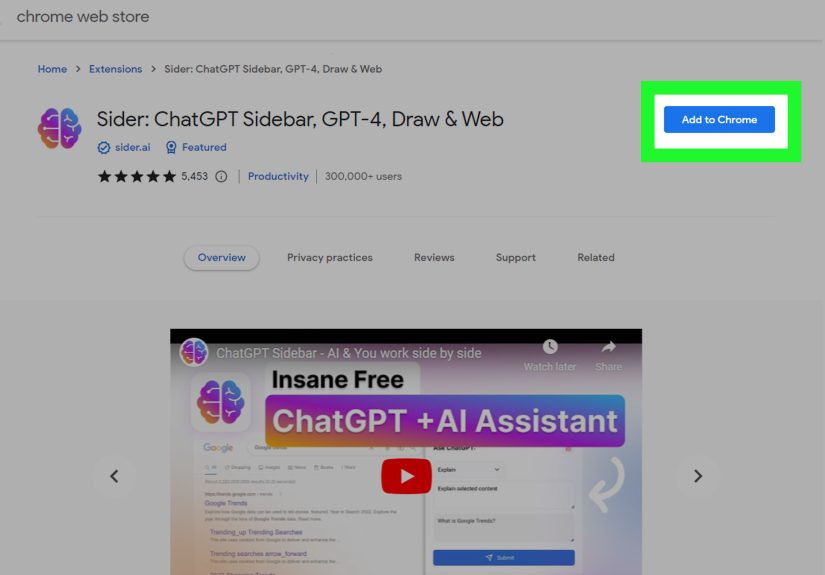
- 3) Disable browser extensions (especially privacy/security tools)
- 4) Turn off VPNs, proxies, and “secure DNS” tools
- 5) Clear cache and cookies (the “reset the browser brain” move)
- 6) Try an incognito/private window (fastest clean test)
- 7) Switch networks (Wi-Fi → mobile hotspot, or vice versa)
- 8) Reduce prompt “weight” (especially giant copy-pastes)
- If You’re Using the OpenAI API (Developers)
- How to Prevent the Error from Coming Back
- When It’s Not You: Knowing When to Stop Troubleshooting
- Real-World Experiences: What People Commonly Run Into (and What Usually Works)
- Conclusion
- SEO Tags
You’re in the zoneasking ChatGPT to polish a sentence, brainstorm a name, or explain why your sourdough starter looks like it’s plotting a coupwhen suddenly: “Too many requests per hour. Try again later.”
Translation: ChatGPT is politely (well… semi-politely) asking you to stop rapid-fire prompting like it’s a game show buzzer. The good news? This error is usually fixable, and most fixes are boringly simplelike “wait a bit,” “close that extra tab,” or “turn off the VPN you forgot was still on.”
This guide walks you through what the error actually means, the fastest troubleshooting steps, and how to prevent itwhether you’re a casual user on the ChatGPT website/app or a developer hitting rate limits via the OpenAI API.
What the “Too Many Requests Per Hour” Error Actually Means
At its core, this message is a rate-limiting or traffic-throttling response. Services like ChatGPT use limits to:
- Protect servers from getting overwhelmed during spikes in demand
- Prevent abuse (bots, scripts, or “accidental” prompt-machine-gun behavior)
- Keep usage fair so one account (or one IP) doesn’t hog the whole buffet
Depending on where you’re using ChatGPT, you might see variations like: HTTP 429 (Too Many Requests), “Rate limit reached,” “We’re currently processing too many requests,” or capacity-related messages. They all live in the same neighborhood: “Slow down, human.”
Important nuance: it’s not always your fault
Sometimes you’re not “spamming” at allChatGPT can throw this error during service degradation, outages, or heavy global traffic. That’s why the first step is always the same: check whether the problem is you… or the internet on fire.
The 60-Second Triage Checklist (Do This First)
- Check the official OpenAI status page. If ChatGPT is having elevated errors, you can troubleshoot all day and still lose. (It’s like rebooting your toaster during a citywide power outage.)
- Refresh the page and try again after a short pause.
- Start a new chat instead of continuing a long thread that’s been open forever.
- Close extra ChatGPT tabs (yes, even the “just in case” ones).
- Wait 5–20 minutes before retrying if it clearly says “per hour.”
If that fixes it, congratulations: you’ve just solved a modern computing problem with the ancient technique known as “turn it off and wait.” If not, keep going.
Fixes for Regular ChatGPT Users (Web + Mobile)
1) Slow down your request pace (and reduce “double sends”)
The easiest way to trigger this error is rapid retriesespecially if you click “Regenerate,” refresh repeatedly, or send multiple prompts back-to-back because you think the app “didn’t take” the first one.
- After an error, wait a bit before retrying. Don’t spam refresh.
- If you’re getting partial responses, stop and retry later rather than forcing multiple regenerations.
- Keep one active session at a time (multiple devices + tabs can add up fast).
2) Log out, then log back in
Boring? Yes. Effective? Often, yes. Logging out and back in can reset a glitchy session token and reduce weird “stuck” behavior. Also, fully close the browser (not just the tab) before returning.
3) Disable browser extensions (especially privacy/security tools)
Some extensions (ad blockers, script blockers, privacy filters, corporate security tools) can interfere with requests, cause repeated retries behind the scenes, or break the chat interface in ways that look like rate limiting.
- Temporarily disable extensions one by one.
- Pay special attention to privacy add-ons, anti-tracking tools, and aggressive content blockers.
4) Turn off VPNs, proxies, and “secure DNS” tools
VPNs are great for privacy. They’re also great at putting you on a shared IP with thousands of other people who are also using ChatGPT. If the service applies IP-based throttling, a shared VPN endpoint can cause you to inherit someone else’s bad day.
- Turn off your VPN/proxy and try again.
- If you need a VPN for work, switch endpoints (less crowded region) and retest.
5) Clear cache and cookies (the “reset the browser brain” move)
Corrupted cookies or cached site data can cause login loops, repeated requests, or broken sessions that trigger errors. Clearing data forces a clean handshake. Use the option that clears cookies + cached files for the ChatGPT site, then sign in again.
Quick browser-specific guidance:
- Chrome: Clear browsing data (cookies + cached images/files), then restart Chrome.
- Edge: Clear browsing data in Privacy settings, then relaunch Edge.
- Firefox: Clear cookies and site data (you can target just the site if you prefer).
- Safari (iPhone/iPad): Clear history and website data in Settings.
Heads up: clearing cookies signs you out of sites. Annoying, yes. But so is the error.
6) Try an incognito/private window (fastest clean test)
Private browsing windows run with a fresh cookie jar and minimal extensions. If ChatGPT works there, your main browser profile is the culprit (cached data, extensions, or profile corruption).
7) Switch networks (Wi-Fi → mobile hotspot, or vice versa)
If you’re on a shared network (office, school, hotel, coworking space), dozens of people may share one public IP address. If several are hitting ChatGPT hard, that IP can get throttled.
- Try a mobile hotspot for a quick test.
- Restart your router (sometimes you’ll receive a new IP address, depending on your ISP).
8) Reduce prompt “weight” (especially giant copy-pastes)
Not all requests are created equal. Long prompts, huge documents, and repeated “analyze this entire novel” messages can consume more resources, and some systems enforce limits by request complexity or token usage.
- Break large inputs into smaller chunks.
- Ask for outlines first, then details.
- Avoid sending the same huge prompt repeatedly when you hit an error.
If You’re Using the OpenAI API (Developers)
API rate limiting is more explicit: you may hit limits tied to requests per time window and token throughput. When you exceed a limit, the service may reject calls with a 429 response, sometimes with guidance like “rate limit reached” or “quota exceeded.”
1) Use exponential backoff (and respect Retry-After when present)
The most reliable pattern is to retry failed calls with increasing delays (exponential backoff), ideally with a little randomness (“jitter”) so your whole system doesn’t retry in sync.
- Retry after a short delay (e.g., a couple seconds)
- Increase delay on each failure (up to a maximum)
- Stop after a reasonable retry count and surface a helpful error to users
2) Reduce concurrency (the silent rate-limit assassin)
Many teams aren’t “sending too many requests”… they’re sending too many at once. If you parallelize aggressively, you can hit rate limits even with modest total usage.
- Queue requests and process them at a controlled pace
- Limit parallel workers/threads
- Batch work when possible (summarize 10 items in one request instead of 10 separate calls)
3) Distinguish rate limit vs quota/billing issues
Not every “429-ish” problem is a speed issue. Some messages indicate monthly budget caps, expired credits, or billing configuration problems. When you see “quota exceeded” style wording, check your account’s usage and billing settings.
4) Lower tokens and trim inputs
If your app sends massive prompts and asks for massive outputs, you burn through token budgets faster and increase the chance of throttling. Optimize by trimming unnecessary context, using summaries, and setting sensible max output limits.
How to Prevent the Error from Coming Back
- Adopt a “one prompt, one breath” habit: send a prompt, wait for the response, then follow updon’t stack prompts like pancakes.
- Keep a single session: multiple tabs + multiple devices can unintentionally multiply your request volume.
- Use smaller chunks: if you’re working with large content, split it into sections and iterate.
- Watch busy hours: if you consistently see errors at the same time of day, it may be peak demand.
- For automation: add throttling, queues, and retry logic so your system behaves politely under load.
When It’s Not You: Knowing When to Stop Troubleshooting
If you’ve tried private browsing, a different network, and a different deviceand the error persiststhere’s a decent chance the issue is on the service side, or tied to an account-level usage window that simply needs time to reset.
If you contact support, include:
- The exact error text
- Approximate time it started
- Your platform (web, iOS, Android), browser, and whether VPN/extensions were on
- Whether the issue happens on another device/network
Real-World Experiences: What People Commonly Run Into (and What Usually Works)
The “Too Many Requests Per Hour” message sounds straightforwardlike you asked 10,000 questions in 10 seconds. In reality, people often hit it in surprisingly normal situations. Below are real-world patterns that show up again and again, plus the fixes that typically resolve them.
Scenario A: “I barely used it today. Why am I rate-limited?”
This is one of the most common frustrations. The cause is often session multiplication: you asked a few questions on your laptop, then opened ChatGPT on your phone, then reopened the same chat in another tab, then hit regenerate twice because the answer looked slow. Each of those actions can generate additional background requests and they add up faster than you’d expect.
What usually works: close extra tabs, log out everywhere, wait 10–20 minutes, then come back using one device and one browser window. If it stops happening, you’ve confirmed it was “accidental concurrency,” not malicious overuse.
Scenario B: “It only happens on my work Wi-Fi”
Shared networks are sneaky. An office, campus, or coworking space may route hundreds of people through a small set of public IP addresses. If many are using ChatGPT, the shared IP can hit throttling thresholds. You can be perfectly innocent and still get punished by associationlike arriving at a party right after someone set off the smoke alarm.
What usually works: test with a mobile hotspot. If the error disappears, it’s likely network/IP related. You can then decide whether to keep using the hotspot, switch networks, or talk to IT if it’s a corporate environment.
Scenario C: “It started right after I enabled a new browser extension”
Privacy and security extensions can interfere with modern web apps in odd ways. Some block scripts, some rewrite requests, and some trigger repeated retries. The result can look exactly like rate limiting because the browser is effectively “over-requesting” behind your back.
What usually works: open an incognito/private window (often disables extensions by default), then try ChatGPT there. If it works, disable extensions one-by-one in your main profile until you find the troublemaker.
Scenario D: “Turning on a VPN made it worse”
VPN endpoints are frequently shared. If you use a popular endpoint in a major city, you may be sharing an IP with thousands of users. If even a fraction are hammering ChatGPT, the endpoint can become a magnet for throttling.
What usually works: turn off the VPN temporarily. If you must use it, switch to a less crowded endpoint or a dedicated IP (if your VPN provider offers it).
Scenario E: “I’m building an app and it fails randomly with 429s”
In API land, intermittent 429s often come from burst traffic. Your average request rate may be fine, but you have bursts when a job starts, a user imports a file, or a webhook triggers a batch. Without a queue and backoff strategy, bursts collide with limits, and you get a cascade of failures.
What usually works: add a request queue, cap concurrency, and implement exponential backoff. Once that’s in place, 429s turn from “production incident” into “minor speed bump.”
The takeaway: this error is rarely a moral judgment. It’s usually a signal that your session, network, or request pattern needs to be calmeror that the service is temporarily busy. Either way, the fix is almost always some version of “reduce pressure, retry intelligently.”
Conclusion
The “ChatGPT Too Many Requests Per Hour” error is annoying, but it’s also predictable. Start by checking OpenAI’s status page, then eliminate the usual suspects: too many tabs, too many rapid retries, extensions, VPNs, corrupted cookies, or a crowded shared network. If you’re developing with the API, treat 429s like a normal part of distributed systemshandle them with backoff, throttling, and sane concurrency limits.
And remember: the goal isn’t to “beat” rate limits. It’s to work with themso your chats (and your apps) stay stable, fast, and drama-free.