Table of Contents >> Show >> Hide
- Before You Fix It: Identify Which “Split Screen” You’re Seeing
- The Fastest Ways to Get Rid of Split Screen on iPad
- Method A: Close Split View by Dragging the Divider (Fastest and Most Satisfying)
- Method B: Use the Multitasking Controls (Three Dots or Window Controls) to Return to Full Screen
- Method C: Get Rid of Slide Over (Floating Window) Without Starting a Fight
- Method D: Close Extra App Windows (If You Opened More Than You Realize)
- Method E: Turn Off Stage Manager (If Your iPad Has Gone Full “Desktop Mode”)
- How to Stop Split Screen From Coming Back
- Troubleshooting: When Split Screen Won’t Go Away
- Quick FAQ: Split Screen on iPad
- Shared Experiences: When Split Screen Hijacks Your iPad (And How People Deal With It)
- Conclusion: Get Back to Full Screen (and Stay There)
Your iPad is a powerhouse. It can edit videos, run pro apps, and (apparently) decide you wanted two apps on the screen
even though you absolutely did not. If you’re stuck in split screen and your iPad is acting like it’s auditioning to be a tiny computer,
this guide will walk you back to the calm, peaceful land of one app at a time.
Below you’ll learn how to exit Split View, dismiss Slide Over, turn off Stage Manager (if your iPad has gone full “window manager”),
and reduce the chances of split screen showing up again when all you did was breathe near the Dock.
Before You Fix It: Identify Which “Split Screen” You’re Seeing
People say “split screen” to describe a few different iPad multitasking layouts. The steps are slightly different depending on which one you have.
Here’s how to tell.
1) Split View (Two Apps Side by Side)
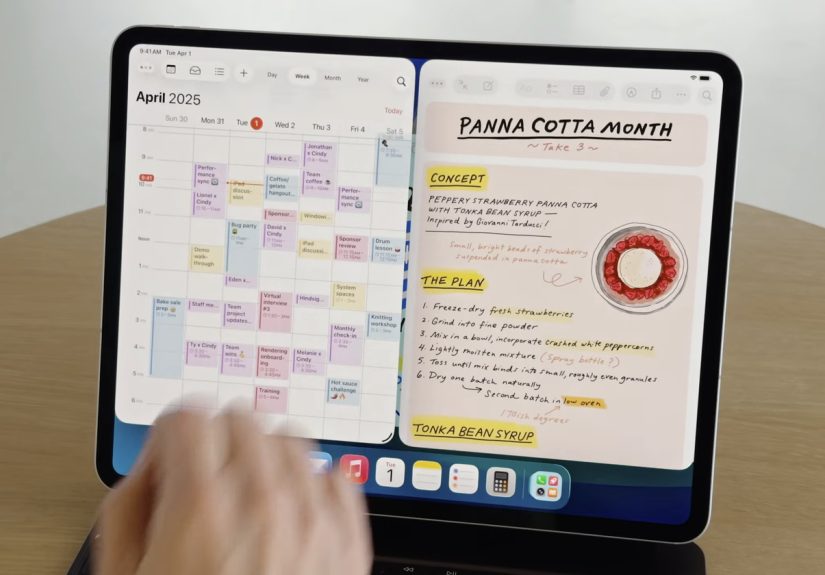
This is the classic iPad split screen: two apps share the display with a vertical divider between them. You can usually drag that divider to resize each app.
2) Slide Over (A Floating App Window)
Slide Over looks like a narrow app floating on top of another app. It often “parks” on the left or right edge and can be swiped partially off-screen.
Think of it as the iPad’s pop-in side character who refuses to leave the scene.
3) Stage Manager / Windowed Multitasking (Multiple Resizable Windows)
On supported iPads, you might see resizable windows that overlap, sometimes with Mac-style window controls (red/yellow/green) near the top-left.
If your screen looks like a mini desktop with windows everywhere, you’re likely in Stage Manager or a windowed multitasking mode.
The Fastest Ways to Get Rid of Split Screen on iPad
Start with the method that matches what you see. If you’re not sure, try the first twomost iPad “split screen” situations surrender quickly.
Method A: Close Split View by Dragging the Divider (Fastest and Most Satisfying)
- Find the vertical divider between the two apps (there’s usually a small grab handle in the middle).
- Press and hold the divider, then drag it all the way to the left or all the way to the right.
- When the divider hits the edge, one app disappears and the remaining app goes full screen.
Example: You opened Safari and Notes popped up next to it. Drag the divider all the way toward Notes to remove Notes and return Safari to full screen.
Drag it toward Safari if you want Notes to “win” instead.
Method B: Use the Multitasking Controls (Three Dots or Window Controls) to Return to Full Screen
In many iPadOS versions, you’ll see multitasking controls at the top of an app. Depending on your iPadOS version and layout, it may look like:
- Three dots centered near the top of the app, or
- Mac-style window controls (red/yellow/green) near the top-left in more windowed layouts.
- Tap the multitasking control at the top of the app you want to keep.
- Select Full Screen (or the equivalent option that returns the app to full screen).
Tip: If you don’t see the dots/controls, try tapping near the top edge of the app, or swipe slightly to reveal the top bar.
Some apps hide controls until you interact with the top area.
Method C: Get Rid of Slide Over (Floating Window) Without Starting a Fight
Slide Over can be dismissed in a few reliable ways:
-
Swipe it off the edge: Place your finger on the small handle/bar at the top of the Slide Over window,
then swipe the window toward the nearest edge until it slides away. -
Send it back to full screen: Drag the Slide Over window to the middle of the screen and release, if your iPadOS shows an option to exit Slide Over.
(Some versions also offer an “Exit Slide Over” action from the window controls.) -
Use the App Switcher trick: Open the App Switcher (swipe up and pause, or double-click the Home button on older iPads),
then swipe up on the Slide Over app preview to close it.
Why this works: Slide Over is still an app “state.” If you close that app instance (via App Switcher) or swipe it away, your main app returns to normal.
Method D: Close Extra App Windows (If You Opened More Than You Realize)
Sometimes the split-screen feeling is actually “multiple windows” for the same app (like Safari or Notes), especially if you use external keyboards or trackpads.
- Open the App Switcher.
- Look for multiple tiles for the same app (or stacked/grouped windows).
- Swipe up on any extra tiles to close them.
- Tap the app tile you want to keep to return to a single view.
Method E: Turn Off Stage Manager (If Your iPad Has Gone Full “Desktop Mode”)
If you’re seeing overlapping windows, a persistent side shelf of apps, or resizable app windows, Stage Manager might be enabled.
Turning it off usually returns you to a simpler full-screen experience.
- Open Control Center (swipe down from the top-right corner on most iPads).
- Tap the Stage Manager control (icon and wording vary by iPadOS version).
- If you don’t see it in Control Center, go to Settings → Multitasking & Gestures, then switch from Stage Manager to Full Screen Apps (or turn Stage Manager off).
How to Stop Split Screen From Coming Back
Fixing split screen is great. Preventing it is even betterespecially if your iPad keeps “helping” when you never asked for help.
The best prevention depends on what your iPadOS version allows.
Option 1: Turn Off Multitasking Features (When Your iPadOS Offers the Toggle)
Many iPads include multitasking settings you can reduce or disable. Common paths include:
- Settings → Multitasking & Gestures → choose Off or Full Screen Apps (wording varies)
- Settings → Home Screen & Dock (or Home Screen & Multitasking) → Multitasking options
If your iPadOS version doesn’t offer a total “off switch” for Split View/Slide Over, don’t worryyou still have solid options below.
Option 2: Keep Stage Manager Off Unless You Truly Want Windows
If you prefer one app at a time, leave Stage Manager disabled. It’s a powerful feature, but it can make simple tasks feel like you’re managing a tiny office building.
Option 3: Use Guided Access for a “No Multitasking Allowed” Session
Guided Access can lock your iPad into a single app and reduce accidental gestures or UI taps that trigger multitasking. It’s especially useful for:
kids, classrooms, presentations, or anyone who just wants Safari to stop inviting Notes to the party.
- Go to Settings → Accessibility → Guided Access.
- Turn it on and set a passcode (or Face ID/Touch ID).
- Open the app you want to stay in.
- Start Guided Access using the side/top button shortcut (varies by model) or the Accessibility Shortcut.
- End Guided Access the same way when you’re done.
Option 4: Avoid the Most Common “Accidental Split Screen” Triggers
- Be careful when dragging apps from the Dock: Dropping an app at the left/right edge can create Split View; dropping it over the screen can create Slide Over.
- Watch the multitasking controls: A quick tap on the top controls can change layouts faster than you can say “why is my screen doing this.”
- Use full-screen apps intentionally: If you don’t multitask often, keep one app full screen and resist dragging other apps onto it.
Troubleshooting: When Split Screen Won’t Go Away
“The Divider Won’t Move”
- Try dragging from the small grab handle in the middle of the divider (not the app content area).
- Rotate the iPad (portrait ↔ landscape) and try againsome layouts are easier to control in landscape.
- If the screen is frozen, force close the apps from the App Switcher, then reopen the one you want.
“I Don’t See the Three Dots / Multitasking Button”
- Tap near the top edge of the app to reveal controls.
- If you’re in a windowed layout, look for Mac-style window controls in the top-left.
- Some apps limit multitasking controls depending on what they’re doing (video playback, certain games, or secure screens).
“It’s Not Split ScreenEverything Is Just Huge”
If your main issue is that content looks zoomed-in (not truly split), check display settings:
Settings → Display & Brightness and (if applicable) Accessibility zoom features.
Split screen and zoom can look similar at a glance, but the fixes are different.
“Split Screen Keeps Activating by Accident”
- Reduce multitasking in Settings → Multitasking & Gestures (if available).
- Keep Stage Manager off.
- Use Guided Access during focused work sessions.
- Consider using the App Library or Home Screen to open apps instead of dragging from the Dock.
Quick FAQ: Split Screen on iPad
How do I close split screen on iPad the quickest?
Drag the center divider all the way to the edge to remove one app and return the other to full screen. If you prefer menus, use the multitasking controls and choose Full Screen.
How do I get rid of the small floating screen on my iPad?
That’s usually Slide Over. Swipe it off the edge using the top handle, or open the App Switcher and swipe up on the Slide Over app to close it.
Can I completely disable split screen on an iPad?
It depends on your iPadOS version and model. Some versions offer a Multitasking setting (often under Multitasking & Gestures) where you can reduce or turn off multitasking behaviors.
If not, Guided Access is the most reliable “one app only” workaround.
Why does my iPad look like it has computer windows now?
That’s likely Stage Manager or a windowed multitasking mode. Turn it off in Control Center or in Settings under Multitasking options to return to full-screen behavior.
Does split screen work on every iPad?
Not equally. Multitasking capabilities vary by model, iPadOS version, and sometimes by app. Even when available, certain apps may restrict how they behave in Split View or Slide Over.
Shared Experiences: When Split Screen Hijacks Your iPad (And How People Deal With It)
To make this topic feel less like a sterile instruction manual and more like real life, here are common “split screen experiences” that iPad owners talk about
along with the practical fixes that actually work.
Experience #1: “I was just trying to close an app and now there are two apps.”
This usually happens when someone swipes up a little too creatively and ends up pulling up the Dock, then drags an app icon accidentally onto the screen.
The iPad interprets that drag as a request to multitask. The fix is almost always simple: look for the divider and shove it decisively to one edge.
The moment you realize you’re in Split View, the divider drag becomes your “undo” button.
Experience #2: “There’s a skinny floating window and it won’t go away.”
Slide Over is famous for this. People often think it’s a glitch because it floats above the main app. The secret is the tiny handle at the top of that floating app.
Grab it and swipe it off-screen like you’re sliding a sticky note off your desk. If it keeps coming back, open the App Switcher and swipe up on that app’s preview to close it.
Once you’ve done it once, it feels obviouslike finding the light switch in a dark room. Before that? Pure chaos.
Experience #3: “My iPad suddenly looks like a laptop, with windows everywhere.”
This is usually Stage Manager or another windowed multitasking mode. It’s powerful for people who want multiple resizable windows,
but it can feel like your iPad has joined a corporate office and now requires three meetings to open the calculator.
The fix: open Control Center and turn off Stage Manager, or head to Settings → Multitasking & Gestures and switch back to Full Screen Apps.
People often report immediate relieflike the iPad finally stopped rearranging your desk while you were sitting at it.
Experience #4: “I can’t find the multitasking dots anymore.”
On some iPadOS versions and layouts, the familiar three dots may move or change appearanceespecially in more windowed interfaces.
When users can’t find them, they think the option vanished. A common workaround is to tap near the top edge of the app to reveal controls,
or look for window controls in the top-left. Once you know where to look, it’s less “missing feature” and more “the iPad redecorated without telling anyone.”
Experience #5: “Split screen keeps happening, and I just want my iPad to stay in one app.”
This is where prevention matters. Some people reduce multitasking in Settings if the toggle exists on their version.
Others go with Guided Access, especially for reading, testing, or letting a child use one app without hopping into every other app on the device.
Guided Access feels a little like putting bumpers on a bowling lane: you can still play the game, but the ball stops veering into the gutter.
The big takeaway from these shared experiences is that split screen rarely means “your iPad is broken.”
Most of the time it’s a feature you triggered accidentallyor a mode you turned on once and forgot. With the divider drag, Slide Over swipe,
and Stage Manager toggle in your toolkit, you can get your screen back in seconds.
Conclusion: Get Back to Full Screen (and Stay There)
Getting rid of split screen on an iPad is usually a quick win: drag the divider to close Split View, swipe away Slide Over, or turn off Stage Manager if you’re dealing with windows.
If split screen keeps showing up uninvited, check Multitasking settings (when available) or use Guided Access for a “single-app” session.
Your iPad should feel helpfulnot like it’s constantly trying to move in a second app as a roommate. Now you know how to politely (or firmly) show multitasking the door.