Table of Contents >> Show >> Hide
- What You’ll Learn
- Background Play vs. Picture in Picture (PiP)
- Method 1 (Most Reliable): Use YouTube Premium
- Method 2: Use Picture in Picture (PiP) on iPhone or iPad
- Method 3 (Often Works): Safari “Request Desktop Website” Workaround
- Method 4: Use YouTube Music for Background Listening
- Troubleshooting: Why YouTube Keeps Pausing (and How to Fix It)
- Real-Life Experiences: The 500+ Word “Just Keep Playing” Saga
- Conclusion
You’re trying to do something extremely reasonable: listen to a YouTube video while you text, cook, study,
or stare dramatically out a window like you’re in a music video. And yetyour iPhone taps YouTube on the
shoulder and says, “Nope. Eyes on me.”
The good news: background playback is possible on iPhone and iPad, and you have a few legit paths
depending on what you want (audio-only while locked vs. a floating mini-player) and where you live.
This guide breaks down the reliable methods, the “works most of the time” tricks, and the fixes for when
YouTube acts like it forgot you pay the Wi-Fi bill.
Background Play vs. Picture in Picture (PiP)
Before we jump into steps, let’s make sure we’re solving the right problembecause Apple and YouTube use
two different “keep playing” concepts:
Background play
This means the audio keeps playing when you leave the YouTube app or lock your device. Think:
podcasts, long interviews, music mixes, lectures, “10 hours of rain sounds,” and that one video where a guy
calmly explains how to fix your sink like he’s narrating a nature documentary.
Picture in Picture (PiP)
This means the video shrinks into a small floating window while you use other apps. You can drag it to
corners, hide it off-screen, and keep watching while you reply to messages like a multitasking champion.
Quick reality check: Background play is most reliably available through YouTube Premium in the iOS app. PiP availability varies by region and content type, but it can be available more broadly than background audio.
Method 2: Use Picture in Picture (PiP) on iPhone or iPad
If you want the video to keep playing visually while you do other thingsPiP is your best friend.
It’s also the method that makes you feel like a tech wizard, even though you just pressed one button.
Step 1: Make sure PiP is enabled in iOS
- Open Settings on your iPhone/iPad.
- Tap General > Picture in Picture.
- Turn on Start PiP Automatically.
Step 2: Make sure PiP is enabled in YouTube
- Open the YouTube app.
- Tap your profile > Settings.
- Look for Picture in Picture and toggle it On (if available).
Step 3: Start PiP while watching
- Play a video.
- Swipe up to go Home (or press the Home button if your device has one).
- If PiP is supported for that video/account/region, the video should shrink into a floating window.
Important: PiP availability depends on your region and the type of content. In the U.S., PiP may work even without Premium for many videos, but certain content (like some music videos) may be excluded. Outside the U.S., PiP is more commonly tied to Premium access.
Make PiP less annoying (and more useful)
- Drag the PiP window to any corner for a cleaner layout.
- Swipe it partially off-screen to “hide” it while keeping audio going.
- Tap once for controls, or pinch to resize (on supported devices).
Method 3 (Often Works): Safari “Request Desktop Website” Workaround
Let’s call this what it is: a workaround. Sometimes it works beautifully. Sometimes it works until the
exact moment you start bragging about it to a friend. And yesYouTube can change behavior any time.
But when it works, it’s a lifesaver for background listening without relying on the YouTube app.
Option A: Background audio using Safari Desktop Site
- Open Safari and go to youtube.com.
- Find a video and start playing it.
- Tap the aA icon in the address bar.
- Select Request Desktop Website.
- Press play again if the page reloads.
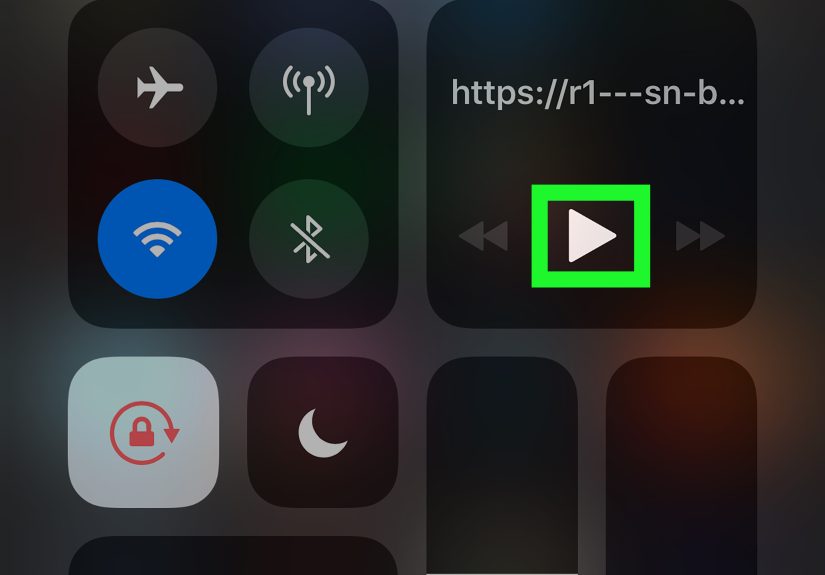
- Now leave Safari (go Home). If playback stops, don’t panicgo to the Lock Screen or Control Center and press Play.
Option B: Try PiP from the browser player
On some iOS versions and in some cases, the YouTube web player can work with iOS Picture in Picture.
The typical flow is: play the video, go full screen, tap the PiP icon (if it appears), then go Home.
If you don’t see PiP controls, you may still be able to rely on audio-only + Control Center resume.
If Safari keeps opening the YouTube app
- When a banner prompts you to “Open in app,” dismiss it and continue in Safari.
- If links always jump to the app, you may need to long-press and open in a new tab, or temporarily remove the YouTube app (annoying, but sometimes effective).
Heads up: Browser workarounds can be finickyads, popups, and player changes can interrupt playback. If you need “it must work every time,” Premium is still the champ.
Method 4: Use YouTube Music for Background Listening
If your real goal is “I want audio while my phone is locked,” YouTube Music can be the cleaner setupespecially
for playlists, albums, and long mixes. With the right plan, it supports background playback while you use other apps.
Best use cases for YouTube Music
- Music playlists and curated mixes
- Workout audio (where you do not want a video draining battery)
- Long “focus” sessions (lofi, ambient, study tracks)
Pro tip: reduce distractions
If you’re listening for audio, choose audio-first options when available. This saves battery, uses less data,
and keeps you from getting pulled into “just one more video” when you really meant “just one more song.”
Troubleshooting: Why YouTube Keeps Pausing (and How to Fix It)
When background play or PiP fails, it usually comes down to settings, subscription/account mix-ups,
or iOS permissions. Here’s a practical checklist.
1) Confirm what you’re trying to do
- Want audio while locked? That’s background playmost reliable via Premium in the app.
- Want video floating while you text? That’s PiPenable it in iOS and YouTube (if available).
2) Check your YouTube account and plan
- Make sure you’re signed into the account that actually has Premium (family plans can be sneaky).
- Open YouTube and look for Premium indicators in your account area.
- If your subscription recently changed, give it a little time to sync and try signing out/in.
3) Verify YouTube’s background settings
- In YouTube settings, find Background play and set it to Always on (or Headphones, if that’s your preference).
- Remember: if you set it to “Headphones,” it may stop the moment Bluetooth disconnects or you unplug.
4) Turn on iOS PiP the right way
- Settings > General > Picture in Picture > Start PiP Automatically should be ON.
- If PiP worked before and stopped, restart your device and update the YouTube app.
5) The “another app stole your audio” problem
iOS generally allows one primary audio source at a time. If Spotify, a game, a social app, or even a web page
is playing audio, YouTube may pause the moment you switch apps. Close the other audio app and try again.
6) Update and reboot (the unsexy fix that works)
- Update the YouTube app from the App Store.
- Restart your iPhone/iPad (yes, really).
- If you’re using Safari, try clearing website data for YouTube if playback gets weird.
Battery note: Video-in-the-background (especially PiP) can drain battery quickly. If your goal is audio-only, choose audio-first options or lower video quality when possible.
Real-Life Experiences: The 500+ Word “Just Keep Playing” Saga
Background playback sounds like a small featureuntil you spend a week living without it. Then it becomes
oddly emotional, like losing a sock in the laundry. You don’t know why it matters so much, but it does.
One of the most common moments: you’re cleaning your room with a YouTube playlist runningmaybe a podcast,
maybe a true-crime recap (the PG kind), maybe someone restoring a rusty tool with soothing background music.
You lock your phone to keep your hands free, and the audio stops instantly. Suddenly you’re standing there
holding a laundry basket like it personally betrayed you. That’s usually the moment people decide they’re either
(A) going Premium, or (B) learning the Safari desktop trick like they’re joining a secret society.
Cooking is another big one. You’ve got a recipe video goingmaybe a quick pasta tutorial or a “30-minute meal”
that somehow still needs six bowls and emotional resilience. You tap the screen with a floury finger to rewind
ten seconds, then you want to respond to a text. If PiP is enabled, your video floats neatly in the corner while
you message, “Yes, I’m alive, just wrestling a bag of mozzarella.” If PiP isn’t enabled, the video disappears,
you lose your place, and the kitchen becomes a suspense thriller: Will the garlic burn?
Studying is where background play becomes a genuine productivity tool. A lot of students use YouTube for long
lectures, language practice, or “study with me” timers. Audio continuing while you open Notes, Calendar, or a
homework portal is the difference between staying focused and falling into the endless app-switch spiral. With
background audio, you can keep the lesson going while you write. With PiP, you can keep the visual part too
handy for math problems, coding walkthroughs, or anything where the creator keeps pointing at the exact thing
you were about to misunderstand.
Then there’s the commute scenario. On public transit, you might want a video essay playing like a podcast,
screen locked to save battery. On a road trip (as a passenger, obviously), you might want background audio
while you check maps, message friends, or adjust your playlist without the video dropping out. That’s where
the “Control Center resume” move shines: even if Safari pauses when you lock the screen, you can often hit play
from the Lock Screen and keep listening. It feels a little like reviving a character in a game“Get up! We’re
not done yet!”
Finally, there’s the late-night category: rain sounds, white noise, bedtime stories, ambient playlists, or long
interviews you swear you’ll finish tomorrow. Background play matters here because the phone should be doing the
opposite of attention-grabbing. You don’t want bright screens. You don’t want accidental taps. You want audio,
darkness, and peace. When background playback works, your iPhone becomes a calm little audio machine. When it
doesn’t, you’re forced to keep the screen on, which is basically inviting your brain to scroll until 2 a.m.
like it’s training for an Olympic event.
The bottom line: choose the method that matches your life. If you need it to be rock-solid every day,
Premium background play is the simplest. If you want multitasking with video, PiP is the best feature iOS has
for this. And if you’re allergic to subscriptions and only need it occasionally, Safari desktop mode can be a
surprisingly handy backupjust don’t be shocked if it gets moody after an update.