Table of Contents >> Show >> Hide
- What a “Checklist” Means in Google Docs (And Why It’s Better Than Fake Checkboxes)
- Method 1: Make a Checklist From Scratch (Fastest, Cleanest)
- Method 2: Convert Existing Text Into a Checklist (Because Re-Typing Is a Crime)
- Pick Your Checklist Style: With or Without Strikethrough
- Power-User Tricks That Make Checklists Feel Like a Superpower
- Making Your Checklist Actually Useful (Not Just A Pretty Stack of Boxes)
- Collaboration Tips: Checklists in Shared Docs (Where Chaos Loves to Live)
- Printing and Exporting Your Checklist
- Accessibility and Readability: Make Your Checklist Easy for Everyone
- Troubleshooting: When Your Checklist Won’t Behave
- When Google Docs Isn’t Enough (And What to Use Instead)
- Real-World Experiences: What People Learn After Using Google Docs Checklists (500+ Words)
- 1) The checklist becomes a shared “truth,” which is both amazing and terrifying
- 2) People love checkmarks, but they love avoiding hard tasks more
- 3) The best checklists include “prep,” not just “do”
- 4) Indented subtasks quietly save the day
- 5) A “done” checklist is usefulan “archived” checklist is powerful
- Conclusion
There are two kinds of people in the world: those who love checking boxes, and those who haven’t tried it yet.
A good checklist turns “I have 37 things to do” into “I have 37 tiny victories waiting for me.” And Google Docs
makes checklists surprisingly easywhether you’re planning a trip, running a meeting, managing homework, or trying
to remember that yes, you do need toothpaste when you go to the store.
This guide walks you through multiple ways to create a checklist in Google Docs (desktop and mobile), how to
customize it, how to troubleshoot the annoying stuff, and how to use checklists like a pro without turning your
document into a chaotic wall of boxes.
What a “Checklist” Means in Google Docs (And Why It’s Better Than Fake Checkboxes)
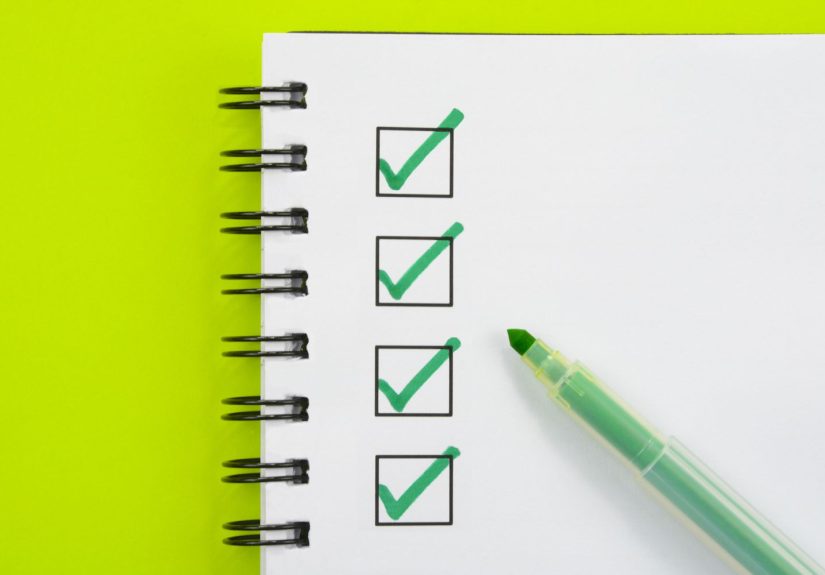
In Google Docs, a real checklist is an interactive list with clickable checkboxes. When you click a box,
it can optionally apply a strikethrough to the text (depending on the checklist style you choose). That means you
can actually use the list to track progressnot just stare at a decorative square and pretend you’re organized.
You can create a checklist from scratch, convert an existing list, indent items into subtasks, and keep everything
easy to scan. (Future You will be so grateful. Present You may still procrastinate, but at least it’ll be structured.)
Method 1: Make a Checklist From Scratch (Fastest, Cleanest)
This is the go-to method when you want to start freshlike a brand-new notebook, except it doesn’t smell like paper.
On Desktop (Web Browser)
- Open Google Docs and create a new document (or open an existing one).
- Click where you want the checklist to begin.
-
In the toolbar, look for the checklist option (it often appears near the bulleted/numbered list tools).
Click it to start a checklist line. - Type your first item.
- Press Enter/Return to create the next checkbox item.
- Press Enter/Return twice to stop the checklist and return to normal text.
Example: You’re building a packing list:
- Passport
- Phone charger
- Socks (yes, plural)
- Snacks for “emotional support”
Turn those into checkboxes and suddenly your suitcase feels less like a gamble.
On Mobile (iPhone / Android)
- Open the Google Docs app and open your document.
- Tap the edit (pencil) icon if you’re not already editing.
- Tap the list tools in the formatting bar (you may see bulleted/numbered list icons).
- Select the checklist/checkbox option to start a checklist.
- Type items and press Enter to add more.
Mobile menus can look different depending on screen size and app version, but the idea stays the same:
start a list, switch it to checkboxes, and keep typing.
Method 2: Convert Existing Text Into a Checklist (Because Re-Typing Is a Crime)
If you already wrote your itemsmaybe as plain lines or a bulleted listyou can convert them instead of starting over.
Convert Plain Lines to a Checklist
- Make sure each item is on its own line.
- Highlight the lines you want to convert.
-
Use the toolbar checklist button or go through the menu to apply checklist formatting.
Your selected lines become an interactive checklist.
Quick tip: If your items are separated by commas in one long sentence, split them into lines first.
(Your checklist needs breathing room. It’s not a subway at rush hour.)
Convert Bulleted or Numbered Lists to a Checklist
- Click anywhere inside the list.
- Highlight the list items you want to change (or just keep your cursor inside if you’re converting the whole list).
-
Change the list style to a checklist using the toolbar or the menu path:
Format → Bullets & numbering → Checklist.
Pick Your Checklist Style: With or Without Strikethrough
Google Docs typically offers checklist styles that either:
- Strike through the text when checked (great for “done and dusted” tasks)
- Do not strike through when checked (great for tracking status without visually “crossing it out”)
When to choose each:
-
Strikethrough works well for personal to-do lists, grocery lists, and packing listsanything where
completed items should fade into the background. -
No strikethrough is better for shared docs, meeting action items, or checklists used as records
(like inspection forms), where you still want the text to remain easy to read.
Power-User Tricks That Make Checklists Feel Like a Superpower
1) Use a Tiny Keyboard Trick to Start a Checkbox (When It Works)
Some users can type [] (two square brackets) and then press Space to auto-convert it into
a checkbox line. It’s a neat shortcut for fast list-makingespecially if you’re living in your keyboard like a
spreadsheet wizard who wandered into a word processor.
If it doesn’t convert, don’t panic. Use the toolbar or Format menu method instead. Google Docs features can vary by
account type and rollout timing.
2) Build Subtasks With Indents
Want a checklist with layers? Like “Plan party” and then “Buy balloons, invite friends, remember friends are humans”?
- Press Tab to indent a checklist item (turning it into a subtask).
- Press Shift + Tab to move it back out.
Example: Event checklist
- Book location
-
Send invites
- Family group chat
- Friends group chat
- That one person you always forget (don’t do it again)
- Plan food
3) Reorder Items Without Breaking the List
Reordering is easy if you treat your checklist like a list (wild concept, right?).
- Cut and paste items to move them.
- If spacing looks weird afterward, click inside the checklist and re-apply checklist formatting to “reset” the style.
4) Add Checkboxes Inside a Table for Printable Forms
If you’re building something like a habit tracker, classroom checklist, or inspection sheet, tables can keep things tidy:
- Go to Insert → Table and choose a simple layout.
- Type labels in the left column (task names, criteria, categories).
- In the right column, add a checklist (checkboxes) for each row.
This format is great because it stays aligned when printed or exported to PDF. Your checklist won’t drift like it’s
trying to escape responsibility.
5) Use Special Characters for Non-Interactive Checkboxes
Sometimes you don’t want clickable checkboxesyou want a document that looks like a form people can print and fill
in by hand. In that case, you can insert checkbox symbols as characters (not interactive).
- Go to Insert → Special characters.
- Search for “checkbox” or “ballot box.”
- Insert the symbol you like (☐, ☑, etc.).
Best use cases: printable checklists, PDF exports meant for handwriting, or documents that should stay
“static” and not change when clicked.
Making Your Checklist Actually Useful (Not Just A Pretty Stack of Boxes)
Name the Checklist and Add Context
A checklist titled “Things” is technically a checklist, but it’s also a cry for help. Add a short header so the list
makes sense later.
Example: “Sunday Reset Checklist” beats “stuff to do” every time.
Write Tasks as Actions (So You Know What ‘Done’ Means)
- Vague: “Laundry”
- Clear: “Wash and fold laundry”
- Even clearer: “Wash laundry, fold laundry, put it away (yes, all three)”
Chunk Big Projects Into Small Wins
If a task is bigger than 30 minutes, break it down. Your brain likes progress. Your brain is also easily bribed by
checkmarks.
Example: “Write research paper” becomes:
- Pick topic
- Find 5 sources
- Write outline
- Draft intro
- Draft body sections
- Revise + citations
Collaboration Tips: Checklists in Shared Docs (Where Chaos Loves to Live)
Google Docs shines when multiple people are working on the same checklistroommates, classmates, teams, families,
or a club planning an event.
Use Comments for “Not Done Yet, But Here’s the Issue”
If someone checks a box prematurely (we all know a box-checking overachiever), comments help clarify:
- Add a comment like: “Waiting on approval from finance”
- Or: “Bought snacks. Forgot plates. Plates are now the villain.”
Use Suggesting Mode When You’re Editing Someone Else’s Checklist
If you’re not the list owner, Suggesting mode can prevent accidental “who deleted half the tasks??” drama. Suggesting
lets others accept or reject your changes.
Printing and Exporting Your Checklist
Checklists aren’t just digital. If you want a paper version:
- Print: File → Print
- Save as PDF: File → Download → PDF
If you need a checklist that’s meant to be filled out on paper, consider using special-character checkboxes (☐) so
the PDF looks consistent and doesn’t rely on interactivity.
Accessibility and Readability: Make Your Checklist Easy for Everyone
A checklist should be easy to read fast. A few best practices:
- Use real list formatting (not manually typed dashes or random symbols).
- Keep items short and specific.
- Use headings above major sections (especially for long checklists).
- Don’t rely on color alone to show status (some people won’t see it the same way).
If your checklist is shared widely (like a class document or workplace SOP), these small choices can make it much
more usable.
Troubleshooting: When Your Checklist Won’t Behave
“My checkbox won’t click.”
- Make sure you’re in editing mode, not viewing or suggesting-only access.
- Confirm the list is a real checklist, not a special-character checkbox symbol.
- Try re-applying the checklist format to the lines.
“It keeps striking through my text and I hate it.”
- Switch to the checklist style that doesn’t apply strikethrough (Docs usually offers both styles).
- If the document has mixed list formatting, highlight the list and reapply the correct checklist style.
“Copy/paste messed up my spacing.”
- Paste without formatting when possible (so the checklist style stays consistent).
- Click inside the list and reselect the checklist style to normalize it.
“My mobile toolbar doesn’t show checkboxes.”
- Try scrolling the formatting bar (some options hide off-screen).
- Make sure the app is updated.
- As a workaround: create the checklist on desktop, then edit items on mobile.
When Google Docs Isn’t Enough (And What to Use Instead)
Google Docs is excellent for shared, readable checklists. But if you need reminders, due dates, or automation,
you may want a tool designed for tasks.
- Google Keep: Great for quick checklists and phone-friendly notes.
- Google Tasks: Better for reminders and actual task management.
- Google Sheets: Best when you want tracking, status columns, sorting, or progress dashboards.
A simple rule: If it’s mostly about writing and sharing, use Docs. If it’s about tracking and managing,
consider Keep, Tasks, or Sheets.
Real-World Experiences: What People Learn After Using Google Docs Checklists (500+ Words)
Even though making a checklist in Google Docs is easy, using it well is a whole separate skillkind of like buying
running shoes versus actually running. Here are some common “experience lessons” people run into once they start
relying on Docs checklists for real life.
1) The checklist becomes a shared “truth,” which is both amazing and terrifying
In a shared document, a checklist quickly turns into the group’s single source of truth. That’s great because everyone
can see what’s happening. It’s also terrifying because everyone can see what’s happening. Teams often discover that
the checklist needs a tiny bit of structure: section headings (“Before the event,” “Day of,” “After”), a consistent
way of writing tasks (“Verb + object”), and a quick note on what “done” means.
For example, “Send invitations” can mean five different things to five different people. Some groups add short details
in parentheses: “Send invitations (include RSVP link).” That tiny clarification prevents a lot of “Wait… you sent which
invitations?” moments.
2) People love checkmarks, but they love avoiding hard tasks more
A weird pattern shows up: people will happily check off ten easy tasks and ignore the one big scary task sitting
there like a final boss. Google Docs checklists make this pattern visible. The solution many users discover is to
split the scary task into smaller steps so it doesn’t feel like “write entire novel,” but rather “write messy first
paragraph,” “outline section 1,” and “add citations.” Suddenly, checkmarks become a path forward instead of a way
to dodge reality.
3) The best checklists include “prep,” not just “do”
People often start with action items onlythen wonder why the checklist still feels stressful. The fix is adding prep
steps. For a grocery checklist, that could be “check fridge,” “check pantry,” and “set budget.” For a study checklist,
it might be “download slides,” “review rubric,” and “find practice questions.” These prep items reduce last-minute
scrambling, which is the natural habitat of panic.
4) Indented subtasks quietly save the day
Once someone discovers indenting (subtasks), their checklists get better overnight. Instead of making the checklist
longer and longer, users group related items under a main task. This helps the checklist stay readable and makes it
easier to scan during a busy momentlike a meeting, a trip, or a home project. Many people also find that subtasks
help with accountability: if “Finalize presentation” is the main task, subtasks reveal what’s actually missing.
5) A “done” checklist is usefulan “archived” checklist is powerful
Another common experience: after the project ends, people delete the checklist. Then they regret it. Past checklists
are templates for the future. A travel packing checklist becomes the foundation for every future trip. A “New employee
onboarding checklist” becomes a reusable process document. Instead of deleting, users often learn to duplicate the doc,
rename it with a date, and keep it as a reference. That way, next time they’re planning the same kind of thing, they’re
starting from a proven listnot from scratch with crossed fingers.
The biggest takeaway people tend to share: Google Docs checklists work best when they’re treated like living documents.
A checklist isn’t a one-time listit’s a lightweight system. Keep it clear, keep it updated, and let the checkmarks do
what they do best: make progress visible and satisfying.
Conclusion
Making a checklist in Google Docs is simple: start one from the toolbar or Format menu, convert existing text when
needed, pick the checklist style that fits your workflow, and use indents/tables to keep things organized. The magic
isn’t just the checkboxit’s the clarity.
Whether you’re building a grocery list, a study plan, a team action list, or a home project checklist, Google Docs
gives you a flexible, shareable way to stay on track. And if you catch yourself checking a box just for the thrill of it…
congratulations. You’ve discovered one of adulthood’s weirdest joys.