Table of Contents >> Show >> Hide
- Why Save Web Pages in Opera at All?
- Method 1: Save a Web Page as a PDF in Opera
- Method 2: Save the Page as a Web File
- Method 3: Save for Later Without Fully Downloading the Page
- What to Do When Opera’s Built-In Save Options Are Not Enough
- Common Problems and How to Fix Them
- Best Practices for Saving Web Pages in Opera
- Real-World Experiences: What Saving Web Pages in Opera Actually Feels Like
- Conclusion
- SEO Tags
Sometimes a web page is too useful to trust to the internet’s mood swings. One minute it is there, the next minute it is redesigned, moved, paywalled, or mysteriously replaced with a cheerful little 404. That is why knowing how to save web pages in the Opera desktop browser is genuinely handy. Whether you want an offline copy of a recipe, a clean PDF of research notes, a full HTML version of an article, or just a quick way to preserve something before it changes, Opera gives you several ways to do it.
The trick is choosing the right save method. Saving a page as a PDF is great when you want a clean, portable file. Saving it as a web page works better when you want to keep the structure, images, and local assets. And if you only need fast access later, a bookmark or Speed Dial tile may be enough. In other words, there is no single “best” way to save a page in Opera. There is only the best way for what you are trying to do.
Below, you will learn the main ways to save web pages in Opera on PC or Mac, how each format works, when to use it, and how to avoid the usual annoyances like broken layouts, missing images, or saved files that open like they have stage fright.
Why Save Web Pages in Opera at All?
Saving pages locally gives you control. That is the simple version. A saved web page can help you read offline, archive important information, preserve a version of a page before it changes, or share content with someone who does not need the live site. It is also useful when you are collecting examples for work, saving receipts and confirmations, storing tutorials, or keeping a personal library of articles you may need later.
Opera is especially convenient here because it supports both browser-style saving and PDF-style saving. That means you can choose between preserving the page as a web document or turning it into something more universal. If you have ever tried to open a saved file later and found a folder full of mystery assets plus one lonely HTML file, do not worry. We are going to make that mess understandable.
Method 1: Save a Web Page as a PDF in Opera
If your goal is readability, portability, and easy sharing, PDF is usually the best choice. Opera includes a built-in way to save a page as a PDF, and it is one of the easiest ways to preserve content without dealing with supporting folders or missing files.
How to save a page as a PDF
- Open the web page you want to save in Opera.
- Right-click an empty part of the page.
- Select Save page as PDF if that option appears.
- Choose where to save the file.
- Name the file and save it.
You can also use Opera’s Snapshot tool. Open Snapshot, then choose Save page as PDF. This saves the full page from top to bottom, not just the visible part on your screen. That distinction matters. A screenshot grabs what you see. A saved PDF can capture the entire article or document, which is much better for long pages.
When PDF is the smarter option
Choose PDF when you want to email a page, print it later, store a stable copy, or open it on almost any device without worrying about broken assets. PDFs are also better for receipts, invoices, travel confirmations, and articles you want to annotate later in a PDF app.
There is one more useful wrinkle. Opera has two PDF-style paths in practice: the dedicated Save page as PDF option and the browser’s Print route with Save as PDF. They are similar, but not identical. Opera’s dedicated save feature is meant to preserve what you see on screen. The print route often reformats the page to be more printer-friendly, which can be useful if the page looks too wide, too noisy, or too awkward in the first method.
Use Print when you need more control
If the direct PDF save looks strange, try this:
- Open the page in Opera.
- Press Ctrl + P on Windows or Command + P on Mac.
- Choose Save as PDF as the destination.
- Adjust layout, margins, scale, background graphics, and headers or footers if needed.
- Save the PDF.
This is often better for pages that need cleaner formatting. It is also the better option when you plan to print the page for real, because the print dialog gives you more control over how the output is laid out.
Method 2: Save the Page as a Web File
If PDF is the “easy to share” option, saving a page as a web file is the “keep the page as a web page” option. This is useful when you want offline access with more of the original structure intact, or when you want to inspect, reuse, or archive the page in a more browser-native format.
How to save a page as a web file in Opera
- Open the page in Opera.
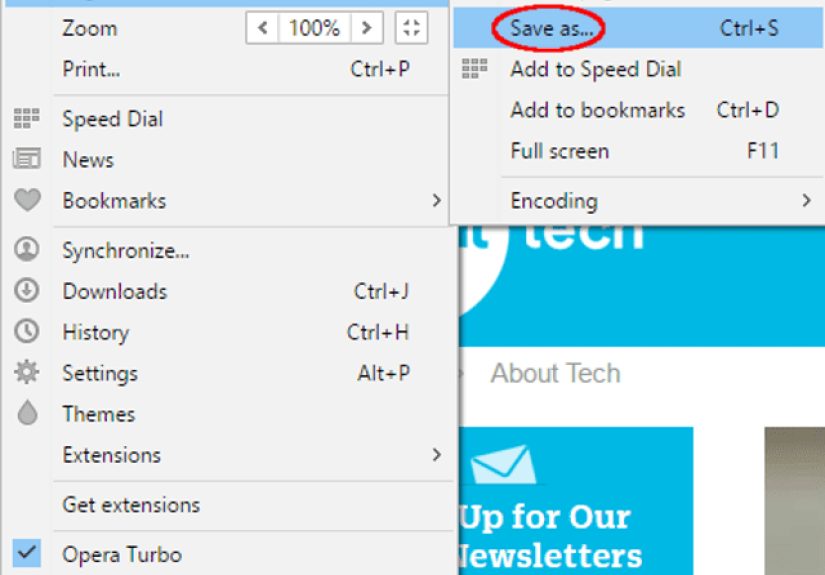
- Press Ctrl + S on Windows or use Opera’s save command on Mac.
- Or open the browser menu and choose the save option for the current page.
- Pick the format you want.
- Choose a folder and save the file.
Depending on your Opera version and platform, you may see one or more of these formats:
- Webpage, Complete – saves the HTML file and a companion folder of images, scripts, and other page resources.
- Webpage, Single File – saves the page as one archive-style file, often MHTML or MHT.
- Webpage, HTML Only – saves only the HTML document, while many images and linked assets remain online.
What each format actually means
Webpage, Complete is the best option when you want a stronger offline copy of a standard page. You get the main HTML file plus a folder containing the supporting parts. The upside is that many pages look closer to the original. The downside is that you now have a two-part package. Move the HTML file without its folder, and the page may look like it got dressed in the dark.
Webpage, Single File is appealing because it stores everything in one file. No extra folder, no stray images, no asset cleanup. If your Opera build still offers this option, it is excellent for archiving and portability. The catch is compatibility. Not every browser or workflow loves MHTML equally, so test it if you plan to use the file across different systems.
Webpage, HTML Only is the lightest option. It is useful when you only care about the text, basic structure, or source markup. It is not ideal if you want a visually faithful offline copy, because many assets may still depend on the live internet.
Which format should you choose?
Here is the practical version:
- Use PDF for sharing, printing, receipts, and stable reading copies.
- Use Webpage, Complete for fuller offline browsing.
- Use Single File or MHTML when you want one portable archive file.
- Use HTML Only when you only need the text or code structure.
Method 3: Save for Later Without Fully Downloading the Page
Not every page needs the full preservation treatment. Sometimes you just want a fast way to return to it. In that case, Opera gives you lighter options that are less “archive this for the digital apocalypse” and more “I need this article again tomorrow.”
Bookmark the page
Bookmarks are the simplest option. Save the page to your bookmarks bar or a folder, and you can get back to it quickly. This is perfect for live pages you expect to revisit while online. It is not a true offline save method, but it is far cleaner than leaving 37 tabs open as a cry for help.
Add it to Speed Dial
Opera also lets you save pages to Speed Dial. This is useful for pages you visit repeatedly, such as dashboards, reference pages, project boards, or favorite tools. Again, this is not offline preservation. It is convenience. Still, convenience counts.
Send it to My Flow
If your real goal is moving a page between devices, My Flow can be a better solution than downloading a copy. It lets you send links, notes, and files between your Opera devices. That is great when you find something on desktop but want to continue reading on mobile later.
What to Do When Opera’s Built-In Save Options Are Not Enough
Modern websites can be wonderfully dramatic. Some load content late, hide text behind expanding sections, or behave differently when saved than when viewed live. If Opera’s built-in tools do not capture the page the way you want, an extension may help.
PDF Mage
PDF Mage is an Opera add-on that saves the current page as a PDF with one click. It is handy if you want a dedicated PDF workflow. Just note that it relies on an external API and needs an internet connection, so it is less private and less self-contained than Opera’s native tools.
SingleFile
SingleFile is a well-known extension designed to save a complete page, including images and styling, as a single HTML file. It is especially useful for people who archive research, documentation, or articles and want one-file convenience without the usual HTML-plus-folder setup. It can also save selected content or multiple tabs, which is excellent when you are doing deep research and your download folder has started to look like a conspiracy board.
Common Problems and How to Fix Them
The saved PDF looks different from the live page
This is normal. Web pages are dynamic and responsive, while PDFs are fixed-layout documents. Try the print route instead of the direct PDF route, or switch page orientation, margins, and background graphics.
Images are missing in the saved web page
You may have saved the page as HTML Only instead of Webpage, Complete. Save it again using the fuller option, and keep the companion asset folder in the same location as the HTML file.
The page saves, but interactive parts do not work offline
Also normal. Many modern pages depend on live scripts, databases, logins, and server-side content. Saving the page preserves the snapshot, not the entire website brain behind it.
A paywalled or logged-in page does not save properly
Some sites intentionally limit how content is displayed, printed, or archived. In those cases, save what is visible to you, but understand that not every page can be preserved perfectly as a fully functional offline copy.
Best Practices for Saving Web Pages in Opera
- Name files clearly, including the topic and date.
- Create separate folders for PDFs, full web pages, and research archives.
- Use PDF for stable reference material.
- Use complete-page or single-file saves for design, coding, or archival work.
- Test important saved pages once before closing the live tab.
- Avoid saving sensitive pages unless you trust the device and storage location.
That last point matters more than people think. A saved bank statement, private portal page, or medical document is still a local file. Convenient, yes. Also very much your responsibility.
Real-World Experiences: What Saving Web Pages in Opera Actually Feels Like
In real use, saving web pages in Opera is less about one magical button and more about matching the method to the moment. For example, if you are saving a long recipe page full of ads, animations, and pop-ups, Save page as PDF is usually the hero. You get one neat file, it opens almost anywhere, and it is much easier to print later without dragging half the internet into your kitchen. Nobody wants a ten-page casserole recipe because the page also included seven autoplay videos and an ad for socks.
On the other hand, if you are saving a tutorial, design inspiration page, or coding reference and want it to look as close as possible to the original, saving it as a complete web page often feels more useful. You can reopen it in a browser and keep more of the page’s original structure. This is especially helpful when layout matters, such as when you are reviewing examples of landing pages, fonts, product grids, or documentation. The experience is a little less polished than a PDF because you may end up with an HTML file plus a resource folder, but it is still effective.
There is also the “future me will definitely need this” scenario. That is where people often save far more casually than they should. They grab a page quickly, throw it into Downloads, and promise themselves they will organize it later. Later, of course, becomes a myth. A month passes. Now the file is called something like article(7).html, and you have no idea whether it is a recipe, a work memo, or an argument about keyboard switches. In practice, the best saving experience in Opera happens when you name files properly right away and keep related content in folders.
Another real-world lesson is that PDFs and web saves do not fail in the same way. A PDF may preserve the words but rearrange the layout. A complete web save may keep the layout better but stumble on interactive elements, embedded tools, or dynamic content. So the experience becomes more strategic over time. People who save pages often stop asking, “How do I save this?” and start asking, “What do I need this saved page to do later?” That is the smarter question.
And yes, there is a satisfying little power-user moment when you figure out that the quick method is not always the best method. Sometimes the right move is the direct PDF button. Sometimes it is the print dialog. Sometimes it is a full page save. Sometimes it is just a bookmark because downloading the page would be overkill. Once you understand those choices, Opera feels much less like a browser with random save options and much more like a practical tool for organizing what you read online. Which, honestly, is a lovely outcome for something that usually starts with, “Wait, where did my saved page go?”
Conclusion
Saving web pages in the Opera desktop browser is easy once you know which method fits the job. Use Save page as PDF when you want a clean, portable file for reading, printing, or sharing. Use Opera’s web save options when you want a more browser-native copy for offline access or archiving. And when you only need quick access later, a bookmark, Speed Dial entry, or My Flow can do the job without creating extra files.
The real win is not just knowing how to save a page in Opera. It is knowing why one save format works better than another. Once you get that, you stop collecting digital clutter and start saving pages in a way that is actually useful. Your future self will be impressed. Your Downloads folder may even send a thank-you card.