Table of Contents >> Show >> Hide
- Quick reality check: Discord’s upload limit (so you don’t rage-click “Retry”)
- Way 1: Shrink the file until Discord accepts it (compression that actually works)
- Way 2: Split the file into smaller pieces (send “Part 1 of 12” like a dramatic TV series)
- Way 3: Use a boosted server’s higher upload limit (no Nitro required on your account)
- Way 4: Upload to cloud storage and paste a share link (the cleanest all-purpose workaround)
- Way 5: Use a platform that matches the file type (videos to video, code to code, big assets to releases)
- Safety and sanity checklist (because “anyone with the link” is a powerful spell)
- Conclusion
- Real-World Experiences: What Usually Happens (and how to win anyway)
Discord is amazing at many things: voice chats, memes, and turning “quick question” into a 3-hour debate.
What it’s not amazing at (without Nitro) is letting you casually yeet a 200MB video into a channel like it’s 2007 email attachment time.
The good news: you don’t need Nitro to share big stuff. You just need the right workaround for the right file.
Below are five practical ways to send large files on Discord without Nitroplus examples, tips, and a few “learned it the hard way” moments you can avoid.
Quick reality check: Discord’s upload limit (so you don’t rage-click “Retry”)
On a standard, non-boosted server (or in DMs), free accounts have a per-file upload cap. If your file is bigger than that cap, Discord won’t upload itno matter how nicely you ask.
This is why the “5 ways” below are mostly about either (1) making the file smaller, or (2) sending it as a link instead of a direct upload.
Way 1: Shrink the file until Discord accepts it (compression that actually works)
If your file is only a little over the limitsay a 13MB screenshot, a 20MB clip, or a chunky PDFcompression is the fastest win.
The trick is using the right kind of compression for the file you have.
Best for: videos, photos, PDFs, audio, and “almost small enough” files
- Videos: Re-encode instead of “zipping” (zipping barely helps most videos).
- Photos: Export as JPG/WebP or reduce dimensions.
- PDFs: Use “Reduce File Size” or re-save with lower image quality.
- Audio: Convert WAV to MP3/AAC, drop bitrate if needed.
How to compress a video (the common Discord pain point)
- Open a video encoder (HandBrake is a popular free option).
- Pick a preset like “Fast 1080p30” (or 720p if you need a bigger size cut).
- Use H.264 for compatibility; use H.265 if you want smaller files (encoding may take longer).
- Lower resolution (1080p → 720p), reduce bitrate/quality slightly, and trim dead time.
- Export and check the new file size before uploading to Discord.
Pro tip: If you’re on mobile, Discord’s upload settings can help by sending videos at lower quality when you enable data-saving options.
It won’t turn a 500MB movie into a snack-sized upload, but it can rescue borderline files.
Example
You recorded a 45-second gameplay clip that’s 38MB. Re-encoding to 720p with a modest quality setting can often drop it to under the limit with minimal visual difference
especially for fast-moving scenes where nobody is pausing to admire individual pixels.
Way 2: Split the file into smaller pieces (send “Part 1 of 12” like a dramatic TV series)
When you can’t realistically compress the file enoughlike a ZIP of photos, a project folder, or a big installersplitting is the reliable workaround.
You break one large file into multiple smaller chunks that fit Discord’s limit, upload the chunks, and the receiver recombines them.
Best for: ZIPs, folders, project files, large documents, and archives
The easiest tool for most people is 7-Zip (Windows) because it can create an archive and split it into “volumes” in one go.
On Mac, you can also split files via Terminal, but 7-Zip-style volumes are usually friendlier for non-technical teammates.
How to split with 7-Zip (Windows)
- Right-click the file or folder → 7-Zip → Add to archive.
- Choose Archive format: ZIP (more universal) or 7z (often smaller).
- Find Split to volumes, bytes.
- Enter a size that stays under Discord’s cap (example: 9M to be safe).
- Click OK. You’ll get files like archive.7z.001, archive.7z.002, etc.
How the receiver recombines it
- Download all parts into the same folder.
- Open the .001 file with 7-Zip.
- Extract7-Zip automatically reconstructs the original.
Make it painless: Send a short message like:
“Download all parts, put them in one folder, then open the .001 file and extract.”
Congratulationsyou are now the tech support hero of your server.
Example
You have a 120MB mod pack folder. You archive it and split into 9MB volumes, creating 14 parts.
Upload the parts in order and name them clearly. The recipient downloads all 14, extracts from .001, and gets the original folder back.
Way 3: Use a boosted server’s higher upload limit (no Nitro required on your account)
Here’s the “inside Discord” option people forget: some servers have higher upload limits for everyone because the server is boosted.
That means your account can still be free, but in that server, the upload cap can be higher than normal.
Best for: sharing larger files directly in Discord (especially with a team/server that already boosts)
- Boost Level 2 servers can allow higher per-file uploads for members (server-only).
- Boost Level 3 servers can allow an even higher per-file upload (server-only).
How to use this method without being weird about it
- If you already have a community server that’s boosted, upload there (in the right channel).
- If it’s sensitive, create a private channel or a temporary private server with trusted people.
- Post the file with context: what it is, version/date, and what people should do with it.
Important: The higher limit applies inside that server. If you try to upload the same file in DMs or another server, you may hit the usual cap again.
Way 4: Upload to cloud storage and paste a share link (the cleanest all-purpose workaround)
If you want the simplest experience for everyoneespecially for files that are hundreds of megabytescloud storage links are the gold standard.
Discord handles links beautifully, recipients can download at full quality, and you’re not fighting upload caps.
Best for: anything too big to compress or split, ongoing projects, “here’s the final export” files
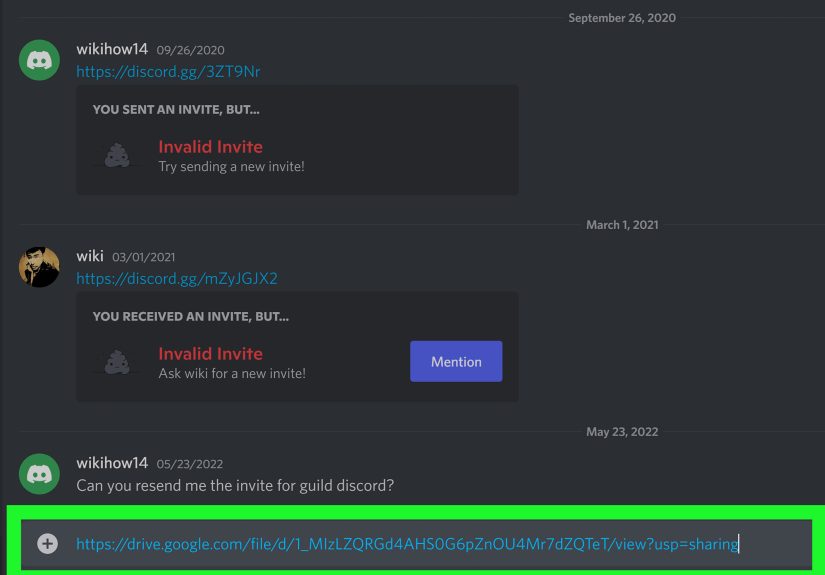
Solid options include Google Drive, OneDrive, Dropbox, and iCloud Drive. The key is configuring permissions so people can actually open the file
(and you don’t accidentally grant editing rights to the entire internet).
Google Drive quick steps (desktop)
- Upload the file to Drive.
- Right-click → Share.
- Under General access, choose “Anyone with the link” (or restrict to specific people for private files).
- Set role to Viewer unless collaboration is required.
- Copy link → paste into Discord with a helpful description.
OneDrive / Dropbox / iCloud Drive (same idea)
- OneDrive: Share → copy link → choose view/edit permissions.
- Dropbox: Create/copy a shared link → manage link settings.
- iCloud Drive: Share file/folder → invite people or send a link → choose permissions.
Example
You need to send a 1.2GB video export to a client. Upload to Drive or OneDrive, set “Viewer,” then paste the link in Discord:
“Final cut v3 (1.2GB). Download link (view-only). Let me know if you want a smaller preview version.”
Way 5: Use a platform that matches the file type (videos to video, code to code, big assets to releases)
Sometimes the best way to send a “file” is… not sending it as a file at all.
If the content naturally lives on a specialized platform, you’ll get better playback, better previews, and fewer “it won’t open on my phone” messages.
Best for: videos, images, logs, code snippets, game builds, community assets
Option A: Videos → unlisted video link
If the file is a video meant to be watched (not edited), upload it as an unlisted video and share the link.
That way people can stream it immediately without downloading a giant file.
Option B: Photos and clips → share album/link
For a batch of photos or short clips, a shared album link is often smoother than sending 47 individual uploads.
People can browse everything in one place, and you keep your Discord channels from turning into a scroll marathon.
Option C: Dev files and assets → GitHub (gists, releases, or repos)
- Small text/logs: Use a gist-style paste so formatting stays readable.
- Larger downloadable assets: Use a release attachment for build files (great for distributing versions).
- Ongoing projects: Use a repository so changes are tracked and nobody asks “which final_FINAL is this?”
Quick note: This method shines when you want versioning, comments, and a clear source of truthespecially for teams shipping builds, mods, or tools.
Safety and sanity checklist (because “anyone with the link” is a powerful spell)
- Check permissions: “Viewer” beats “Editor” 99% of the time.
- Consider expiration: If it’s sensitive, use expiring links where available.
- Separate the password: If you password-protect an archive, send the password in a different channel/DM.
- Scan for malware: Especially for executables, mods, and installers.
- Label versions: Add dates or version numbers to filenames to prevent chaos.
Conclusion
You don’t need Nitro to send large files on Discordyou just need the right path:
compress when the file is close to the limit, split when it’s stubborn, use boosted servers when available, and lean on cloud links or file-type platforms when the file is truly big.
Once you get a workflow you like, sharing becomes a two-click habit instead of a 20-minute wrestling match with an upload bar.
Real-World Experiences: What Usually Happens (and how to win anyway)
In real Discord life, people rarely fail at sending big files because they don’t know how. They fail because of the tiny “gotchas” that show up at the worst possible timeusually
when someone is waiting on the file and your upload bar is frozen like it just saw a ghost.
One common experience: someone uploads a cloud link, and immediately hears, “It says I need access.” This almost always comes down to sharing settings.
You meant “anyone with the link can view,” but the link is still locked to your account (or your school/work domain). The fix is simplechange access and resendbut the lesson is bigger:
before you paste a link into Discord, open it in a private browser window. If it works there, it’ll work for your friends. If it doesn’t, you just saved yourself a mini support ticket.
Another classic: splitting files into parts and then accidentally sending them out of order or missing one chunk. The recipient downloads everything, tries to extract, and gets a cryptic error
that feels like it was written by a villain. The best practice is boring but effective: name the archive clearly, keep all parts in one thread, and include a short “how to extract” line.
People are much happier downloading 12 parts when they know exactly what to do nextespecially if they’re on mobile and juggling limited storage.
Video compression has its own set of “fun.” A lot of people try zipping a video and are shocked when the ZIP is basically the same size.
That’s because most modern video files are already heavily compressed. The real win comes from re-encoding: lowering resolution, trimming dead time, and choosing efficient codecs.
The experience most folks have is experimenting once, then keeping a personal “Discord preset” for future clips. After that, it’s easy:
export the clip, run it through your preset, and upload the smaller version. If you need full quality for editing, you share the original via cloud link and send the compressed version as a preview.
Mobile uploads can feel like gambling. You pick a file, Discord thinks for a while, and then the upload failssometimes because your connection flips between Wi-Fi and cellular,
sometimes because the app decides to be dramatic. A practical habit is using cloud links for anything important on mobile.
Upload once (even if it takes time), then share the link as many times as needed without re-uploading.
In team settings, this also prevents the “I uploaded it yesterday but now I can’t find it in chat” problemcloud storage becomes the permanent source, Discord becomes the conversation layer.
And then there’s the social side: many servers already have boosted upload limits, but people forget and assume they’re stuck.
In boosted communities, the experience is often “Wait, I can upload that here?” Yessometimes you can.
The smart move is to treat a boosted server like a shared workspace: upload big-but-reasonable files there, keep them organized in a dedicated channel,
and post context so future-you doesn’t have to scroll back 900 messages to remember what “final_v7_really_final2.zip” was.
The overall pattern is simple: the best Discord file-sharing workflows don’t rely on a single trick. People mix methods.
They compress for quick sharing, split when needed, use boosted servers for convenience, and default to cloud links for anything that must work flawlessly.
Once you adopt that mindset, “sending large files on Discord without Nitro” stops being a frustrating limitation and starts being a choose-your-tool momentlike picking the right emoji, but with fewer regrets.