Table of Contents >> Show >> Hide
- What You Need Before You Start
- Method 1: Share Your iPhone Internet With Your PC Over Wi-Fi
- Method 2: Share Your iPhone Internet With Your PC Using USB
- Method 3: Share Your iPhone Internet With Your PC Over Bluetooth
- Which iPhone Hotspot Method Is Best for a PC?
- Why Your iPhone Hotspot Is Not Showing Up on Your PC
- How to Make Your iPhone Hotspot Faster and More Reliable
- Security Tips When Sharing Your iPhone Internet With a PC
- Common Mistakes to Avoid
- Real-World Experiences Using an iPhone Hotspot With a PC
- Final Thoughts
There are few modern frustrations more dramatic than a laptop with no internet. One minute you are ready to send an email, join a meeting, upload a file, or “definitely” finish that assignment. The next minute, your Wi-Fi disappears like it owes money. That is where your iPhone becomes the hero of the story.
If you have an iPhone with cellular data, you can share your internet connection with a PC in three main ways: Wi-Fi, USB, and Bluetooth. Apple calls this feature Personal Hotspot, and once you know where the settings live, it is surprisingly easy to use. The trick is choosing the best method for your situation, setting it up correctly, and avoiding the common mistakes that make people declare war on their devices before lunch.
In this guide, you will learn exactly how to share your iPhone internet connection with your PC, when to use each method, how to fix common problems, and how to make the connection more stable, secure, and battery-friendly. Whether you are using a Windows laptop at a coffee shop, a desktop during a home internet outage, or a work PC when the office Wi-Fi melts down, this article has you covered.
What You Need Before You Start
Before you turn your iPhone into a tiny internet station, make sure you have the basics in place:
- An iPhone with an active cellular data plan
- A carrier plan that supports Personal Hotspot
- A Windows PC or laptop with Wi-Fi, Bluetooth, or a USB port
- Your iPhone updated to a current version of iOS
- A charging cable if you want to use USB tethering
One important note: some carriers include hotspot access automatically, while others restrict it, charge extra, or cap the amount of hotspot data you can use. So if you do not see the Personal Hotspot option on your iPhone, the problem may not be your phone at all. It may be your plan saying, “Nice try.”
Method 1: Share Your iPhone Internet With Your PC Over Wi-Fi
For most people, this is the easiest and fastest way to connect a PC to an iPhone hotspot. It works like connecting to any other wireless network, except the router is now living in your pocket.
Step 1: Turn On Personal Hotspot on Your iPhone
Open Settings on your iPhone. Tap Personal Hotspot. On some versions of iOS, you may need to go to Cellular and then Personal Hotspot. Turn on Allow Others to Join.
You will also see a Wi-Fi Password. If the default password looks like your phone sneezed on the keyboard, change it to something secure but memorable. You do not want your hotspot to be so easy to join that the entire coffee shop is suddenly streaming videos on your data plan.
Step 2: Connect Your PC to the Hotspot
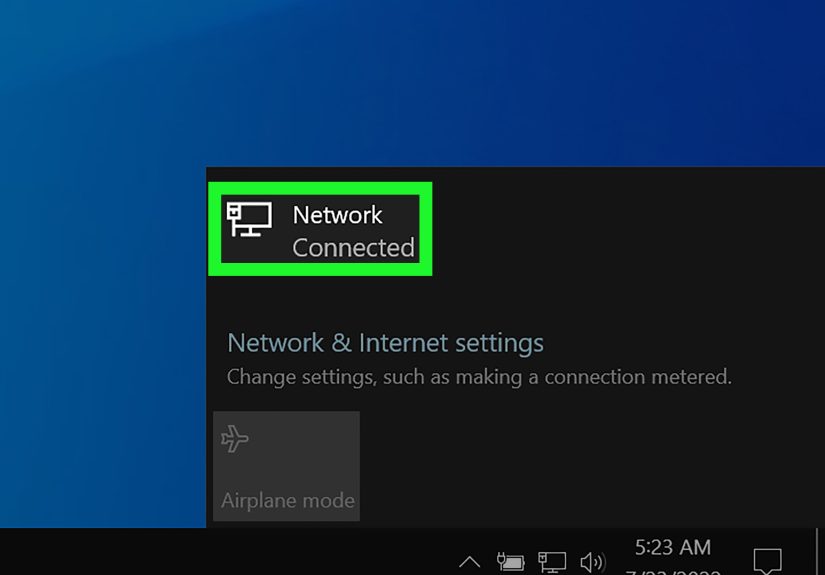
On your Windows PC, click the Wi-Fi icon in the taskbar. Look for your iPhone in the list of available networks. The hotspot name is usually your iPhone’s device name, such as “Huy’s iPhone.” Click it, enter the hotspot password, and connect.
That is it. Your PC should now use your iPhone’s cellular connection for internet access.
When Wi-Fi Hotspot Is Best
- When you want the simplest setup
- When you need to connect quickly
- When you may want to connect more than one device
- When you do not have a cable nearby
The Downsides of Wi-Fi Hotspot
Wi-Fi tethering is convenient, but it can drain your iPhone battery faster than the other methods. It can also be less stable in crowded wireless environments, and if your PC keeps hopping between saved networks, your connection may get flaky at the worst possible moment.
Method 2: Share Your iPhone Internet With Your PC Using USB
If you want a more stable connection, USB tethering is often the best choice. It is especially handy when you are working for long periods, traveling, or trying to avoid the weirdness that sometimes happens with public or crowded Wi-Fi.
As a bonus, using a cable can also charge your iPhone while it shares data. That means your phone is less likely to die halfway through a Zoom call, which is a beautiful thing.
Step 1: Turn On Personal Hotspot
On your iPhone, go to Settings and enable Personal Hotspot just as you would for a Wi-Fi connection.
Step 2: Connect Your iPhone to the PC With a Cable
Use a Lightning or USB-C cable, depending on your iPhone model, and plug your phone into the PC. Your iPhone may show a prompt that says Trust This Computer? Tap Trust and enter your passcode.
Step 3: Let Windows Recognize the Connection
In many cases, Windows will automatically detect the iPhone as a network connection. If it does not, you may need Apple device drivers or Apple software installed on the PC. On some systems, users have had to install or update iTunes or the Apple Devices app so Windows can properly recognize the iPhone over USB.
Once the PC recognizes the phone, it should treat the connection like a wired internet source. That usually means better stability and lower interference than a standard wireless hotspot.
When USB Tethering Is Best
- When you want the most stable connection
- When you are working for hours at a desk
- When your PC’s Wi-Fi adapter is unreliable
- When you want to reduce wireless interference
The Downsides of USB Tethering
The biggest drawback is obvious: you need a cable. Also, some Windows PCs can be a little dramatic about drivers. If your computer refuses to recognize the iPhone, the setup can go from “easy” to “why is this happening to me?” pretty fast.
Method 3: Share Your iPhone Internet With Your PC Over Bluetooth
Bluetooth tethering works, but it is usually the least popular option. Why? Because it is slower and a bit more annoying to set up. Still, it can be useful if Wi-Fi is not available and you do not have a cable.
Step 1: Turn On Bluetooth on Both Devices
On your iPhone, open Settings and turn on Bluetooth. On your Windows PC, go to Bluetooth settings and turn Bluetooth on there too.
Step 2: Pair the Devices
From your PC, search for nearby Bluetooth devices and select your iPhone. Confirm the pairing code on both devices if prompted.
Step 3: Connect Through the Bluetooth Network
After pairing, keep Personal Hotspot turned on. Your PC should then be able to connect through the Bluetooth network option. Once connected, the PC will use your iPhone’s internet connection.
When Bluetooth Tethering Is Best
- When Wi-Fi is unavailable or unstable
- When you do not have a USB cable
- When you only need light internet use, such as email or messaging
The Downsides of Bluetooth Tethering
Bluetooth is slower than Wi-Fi and USB. It is fine for basic browsing, chats, and light work, but it is not ideal for large uploads, video calls, or anything that involves impatient coworkers.
Which iPhone Hotspot Method Is Best for a PC?
If you just want the quick answer, here it is:
- Wi-Fi: easiest for most users
- USB: best for stability and long sessions
- Bluetooth: useful backup option, but slower
If I were connecting my iPhone internet to a PC during a home internet outage, I would usually pick USB tethering first. It is reliable, it helps keep the phone charged, and it avoids the chaos of crowded wireless networks. If I only needed to connect quickly for 10 or 15 minutes, I would use Wi-Fi because it is the fastest to set up.
Why Your iPhone Hotspot Is Not Showing Up on Your PC
This is one of the most common problems, and thankfully, the usual fixes are simple.
Check These First
- Make sure Allow Others to Join is turned on
- Keep the Personal Hotspot screen open on the iPhone while connecting
- Confirm that Cellular Data is active on the iPhone
- Make sure your carrier supports hotspot use
- Restart both the iPhone and the PC
More Fixes That Often Work
If the hotspot still does not appear, turn Wi-Fi and Bluetooth off and back on. On the PC, forget the saved iPhone hotspot network and reconnect from scratch. If you are using USB, try a different cable or USB port. If you are using Bluetooth, unpair the devices and pair them again.
Another sneaky issue is interference from VPN apps, security software, or outdated network drivers on the PC. If your computer connects to the hotspot but has no internet, the problem may be on the PC side rather than the iPhone side.
How to Make Your iPhone Hotspot Faster and More Reliable
Hotspot speed depends on your carrier, your signal strength, local congestion, and the method you use. Still, a few habits can improve the experience:
- Use USB tethering when possible for the most stable performance
- Place your iPhone where it gets a strong cellular signal
- Keep the phone plugged in during long sessions
- Disconnect unused devices from the hotspot
- Avoid large downloads if your signal is weak
- Turn off background syncing on your PC when using mobile data
Also, remember that hotspot data can disappear faster than free snacks in a break room. A laptop updates more aggressively than a phone, and cloud backups, app sync, and streaming can chew through your plan in a hurry.
Security Tips When Sharing Your iPhone Internet With a PC
Using your iPhone hotspot is often safer than joining a random public Wi-Fi network, but you still need basic security habits.
- Use a strong hotspot password
- Rename your iPhone if the current device name reveals too much personal information
- Turn off the hotspot when you are done
- Do not let unknown devices connect
- Prefer USB if you want a more private, direct connection
Think of it this way: your hotspot should be more like a private office door and less like an open house with balloons.
Common Mistakes to Avoid
People often assume hotspot problems are complicated when they are really caused by one of a few simple mistakes:
- Forgetting to enable Allow Others to Join
- Assuming every data plan includes hotspot access
- Using a bad cable for USB tethering
- Leaving the iPhone too far away from the PC
- Ignoring a Trust This Computer prompt
- Staying connected to another saved Wi-Fi network on the PC
It is rarely magic. It is usually one tiny setting hiding in plain sight, laughing quietly.
Real-World Experiences Using an iPhone Hotspot With a PC
In real life, sharing an iPhone internet connection with a PC is one of those features that feels boring until the exact moment it saves your day. Then suddenly it becomes the star of the show.
A classic example is the work-from-home outage. Your home internet drops five minutes before a meeting, your router lights start blinking like they are trying to communicate with space, and your PC is absolutely useless without a connection. Turning on Personal Hotspot on an iPhone and connecting by Wi-Fi can get you back online in less than two minutes. It is not glamorous, but it is the kind of practical tech move that makes you feel weirdly powerful.
Travel is another situation where iPhone hotspot sharing shines. Many people assume hotel Wi-Fi will be fine, and many people are then introduced to hotel Wi-Fi reality. Sometimes the signal is weak, sometimes the login page refuses to load, and sometimes the speed is so slow that opening one email feels like a historical reenactment of the dial-up era. In those moments, an iPhone hotspot connected to a laptop can be the difference between finishing work and staring at a spinning loading icon while rethinking your life choices.
USB tethering tends to be the most appreciated by people who need long, uninterrupted sessions. Writers, remote workers, and students often prefer it because it feels more stable than wireless tethering. There is also a small psychological comfort in seeing a cable attached. Wi-Fi feels airy and mysterious. USB feels like business. You plug it in, your phone charges, and the connection usually behaves like a proper wired network rather than a temporary improvisation.
Bluetooth tethering has its fans too, though they tend to be patient people. It is not the speed champion, but it can be useful when you need a simple low-bandwidth connection for email, documents, or messaging. It is the backup generator of the hotspot world. You do not brag about it, but you are glad it exists when other options fail.
There is also the experience of learning that hotspot data vanishes much faster on a PC than on a phone. A laptop loves background activity. It wants to sync files, update apps, refresh cloud storage, check email, and possibly download something enormous the moment you look away. Many first-time hotspot users discover this only after watching their data plan shrink at a speed that feels personal. Once you know this, you get smarter fast: pause large updates, close unnecessary apps, and save streaming for when real Wi-Fi returns.
Perhaps the biggest lesson from real-world use is this: the best hotspot method depends on the moment. Wi-Fi is best when you need speed and convenience. USB is best when you need stability and power. Bluetooth is best when you need a fallback. Knowing all three means your iPhone is not just a phone anymore. It is a backup internet plan, a productivity rescue kit, and occasionally the one device in the room that still has its act together.
Final Thoughts
If you have ever wondered how to share your iPhone internet connection with your PC, the good news is that Apple makes it fairly simple once you know the three methods. For most people, Personal Hotspot over Wi-Fi is the easiest choice. For better stability, USB tethering is often the smartest option. And for edge cases, Bluetooth tethering can still get the job done.
The key is understanding how each method works, knowing what your data plan allows, and keeping a few basic troubleshooting tricks in your back pocket. Once you do, your iPhone becomes a handy internet lifeline for your laptop or desktop PC whenever traditional Wi-Fi lets you down.
And really, in a world where the internet always seems to fail five minutes before something important, having a working iPhone hotspot feels less like a convenience and more like civilized survival.