Table of Contents >> Show >> Hide
- First, a quick clarification: “Recently played artists” can mean two different things
- Step 1: Update Spotify (because menus move like they’re paid per relocation)
- Step 2: Decide what you want to “show” (your own recents vs. your profile)
- Step 3: On iPhone/Android, open your Recents to see recently played artists
- Step 4: On Desktop/Web, open the Queue → Recently played
- Step 5: Turn ON “Recently played artists” to show them on your Spotify profile
- Step 6: Make sure privacy modes aren’t blocking your recently played artists
- Step 7: Troubleshoot when “Recently played artists” still won’t show
- Bonus: Want “recently played artists” plus deeper stats?
- FAQ: Quick answers (because you’re busy and Spotify is dramatic)
- Real-World Experiences: What It’s Like Using Spotify Recents
- Conclusion
Spotify is great at remembering what you like… and occasionally great at hiding where it remembers it.
If you’ve ever thought, “I know I was just listening to that artistwhere did they go?” you’re not alone.
The good news: Spotify can show your recently played artists in a couple different waysboth for
you (so you can find them again) and for other people (so your profile doesn’t look like a ghost town).
This guide walks you through the exact places Spotify tucks these features on mobile, desktop, and the web player,
plus the privacy toggles that can make your “Recently Played Artists” appear (or vanish like your motivation on leg day).
First, a quick clarification: “Recently played artists” can mean two different things
-
Your Recents / Listening history (for you): A list of stuff you recently playedsongs, playlists, albums, podcasts, audiobooks, and yes, artists.
This is the fastest way to find “that artist I played earlier.” -
Recently played artists on your public profile (for others): A profile section that lets people see which artists you’ve been listening to lately.
This is the feature you toggle on/off in privacy/social settings.
The seven steps below cover bothbecause most “it’s not showing” problems happen when you’re looking in one place,
but the setting you need lives in the other.
Step 1: Update Spotify (because menus move like they’re paid per relocation)
Spotify’s UI changes often, and the “Recents” and “Recently played” buttons can show up in slightly different places depending on your device,
region, and app version. Before you start hunting:
- Mobile: Update Spotify in the App Store or Google Play.
- Desktop: Check for updates (or restart the appSpotify loves a good reboot).
- Web player: Refresh the page and make sure you’re signed in.
Step 2: Decide what you want to “show” (your own recents vs. your profile)
Ask yourself one question:
Are you trying to find artists you listened to recently… or make them visible on your profile?
If you want to find an artist you listened to
Go straight to Recents / Listening history (Steps 3 and 4).
If you want other people to see your recently played artists
You’ll need to enable the “Recently played artists” profile setting (Step 5), then confirm it’s not being blocked by privacy modes (Step 6).
Step 3: On iPhone/Android, open your Recents to see recently played artists
On mobile, Spotify typically shows your listening history in one of two places. Use whichever option you see on your screen:
Option A: Tap the clock icon (when available)
- Open Spotify and go to Home.
- Look for a clock icon (often near the top of the screen).
- Tap it to open your Recently played / Listening history.
- Scroll to find the artist (Spotify will mix in songs, playlists, and albumsso look for artist names/icons).
Option B: Use your Profile menu → Recents
- Open Spotify and go to Home.
- Tap your profile picture (usually top-left).
- Select Recents (or “Listening history” if that’s what your version calls it).
- Scan the list for the artist you played.
Pro tip: If your goal is “show me artists, not everything,” use your eyes like a sorting filter:
artists appear as artist names with an artist icon/photo; tracks show song titles; playlists show playlist covers.
Not elegant, but neither is searching “da da da chorus guy.”
Step 4: On Desktop/Web, open the Queue → Recently played
Desktop Spotify often hides your actual listening history inside the Queue area. Here’s the path that works on most versions:
Spotify desktop app (Windows/Mac)
- Open Spotify.
- Click the Queue icon (typically bottom-right; it may look like lines with a play symbol).
- At the top of the queue panel, choose the Recently played tab.
- Look for artists in the list (along with tracks, playlists, albums, etc.).
Web player
The web player experience can vary, but you’ll usually find “recently played” content on the Home page or inside your library/queue views.
If you don’t see a “Recently played” tab, scroll the Home page for a Recently played shelf and open items from there.
Shortcut mindset: On desktop, if you just need one artist you played earlier today,
try the Home page’s Recently played row first (fast), then the Queue’s Recently played tab (more complete).
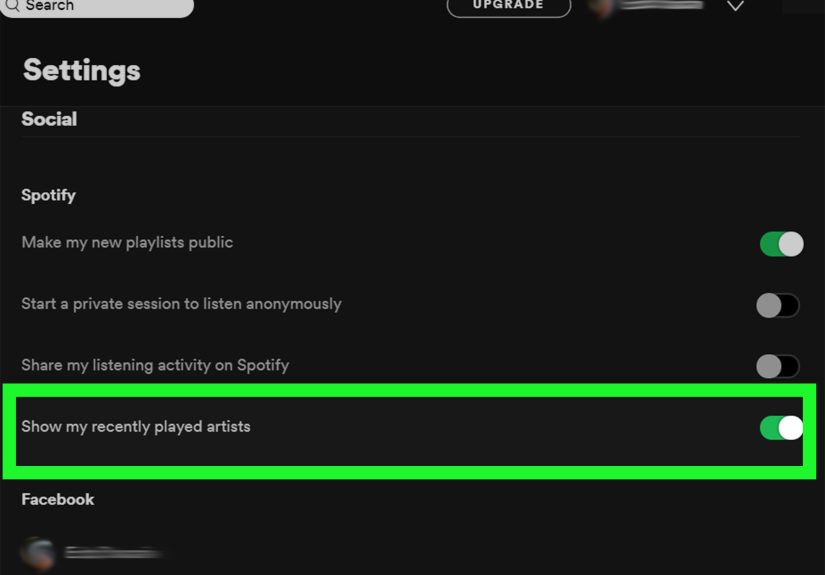
Step 5: Turn ON “Recently played artists” to show them on your Spotify profile
Here’s the part that trips people up: you can see your own listening history all day long,
but your profile’s Recently played artists section has its own on/off switch.
If it’s off, your profile won’t display recently played artistseven if you’re listening nonstop.
On mobile (iPhone/Android)
- Tap your profile picture.
- Open Settings and privacy (or just Settings, depending on your version).
- Go to Privacy and social (sometimes labeled Social).
- Find Recently played artists.
- Toggle it ON to show your recently played artists on your public profile.
On desktop
- Click your profile picture/name near the top.
- Open Settings.
- Find the Privacy/Social section.
- Toggle Recently played artists ON.
Heads up: Spotify sometimes names sections differently (“Social,” “Privacy and social,” or “Settings and privacy”),
but the toggle text usually includes “Recently played artists.”
Step 6: Make sure privacy modes aren’t blocking your recently played artists
If you turned the profile toggle on and still don’t see recently played artists, one of these settings may be interfering:
Private Session
Private Session is Spotify’s “incognito mode.” It’s useful when you don’t want anyone to know you listened to the same song 42 times.
But it can also reduce what updates socially (including profile-facing activity) while it’s enabled.
- Go to Settings → Privacy and social (or Social).
- Turn Private Session OFF if you want your activity to update normally.
Listening activity vs. recently played artists (they’re cousins, not twins)
Spotify also has settings like “Share my listening activity on Spotify” (often tied to Friend Activity on desktop).
That’s separate from Recently played artists. You might need one, the other, or both depending on what you’re trying to share.
If you’re under 18 (or writing for an audience that includes teens)
Spotify’s own privacy controls note that users under 18 should consider guardian guidance before changing social visibility settings.
Translation: it’s okay to customize your profile, just be smart about what you share publicly.
Step 7: Troubleshoot when “Recently played artists” still won’t show
If you’ve done Steps 1–6 and your recently played artists are still missing, try these fixes (in order).
Think of it as turning your Spotify profile off and on againbecause that works in real life too, right?
Fix 1: Toggle the setting OFF → ON (yes, really)
Go back to Settings → Privacy and social and switch Recently played artists OFF, wait a few seconds, then turn it ON again.
This can force a refresh if your profile got stuck.
Fix 2: Play a few artists all the way through (Spotify likes “real listening”)
Sometimes the profile section looks empty if your activity hasn’t registered properly.
Play a few different artists for a few minutes each, then check your profile again.
Fix 3: Log out/in and clear cache
- Mobile: Settings → Storage (or similar) → Clear cache.
- Desktop: Log out, quit Spotify completely, relaunch, and log back in.
Fix 4: Check if you’re looking at the right profile view
Make sure you’re on Your Profile (not a playlist profile or a blended session view).
On mobile, tap your profile icon → View profile, then scroll.
Fix 5: Accept that Spotify is testing something (politely)
Spotify frequently runs A/B tests. Some users report temporary changes where they can’t see other users’ recently played artists,
or the feature appears only under certain conditions. If you can’t see a friend’s recently played artists, it may be because:
- They toggled the setting OFF,
- They’re in Private Session often,
- Your app version is behind, or
- Spotify is experimenting (again) with what shows publicly.
Bonus: Want “recently played artists” plus deeper stats?
Spotify’s built-in recents are great for “what did I listen to lately?” but not always great for “who am I obsessed with this month?”
If your goal is to track your top artists over time, you have a few options:
- Spotify Listening Stats (where available): Some regions/accounts now show quick weekly or short-term listening summaries in the app.
-
Third-party dashboards (optional): Services like Stats for Spotify or stats-focused apps can show top artists across different time windows.
Only connect apps you trust, and review permissions before linking accounts. - Request your Spotify data: If you need a longer history than what “Recents” shows, Spotify account data requests can provide extended listening records.
FAQ: Quick answers (because you’re busy and Spotify is dramatic)
Can I show only artists in my recently played list?
Spotify doesn’t always give a perfect “artists-only” filter inside Recents on every platform.
Your best “artists-only” view is often the Recently played artists section on your profileonce it’s enabled.
Can I delete one artist from “Recently played artists” on my profile?
Spotify typically treats “Recently played artists” as an automatically generated profile section.
You can usually hide the entire feature with the toggle, but selective removal may not be available in all versions.
If you want to keep listening private temporarily, Private Session is the cleaner solution.
Why can I see my recents but other people can’t see my recently played artists?
Because they’re different features. Your Recents are personal listening history. The profile section is controlled by a separate privacy/social toggle.
Turn on Recently played artists in settings if you want it visible publicly.
Why can’t I see my friend’s recently played artists?
Most often: they turned it off. Sometimes: Spotify’s testing changes, or your friend is frequently in Private Session.
Updating the app on both sides can help.
Real-World Experiences: What It’s Like Using Spotify Recents
Here’s the funny part about “recently played artists”: everyone thinks they’ll use it like a tidy digital receiptone glance, one answer, done.
In reality, it’s more like checking your fridge at 2 a.m. You open the door, stare, and somehow walk away with something you didn’t plan on.
Based on common user scenarios, these are the moments when the feature becomes unexpectedly useful (or unexpectedly confusing).
Scenario 1: The “who was that?” commute. You’re on a bus, train, or in the passenger seat while Spotify is doing its algorithmic thing.
A song comes on with an artist you’ve never heard of, and you think, “Nicenew favorite unlocked.”
Then you arrive at your stop, life happens, and the name evaporates from your brain.
This is where Recents shines: you don’t have to remember lyrics, a melody, or anything except “it happened today.”
Most people pop open the clock icon or the profile menu’s Recents, scroll back a bit, and there it isyour mystery artist,
sitting proudly between a playlist you didn’t choose and a podcast you accidentally tapped once.
Scenario 2: The workout playlist spiral. A lot of listeners start with one artistthen end up in an hour-long tunnel of related recommendations.
One minute you’re listening to a high-energy pop track; the next minute you’re in a completely different genre with an artist you swear Spotify invented.
After the workout, people often want to “save the vibe” by following those artists or saving an album.
Recents makes that easy: tap the artist, follow them, and you’ve turned accidental discovery into a repeatable playlist strategy.
Without it, you’re stuck trying to reverse-engineer your own taste like it’s a crime scene.
Scenario 3: The social profile flex… and the social profile panic. Turning on Recently played artists on your profile is a personality choice.
For some people, it’s a fun little “currently obsessed with” billboard. Friends visit your profile, see the artists you’ve been into lately,
and it sparks recommendations: “Oh, you’re listening to them too?”
For others, it’s a surprise mirror held up to their listening habits at the worst possible moment.
(Nothing makes you reconsider your life choices like realizing your profile is quietly announcing that you’ve been replaying the same nostalgic soundtrack.)
That’s why people often bounce between having the feature on during normal listeningand flipping on Private Session when they want a little privacy.
Scenario 4: The “it disappeared” troubleshooting rite of passage. Almost everyone hits the moment where Recents is there,
but the profile section is empty. Users typically assume Spotify is broken, when it’s usually one of three things:
the profile toggle is off, the app hasn’t updated, or Private Session has been on for a while.
The fastest “real-world” fix people try is the classic: turn the setting off and on again.
It sounds like superstition, but it often workslike tapping a vending machine and hoping it respects you again.
Scenario 5: The long-term curiosity. Recents is great for “what did I listen to recently,” but many listeners want bigger answers:
“Who have I been playing the most lately?” This is where Spotify’s newer listening stats (when available) or trusted third-party stat tools come in.
People often use Recents for immediate recall (today, yesterday, this week), then use stats for patterns (the past month, season, or year).
Together, it’s the difference between remembering what you ate for lunch and understanding what your diet has become.
The takeaway: “Recently played artists” isn’t just a listit’s a tiny time machine. Sometimes it helps you rediscover a new favorite.
Sometimes it helps you confirm, with evidence, that yesyou really did listen to that one artist 17 times this week.
And sometimes it reminds you that Spotify’s interface is an adventure game, and you are the hero with the map.
Conclusion
If Spotify isn’t showing your recently played artists, it’s almost always one of two things:
you’re looking in the wrong place (Recents vs. Profile), or the feature is switched off in
Privacy and social. Follow the seven steps, confirm your settings, and you’ll have your “recently played” artists back on-screen
whether you’re trying to rediscover a new favorite or proudly display your current obsession like a musical mood ring.