Table of Contents >> Show >> Hide
- What changes when you turn Focused Inbox off?
- Way 1: Turn Off Focused Inbox in Classic Outlook for Windows (Desktop App)
- Way 2: Turn Off Focused Inbox in New Outlook for Windows (and Outlook on the Web-Style Settings)
- Way 3: Turn Off Focused Inbox in Outlook for Mac
- Way 4: Turn Off Focused Inbox in Outlook Mobile (iPhone/iPad and Android)
- After You Turn It Off: How to Stay Organized Without Focused Inbox
- Troubleshooting: When You Can’t Find Focused Inbox (or It Keeps Coming Back)
- FAQ: Quick Answers About Turning Off Focused Inbox
- Conclusion
- Real-World Experiences: What Happens After You Turn Off Focused Inbox (About )
Focused Inbox is Outlook’s well-meaning but sometimes overconfident assistant: it tries to sort your email into two tabs
Focused (the stuff it thinks you care about) and Other (the stuff it thinks you don’t).
When it’s right, it feels magical. When it’s wrong, it feels like your inbox is playing hide-and-seek with your bills, school emails,
client messages, or that one “URGENT” thread that Outlook decided was “a vibe… but in Other.”
The good news: turning Focused Inbox off is easy, reversible, and doesn’t delete anything. The trick is that the steps depend on
which Outlook you’re usingWindows “classic” Outlook, the “new” Outlook, Outlook on the web, Mac, or mobile.
This guide walks you through four reliable ways to disable Focused Inbox across the most common Outlook versions,
plus a few practical tips to keep your inbox organized after you flip the switch.
What changes when you turn Focused Inbox off?
Turning off Focused Inbox doesn’t change where your mail livesit changes how Outlook shows it.
Instead of splitting messages into Focused and Other, you’ll see one unified Inbox view. Your email rules, folders, flags, and search still work.
Quick reality check (so you don’t panic later)
- No emails are deleted. You’re only turning off the sorting display.
- Your mailbox stays the same. You’re not “moving” mailjust removing the Focused/Other split.
- You can turn it back on anytime. If you miss the two tabs, it’s a quick toggle.
- It may be per account. If you have multiple email accounts in Outlook, you might need to change the setting for each one.
Way 1: Turn Off Focused Inbox in Classic Outlook for Windows (Desktop App)
If you’re using the traditional Outlook desktop app (often bundled with Microsoft 365 Apps), this is the fastest method:
one ribbon click and Focused Inbox taps out.
Steps (Classic Outlook on Windows)
- Open Outlook on your Windows PC.
- Go to the View tab in the ribbon.
- Find Show Focused Inbox.
- Click it once to uncheck/disable the feature.
What you should see afterward
The Focused and Other tabs disappear, and your Inbox becomes a single stream again.
If you’re the type who likes instant confirmation (same), this visual change is your “receipt.”
Example: Why this fixes “missing emails” anxiety
Let’s say your bank sends a fraud alert and Outlook decides it belongs in Other because it “looks like a notification.”
With Focused Inbox off, that alert lands in the same Inbox view as everything elseso you don’t have to remember to check a second tab
like you’re doing daily email cardio.
Way 2: Turn Off Focused Inbox in New Outlook for Windows (and Outlook on the Web-Style Settings)
The new Outlook for Windows behaves a lot like Outlook on the web. Instead of a simple ribbon toggle in every case,
you’ll often change Focused Inbox through View settings under Mail Layout.
Steps (New Outlook for Windows)
- Open new Outlook on Windows.
- Select View on the top menu.
- Choose View settings.
- Go to Mail > Layout.
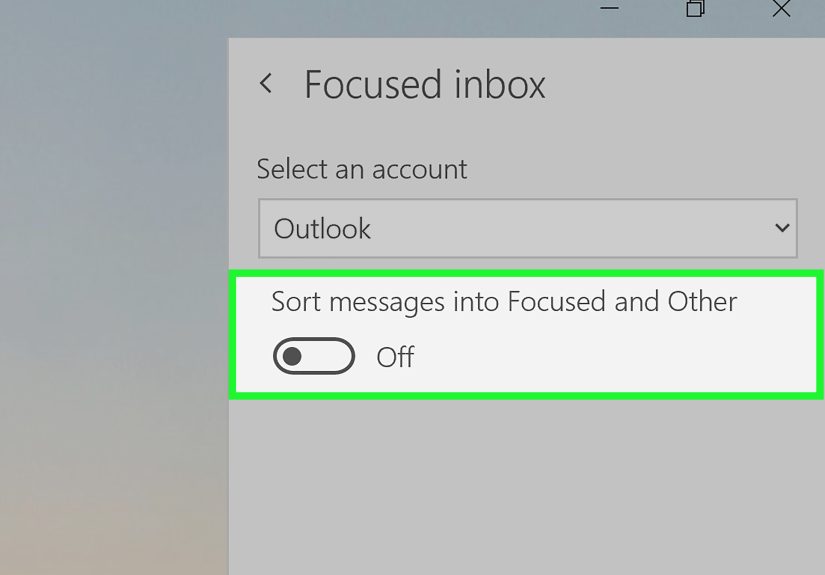
- Under Focused inbox, select Don’t sort my messages.
- Select Save.
If you have multiple accounts
In the Layout area, look for an account selector (often a dropdown). Apply the Focused Inbox setting to the account that’s giving you trouble.
This matters because many people turn it off for work email (where missing things is expensive) but keep it on for personal email
(where marketing messages multiply like gremlins after midnight).
Tip: Use this method when the ribbon toggle “isn’t there”
Sometimes you’ll see guides saying “click Show Focused Inbox,” but your Outlook looks different. That’s usually because you’re in the
new Outlook interface (or your organization has customized what you see). In that case, the View Settings path above is
the most consistent route.
Way 3: Turn Off Focused Inbox in Outlook for Mac
Mac users: Outlook didn’t forget you. (It just sometimes hides the option in plain sight like a cat behind a curtain.)
On Outlook for Mac, Focused Inbox is typically controlled from the View tab.
Steps (Outlook for Mac)
- Open Outlook on your Mac.
- Select the View tab.
- Choose Turn off Focused Inbox.
What you should see afterward
The Focused/Other tabs disappear at the top of the Inbox view, and your Inbox becomes one list again. If you don’t see any change,
click into your Inbox folder directly (not Search or a custom view) and try again.
Way 4: Turn Off Focused Inbox in Outlook Mobile (iPhone/iPad and Android)
Mobile Outlook is where Focused Inbox often causes the most confusionbecause it can also affect what notifications you notice first.
If you’ve ever thought, “My phone didn’t alert me, so the email never happened,” you’re not alone.
Steps (Outlook Mobile App)
- Open the Outlook app on your phone.
- Tap the Inbox label or your profile icon to open the side menu.
- Tap Settings (the gear icon).
- Tap Mail.
- Find Focused Inbox and toggle it Off.
Mobile bonus: Make sure notifications match your new setup
Some people keep Focused Inbox on because they only want alerts for “important” emailsuntil Outlook decides the important email is… a pizza coupon.
If you turn Focused Inbox off, double-check your notification preferences so you’re getting alerts the way you expect.
After You Turn It Off: How to Stay Organized Without Focused Inbox
Turning off Focused Inbox is like removing a sorting robot from your mailroom. Now you’re in charge againwhich is great,
as long as you don’t replace it with chaos and vibes.
Use rules for predictable email (newsletters, receipts, notifications)
Focused Inbox is an algorithm guessing what matters. Rules are you deciding what matters. Big difference.
A few simple rules can keep your Inbox clean without hiding surprises:
- Newsletters: move them to a “Reading” folder.
- Receipts: move to “Purchases” (future-you will thank you during returns season).
- Project mail: route messages with a keyword (like a client name) to a project folder.
Flag, pin, or follow up (your future self is forgetful)
If you relied on Focused Inbox to surface “important” mail, replace that habit with something you control:
use flags, follow-up reminders, and folder favorites for messages you can’t afford to miss.
Search smarter instead of scrolling forever
Unified Inbox means more messages in one place, so search becomes your best friend.
Try searching by sender, subject keywords, or attachment type when you need something quickly.
Troubleshooting: When You Can’t Find Focused Inbox (or It Keeps Coming Back)
1) You’re using a different Outlook version than the instructions assume
If someone tells you “Click View > Show Focused Inbox,” but you don’t see it, you may be using new Outlook
(or Outlook on the web). Use Way 2 and look for the setting in Mail > Layout.
2) Your account type may not support Focused Inbox everywhere
Focused Inbox availability can vary depending on whether you’re using Microsoft 365, Exchange, or Outlook.com versus other account types.
If the option is missing in one client, check another platform (web or mobile) to confirm whether the setting exists for that account.
3) Your organization may manage Focused Inbox behavior
If you’re on a school or work account and Focused Inbox keeps reappearing, your IT admin may be applying tenant or mailbox settings.
In Microsoft 365 environments, administrators can configure Focused Inbox organization-wide or per mailbox using Exchange Online tools.
If that sounds like your situation, the fastest fix is often simply: ask IT whether Focused Inbox is enforced or just suggested.
4) Give it a moment, then restart the app
Outlook settings can take a short bit to sync across devices. If you turn it off on the web but still see it on your phone,
fully close Outlook and reopen it (the tech version of “turn it off and on again,” which remains undefeated).
FAQ: Quick Answers About Turning Off Focused Inbox
Will I miss important emails if I turn it off?
Usually the opposite. With Focused Inbox off, you don’t need to remember to check the Other tab. Everything lands in one Inbox view,
and you can manage importance using flags, folders, and rules.
Does turning it off on one device turn it off everywhere?
Sometimes, but not always. Some settings apply per account and sync, but it’s common to need to toggle Focused Inbox separately in
different apps (desktop vs mobile). If you want consistency, verify the setting on each device you use regularly.
Can I turn it back on later?
Absolutely. Every method in this guide is reversiblejust switch back to sorting messages into Focused and Other.
Conclusion
Focused Inbox can be helpfuluntil it isn’t. If you’d rather see every message in one place (and stop playing “Guess Which Tab It’s In”),
turning it off is quick. Use the method that matches your Outlook version: classic Outlook on Windows, new Outlook/web-style settings,
Outlook for Mac, or Outlook mobile. Once it’s off, a couple of simple rules and a habit of flagging what matters
will keep your inbox calm, predictable, and much less dramatic.
Real-World Experiences: What Happens After You Turn Off Focused Inbox (About )
Here’s the funny thing about Focused Inbox: the feature rarely causes problems when you have plenty of time and nothing urgent going on.
It usually causes problems precisely when you’re busy, stressed, and relying on Outlook to behave like a dependable adult.
That’s why people often decide to turn it off after a “never again” moment.
One common scenario is the deadline email that lands in Other. Think: a teacher’s update about an assignment change,
a job recruiter rescheduling an interview, or a client asking for one small detail that’s actually the whole project. Focused Inbox is trained
to prioritize patterns, not your personal stakes. If you don’t frequently email that sender, Outlook may treat it like “background noise.”
When Focused Inbox is off, you don’t have to remember to check a second tabyou just scan one Inbox and you’re done. That single change
can remove a surprising amount of daily anxiety.
Another experience shows up in teams: shared inbox confusion. Departments that use shared mailboxessupport@, info@,
admissions@, billing@often want one consistent view so anyone can jump in and respond. Focused Inbox can make people feel like messages
“vanish,” because one person sees the email right away in Focused, while another person has it sitting quietly under Other.
Turning Focused Inbox off brings everyone back to the same reality: one Inbox, one stream, no scavenger hunt.
On mobile, the experience is even more personal: notifications and trust. Many users assume their phone will alert them to anything important.
If an email goes to Otheror if your notification settings prioritize Focusedyour brain can interpret silence as “nothing happened.”
That’s not laziness; it’s how notification-driven habits work. After turning Focused Inbox off, people often report that their relationship
with email feels more predictable. They check once, respond, and move on, instead of checking Focused, then checking Other “just in case,”
then checking Focused again because now they’re suspicious of Outlook’s judgment.
There’s also the “newsletter avalanche” story. Some folks keep Focused Inbox on because it blocks the worst of the marketing flood.
But once they turn it off, they realize they don’t actually need an algorithmthey need two or three rules.
Automatically moving newsletters to a Reading folder (or receipts to Purchases) often works better than Focused Inbox because it’s consistent.
And consistency is what most people want from email, right after “please stop emailing me.”
The best part? Turning off Focused Inbox doesn’t have to be a permanent personality trait. Plenty of people experiment: off during finals week,
tax season, onboarding, big launches, or any time missing one message would be costlyand back on during quieter months.
The feature is a tool, not a lifestyle. If you want your inbox to be boring (in the best way), a unified Inbox plus simple rules is often the winning combo.