Table of Contents >> Show >> Hide
- First: Two Different Bluetooth Setups People Confuse (All the Time)
- Before You Pair: Quick Checklist (Saves Time, Saves Sanity)
- Option A: Use Your Echo as a Bluetooth Speaker (Phone/Laptop → Echo)
- Option B: Connect Your Echo to a Bluetooth Speaker (Echo → External Speaker)
- Switching Between Devices Without Losing Your Mind
- Troubleshooting: Fix Bluetooth Pairing Problems Like a Pro
- Bluetooth vs Wi-Fi: Which One Should You Use?
- Quick Privacy Note (Because Bluetooth Isn’t the Only Thing That Pairs)
- Conclusion: Your Echo Can Be Your Everyday Speaker
- Real-World Experiences: What Bluetooth Pairing With Alexa Is Actually Like
You bought an Echo for weather, timers, and the occasional “Alexa, why does my dog stare at the wall?”
But then you realized something: it’s also a pretty solid speaker. And with Bluetooth pairing, you can turn
your Alexa device into a wireless soundbar for your phone, tablet, or laptopno extra gear, no cables, no
arguing with the AUX cord like it’s 2009.
This guide walks you through how to use Alexa as a speaker via Bluetooth pairing in a way that’s
actually helpful: step-by-step instructions, real-world troubleshooting, and a few “why is it doing that?”
explanations for when Bluetooth decides to act like a moody cat.
First: Two Different Bluetooth Setups People Confuse (All the Time)
When someone says “use Alexa as a speaker,” they usually mean one of these:
-
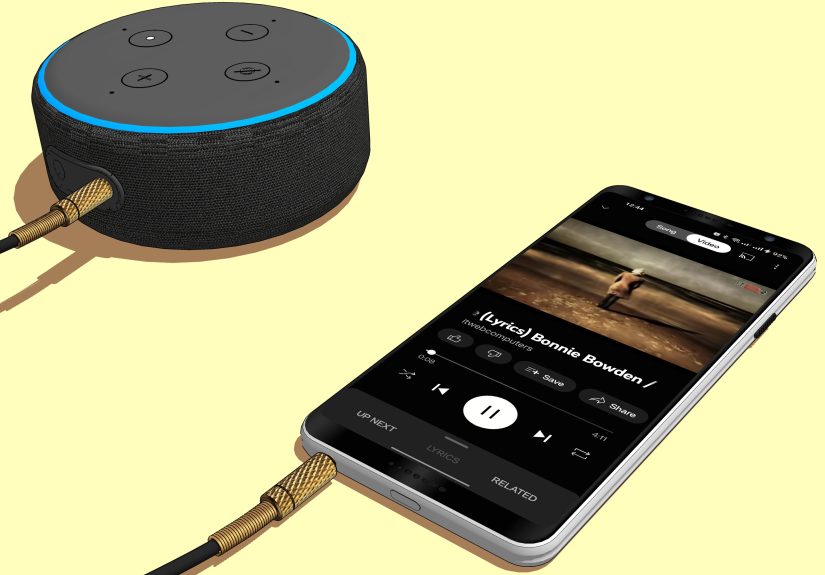
Option A (Most common): Your phone/computer connects to Echo, and the Echo plays your audio.
In other words: Echo = Bluetooth speaker. -
Option B: Your Echo connects to an external Bluetooth speaker, and the external speaker plays Alexa’s audio.
In other words: External speaker = better sound for Echo.
This article covers both, because the internet is full of instructions that start confidently and end in confusion.
(We will not be that internet.)
Before You Pair: Quick Checklist (Saves Time, Saves Sanity)
- Make sure your Echo is already set up in the Alexa app and connected to Wi-Fi (at least for initial setup).
- Update your phone (and the Alexa app) if pairing has been flaky lately.
- Move devices close together (within a few feet) for the first pairing.
- Turn off Bluetooth on other nearby devices temporarily if your Echo keeps pairing with the “wrong” thing.
- Know your goal: Are you pairing to the Echo (Option A) or pairing the Echo to another speaker (Option B)?
Option A: Use Your Echo as a Bluetooth Speaker (Phone/Laptop → Echo)
This is the setup most people want: you play audio on your phone or computer, and your Echo plays it out loud.
Great for YouTube, TikTok, podcast apps, web video, games, Zoom audio, and any app that doesn’t “cast” nicely.
Fastest Method: Use a Voice Command
- On your phone or computer, turn Bluetooth ON.
- Say to your Echo: “Alexa, pair” (or “Alexa, Bluetooth pairing”).
- On your phone/computer, open Bluetooth settings and select your Echo from the device list.
- When connected, play audio on your deviceyour Echo should output the sound like a standard Bluetooth speaker.
Once you’ve paired the first time, reconnecting is usually easy:
“Alexa, connect to my phone” or simply selecting the Echo again in Bluetooth settings.
Method 2: Pair Using the Alexa App (More Control, Less Guessing)
- Open the Alexa app on your phone.
- Tap Devices.
- Select your Echo device (Echo, Echo Dot, Echo Show, etc.).
- Open Bluetooth Devices.
- Tap Pair a New Device and choose your phone/tablet/computer if it appears.
The app method is especially useful if your Echo has previously paired to multiple devices and keeps “remembering”
the one you don’t want (like an ex that still has your hoodie).
Pairing Steps by Device Type
iPhone (iOS)
- Go to Settings → Bluetooth.
- Turn Bluetooth on.
- Say “Alexa, pair”.
- Tap your Echo in the list (it may appear as “Echo-XXX” or a device name you set).
Android
- Go to Settings → Connected devices (wording varies) → Bluetooth.
- Turn Bluetooth on and tap Pair new device / Scan.
- Say “Alexa, pair”.
- Select your Echo from the list and confirm pairing if prompted.
Windows PC (Windows 10/11)
- Open Settings → Bluetooth & devices.
- Turn Bluetooth on.
- Click Add device → choose Bluetooth.
- Say “Alexa, pair”.
- Select your Echo when it appears and complete the pairing.
Mac (macOS)
- Open System Settings → Bluetooth.
- Turn Bluetooth on.
- Say “Alexa, pair”.
- Find your Echo in the device list and click Connect.
Useful Alexa Bluetooth Commands (A Tiny Cheat Sheet)
| Say This | What It Does |
|---|---|
| “Alexa, pair” | Puts Echo into Bluetooth pairing mode. |
| “Alexa, connect to my phone” | Tries to reconnect to the last paired phone. |
| “Alexa, disconnect” | Disconnects the current Bluetooth device. |
| “Alexa, connect to Bluetooth” | Prompts Echo to look for known Bluetooth devices. |
Pro tip: if you have more than one Echo, give them distinct names in the Alexa app. Otherwise your phone will show
a list that looks like: “Echo… Echo… Echo…” which is about as helpful as labeling every spice jar “SPICE.”
Option B: Connect Your Echo to a Bluetooth Speaker (Echo → External Speaker)
If you like Alexa’s brain but want better audio (bigger bass, clearer sound, louder volume), connect your Echo to a
Bluetooth speaker. Your Echo becomes the “source,” and the Bluetooth speaker becomes the “output.”
Steps (Alexa App Method)
- Put your Bluetooth speaker in pairing mode (usually a Bluetooth button or long-press on power).
- Open the Alexa app.
- Tap Devices → select your Echo device.
- Tap Bluetooth Devices → Pair a New Device.
- Select your Bluetooth speaker when it appears.
Once connected, Alexa’s music, alarms, and responses should play through that Bluetooth speaker.
If you don’t hear anything, check the speaker’s volume and confirm it didn’t automatically connect to your phone instead.
What About Echo Show?
On Echo Show devices, you can also manage Bluetooth from the screen’s settings menu, which is handy when your phone
is across the room and you’re already committed to being horizontal on the couch.
Switching Between Devices Without Losing Your Mind
Echo devices can “remember” multiple Bluetooth devices, but they typically connect to one at a time.
If your Echo keeps grabbing the wrong phone:
- Disconnect the current device: say “Alexa, disconnect.”
- Reconnect the right one: say “Alexa, connect to my phone” (or select the Echo in your phone’s Bluetooth list).
- Forget old devices: Alexa app → Devices → your Echo → Bluetooth Devices → remove/forget devices you don’t use anymore.
- Turn off Bluetooth on other devices in the room during setup (tablets love to “help”).
Troubleshooting: Fix Bluetooth Pairing Problems Like a Pro
1) Your Echo Doesn’t Show Up in Bluetooth Lists
- Say “Alexa, pair” again (pairing mode doesn’t stay open forever).
- Move devices closerfirst pairing is picky.
- Restart your Echo (unplug for ~10 seconds, plug back in).
- Restart Bluetooth on your phone/computer (toggle off/on).
- If you’re trying Option B, confirm the external speaker is truly in pairing mode (lights usually blink).
2) It Pairs… But Audio Is Choppy or Delayed
- Bluetooth is sensitive to interference: microwaves, baby monitors, crowded Wi-Fi, and thick walls can all contribute.
- Try moving the Echo and phone closer or changing which room you’re in (seriously).
- Disconnect other Bluetooth devices nearby (headphones can compete).
- For video, some delay is normal with Bluetooth. If lip-sync matters, Wi-Fi streaming options may perform better.
3) Alexa Keeps Saying “I Can’t Find a Device”
- Make sure Bluetooth is enabled on the phone and it’s discoverable.
- If this is a previously paired phone, try “Alexa, connect to my phone”.
- Remove the pairing and redo it: “forget” in the Alexa app and also “forget this device” in your phone’s Bluetooth settings.
4) Multi-Room Music Isn’t Working (Or Sounds Out of Sync)
If you’re using multi-room audio groups, Bluetooth can complicate things. Many setups work best when Echo devices
are playing over Wi-Fi rather than routing through Bluetooth, which can introduce delay or prevent grouping entirely.
If your group acts weird, disconnect Bluetooth and test again.
Bluetooth vs Wi-Fi: Which One Should You Use?
Bluetooth pairing is fantastic when you want any audio from a device (including apps that don’t support casting).
But it’s not always the best tool for every job:
- Use Bluetooth when you want to play YouTube, social apps, browser video, games, local files, or guest audio quickly.
- Use Wi-Fi streaming when you want better syncing (multi-room), less latency, and less dependence on your phone staying nearby.
Translation: Bluetooth is the flexible “plays anything” option. Wi-Fi streaming is the “runs smoother at scale” option.
Many people use bothBluetooth for random audio, Wi-Fi for daily music routines.
Quick Privacy Note (Because Bluetooth Isn’t the Only Thing That Pairs)
Bluetooth pairing itself doesn’t mean Alexa is recording more than usual, but Echo devices are still voice assistants.
If you share a household, it’s smart to review device settings, connected phones, and voice history options in the Alexa app.
Think of it as spring cleaning… for your smart speaker’s social life.
Conclusion: Your Echo Can Be Your Everyday Speaker
If you can connect a pair of wireless earbuds, you can connect an Echo. The winning formula is simple:
decide which direction you’re pairing, use either the voice command or Alexa app, and keep devices close for the first setup.
After that, it’s mostly smooth sailinguntil Bluetooth gets dramatic again, at which point you now have a playbook.
Real-World Experiences: What Bluetooth Pairing With Alexa Is Actually Like
Here’s what people discover after the “cool, it works!” momentaka the part no one tells you until you’re standing in the kitchen
holding a phone in one hand and a spatula in the other like you’re conducting an orchestra of chaos.
1) The “Kitchen Upgrade” Moment
The kitchen is where tiny phone speakers go to retire. Pairing your phone to an Echo instantly makes cooking feel less like a silent
documentary about onions. A common routine is: you start a recipe video on your phone, say “Alexa, pair,” connect, and suddenly the
instructions are audible over sizzling pans. The only surprise? If your phone’s notification sounds are on, your Echo will proudly
announce every text alert at full volume. The fix is easy: turn on Do Not Disturb or lower notification volume before you start streaming.
2) The “Why Did It Connect to My Tablet?” Mystery
Bluetooth has a personality: it loves the device you didn’t mean. Households with multiple phones, tablets, and laptops often see an Echo
reconnect to whatever was last pairedor whichever device wakes up first. The fastest real-life solution is to keep your Echo’s Bluetooth
list tidy: forget devices you don’t actively use and rename the devices you do. If you have guests, consider pairing them temporarily,
then removing them afterward. It’s not rudeit’s Bluetooth hygiene.
3) The “Movie Night” Reality Check
Pairing an Echo to a laptop for movie night sounds perfect: bigger sound without extra equipment. In practice, it’s usually great for
dialogue-heavy shows and casual viewing, but Bluetooth latency can show up as slightly off lip-sync, especially on older computers or in
busy wireless environments. Many people end up using Bluetooth for TV episodes and YouTube, then switching to a Wi-Fi-based streaming method
(or a wired setup) when they want the cleanest sync for movies. The takeaway: Bluetooth is a convenience champ, not always a cinema perfectionist.
4) The “Work Call” Surprise Win
A sneaky good use case: pairing an Echo as a speaker for work calls. If your laptop audio is weak, routing meeting audio through an Echo can
make voices clearer and louderespecially in a larger room. The practical tip here is positioning: put the Echo closer to you than to noisy
areas (like a fan, window, or clattering keyboard). And remember, your Echo is the speaker output, not necessarily the microphone for your call
appyour laptop mic may still be doing the talking. Testing once before an important meeting is the difference between “pro move” and “why is
everyone hearing an echo of my echo?”
5) The “Party Playlist” Trick
Bluetooth pairing is perfect for parties because it’s fast and flexible: anyone can connect and play a songif you let them. In reality,
hosts often set one “official” phone as the paired device to avoid playlist hijacking (yes, your friend will absolutely queue a 10-minute
experimental remix at the worst time). A friendly compromise is to keep Bluetooth paired to one device and take requests, or use a shared
playlist people can add to. Less chaos, more dancing, fewer debates about who connected last.
6) The “It Worked Yesterday” Problem (And Why It Happens)
Bluetooth can fail for boring reasons: a software update, a device name change, a speaker that auto-connected to something else, or a phone
that decided it’s “saving battery.” The consistent real-world fix pattern is: disconnect → forget → restart → re-pair. It feels old-school,
but it’s effective. People who keep this simple sequence in mind spend less time fighting settings menus and more time actually listening to audio.
Bottom line: once you learn the pairing direction (phone-to-Echo vs Echo-to-speaker) and you know the handful of commands that matter,
Alexa becomes a surprisingly useful Bluetooth speaker in everyday life. Not perfect, but extremely convenientand convenience is basically
the entire point of having a smart speaker in the first place.