Table of Contents >> Show >> Hide
- What a STOP Code Actually Is
- Why Windows “Stops” Instead of Trying to Power Through
- What You’ll See on a BSOD (and What It Means)
- Common Causes of STOP Codes
- Popular STOP Codes and What They Often Point To
- First Things to Do When You See a STOP Code
- Step-by-Step Troubleshooting (Practical and Not Too Painful)
- Advanced: What “Bug Check Parameters” Are (and Why They Matter)
- Prevention: How to Lower Your Chances of Seeing STOP Codes Again
- FAQ: Quick Answers About STOP Codes
- Real-World Experiences With STOP Codes (What People Commonly Run Into)
- Conclusion
You’re minding your own businessmaybe writing an email, gaming, or pretending you’re “just going to quickly update one thing”and then Windows drops the dramatic line:
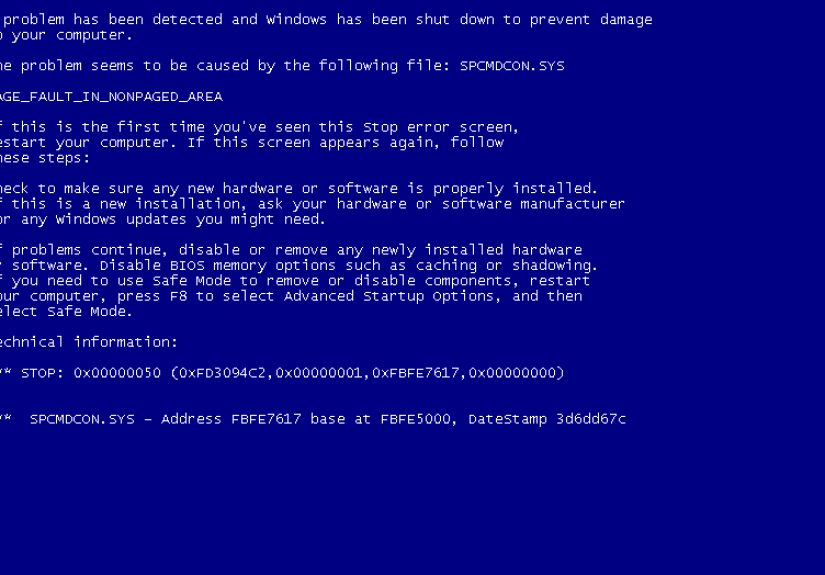
“Your PC ran into a problem and needs to restart.” Cue the Blue Screen of Death (BSOD)… or, on some newer builds, a very moody dark screen.
Right there on the crash screen is the clue that matters most: the STOP code (also called a bug check code). Think of it like Windows yelling, “I had to slam the brakes because something was dangerously wrong,” and then handing you a short label for the kind of emergency it detected.
What a STOP Code Actually Is
A STOP code is a Windows crash identifier that appears when the operating system hits a critical error it can’t safely recover from. At that point, Windows intentionally stops (hence “STOP”), records diagnostic info, and restarts to protect your system from corruption or further damage.
STOP codes often appear in a readable form (like CRITICAL_PROCESS_DIED) and may also be associated with a hexadecimal “bug check” number (like 0x000000EF), depending on where you’re viewing the crash details.
STOP code vs. “regular” error message
Regular app errors are like a toaster burning your bagel. A STOP code is like the circuit breaker flipping because sparks are flying behind the wall. It’s a system-level failureusually involving the Windows kernel, drivers, or hardware.
Why Windows “Stops” Instead of Trying to Power Through
Windows can recover from a lot: a frozen app, a glitchy browser tab, even your decision to open 47 Chrome tabs “for research.” But some problems occur in parts of the system where guessing would be dangerouslike kernel memory, storage drivers, or hardware communication.
When Windows detects a situation where continuing could corrupt files, damage data structures, or cause unpredictable behavior, it triggers a bug check (STOP error). That’s Windows choosing “safe shutdown” over “chaos roulette.”
What You’ll See on a BSOD (and What It Means)
Modern Windows crash screens usually show:
- A short message explaining the PC needs to restart.
- The STOP code (example: IRQL_NOT_LESS_OR_EQUAL).
- Sometimes a driver/module name (example: something ending in .sys).
- Sometimes a QR code (helpful… occasionally… in theory).
The “.sys” clue: drivers in the spotlight
If the crash screen names a file like something.sys, that’s typically a driver or kernel component. It doesn’t always mean that file is “the villain,” but it’s a strong hint about where the failure happened.
Common Causes of STOP Codes
STOP codes don’t happen because Windows is bored. The usual suspects are:
- Faulty or incompatible drivers (graphics, storage, Wi-Fi, security software, virtualization drivers, etc.).
- Hardware problems (failing RAM, unstable CPU, overheating, dying SSD/HDD, power issues).
- Corrupted system files (bad updates, disk errors, unexpected shutdowns).
- Software conflicts (especially low-level tools like antivirus, VPN, overclocking utilities, disk encryption).
- Firmware/BIOS issues (outdated firmware or unstable settings).
- Malware (less common than drivers/hardware, but possible if system components are tampered with).
Popular STOP Codes and What They Often Point To
STOP codes can look scary, but many fall into familiar patterns. Here are a few common ones and the direction they usually point you toward.
(Important: these are “most likely” clues, not guarantees.)
| STOP Code | Typical Meaning | Common Culprits |
|---|---|---|
| CRITICAL_PROCESS_DIED | A critical system process crashed | Driver issues, corrupted files, failing storage, bad updates |
| IRQL_NOT_LESS_OR_EQUAL | Kernel tried to access invalid memory at a high priority | Buggy drivers, RAM instability, overclocks |
| PAGE_FAULT_IN_NONPAGED_AREA | Windows accessed memory that should always be available | Drivers, RAM problems, disk/pagefile issues |
| INACCESSIBLE_BOOT_DEVICE | Windows can’t access the boot drive | Storage driver changes, BIOS settings, disk failure, update problems |
| WHEA_UNCORRECTABLE_ERROR | Windows Hardware Error Architecture flagged a hardware fault | CPU/RAM instability, power delivery, overheating, hardware failure |
| KMODE_EXCEPTION_NOT_HANDLED | A kernel-mode program threw an unhandled exception | Drivers, BIOS/firmware, memory issues |
First Things to Do When You See a STOP Code
The best moment to be “organized and methodical” is right after the crashbefore you forget what you were doing and start blaming Mercury retrograde.
1) Write down the STOP code (exactly)
Copy the text STOP code (like SYSTEM_SERVICE_EXCEPTION) and any named driver (xxxx.sys) if it appears.
This is your north star for the whole troubleshooting process.
2) Ask: “What changed recently?”
STOP codes often show up after a change. Common triggers:
- New driver installs (especially GPU and chipset)
- Windows feature updates or cumulative updates
- New hardware (RAM, SSD, USB device, docking station)
- BIOS updates or BIOS setting changes (XMP/EXPO, undervolt/overclock)
- Security software installs or updates
3) Try Safe Mode if crashes repeat
If Windows crashes during normal boot, Safe Mode can load a minimal driver set. That helps you uninstall a bad driver, remove recent software, or roll back changes without triggering the same crash immediately.
4) Update Windows and drivers (but do it strategically)
Yes, “update everything” is cliché. It’s also frequently correctespecially for known driver crashes and stability fixes.
Focus on:
- Windows Update (including optional driver updates if appropriate)
- GPU driver (NVIDIA/AMD/Intel) from the vendor
- Chipset/storage drivers from the PC or motherboard manufacturer
- BIOS/UEFI updates if your manufacturer notes stability fixes
5) Undo suspicious changes
If the STOP code started right after a change, reverse it:
- Unplug new peripherals
- Remove newly installed RAM (or reseat it)
- Roll back a driver in Device Manager
- Uninstall recently added low-level tools (VPN, antivirus, “driver booster” utilities)
- Disable overclocking and memory profiles temporarily
Step-by-Step Troubleshooting (Practical and Not Too Painful)
Step A: Check reliability and crash history
Windows keeps breadcrumbs. Two handy places:
- Reliability Monitor (a timeline of failures and installs)
- Event Viewer (look for bug check events and related errors around the crash time)
Step B: Run built-in system repairs
These tools can fix damaged Windows files and disk issues:
- SFC (System File Checker) to repair corrupted system files
- DISM to repair the Windows image (useful when SFC can’t fully fix things)
- CHKDSK (or drive error checking) to find disk-level problems
Step C: Test memory and storage
Many STOP codes are memory-relatedeven when they don’t look like it. If crashes persist:
- Run Windows Memory Diagnostic (and consider a deeper memory test if problems are suspected)
- Check drive health (SMART status tools from the drive vendor can help)
- Make sure your system isn’t overheating (dust and clogged vents are sneaky)
Step D: Look for driver patterns
If STOP codes happen while gaming, video calls, or waking from sleep, drivers are prime suspects:
- Graphics drivers can trigger crashes under load
- Wi-Fi/Bluetooth drivers can crash during network changes or sleep states
- Storage drivers can crash during heavy file operations
If the STOP screen names a driver (like nvlddmkm.sys or similar), treat that as a loud hint:
update it, roll it back, or reinstall it cleanly.
Advanced: What “Bug Check Parameters” Are (and Why They Matter)
Behind the friendly STOP code text, Windows records deeper crash data. Many bug checks have
four parametersextra values that provide context, like memory addresses or sub-error details.
You often see these in Event Viewer entries or dump analysis.
Minidumps: the crash receipt Windows prints for you
Windows can write crash dump files (often “minidumps”) that capture the state of the system at the time of the crash.
If you want more than guesses, this is where you look.
WinDbg and “!analyze” (for the brave and the curious)
For deeper debugging, IT pros and advanced users often use tools like WinDbg to analyze dumps and identify likely faulting drivers.
The goal isn’t to become a kernel wizard overnightit’s to answer:
Which driver/module was active when the crash happened?
If that sounds like too much, you can still get value from lightweight dump viewers that summarize crash entries,
especially when you’re looking for repeat offenders across multiple crashes.
Prevention: How to Lower Your Chances of Seeing STOP Codes Again
- Keep drivers current, especially GPU, chipset, storage, and network drivers.
- Avoid sketchy “driver updater” tools that install mismatched drivers.
- Be careful with overclocks (CPU, GPU, and RAM profiles can cause instability).
- Keep your system cool (heat turns “fine” into “fragile”).
- Don’t ignore early warnings like random app crashes, corrupted downloads, or frequent freezes.
- Back up important databecause troubleshooting is easier when you’re not also panicking.
FAQ: Quick Answers About STOP Codes
Does a STOP code always mean my hardware is failing?
Not always. Drivers and corrupted system files are extremely common causes. That said, recurring STOP codesespecially memory- or WHEA-related onescan be a sign of unstable hardware or settings.
Why do STOP codes sometimes change?
Because the underlying issue can be messy. A failing RAM stick can cause many different symptoms. A buggy driver can crash in different ways depending on what the system was doing.
Look for patterns: the same STOP code, the same driver name, or crashes under the same conditions (gaming, sleep/wake, heavy file copying).
Can malware cause BSODs?
It can, but it’s not the most common cause. Malware that tampers with drivers or system components can contribute to system instability. If crashes happen alongside suspicious behavior, run a reputable security scan.
What if my PC won’t boot after a STOP code?
Focus on recovery basics: Safe Mode, Startup Repair, undoing recent hardware changes, and checking BIOS boot settings.
If the STOP code is INACCESSIBLE_BOOT_DEVICE, storage drivers, BIOS settings, and drive health become top priorities.
Real-World Experiences With STOP Codes (What People Commonly Run Into)
Since STOP codes show up at the worst possible time (like five minutes before a deadline), the “experience” most users share is a mix of confusion, bargaining, and finally Googling the code with the intensity of a detective in a crime drama.
Here are some common real-life patterns people reportand what tends to actually help.
1) The “It Only Happens When I Game” crash
A classic scenario: Windows runs fine for hours… until a game launches and the PC faceplants into a BSOD. Many users end up chasing the STOP code (often something memory- or driver-related)
only to discover the real trigger is heavy GPU load combined with a slightly unstable driver install, a marginal power supply, or a too-aggressive overclock.
The fix is often unglamorous: cleanly reinstall the GPU driver, revert overclock settings, update chipset drivers, and check temperatures. It feels boringuntil the crashes stop.
2) The “After an Update, Everything Broke” experience
People commonly notice STOP codes after a Windows update or after the system auto-updates drivers. The emotional arc is predictable:
first frustration (“Why did it update without asking?”), then suspicion (“Is my PC ruined?”), then relief when a rollback or driver update fixes it.
In practice, the best move is to identify what changed: a graphics driver version, a storage controller driver, or a security component.
Rolling back a driver or installing the OEM-recommended version from the manufacturer can make the difference.
3) The “Sleep/Wake BSOD” that makes you doubt reality
Some STOP codes appear when the computer wakes from sleepoften tied to power state transitions. Users report that the machine is stable all day, then crashes only when the lid opens
or when a USB-C dock reconnects. This is frequently a driver/firmware handshake problem:
BIOS updates, dock firmware updates, and updated Wi-Fi/Bluetooth drivers help more often than people expect.
The tricky part is that it can feel random because it depends on timing, battery state, and connected devices.
4) The “It Says WHEA, So I’m Doomed” panic
When users see WHEA_UNCORRECTABLE_ERROR, they often assume instant hardware death. Sometimes it is failing hardwarebut not always.
A surprisingly common “experience” is that a system is fine at stock settings but unstable with XMP/EXPO memory profiles enabled, or after undervolting/overclocking.
Disabling those settings can stabilize the PC immediately, which feels like magicexcept it’s really just physics and voltage margins.
If WHEA continues even at stock settings, that’s when deeper hardware checks make sense (memory tests, PSU stability, thermals, and drive health).
5) The “I Don’t Speak Hexadecimal” moment (and what helps)
Many people get stuck because the STOP code feels like a cryptic curse. The practical breakthrough is usually realizing you don’t need to understand everythingyou just need a method:
capture the STOP code, note what changed, look for patterns, and test one variable at a time.
Even a simple patternlike “it always mentions the same .sys file”can point you toward a driver reinstall that solves weeks of random crashes.
The biggest shared lesson: STOP codes are not “random.” They’re a symptom. If you treat them like a repeating clue instead of a one-time horror movie jump scare, you usually get to a stable system
and you also earn the right to say, with great confidence, “Have you tried updating your drivers?” (Use this power responsibly.)
Conclusion
A STOP code (bug check code) is Windows’ way of telling you it hit a critical error and chose safety over guesswork.
The code itself is not the full diagnosis, but it’s the best starting clue you’ll get: it points you toward the category of failure (drivers, memory, hardware, storage, or system files).
By capturing the STOP code, reviewing recent changes, updating drivers and Windows, testing memory/storage, andif neededchecking dump data, you can usually turn a terrifying crash screen into a solvable problem.