Table of Contents >> Show >> Hide
- What Is Catalyst Control Center (CCC.exe) in Plain English?
- Why Is CCC.exe Still on My Computer?
- Is CCC.exe a Virus or Safe?
- What Are MOM.exe, CLIStart.exe, and Those Other AMD/ATI Processes?
- Do You Need Catalyst Control Center?
- Common Problems People Blame on CCC.exe (And What to Do)
- How to Disable CCC.exe at Startup (Without Breaking Your GPU)
- How to Remove CCC.exe Safely (If You Really Want It Gone)
- How CCC.exe Fits Into AMD’s Driver Timeline
- Practical Examples: When CCC.exe Matters (And When It Doesn’t)
- FAQ About CCC.exe
- Experiences & Real-World Stories Around CCC.exe (The “Yep, That Happened” Section)
- Conclusion
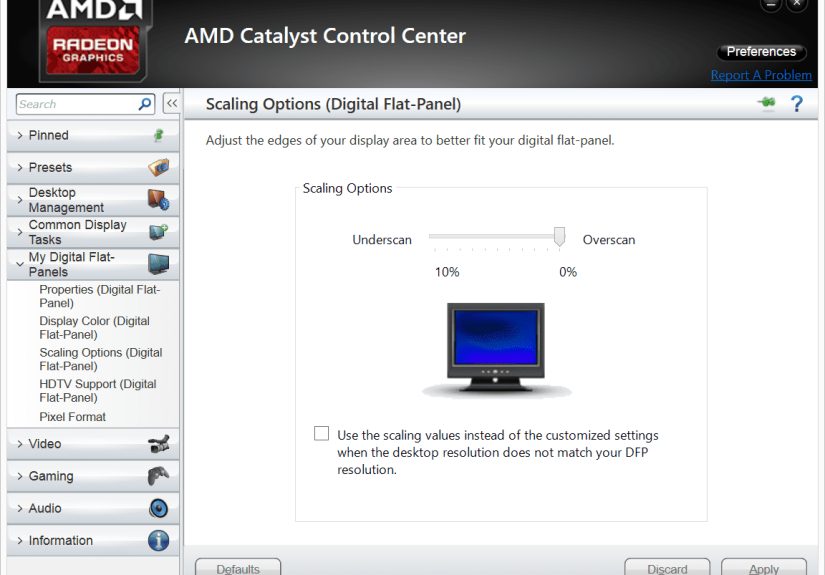
Seeing “CCC.exe” in Task Manager can feel like your PC is hosting a secret meeting without inviting you. Relaxmost of the time, CCC.exe is simply the Catalyst Control Center, a legitimate AMD/ATI graphics utility that comes bundled with certain versions of AMD’s older driver packages. It helps manage graphics settings like display profiles, 3D options, and video tweaks. In other words: it’s the “settings app” for your AMD graphicsjust from a previous era when UI design looked like it survived a dial-up connection.
This guide explains what CCC.exe does, why it still shows up on some computers, how to tell if it’s real or malware, and what to do if it’s causing problems (like high CPU usage, startup clutter, or errors).
What Is Catalyst Control Center (CCC.exe) in Plain English?
Catalyst Control Center (CCC) is a configuration utility that shipped with many AMD/ATI “Catalyst” driver packages. The process you seeCCC.exeis commonly described as the host application for that control panel. The goal: give you a convenient place to adjust graphics settings beyond what Windows exposes by default.
What CCC Used to Control
Depending on your GPU and driver generation, CCC could let you manage things like:
- Display settings: resolution, refresh rate, multiple monitors, rotation, scaling
- 3D/game settings: anti-aliasing, anisotropic filtering, texture quality preferences
- Video settings: color adjustments, deinterlacing options (varies by driver)
- Profiles & hotkeys: quick switching between “work mode” and “gaming mode”
- Overdrive/clock tuning (on supported hardware): performance tuning features (varies by GPU/driver)
Think of CCC as “AMD’s old-school graphics dashboard.” If you’re running modern AMD drivers today, you’re more likely to use AMD Software: Adrenalin Edition (or earlier, Crimson), which replaced the older CCC interface for many products and eras.
Why Is CCC.exe Still on My Computer?
You’ll usually see CCC.exe for one of these reasons:
- You have an older AMD/ATI GPU and installed a Catalyst-era driver package.
- Your PC vendor (OEM) installed AMD graphics utilities at the factory (common on older desktops/laptops).
- You upgraded Windows but kept older driver components that still function fine.
- You installed “additional settings” packages that keep CCC-related components around for compatibility.
It’s not unusual to see CCC.exe on systems that are otherwise running okay. It can simply be part of the background tooling that makes advanced AMD graphics options available.
Is CCC.exe a Virus or Safe?
Usually safe. CCC.exe is commonly legitimate when it’s part of the AMD/ATI graphics software stack. Butlike many well-known filenamesmalware can sometimes disguise itself using familiar names. The trick is verifying where it lives and who signed it.
Quick “Legit or Sketchy?” Checklist
- File location: Legit CCC.exe is commonly found under an AMD/ATI folder inside Program Files, often something like
C:Program Files (x86)ATI Technologies.... - Digital signature: Check file properties to see if it’s signed by ATI Technologies or Advanced Micro Devices (AMD).
- Hardware match: If your computer has AMD/ATI graphics (dedicated or integrated), CCC.exe makes more sense. If you’ve never had AMD graphics and CCC.exe is living somewhere weirdinvestigate.
- Behavior: CCC.exe shouldn’t be constantly maxing out CPU/GPU, opening random network connections, or respawning in odd places.
How to Check CCC.exe Location (Windows 10/11)
- Open Task Manager (Ctrl + Shift + Esc).
- Find CCC.exe under Processes or Details.
- Right-click it → Open file location.
- If it lands in a typical AMD/ATI directory under Program Files, that’s a good sign.
How to Check the Digital Signature
- Right-click the CCC.exe file → Properties.
- Go to the Digital Signatures tab (if present).
- Confirm a reputable publisher (AMD/ATI).
Bottom line: CCC.exe is commonly legitimate, but if it’s located outside normal Program Files AMD/ATI folders, or has no trustworthy signature, treat it like a suspicious houseguest who keeps “borrowing” your snacks.
What Are MOM.exe, CLIStart.exe, and Those Other AMD/ATI Processes?
If CCC.exe showed up, you might also spot other companions in Task Manager. They’re part of the same “Catalyst Control Center ecosystem,” depending on driver generation and installation options:
- MOM.exe: often described as a monitoring program for Catalyst Control Center.
- CLIStart.exe: commonly a launcher component that can start CCC-related processes at boot.
- atieclxx.exe / atiedxx.exe: driver-related components tied to ATI/AMD display functionality (names vary by version).
These aren’t automatically “bad.” They’re just the background cast that helps CCC do its job. But if you’re not using CCC features, you may decide you don’t want them running at startup.
Do You Need Catalyst Control Center?
That depends on what you do with your PC.
You might want to keep CCC if:
- You rely on custom display profiles or multi-monitor settings managed through CCC.
- You use older AMD/ATI hardware where CCC is your main configuration interface.
- You still access legacy “additional settings” not exposed elsewhere.
You might not need CCC if:
- You never open it and your graphics work fine with default settings.
- You’ve moved to AMD Software: Adrenalin Edition and manage settings there instead.
- You want to reduce background startup items.
Importantly, many systems can continue to run AMD graphics drivers without CCC installed, because the driver itself is what the GPU needs to function. CCC is the “control panel,” not the engine.
Common Problems People Blame on CCC.exe (And What to Do)
1) CCC.exe High CPU Usage
If CCC.exe is chewing through CPU like it’s training for a competitive eating contest, the fix usually isn’t “end task forever.” Instead, try these realistic steps:
- Update or reinstall AMD graphics drivers: a corrupted install can cause weird background behavior.
- Do a clean install: uninstall AMD software, reboot, then install a fresh driver package.
- Disable CCC-related startup items if you don’t need them (details below).
- Check for .NET issues: older CCC versions relied on Microsoft .NET components, and mismatches could cause errors or instability.
2) Catalyst Control Center Won’t Open
Classic scenario: you click CCC and… nothing happens. Or it flashes and disappears like a shy ghost.
Common fixes include:
- Reinstall the AMD package (CCC components can break independently of the driver).
- Repair Microsoft .NET (especially on older Catalyst generations).
- Use the newer AMD control app if your GPU supports it (Crimson/Adrenalin era).
3) “MOM.implementation” or CCC Errors
Some systems historically hit errors related to MOM/CCC and .NET. If you’re seeing .NET-related messages tied to CCC components, treat it like a compatibility problem rather than a mystery curse:
- Update Windows and .NET components.
- Reinstall AMD/ATI software cleanly.
- If you’re on a very old GPU/driver combo, consider using the most appropriate legacy driver package for your hardware.
How to Disable CCC.exe at Startup (Without Breaking Your GPU)
If you rarely use CCC, you might not want it launching every time your PC boots.
Method A: Task Manager Startup Tab
- Open Task Manager.
- Go to Startup.
- Look for AMD/ATI entries like Catalyst Control Center, CLIStart, or similar.
- Right-click → Disable.
What happens next? Your AMD driver still works, but the CCC interface and helper processes won’t auto-run. If you ever need CCC, you can launch it manually (assuming it’s installed).
Method B: Uninstall Only the Control Center (Optional)
If you’re sure you don’t need CCC, you can uninstall the control center through Apps / Programs and Features. On many systems, it’s possible to remove CCC while leaving the core AMD display driver installedjust be careful to avoid uninstalling the actual driver unless you plan to reinstall it immediately.
How to Remove CCC.exe Safely (If You Really Want It Gone)
If CCC.exe is legitimate but you just don’t want it, the safest path is the clean and boring one (boring is good in system maintenance):
- Create a restore point (optional but smart).
- Open Settings → Apps (or Control Panel Programs).
- Uninstall AMD Catalyst Control Center / Catalyst components.
- Reboot.
- Install the appropriate AMD driver package for your GPU (prefer modern packages if supported).
If CCC.exe is in a strange location or you suspect malware, don’t “uninstall CCC” firstrun a trusted security scan and verify the file’s signature and location. Malware wearing a CCC.exe costume won’t politely remove itself just because you asked nicely.
How CCC.exe Fits Into AMD’s Driver Timeline
CCC.exe is strongly associated with the older AMD Catalyst era. Over time, AMD modernized its driver UI, and many users moved from Catalyst Control Center to newer Radeon software generations (like Crimson and later Adrenalin). That’s why CCC tends to appear more often on older systems, legacy driver installs, and some OEM configurations.
So if you’re on a newer AMD GPU with current drivers and still seeing CCC.exe, it may be leftover from an older install or tied to “additional settings” compatibility components. On the other hand, if you’re using legacy hardware, CCC might still be the right tool for the job.
Practical Examples: When CCC.exe Matters (And When It Doesn’t)
Example 1: The Two-Monitor “Why Is Everything Huge?” Problem
You plug in a second monitor and the scaling looks wrongicons too big, text fuzzy, or the display edges cut off. CCC (on supported setups) historically offered scaling and display adjustment controls that could fix overscan/underscan and weird sizing issues. If you’re on legacy drivers, CCC might be the easiest place to correct it.
Example 2: Gaming Tweaks Without Touching In-Game Menus
Some players preferred controlling anti-aliasing or texture filtering from the driver level. CCC offered that centralized “one panel to rule them all” approach. Today, modern Radeon software covers similar settings (often better), but CCC is the familiar tool on older systems.
Example 3: You Never Use It and Everything Works
If you never open CCC and your display is stable, games run fine, and video playback behaves, then CCC may be unnecessary overhead. Disabling it from startup (or uninstalling the control center only) could simplify your boot process without affecting the driver’s basic function.
FAQ About CCC.exe
Is CCC.exe required for Windows to run?
No. CCC.exe is not a core Windows process. It’s an AMD/ATI utility process.
Will my AMD GPU stop working if I remove CCC?
Not necessarily. The GPU relies on the driver. CCC is mainly the configuration interface. However, removing CCC can remove easy access to certain settingsso it’s a trade-off.
Why does CCC.exe start with Windows?
Because CCC-related launchers and scheduled startup components may load it automatically so the control panel and settings services are ready immediately.
What if CCC.exe is not in an AMD/ATI folder?
That’s a red flag. Verify the publisher/digital signature and scan the system using reputable security tools.
Experiences & Real-World Stories Around CCC.exe (The “Yep, That Happened” Section)
To make CCC.exe feel less like a mysterious acronym and more like a normal piece of software, here are common real-world experiences people run intoespecially on older laptops, inherited desktops, and “I swear I didn’t change anything” Windows upgrades.
1) The “Why Is My Fan Loud After Boot?” Surprise
A classic experience is noticing your PC gets noisier right after startup. You open Task Manager and see CCC.exe (sometimes with MOM.exe) using more CPU than expected. In many cases, this comes down to one of three things: a driver install that didn’t finish cleanly, a leftover CCC component from an older driver version, or a .NET mismatch that causes CCC to repeatedly fail-and-retry behind the scenes. The “fix” isn’t usually to hunt down CCC.exe like it owes you moneymost people solve it by doing a clean driver reinstall and then disabling CCC from startup if they don’t use it daily.
2) The “CCC Won’t Open, But My Graphics Are Fine” Moment
Another surprisingly common experience: CCC refuses to launch, yet games and Windows graphics keep working normally. That’s because the display driver can be perfectly healthy while the control panel UI is broken. Users often assume “my GPU is dying,” when the truth is more like “my settings app is cranky.” This is also where people learn that CCC is the dashboard, not the engine. Reinstalling the control center componentsor switching to a newer Radeon settings app if supportedusually clears it up.
3) The “I Disabled It and Nothing Exploded” Relief
Many users disable CCC-related startup entries to speed boot times and reduce background clutter. The typical reaction after reboot is: “Wait… that’s it?” Yesthat’s it. Your driver continues to function because it’s separate from the CCC interface. The main difference is you won’t have the control panel preloaded in the background. If you later need to adjust a setting (like display scaling), you can launch the AMD control software manuallyassuming it’s installed.
4) The “Is This Malware?” Panic (And How It Usually Ends)
People often search CCC.exe because they saw it in Task Manager and didn’t recognize it. The concern is reasonable: malware loves disguising itself. Real-world outcomes tend to be boring in the best wayusers check file location, see it’s sitting in an ATI Technologies folder under Program Files, confirm it’s signed by AMD/ATI, and move on. The more interesting cases happen when CCC.exe is in a weird folder (like a random temp directory) with no signature. In that scenario, the best experience is the one where the user scans the system and finds out early, before the “fake CCC.exe” starts doing anything worse than stealing your peace of mind.
5) The “Legacy Hardware” Reality Check
One of the most practical experiences involves older GPUs that don’t fully support the newest driver suite. Users try to install the latest AMD software, discover their hardware is classified as legacy, and end up using older packages where CCC still appears. This isn’t failureit’s compatibility. In these cases, CCC can be the correct tool for the job, and the “best practice” becomes stability: install the right legacy driver, avoid unnecessary tinkering, and only adjust settings you actually need.
In short: CCC.exe is often just an older AMD settings utility doing its thing. Most “CCC drama” is solved with verification (location + signature), a clean driver reinstall when needed, and startup management if you prefer a quieter, leaner Windows experience.
Conclusion
Catalyst Control Center (CCC.exe) is typically a legitimate AMD/ATI graphics utilitymost often seen on systems using older Catalyst-era driver packages or certain legacy configurations. It’s mainly a control panel for graphics and display settings, not the core driver itself. If CCC.exe is located in normal AMD/ATI folders and signed properly, it’s usually safe. If it’s causing issues (high CPU, startup clutter, won’t open), a clean driver reinstall or disabling it at startup is often the simplest fix. And if the file is in a strange location with no trustworthy signature? That’s when you switch from “curious” to “security mode.”