Table of Contents >> Show >> Hide
- Can You Use a PS4 Controller on a PS5?
- What You Need Before You Start
- How to Connect a PS4 Controller to a PS5 With a Cable
- How to Connect a PS4 Controller to a PS5 Wirelessly
- What a PS4 Controller Can and Cannot Do on a PS5
- Can You Play PS5 Games With a PS4 Controller at All?
- Common Problems and How to Fix Them
- Is It Worth Using a PS4 Controller on a PS5?
- Real-World Experience: What It’s Actually Like Using a PS4 Controller on a PS5
- Final Thoughts
So, you’ve got a PlayStation 5, a perfectly good PS4 controller, and one simple question: can these two generations stop acting like distant cousins at Thanksgiving and actually work together? The answer is yes. A PS4 controller can connect to a PS5, and the process is refreshingly painless once you know where Sony hid the right settings.
There is, however, one tiny catch with the dramatic timing of a movie trailer: a DualShock 4 works on a PS5 only for supported PS4 games. It will help you browse menus, launch apps, and enjoy backward-compatible PS4 titles, but it will not natively control PS5 games on the console. That limitation matters, but it does not make the controller useless. In fact, if you want a second controller for couch co-op, prefer the older shape, or just don’t feel like buying another DualSense right this second, using a PS4 controller on PS5 is still a smart move.
This guide walks through both methods: how to connect a PS4 controller to a PS5 with a cable and how to pair it wirelessly over Bluetooth. It also covers the most common problems, the biggest limitations, and what the real-world experience is like once the setup is done.
Can You Use a PS4 Controller on a PS5?
Yes, you can use a PS4 controller on a PS5. More specifically, you can pair a DualShock 4 with the console and use it for supported PS4 games running on the PS5. That makes it handy for local multiplayer, older favorites from your PS4 library, and situations where you just need another controller without spending more money.
What you cannot do is use a DualShock 4 to play native PS5 games directly on the console. Sony designed PS5 titles around the DualSense controller and its newer features, including haptic feedback and adaptive triggers. In plain English, the PS5 is happy to let your old controller visit, but it is not giving it the keys to the whole house.
What You Need Before You Start
Before you connect anything, make sure you have the basics ready:
- A PS5 console that is powered on
- A charged PS4 DualShock 4 controller
- A compatible micro-USB cable for the wired method
- At least one controller already connected to the PS5 if you want to pair wirelessly
- A little patience, especially if Bluetooth decides today is the day it wants attention
One important detail: the PS4 controller uses micro-USB, not USB-C like the PS5’s DualSense. So the cable that came with your PS5 controller is not the star of this show. You need a micro-USB cable that supports data, not just charging.
How to Connect a PS4 Controller to a PS5 With a Cable
If you want the fastest, easiest, least dramatic method, go wired first. This is the method most people should use the first time.
Step-by-Step Wired Setup
- Turn on your PS5.
- Plug the micro-USB end of the cable into your DualShock 4 controller.
- Plug the other end into one of the PS5’s USB ports.
- Press the PS button in the middle of the PS4 controller.
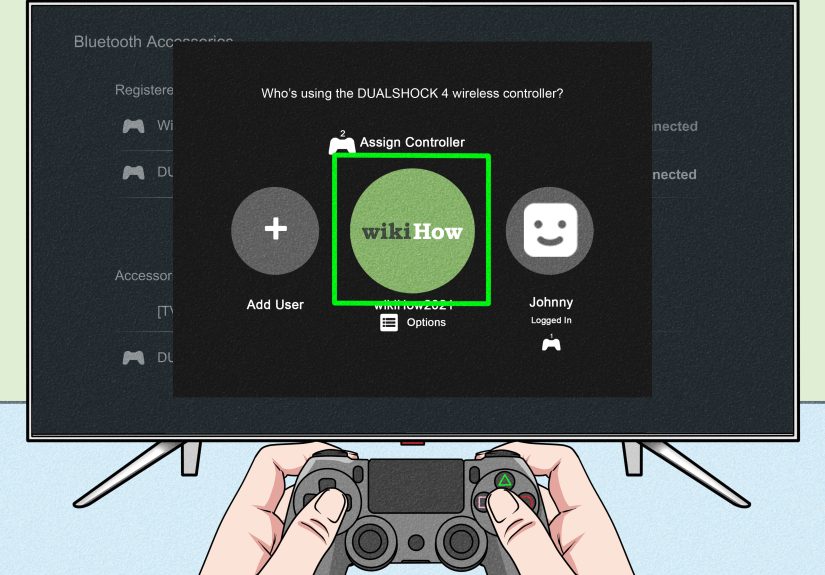
- When prompted, choose the user profile that will use the controller.
That’s it. Seriously. No secret handshake. No hidden ritual. Once the controller is recognized, it is paired to the PS5. In many cases, you can then disconnect the cable and continue using the controller wirelessly.
Why the Cable Method Is Best for First-Time Pairing
The wired setup is ideal because it eliminates most pairing confusion. The console sees the controller immediately, the user profile gets assigned right away, and you avoid the classic Bluetooth experience of muttering, “Why are you blinking like that?” at a piece of plastic.
It is also the best fix when a controller has been paired with another console or device and refuses to reconnect cleanly. A cable forces the introduction and usually solves the problem fast.
How to Connect a PS4 Controller to a PS5 Wirelessly
Once you know the wired method, the wireless method feels like the slightly fancier version. It is still simple, but you do need one controller already connected to the PS5 so you can navigate the settings menu.
Step-by-Step Bluetooth Pairing
- Using a controller that is already paired, go to Settings.
- Select Accessories, then General, then Bluetooth Accessories.
- Make sure the PS4 controller you want to pair is turned off. If it is on, press and hold the PS button until it turns off.
- On the DualShock 4, press and hold the Share button and the PS button at the same time.
- Keep holding until the light bar starts flashing.
- When the controller appears in the PS5’s list of nearby Bluetooth devices, select it.
- Choose the user profile that should be linked to that controller.
Once the pairing is complete, the PS4 controller should connect wirelessly like any other registered accessory. If all goes well, congratulations: you have successfully convinced old hardware and new hardware to cooperate.
How to Reconnect It Later
If the controller does not reconnect automatically later, the easiest fix is usually the same old reliable move: connect it with a compatible USB cable, press the PS button, and let the console reintroduce itself. After that, you can often unplug the cable and keep using it wirelessly.
What a PS4 Controller Can and Cannot Do on a PS5
This is where people get tripped up. The controller pairing works. The controller usage is where the fine print shows up.
What It Can Do
- Play supported PS4 games on a PS5
- Help with local multiplayer in backward-compatible PS4 titles
- Navigate system menus and media apps
- Work well if you simply prefer the lighter, older DualShock 4 feel
What It Cannot Do
- Play native PS5 games directly on the PS5 console
- Use DualSense-only features like adaptive triggers and advanced haptics
- Magically become a PS5 controller just because you really, really believe in it
If you try launching a PS5-only game with a DualShock 4, the console will stop you. That is not a bug. That is Sony being very clear about the guest list.
Can You Play PS5 Games With a PS4 Controller at All?
Not directly on the PS5 console. But there is one important exception worth knowing: PS Remote Play. Because the DualShock 4 is supported with Remote Play on compatible devices like PCs, Macs, phones, and tablets, some players use a PS4 controller to play PS5 games by streaming the console to another device.
That is not the same as using the PS4 controller natively on the PS5 itself. It is more like taking a side entrance instead of walking through the front door. It works for some people, but it depends on your network quality and setup. For the purpose of direct console use, the rule stays the same: PS4 controller for supported PS4 games, DualSense for PS5 games.
Common Problems and How to Fix Them
The Controller Charges but Will Not Pair
This usually points to the cable. Some micro-USB cables only deliver power and do not carry data. The controller may light up and charge, but the PS5 will not properly pair it. Try a different cable that you know supports data transfer.
The Controller Does Not Appear in Bluetooth Accessories
Make sure the DualShock 4 is actually in pairing mode. It must be off first. Then hold Share + PS until the light bar flashes. If the controller is still connected to another nearby device, it may stubbornly try to talk to that device instead.
The Controller Connects, but It Stops Working in a Game
Check the game you launched. If it is a native PS5 title, the DualShock 4 will not work for gameplay. This is one of the most common points of confusion, especially if the controller worked perfectly in the menu five seconds earlier.
The Controller Feels “Stuck” or Refuses to Reconnect
Try resetting the DualShock 4. On the back of the controller, there is a tiny reset hole. Use a small pin or unfolded paper clip to press and hold the reset button for a few seconds. Then reconnect the controller with a cable and press the PS button again.
Wireless Pairing Keeps Failing
Move closer to the console, remove extra Bluetooth clutter if possible, and try the wired method first. Once the controller is paired by cable, future wireless connections are often easier and more reliable.
Is It Worth Using a PS4 Controller on a PS5?
For a lot of players, yes. It is especially worth it if you still play a bunch of PS4 games on your PS5, need a second controller for multiplayer, or simply prefer the familiar feel of the DualShock 4. It is also a budget-friendly move. Controllers are not exactly impulse-buy cheap anymore, so getting more life out of hardware you already own is never a bad idea.
That said, if most of your gaming is focused on native PS5 titles, the DualSense is the controller you want. The PS5 was built around it, and that is obvious the moment a game starts using the triggers and haptics in ways the older pad simply cannot match.
In other words, the PS4 controller on PS5 is not the main character, but it is a very useful supporting cast member.
Real-World Experience: What It’s Actually Like Using a PS4 Controller on a PS5
In real living-room use, connecting a PS4 controller to a PS5 feels less like a technical achievement and more like a practical little life hack. The biggest reason people do it is not because they are trying to rebel against the DualSense. It is because they already own a perfectly good DualShock 4, and they would rather keep gaming than shop for another controller at full price. That logic is hard to argue with.
The first thing many players notice is comfort. The DualShock 4 feels a bit smaller, a bit lighter, and a bit more familiar if you spent years with a PS4. If you have smaller hands, or if you simply built your gaming muscle memory around the PS4 layout, the older controller can feel instantly natural. You pick it up and your thumbs know where to go. No adaptation period. No learning curve. Just, “Yep, this is my controller.”
Where the experience gets genuinely useful is couch multiplayer. Let’s say you fire up a backward-compatible PS4 game on your PS5 and a friend wants to join. Using an old PS4 controller saves the day. You do not need to buy a second DualSense just for occasional co-op, party games, sports titles, or split-screen chaos. The DualShock 4 becomes the perfect “player two” solution, which is honestly one of the nicest things about PS5 backward compatibility.
There are a few small annoyances, though. The biggest one is cable confusion. A lot of people instinctively grab the PS5 charging cable, only to remember that the DualShock 4 still lives in the micro-USB era. It is the technological equivalent of discovering your new apartment has one weird light switch that controls absolutely nothing. Once you find the right cable, setup is easy, but that first moment can feel mildly ridiculous.
Wireless use is also great when it works, but pairing over Bluetooth can occasionally be a little moody. If the controller was previously synced to a PS4, a PC, a tablet, or some random device you connected six months ago and forgot about, it may need a quick reset or a wired reconnect before it behaves. This is normal. Bluetooth has many talents, but “making a calm first impression” is not always one of them.
The limitation on PS5 games is the one thing you really feel in daily use. Everything seems fine while you are on the home screen, scrolling through icons like a hero. Then you launch a native PS5 game and the console politely reminds you that your old controller is not invited to this particular party. That can be annoying if you forget which titles are PS4 versions and which are PS5 versions. After a while, though, you stop being surprised by it.
Overall, the experience is very good as long as your expectations are realistic. A PS4 controller on PS5 is not a replacement for the DualSense. It is a backup, a budget saver, a multiplayer helper, and a comfort pick for backward-compatible games. Used that way, it is excellent. It is not flashy, but it gets the job done, and sometimes that is exactly what you want from a controller and from life in general.
Final Thoughts
If you were wondering how to connect a PS4 controller to a PS5, the short answer is easy: use a compatible micro-USB cable for the simplest setup, or pair it wirelessly through Settings > Accessories > General > Bluetooth Accessories. The longer answer is that it works well, as long as you understand the limitation. The DualShock 4 is a solid companion for supported PS4 games on PS5, but native PS5 games still require a DualSense.
For plenty of players, that is more than enough. It saves money, adds a second controller to your setup, and gives your old PS4 hardware a useful second act. Not bad for a controller that some people had probably tossed into a drawer next to old charging cables, mystery adapters, and at least one item nobody can identify anymore.