Table of Contents >> Show >> Hide
- Why Filtering Email in Outlook Matters
- Method 1: Use Outlook’s Built-In Filter and Search Tools for Quick Results
- Method 2: Create Rules to Filter Email Automatically
- Method 3: Use Search Folders for Reusable, Smart Views
- Common Mistakes to Avoid When You Filter Email in Outlook
- Which Outlook Email Filter Method Is Best?
- of Real-World Experience With Filtering Email in Outlook
- Conclusion
If your Outlook inbox looks like a yard sale with attachments, newsletters, meeting invites, receipts, and that one email marked “urgent” three months ago, you are not alone. Outlook gives you several smart ways to filter email, but many people only use the inbox like a giant digital junk drawer. That works for about five minutes. After that, chaos moves in, unpacks, and starts paying rent.
The good news is that learning how to filter email in Outlook does not require a PhD in corporate software. Whether you use classic Outlook, new Outlook, or Outlook on the web, you can quickly narrow down what you see, automatically sort incoming messages, and build reusable views that make your inbox much easier to manage. In other words, you can stop scrolling like you are searching for buried treasure and start finding the messages you actually need.
In this guide, you will learn three practical ways to filter email in Outlook, when to use each one, and how to avoid the common mistakes that turn “organization” into “Where did my email go?” territory.
Why Filtering Email in Outlook Matters
Email filtering is not just about keeping things tidy. It is about saving time, reducing missed messages, and making Outlook work more like an assistant and less like a noisy roommate. A strong Outlook email filter system helps you separate important messages from low-priority clutter, group similar conversations, and make follow-up much easier.
For example, imagine these common situations:
- You want to see only unread messages before the day gets away from you.
- You want invoices and receipts to land in one folder automatically.
- You want messages from your boss, your school, or key clients to stand out immediately.
- You need a fast way to view all flagged emails or all mail with attachments.
That is exactly where Outlook filters, rules, and advanced folder views become useful. Each method solves a different inbox problem, and the best setup usually combines all three.
Method 1: Use Outlook’s Built-In Filter and Search Tools for Quick Results
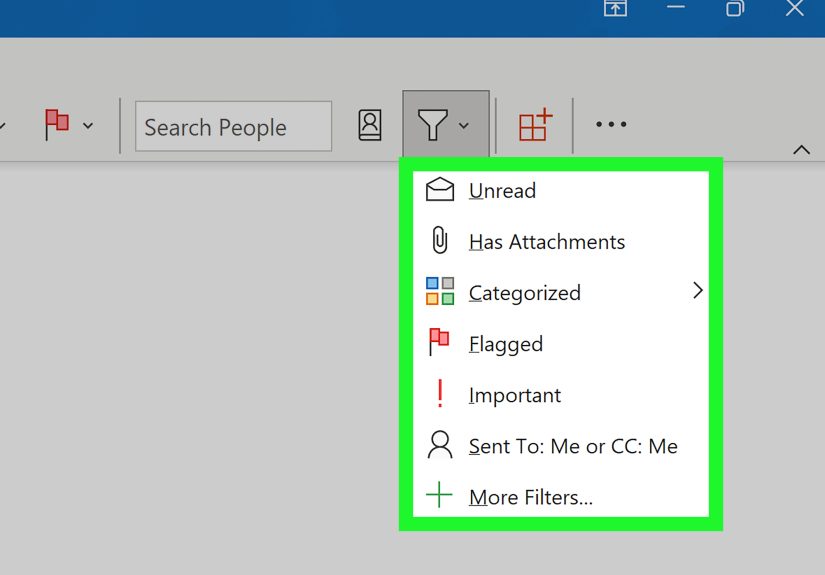
The fastest way to filter email in Outlook is to use the built-in Filter menu and the Search bar. This method is perfect when you need to find something right now without changing how future email is handled.
What This Method Does Best
Think of this as temporary filtering. You are not telling Outlook how to sort incoming messages forever. You are simply narrowing the current view so you can focus on what matters in the moment.
This works especially well when you want to view:
- Unread messages
- Messages with attachments
- Mail from a specific sender
- Messages by category or importance
- Recent mail in the current folder or mailbox
How to Do It
In new Outlook and Outlook on the web, look for the Filter option near the top of the message list. You can usually filter or sort by date, sender, category, size, importance, and more. If you are using the search box, type a keyword, sender name, or subject line, then refine the results by scope, such as Current Folder or All Mailboxes.
In classic Outlook, the exact layout may look a little different, but the idea is the same. Use the search box to locate messages and refine the results using options like sender, subject, unread status, or attachments.
Real Example
Let us say you are preparing expense reports and need every airline receipt from the last two months. Instead of opening folder after folder and hoping your past self was organized, you can search for the airline name, then refine the results to messages with attachments. Suddenly, Outlook stops being a maze and starts acting helpful.
Why This Works
This is the easiest Outlook email filtering option because it requires no setup. It is quick, flexible, and ideal for people who want immediate control without committing to a more permanent system.
Where It Falls Short
The filter only helps in the moment. Once new mail arrives, Outlook will not automatically sort it unless you create a rule. So this is a great short-term tool, but not the whole strategy.
Method 2: Create Rules to Filter Email Automatically
If Method 1 is like grabbing a flashlight, Method 2 is like installing proper lighting. Outlook rules let you automate inbox management so messages are filtered as they arrive. This is one of the best ways to organize Outlook email if you deal with repeat senders, recurring topics, or routine messages that do not need to sit in your main inbox.
What Outlook Rules Can Do
Rules can tell Outlook to take action when an email matches certain conditions. For example, Outlook can:
- Move messages to a folder
- Assign a category
- Flag a message for follow-up
- Mark it as read
- Forward it or send an automatic action in some setups
You can build rules based on sender, subject words, recipients, keywords, and more. If you get the same kinds of emails over and over, this method saves serious time.
How to Create a Rule
In classic Outlook, you can often start by right-clicking a message and choosing Rules or going to Manage Rules & Alerts. In new Outlook and Outlook on the web, rules are generally managed in Settings > Mail > Rules. The paths may vary slightly by version, but the goal is the same: define a condition, choose an action, and let Outlook handle the boring part.
Simple Rule Ideas That Actually Help
- Move newsletters to a “Read Later” folder: Great for promotional mail, blogs, and product updates.
- Send receipts to a “Purchases” folder: Perfect for keeping order confirmations out of your main inbox.
- Flag emails from a manager or top client: Useful when certain senders should never disappear into the crowd.
- Route school or HR emails into dedicated folders: A lifesaver when important notices tend to arrive mixed in with everything else.
Real Example
Suppose you freelance for three clients and each one sends a steady stream of drafts, edits, invoices, and project questions. You can create a rule for each client domain and move those emails into separate folders automatically. Now your inbox is not one giant mixed salad. It is a neatly packed lunch.
Best Practices for Outlook Rules
Keep your rules simple at first. Start with obvious patterns, such as sender or subject line. Test them before creating a dozen more. Give folders clear names. And remember that rule order matters, especially in more advanced setups. If one rule grabs a message first, the next rule may never get a chance.
Also, be aware that some older client-side rules from classic Outlook may not behave the same way in newer Outlook experiences. If a migrated rule seems flaky, rebuilding it from scratch is often the cleanest fix.
Where Rules Shine
This is the best method for automatic email filtering in Outlook. Once you set it up correctly, you spend less time dragging messages around manually and more time dealing with what actually matters.
Where Rules Can Go Wrong
Overdoing it is the classic mistake. If you create too many rules too quickly, you may accidentally hide important mail in folders you forget to check. Outlook is powerful, but it is not psychic. Build carefully.
Method 3: Use Search Folders for Reusable, Smart Views
If you want a more strategic system, Search Folders are one of Outlook’s most underrated features. A Search Folder is not a normal folder that stores copied messages. Instead, it shows you a live view of messages that match specific criteria. Think of it as a saved filter that keeps updating itself.
Why Search Folders Are So Useful
Search Folders are fantastic when you often need to view the same kind of messages across different folders. Instead of searching again and again, you create the view once and reuse it.
Common Search Folder ideas include:
- Unread Mail
- Flagged for Follow-Up
- Mail with Attachments
- Messages from specific people
- Custom filters for project-related mail
How This Differs from a Regular Folder
A regular folder stores messages. A Search Folder displays matching messages from wherever they already live. That means you do not have to move everything around just to see a filtered list. It is cleaner, faster, and much harder to mess up.
Real Example
Imagine you are job hunting. You have emails scattered across your inbox, an Interviews folder, a Recruiters folder, and maybe a “Must Reply Today” folder that sounded brilliant at 1:00 a.m. Instead of clicking through all of them, you can create a Search Folder showing unread messages from recruiters or all flagged emails related to interviews. One click, one view, much less chaos.
When to Use Search Folders
This method is ideal when you do not want to overuse rules but still want strong visibility. It is especially helpful for professionals, students, and anyone juggling multiple projects or clients.
Bonus Support Tools
You can make this method even stronger by combining it with folders, categories, and Focused Inbox. For example, use rules to move project mail into a folder, apply categories to high-priority messages, then build a Search Folder that surfaces only unread or flagged items. That is not overkill. That is inbox survival.
Common Mistakes to Avoid When You Filter Email in Outlook
Even the best Outlook email organization system can fall apart if you set it and forget it forever. Here are the most common mistakes people make:
- Creating too many folders: If you need a map to find your folders, you have gone too far.
- Using vague rule names: “Rule 1” is not helpful six months later.
- Never checking filtered folders: Congratulations, you organized your email directly into oblivion.
- Stacking too many overlapping rules: This can make troubleshooting a pain.
- Skipping reviews: Your email habits change, and your filter system should too.
A smart approach is to review your setup every month or two. Delete rules you no longer need, rename unclear folders, and make sure important messages are still landing where they should.
Which Outlook Email Filter Method Is Best?
The best method depends on your goal.
- Use built-in filters and search when you need quick, temporary results.
- Use rules when you want Outlook to automatically sort incoming email.
- Use Search Folders when you want a reusable, always-updated view of certain messages.
For most people, the best answer is not choosing only one. It is combining all three. Search to find messages fast, rules to automate the routine stuff, and Search Folders to keep recurring priorities visible.
of Real-World Experience With Filtering Email in Outlook
People usually start filtering email in Outlook for one of two reasons: they are either drowning in messages, or they missed something important and never want that to happen again. In real life, the second reason usually arrives first, then the first one shows up wearing sunglasses and pretending it was invited.
One of the most common experiences is the “newsletter avalanche.” At first, the inbox feels manageable. Then one day you realize you subscribed to a software update list, three retail stores, two travel deal sites, and a weekly digest you have not actually read since the month you signed up. The inbox becomes a parade of subject lines screaming for attention. That is when even a simple rule that moves newsletters into a “Read Later” folder feels like a personal victory. Nothing magical happened. You just stopped letting coupon emails sit next to messages from actual human beings.
Another common experience is the work inbox that slowly turns into a project museum. Every client, coworker, and vendor sends email with slightly different habits. Some use clear subject lines. Some send “Quick question” as if that phrase explains anything. Some reply to six-month-old threads as though time is a circle. When people start using rules in Outlook, they often feel immediate relief because the inbox stops acting like one giant stream. Suddenly, client mail goes to a client folder, internal updates go somewhere else, and receipts stop clogging the middle of the day.
Search Folders also tend to win people over once they discover them. Many users do not realize that a live folder of unread mail, flagged messages, or attachment-heavy conversations can change how they work. It feels less like searching and more like keeping a private control panel for your priorities. Instead of wondering where an important message ended up, you create a view that keeps surfacing what matters. That is especially useful during hiring, tax season, travel planning, or any month when life decides to get “interesting.”
There is also a learning curve. A lot of users create their first batch of Outlook rules with pure enthusiasm and zero restraint. Two days later, something important disappears into a folder named “Misc Stuff,” and trust is broken. That experience is incredibly common. The fix is not to give up on filtering. It is to build a smarter system: fewer rules, clearer folder names, and a quick weekly check to make sure everything still makes sense.
In the end, the best experience with Outlook filtering is not perfection. It is control. It is opening your inbox and feeling like you know what is happening. It is finding the email you need without muttering at your screen. It is spending less time managing messages and more time answering the right ones. And honestly, in the modern world, that counts as a luxury.
Conclusion
Learning how to filter email in Outlook is one of those small skills that pays off every single week. You do not need a complicated system. You just need the right tools used in the right order. Start with built-in filters and search for quick wins. Add rules for recurring email patterns. Then use Search Folders to create smarter views that help you stay on top of what matters most.
Once you build a simple system, Outlook becomes easier to navigate, less stressful to manage, and far more useful as a daily workspace. Your inbox may never become a Zen garden, but it can absolutely stop looking like a garage sale after a tornado.