Table of Contents >> Show >> Hide
- Voice Text vs. Voice Message: Know the Difference First
- How to Send Voice Text on iPhone or iPad: 7 Easy Steps
- How to Send an Actual Audio Message Instead
- Bonus: Use Siri for Hands-Free Messaging
- Best Tips for More Accurate Voice Text
- Why Voice Text Is Not Working on iPhone or iPad
- iPhone and iPad Differences You Should Know
- When Voice Text Is Better Than Typing
- Real-World Experiences With Voice Text on iPhone or iPad
- Conclusion
- SEO Tags
If your thumbs are tired, your coffee is in one hand, and your phone is in the other, voice text can feel like a tiny modern miracle. Instead of pecking out every word like a frustrated pigeon, you can simply speak and let your iPhone or iPad turn your voice into text.
That said, many people mix up voice text with voice message. They are not the same thing. Voice text usually means dictation, where your spoken words become a written message. A voice message is an actual audio recording that the other person plays back. Both are useful. Both are fast. And yes, both can save you from typing “on my way” for the 900th time this year.
In this guide, you will learn exactly how to send voice text on iPhone or iPad in seven simple steps, how to send an audio message if that is what you really want, and how to fix the most common problems when your microphone decides to act like it is on strike.
Voice Text vs. Voice Message: Know the Difference First
Before jumping into the steps, let’s clear up the confusion. On Apple devices, voice text usually refers to using Dictation. You tap the microphone on the keyboard, speak your message, and your device turns your speech into written text.
A voice message, on the other hand, is a recorded audio clip sent through Messages. The person receives your actual voice, not a typed sentence. That can be great when you want tone, emotion, or a faster way to explain something complicated without writing a mini novel.
| Feature | What It Does | Best For |
|---|---|---|
| Voice Text | Turns your speech into typed words | Quick texts, emails, notes, replies |
| Voice Message | Sends a recording of your actual voice | Personal messages, detailed explanations, hands-free chatting |
This article focuses mainly on voice text on iPhone or iPad, because that is what most people mean when they say they want to “talk instead of type.”
How to Send Voice Text on iPhone or iPad: 7 Easy Steps
Step 1: Open Messages or Any App With a Text Box
Start by opening the app where you want to send your message. Messages is the most obvious choice, but Dictation also works in many places where typing is allowed, such as Mail, Notes, reminders, and even some search fields.
If you are texting someone, open the conversation or start a new one. On iPad, the process feels almost identical. Apple keeps the experience pretty familiar across devices, which is nice because nobody wants to take a pop quiz just to send “Running late.”
Step 2: Tap the Text Field to Bring Up the Keyboard
Tap inside the message box so the onscreen keyboard appears. Dictation works through the keyboard, so if the keyboard is not showing, the microphone button usually will not be either.
This sounds obvious, but it is one of the most common reasons people think voice text is not working. No keyboard, no dictation. Your iPhone is not being dramatic. It just needs the right stage setup.
Step 3: Tap the Dictation Microphone
Look for the microphone button on the Apple keyboard and tap it. Once Dictation starts, your device is ready to listen. On some setups, the button placement can look slightly different depending on your keyboard layout or screen size, but it is still the Dictation microphone you want, not the audio message control inside Messages.
If this is your first time using it, your device may ask you to enable Dictation. Approve it, and you are in business.
Step 4: Speak Naturally and Clearly
Now say your message out loud. The trick is to speak in a normal, steady rhythm. You do not need to sound like a movie trailer narrator. Just talk like a person.
For example, you can say:
“Hey Jamie comma I’m leaving now and should be there in fifteen minutes period”
Your iPhone or iPad can turn that into a polished message with punctuation. In many cases, Apple devices also handle some punctuation automatically, which makes dictation feel smoother and less robotic.
Step 5: Use Voice Commands for Punctuation and Formatting
This is where voice text goes from “pretty handy” to “dangerously efficient.” You can say commands like:
- period
- comma
- question mark
- new paragraph
- exclamation point
- smiley face emoji
That means you can create readable messages without having to go back and fix every sentence. If you use voice text a lot, learning a few dictation commands can save a surprising amount of time.
Step 6: Review and Edit the Message
Once your words appear on the screen, give them a quick look before sending. Dictation is fast, but it is not psychic. It can still confuse names, slang, and anything said while chewing chips.
Check for classic voice-text chaos like:
- Wrong contact names
- Random punctuation
- “There” instead of “their”
- A message that somehow turned “be right there” into “bee right hair”
A fast proofread helps you avoid sending accidental comedy.
Step 7: Tap Send
When the message looks right, tap the send button. That is it. You have successfully sent voice text on your iPhone or iPad without typing the whole thing by hand.
After you do it a few times, the process becomes second nature: open the conversation, tap the microphone, speak, review, send. Fast, simple, and much kinder to your thumbs.
How to Send an Actual Audio Message Instead
If you wanted to send your real voice rather than speech converted into text, use an audio message in Messages.
- Open a conversation in Messages.
- Tap the plus button beside the text field.
- Choose Audio.
- Record your message.
- Stop the recording when you are done.
- Preview it if needed.
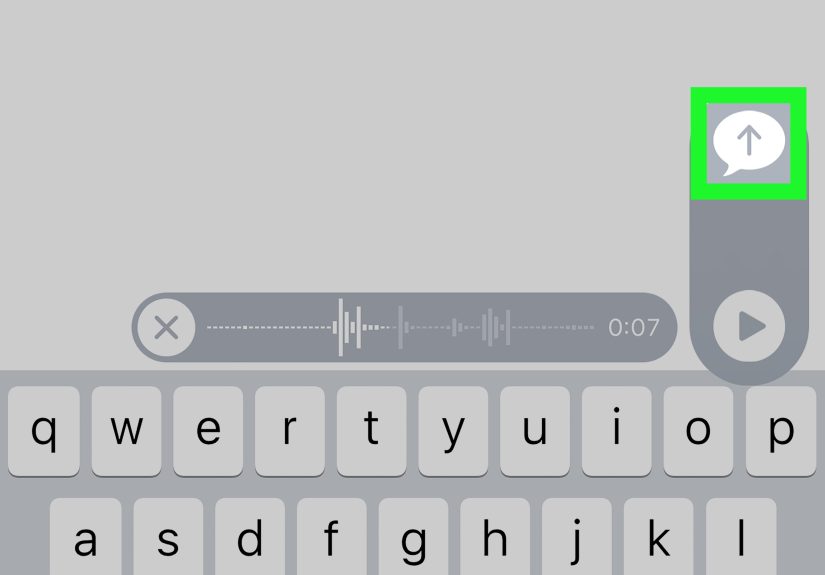
- Tap send.
This option is great when tone matters. A typed “fine” and a spoken “fine” can live in very different emotional zip codes.
Bonus: Use Siri for Hands-Free Messaging
If your hands are busy, Siri can help you send a message with almost no tapping at all. You can say something like:
“Siri, send a message to Alex saying I’m on my way.”
That is especially useful when cooking, carrying groceries, or doing something where using the screen is inconvenient. Depending on your settings, Siri can even send messages automatically after reading them back.
It is not always the best method for long or detailed messages, but for short updates, it is incredibly convenient.
Best Tips for More Accurate Voice Text
Speak in short phrases
Long, breathless monologues can confuse Dictation. Shorter phrases usually produce cleaner results.
Say punctuation when needed
If your message must sound polished, speak punctuation commands instead of hoping the device guesses perfectly.
Check names and places
Voice text often stumbles on contact names, nicknames, brand names, and local businesses. Give those a quick edit.
Use it in a quieter space
Background noise matters. A crowded bus, barking dog, or blaring TV can turn a simple text into abstract poetry.
Slow down just a little
You do not need to speak like a robot, but rushing can reduce accuracy. Calm and clear usually wins.
Why Voice Text Is Not Working on iPhone or iPad
If Dictation is giving you attitude, here are the most common reasons.
Dictation is not enabled
Go to Settings > General > Keyboard and make sure Enable Dictation is turned on.
The microphone button is missing
If you do not see the Dictation mic, check the same keyboard settings first. That solves the issue more often than people expect.
The room is too noisy
Voice recognition performs best when your speech is clear. Loud environments can lower accuracy quickly.
Auto-punctuation is making things weird
If your iPhone keeps sprinkling commas around like confetti, review your keyboard settings. Some users prefer automatic punctuation on, while others find it a little too enthusiastic.
The wrong language is active
If your dictated text looks like your phone suddenly forgot English, check your keyboard language and Dictation language settings.
You need a quick retry
Sometimes the fix is wonderfully boring: close the app, reopen it, and try again. Technology has many gifts, but dignity is not always one of them.
iPhone and iPad Differences You Should Know
The core process is nearly the same on both devices, which is good news. Still, there are a few practical differences:
- iPhone is usually faster for quick one-handed replies.
- iPad is more comfortable for longer dictated messages because you can review and edit more easily on the larger screen.
- If you use an external keyboard with iPad, Dictation may appear through the keyboard shortcut bar or keyboard controls instead of the exact layout you see on iPhone.
In other words, the method stays simple, but the editing experience often feels easier on iPad.
When Voice Text Is Better Than Typing
Voice text shines in real-world situations where typing is slow, awkward, or annoying. Here are a few examples:
- Replying while walking between classes or meetings
- Sending a fast update from the car before you start driving
- Writing longer messages without thumb fatigue
- Answering emails when inspiration hits and your hands are busy
- Taking quick notes before you forget an idea
It is not perfect for every message. If you are writing something sensitive, highly detailed, or full of names and numbers, typing may still be safer. But for everyday communication, voice text is one of the simplest productivity tools built into Apple devices.
Real-World Experiences With Voice Text on iPhone or iPad
For many people, the first experience with voice text is a little awkward. They tap the microphone, freeze for two seconds, and suddenly forget how sentences work. That part is normal. Talking to a device can feel strange at first, even though most of us now carry a tiny supercomputer in our pocket and somehow treat that as totally reasonable.
Once the hesitation fades, voice text becomes surprisingly addictive. Students often use it to send quick updates between classes, especially when they are juggling a backpack, a drink, and the general emotional burden of existing before noon. Parents use it while multitasking at home, sending messages one-handed while handling snacks, backpacks, or the mysterious chaos that appears whenever children are quiet for too long.
Professionals also tend to love voice text for a very simple reason: speed. A short work update that takes thirty seconds to type might take ten seconds to dictate. Over the course of a day, those little time savings add up. People often find themselves using Dictation for more than just texts. It starts with “I’ll try this for Messages,” and then suddenly they are using it for notes, reminders, email drafts, and grocery lists.
iPad users often describe a slightly different experience. Because the screen is larger, the editing part feels more comfortable. Dictating a paragraph on iPad and then quickly cleaning it up can feel smoother than doing everything on a smaller phone screen. That makes iPad especially useful for people who want the speed of speaking but still like to polish their wording before sending.
Of course, there are some classic voice-text mishaps too. Nearly everyone has a story. Maybe the phone misunderstood a name. Maybe it inserted dramatic punctuation where none was needed. Maybe it transformed a normal message into something that sounded like it was written by a confused poet. These mistakes are annoying, but they also teach a useful habit: always glance at the message before sending it.
Another common experience is discovering that voice text works best when you sound calm and natural. People who rush tend to get more errors. People who speak clearly, use short phrases, and pause naturally usually get better results. That small adjustment makes a big difference.
Many users also find that voice text is less about laziness and more about convenience. It is not a shortcut for people who do not want to type. It is a smarter option for people who want to communicate faster, reduce hand strain, or stay productive when their hands are full. That is why the feature keeps becoming more useful over time. It fits into real life.
And that is probably the best way to describe the experience of using voice text on iPhone or iPad: once it clicks, it feels less like a fancy feature and more like something your device should have helped you do all along.
Conclusion
Learning how to send voice text on iPhone or iPad is one of those small skills that quickly pays off. The setup is simple, the process is fast, and once you get used to Dictation, it can make everyday messaging much easier. Just remember the key difference: if you want your words to appear as typed text, use Dictation. If you want to send your actual voice, use an audio message in Messages.
Start with the seven easy steps, practice with a few short messages, and keep an eye out for funny mistakes before you hit send. Your thumbs may never forgive you for replacing them, but your productivity probably will not mind.