Table of Contents >> Show >> Hide
- What Is DMDE?
- Why DMDE Gets So Much Attention
- What DMDE Does Best
- Where DMDE Has Limits
- How to Use DMDE Safely
- When DMDE Is a Great Choice
- When You Should Skip DIY and Call a Pro
- DMDE vs. Simpler Recovery Tools
- Common Mistakes That Ruin Recovery Chances
- Real-World Experiences With DMDE
- Conclusion
- SEO Tags
Losing files can feel like watching your sandwich fall face-first onto the floor in slow motion. One second, your photos, project files, and tax documents are sitting there minding their business. The next, your drive is corrupted, a partition is missing, or a folder vanishes into the digital void. That is where DMDE steps in.
DMDE, short for DM Disk Editor and Data Recovery Software, has built a loyal reputation among people who want more control than the average “click big blue button to recover everything” app provides. It is not the fluffiest or most beginner-coddling recovery tool on the market, but it is powerful, flexible, and surprisingly generous in its free edition. If you are comfortable reading scan results, checking partitions, and acting carefully, DMDE can be one of the most useful utilities in your recovery toolkit.
This guide explains what DMDE is, what makes it different, when to use it, when to stop and call a professional, and how to improve your odds of getting your files back without turning a bad day into a full-blown data apocalypse.
What Is DMDE?
DMDE is a data recovery and disk utility program designed to help users recover lost files, rebuild damaged directory structures, inspect disks at a low level, restore deleted partitions, create disk images, and work with more advanced storage setups such as RAID. In plain English, it is part recovery tool, part disk detective, and part “please be careful with this” power utility.
Unlike many recovery apps that focus almost entirely on a beginner-friendly wizard, DMDE gives you access to the logic underneath the drive. That is a big reason technical users like it. You are not just scanning and hoping. You are examining volumes, file systems, partitions, and raw signatures with more visibility than a typical consumer tool offers.
Another standout point is platform flexibility. DMDE is available for Windows, macOS, and Linux, and it supports a wide range of file systems, including FAT, exFAT, NTFS, ReFS, Ext, HFS+, APFS, and more. That makes it useful in mixed-device households and work environments where one machine may need to recover data from another operating system.
Why DMDE Gets So Much Attention
1. It is powerful without forcing a subscription-first mindset
One reason DMDE gets recommended so often is simple: the free edition is genuinely useful. You can inspect the directory tree, scan for recoverable data, preview many files, and recover up to 4,000 files from a selected directory per recovery operation. That is not unlimited convenience, but it is enough to test whether your data is actually recoverable before spending money.
That matters because data recovery software is never magic. If the files are badly damaged, overwritten, or wiped by SSD housekeeping, paying for a license will not suddenly summon them back like a wizard in cargo shorts.
2. It can recover more than “oops, I deleted a photo” situations
DMDE is not limited to simple undelete jobs. It is designed for more complex logical recovery problems too, including missing partitions, formatting accidents, damaged file systems, and situations where the original directory structure needs to be reconstructed. It also includes raw signature-based recovery for cases where the file system is too damaged to rely on normal metadata.
That combination gives DMDE range. It can help in everyday accidents, but it also shines when the drive layout itself has become messy, confusing, or partially broken.
3. It includes tools advanced users actually care about
DMDE is more than a scan-and-restore program. It includes a disk editor, a partition manager, RAID reconstruction features, and disk imaging and cloning tools. That makes it especially appealing to technicians, hobbyists, and power users who want to preserve a failing drive first, then work from a safer copy instead of repeatedly stressing the original hardware.
What DMDE Does Best
Recovering files from traditional hard drives
DMDE tends to perform best in classic hard drive recovery scenarios, especially when files were deleted recently and the drive has not been heavily used afterward. On HDDs, deleted files often remain recoverable until the sectors they occupied are overwritten. That window can close quickly, but it usually exists.
If you accidentally delete a folder from an external hard drive, reformat a partition, or discover a volume that suddenly appears as RAW, DMDE is the kind of tool that may still give you a fighting chance.
Finding lost partitions
One of DMDE’s strongest traits is partition work. If a partition was removed, corrupted, or hidden by an error, DMDE can search for it and sometimes restore access using information from boot sectors, superblocks, and backup copies. That is a big deal because a “missing drive” is not always truly gone. Sometimes the partition map is just damaged, and the data is still sitting there waiting for someone competent and patient to stop poking it with random tools.
Working with damaged directory structures
Many flashy recovery apps can recover files but return them with random names and zero organization. DMDE often does better when it can reconstruct file system structure. When that works, recovery is much less painful because you are not sorting through 18,000 files named FILE000721.jpg like a raccoon digging through a recycling bin.
Cloning unstable drives before recovery
If a drive is failing, the smartest move is often to clone it first and perform recovery work on the copy. DMDE supports image and clone creation, including work with bad sectors and I/O errors. That can reduce the number of repeated reads on the failing device, which matters because every extra scan can make a weak drive worse.
Where DMDE Has Limits
The interface is not built for hand-holding
Let’s be honest: DMDE is not the cuddliest app in the software universe. It is cleaner than some old-school utilities, but it still expects you to understand what a volume is, what a full scan does, and why random clicking inside a disk editor is a terrible hobby.
If you are a complete beginner, the interface may feel more technical than tools like Disk Drill or Recuva. That does not make DMDE bad. It just means it rewards careful users more than impatient ones.
Free recovery has meaningful restrictions
The free edition is useful, but it is not identical to the paid versions. Its biggest limitation is that one recovery operation is capped at 4,000 files from the active panel, and bulk folder recovery is restricted. If your lost data lives neatly inside a single folder, great. If your missing project is spread across dozens of nested folders, the free workflow can feel like moving a house one spoonful at a time.
SSD recovery can be a brick wall
This is not a DMDE problem so much as an SSD reality problem. On many SSDs, TRIM clears deleted blocks quickly so the drive stays fast. That is fantastic for performance and terrible for second chances. If TRIM has already done its work, recovery software may find filenames or traces, but the real file data may be gone or unreadable.
So yes, DMDE can scan SSDs. No, that does not guarantee a happy ending. If the deletion happened on a TRIM-enabled SSD, the odds may be poor from the start.
How to Use DMDE Safely
Step 1: Stop using the affected drive
This is the golden rule. Do not install software to the same drive. Do not save downloads there. Do not decide this is the perfect time to reorganize your desktop. Every write increases the chance that recoverable data gets overwritten.
Step 2: If the drive is failing, clone it first
If you hear clicking, see read errors, or notice the drive disconnecting or freezing, work from a clone or image if possible. Recovery from a copy is safer than hammering the original drive over and over.
Step 3: Run a scan based on the situation
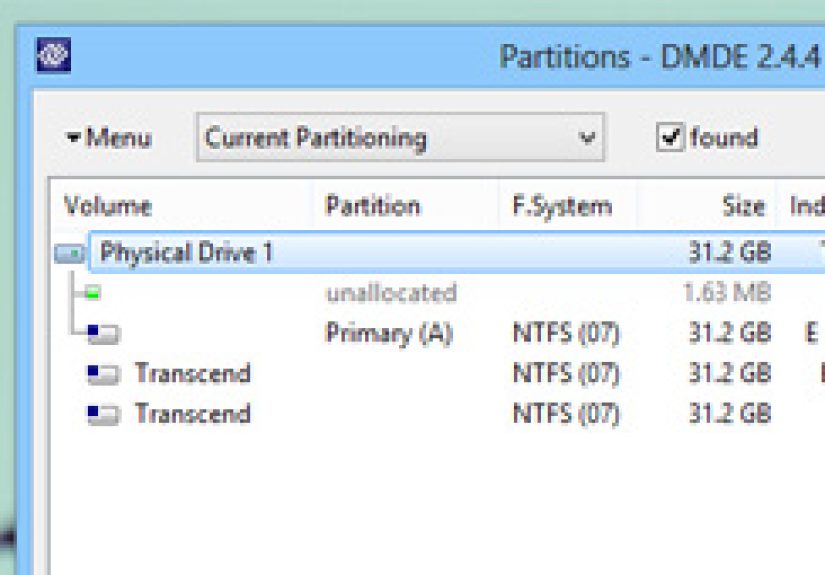
If the partition still appears and the file system damage seems minor, a quicker volume scan may be enough. If the partition is gone or badly damaged, a full scan is more appropriate. DMDE can search for lost volumes, rebuild virtual directory structures, and fall back to raw signatures when needed.
Step 4: Preview and verify before celebrating
Finding filenames is not the same as recovering working files. Preview what you can. Check photos, documents, and media samples. Make sure the files open correctly before you assume victory and start telling everyone you are basically a digital surgeon now.
Step 5: Recover to a different storage device
Always restore recovered files to another drive, not the source. Writing recovered data back to the same disk is like trying to rescue a book from a flooded basement by throwing it into a different puddle in the same basement.
When DMDE Is a Great Choice
- You deleted files from an HDD, USB drive, or memory card and acted quickly.
- You need to inspect a damaged partition or volume rather than just run a one-click scan.
- You want to test recovery without immediately paying for a license.
- You are comfortable with technical tools and want more control.
- You need help with partition recovery, disk images, or RAID reconstruction.
When You Should Skip DIY and Call a Pro
- The drive makes clicking, grinding, or beeping noises.
- The device is not detected consistently in BIOS or the operating system.
- The data is business-critical, legal, financial, or emotionally irreplaceable.
- The drive was dropped, overheated, water-damaged, or electrically damaged.
- You are tempted to try six random repair commands you found in a forum thread from 2013.
DMDE is excellent for logical recovery cases. It is not a substitute for a cleanroom. If the issue is physical, every DIY attempt can lower the odds and increase the bill later.
DMDE vs. Simpler Recovery Tools
Compared with beginner-focused recovery software, DMDE usually offers more depth, more disk-level visibility, and more advanced storage features. In exchange, it asks for more attention from the user. That trade-off is the whole story.
If you want a guided consumer experience, there are easier tools. If you want to see what the drive is doing, inspect lost partitions, work with clones, and recover data with more manual control, DMDE stands out. It is the software equivalent of a solid workshop tool set: not flashy, not foolproof, but very capable in skilled hands.
Common Mistakes That Ruin Recovery Chances
Installing recovery software on the damaged drive
This can overwrite the very files you are trying to save. Use another drive or, better yet, a portable setup where possible.
Running repair utilities too early
Commands that “fix” file system problems can also modify metadata, remove damaged entries, or make later recovery harder. If the data matters, recover first and repair later.
Assuming one bad scan means the game is over
Different scan methods can reveal different results. A quick scan may miss what a full scan finds. File system reconstruction may preserve names where raw recovery cannot. Patience pays.
Confusing logical failure with physical failure
Recovery software is for logical problems: deletion, corruption, formatting, partition loss. If the drive itself is dying, software is only part of the story, and sometimes not the right part.
Real-World Experiences With DMDE
One of the most common experiences people have with DMDE is surprise. Not because the software is impossible to use, but because it does not behave like a typical “consumer recovery” app. You launch it expecting giant friendly buttons and a cartoon life raft. Instead, you get a utility that feels like it assumes you came prepared with coffee, caution, and at least mild curiosity about how storage works.
That first impression can be intimidating. But for many users, the second impression is the one that sticks. Once they realize DMDE can actually show partitions, volumes, recoverable files, and low-level structures in a meaningful way, the software starts to make sense. It feels less like guesswork and more like investigation.
A typical positive experience goes like this: someone deletes files from an external hard drive, tries one simple recovery app, gets messy results, and then opens DMDE. Suddenly the original folder names start appearing, or a missing partition becomes visible again, or a volume that seemed gone is clearly still there. That is the moment DMDE tends to earn trust.
Another frequent experience is learning the difference between “found” and “usable.” DMDE may show filenames, previews, or fragments that look promising, but careful users quickly discover that recovery is not about finding pretty lists. It is about opening the recovered files and confirming they still work. In that sense, DMDE teaches good habits. It encourages testing, checking, and verifying instead of celebrating too early.
Users also often report that DMDE feels especially rewarding when they slow down. The people who get the best results are usually the ones who stop using the affected drive immediately, scan methodically, recover to another disk, and avoid reckless write operations. In other words, DMDE works best when the user resists the universal temptation to panic-click.
There is also a very real “this tool is powerful, so respect it” experience. Features like partition editing, disk access, and deeper storage analysis are useful, but they are not toys. Many users come away appreciating that DMDE gives them real control, while also realizing that real control comes with real responsibility. That is not a bug. That is the entire value proposition.
Perhaps the most honest summary of the DMDE experience is this: when it matches the problem and the user approaches it carefully, it can feel brilliant. When the drive is physically failing, the SSD has already trimmed deleted blocks, or the user expects magic instead of method, it can feel humbling. In that way, DMDE is less like a miracle cure and more like a very sharp instrument. In the right hands, it can do excellent work. In rushed hands, it mostly teaches respect.
Conclusion
DMDE is one of the most capable data recovery tools for users who want more than a basic undelete app. Its strengths include broad file system support, partition recovery, virtual file system reconstruction, cloning tools, RAID features, and a free version that is generous enough to test real recovery scenarios. Its weaknesses are just as clear: the interface can feel technical, the free edition has meaningful limits, and SSD recovery is often constrained by the storage technology itself.
If you want a serious recovery utility with depth, DMDE deserves a place on your shortlist. Use it carefully, work from copies when possible, recover to another drive, and remember the most important lesson in data recovery: the first smart move is usually to stop doing things.