Table of Contents >> Show >> Hide
- Why Add Emoji to Your Twitter Bio or Tweets?
- Before You Start: A Few Twitter Bio and Tweet Basics
- How to Add Emoji to a Twitter Bio on Desktop
- How to Add Emoji to Tweets on Desktop
- How to Add Emoji to a Twitter Bio on Mobile
- How to Add Emoji to Tweets on Mobile
- What If the Emoji Keyboard Does Not Show Up?
- Why Your Bio Might Not Save After Adding Emoji
- Tips for Using Emoji Without Making Your Profile Look Messy
- Examples of Smart Emoji Use in Tweets
- Desktop vs. Mobile: Which Is Better for Adding Emoji?
- Real-World Experiences With Adding Emoji to Twitter Bio or Tweets
- Final Thoughts
Note: Twitter is now officially called X, but plenty of people still say “Twitter,” and honestly, the internet is not ready to let that go. This guide uses both terms so you can find what you need fast.
If your Twitter bio looks a little too serious, or your tweets feel like they showed up to the party wearing beige, emoji can help. A well-placed sparkles emoji, coffee cup, rocket, or tiny screaming face can make your profile more readable, more personal, and a lot less robotic. The trick is knowing how to add emoji on desktop and mobile without turning your bio into a cluttered sticker drawer.
The good news: adding emoji to Twitter bios and tweets is easy on both desktop and mobile. The even better news: you do not need a shady third-party emoji generator, a secret browser extension, or wizard-level keyboard skills. You mostly just need your built-in keyboard tools, a little taste, and perhaps the self-control not to use twelve fire emojis in a row.
Why Add Emoji to Your Twitter Bio or Tweets?
Emoji are not just decoration. On social media, they act like tiny signposts. They can break up text, emphasize your tone, highlight a call to action, or give readers a quick snapshot of your personality or brand. In a short bio, that matters a lot.
For example, a creator might use:
- 🎙️ Podcast host
- 📍 Austin, TX
- ☕ Powered by espresso and deadlines
A small business might use emoji to make its bio easier to scan:
- 🛍️ Handmade gifts
- 🚚 Ships nationwide
- 👇 New collection below
And in tweets, emoji can soften a message, add humor, or draw attention to a key point. Used well, they make content feel more human. Used poorly, they make your post look like a toddler found your phone. Balance is everything.
Before You Start: A Few Twitter Bio and Tweet Basics
Your Twitter bio is short, so every character matters. That means emoji can be helpful because they add visual meaning in a tiny space. But they still take up room, so it is smart to use them strategically instead of sprinkling them around like digital confetti.
Also, if you are posting a standard tweet, keep your overall character count in mind. If you are editing a bio, keep it clean, readable, and aligned with the way you want people to remember you. Emoji should support your message, not hijack it.
Best Practices Before You Add Emoji
- Use emoji to improve readability, not to replace every other word.
- Stick to a few relevant emoji that match your personality, niche, or brand.
- Make sure your bio still reads clearly without the emoji.
- Test how it looks on mobile and desktop if possible.
- Avoid random symbols that make your profile feel cluttered or hard to scan.
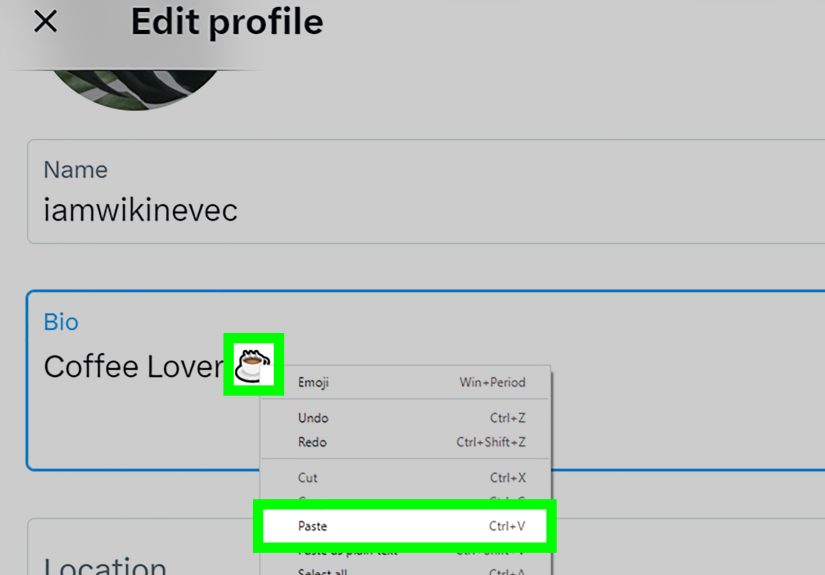
How to Add Emoji to a Twitter Bio on Desktop
If you are using X on a desktop or laptop, the easiest method is usually your computer’s built-in emoji picker. Once you know the shortcut, it becomes one of those “where has this been all my life?” features.
Step-by-Step on Desktop
- Open X.com in your browser and sign in.
- Go to your Profile.
- Click Edit profile.
- Click inside the Bio field where you want the emoji to appear.
- Open your device’s emoji picker.
- Select the emoji you want.
- Click Save.
Desktop Emoji Shortcuts by Device
Windows: Press Windows key + . (period). You can also use Windows key + ; on many systems. This opens the emoji panel so you can browse or search.
Mac: Press Control + Command + Space. On some Macs, Fn + E also opens the Character Viewer. Then choose your emoji and insert it into the bio field.
If you are the copy-and-paste type, that works too. But the built-in picker is usually faster, cleaner, and less likely to send you wandering through sketchy emoji sites you did not mean to visit in the first place.
Desktop Example Bio Ideas
- ✍️ Freelance writer | Books, coffee, and deadlines
- 📈 SEO nerd helping brands rank smarter
- 🎮 Streaming nightly | 😂 bad jokes included
- 🌱 Gardening tips, plant wins, and occasional plant drama
How to Add Emoji to Tweets on Desktop
Adding emoji to tweets on desktop works almost exactly the same way. The only difference is that instead of editing your profile, you are typing in the post composer.
Steps to Add Emoji to Tweets on Desktop
- Log in to X on your web browser.
- Click the Post or compose box.
- Type your tweet.
- Place your cursor where you want the emoji.
- Open the emoji picker on your computer.
- Choose the emoji you want to insert.
- Finish your tweet and click Post.
This method works especially well if you want to add one emoji at the beginning for emphasis, one in the middle for tone, or one at the end to keep the tweet feeling conversational. Think of emoji as seasoning. A little? Delicious. Half the jar? Regret.
How to Add Emoji to a Twitter Bio on Mobile
On mobile, the process is even easier because your phone keyboard already has an emoji button built in. Whether you use iPhone or Android, you can edit your profile, tap the bio field, and insert emoji directly from the keyboard.
Steps on iPhone or Android
- Open the X app.
- Go to your Profile.
- Tap Edit profile.
- Tap inside the Bio area.
- Open your emoji keyboard.
- Tap the emoji you want to add.
- Tap Save.
On iPhone
Tap the emoji key on your keyboard. If you do not see it, go to your iPhone settings and add the Emoji keyboard. Once it is enabled, you can switch between the standard keyboard and emoji keyboard any time you are typing inside the X app.
On Android
Most Android phones use Gboard or another keyboard with a built-in emoji key. Tap the smiley face icon, choose your emoji, and insert it into your bio. Depending on your keyboard, you may also be able to search for emoji by name, which is very helpful when you know the vibe but not the category. Looking for a star? Search “star.” Looking for chaos? Search “melting face.”
How to Add Emoji to Tweets on Mobile
If you can type a regular tweet on your phone, you can add emoji to it in seconds. This is the easiest way for most users because the emoji keyboard is right there on-screen.
Steps to Add Emoji to Tweets on Mobile
- Open the X app.
- Tap the compose or Post button.
- Type your tweet.
- Tap the emoji key on your keyboard.
- Select one or more emoji.
- Review the tweet for spacing, tone, and readability.
- Tap Post.
That is it. No hacks. No hidden ritual. No tiny goblin living in the settings menu.
What If the Emoji Keyboard Does Not Show Up?
This is a common issue, especially if you rarely use emoji or recently switched devices.
Fixes for iPhone
- Open Settings.
- Tap General.
- Tap Keyboard.
- Tap Keyboards.
- Tap Add New Keyboard.
- Select Emoji.
Fixes for Android
- Make sure your keyboard app is updated.
- Open any app with a text field and check whether your keyboard shows an emoji icon.
- If you use Gboard, tap the emoji button or review keyboard preferences if it seems missing.
- Restart your device if the keyboard is acting weird. Sometimes your phone just needs a nap.
Fixes for Desktop
- Double-check the keyboard shortcut for your operating system.
- Click directly into the text field before opening the emoji picker.
- Update your browser or app if X is not responding correctly.
- Try another browser if the page seems glitchy.
Why Your Bio Might Not Save After Adding Emoji
If your updated bio refuses to save, the emoji may not be the actual problem. The issue is often one of these:
- Your bio is too long.
- You added a suspicious or blocked URL.
- You used a fake verification check mark symbol in the name or bio.
- The app or browser needs updating.
So if you paste in a shiny new bio and X says “absolutely not,” trim it down, remove anything questionable, and try again. The platform can be picky, and not always in a charming way.
Tips for Using Emoji Without Making Your Profile Look Messy
1. Choose Emoji That Match Your Niche
If you are a travel creator, a plane or map pin makes sense. If you are a food account, think tacos, coffee, or chef-related icons. If you are a finance account, maybe keep the clown emoji use to a strategic minimum.
2. Use Emoji as Visual Separators
Emoji can replace plain punctuation or vertical bars in a bio. For example:
SEO Consultant ✦ Content Strategist ✦ Coffee Loyalist
3. Keep It Readable
One emoji per phrase is usually enough. If your bio looks like a slot machine, readers may skip it.
4. Let Tone Guide the Choice
A smiling emoji, sparkles, or a rocket can make a tweet feel upbeat. A warning sign or siren can create urgency. Pick emoji that support the mood of your message instead of fighting it.
5. Remember Accessibility and Clarity
Emoji are fun, but too many can make text harder to scan. Clear writing still wins. Think of emoji as backup dancers, not the lead singer.
Examples of Smart Emoji Use in Tweets
- Announcement: New blog is live 🎉 Here is the step-by-step guide you asked for.
- Promotion: Last 24 hours to grab the deal ⏰
- Personal update: Running on coffee and optimism today ☕
- Educational post: Three SEO mistakes hurting your rankings 👇
Notice the pattern? One or two emoji, placed with intention, and the text still does the heavy lifting.
Desktop vs. Mobile: Which Is Better for Adding Emoji?
Mobile is generally faster because the emoji button is built right into the keyboard. It is ideal for quick tweets, easy bio edits, and casual posting.
Desktop is better when you are refining your bio, planning a longer thread, or trying to keep formatting neat. It also helps if you want to search emoji by keyword using the system picker.
In other words, mobile wins for speed, desktop wins for control, and both win over manually searching “red heart emoji copy paste” for the fiftieth time.
Real-World Experiences With Adding Emoji to Twitter Bio or Tweets
People usually discover the power of emoji on Twitter in one of two ways. Either they see a profile that looks polished, friendly, and instantly clear, or they stare at their own bio and realize it reads like a tax form. That is often the turning point.
One common experience is that adding just one or two emoji suddenly makes a bio easier to scan. A freelance writer might add a pencil emoji before “writer,” a marketer might add a chart emoji before “SEO,” and a travel blogger might use a plane or map pin. Nothing dramatic happens, but the profile starts feeling more intentional. It is the online equivalent of putting on a jacket that actually fits.
Another very real experience is overdoing it the first time. Plenty of users start with great intentions and end up with a bio that looks like a birthday card from a hyperactive raccoon. Hearts, stars, flames, lightning bolts, coffee cups, microphones, cameras, rockets, confetti, and somehow a cactus. Then comes the inevitable editing phase, where they delete half of it and discover that restraint was the real secret all along.
On desktop, the experience is usually: “Wait, there is an emoji shortcut built into my computer?” Once people learn the Windows or Mac shortcut, they tend to use it everywhere, not just on X. Suddenly emoji are appearing in emails, notes, Slack messages, and probably one aggressively cheerful spreadsheet title. Desktop users also appreciate how easy it is to search for emoji by name instead of scrolling forever looking for the exact tiny symbol they want.
On mobile, the experience is smoother but sometimes messier. It is faster to add emoji to tweets from a phone, but it is also easier to toss in too many without noticing how crowded the post looks. A tweet that felt cute in the moment can start to feel like it was written during a sugar rush. That is why many people draft quickly on mobile, then give the post one last calm read before posting.
Brand accounts often have the most practical experience with emoji. They learn quickly that the right emoji can improve readability, highlight an offer, or make a call to action feel less stiff. But they also learn that emoji have to match the brand voice. A law office using ten party emojis might feel odd. A bakery using a cupcake and sparkles? Much more believable.
The funniest part is how small the change can be. One emoji in the right place can make a profile feel warmer, clearer, and more memorable. So yes, emoji are tiny. But in a Twitter bio or tweet, tiny things can do a surprising amount of work.
Final Thoughts
If you want to add emoji to your Twitter bio or tweets, the process is simple on both desktop and mobile. On desktop, use your computer’s built-in emoji picker. On mobile, use the emoji button on your phone keyboard. Then focus on the part that actually matters: choosing emoji that support your message instead of smothering it.
The best Twitter emoji strategy is not “more.” It is “smarter.” A few well-placed emoji can make your bio easier to scan, your tweets more expressive, and your whole profile a little more alive. Which is impressive for something the size of a keyboard crumb.